kfconcept

KENTFAITH
K&F Concept    Blog >

Enjoy Your Selected Digital Life

Recently Viewed
  • Recently Viewed
  • Recently Viewed list is empty.

Compare (0) 0
  • Compare
  • You have not chosen any products to compare.

  • Compare
Currency: USD
  • Currency
Shop by Scene Shop by Rank

Log Into Your Account

Account

Order History

Wish List

Login

Forgotten Password?

Or connect with

Register Account

Already have an Account?Log In

  • Shopping Cart
  • Your shopping cart is empty!

  • Register/Login to purchase, earn points
  • Favorite
  • Your wish list is empty.

  • Register/Login to like, earn points
  • Activities
  • Guide
    • Filter Guide
    • Lens Adapter
    • Product Review
  • News & Reviews
    • Camera Reviews
    • Sample Gallery
    • News
  • Tutorials
    • Solar eclipse photography
    • Photography Basics
    • Landscape Photography
  • Inspiration
    • Travel
    • Travel Stories
  • Home
  • Blog
  • How To Use Smart Watch Series 8?

How To Use Smart Watch Series 8?

Kentfaith 2024-09-11 01:13:28 0 Comments

The Apple Watch Series 8 is a powerful and versatile device that can significantly enhance your daily life. Whether you're a fitness enthusiast, a busy professional, or someone who simply wants to stay connected, the Apple Watch Series 8 has something to offer. In this article, we'll explore the various features of the Apple Watch Series 8 and provide a comprehensive guide on how to use it effectively.

Getting Started with Apple Watch Series 8

Unboxing and Setup
how to use smart watch series 8 2

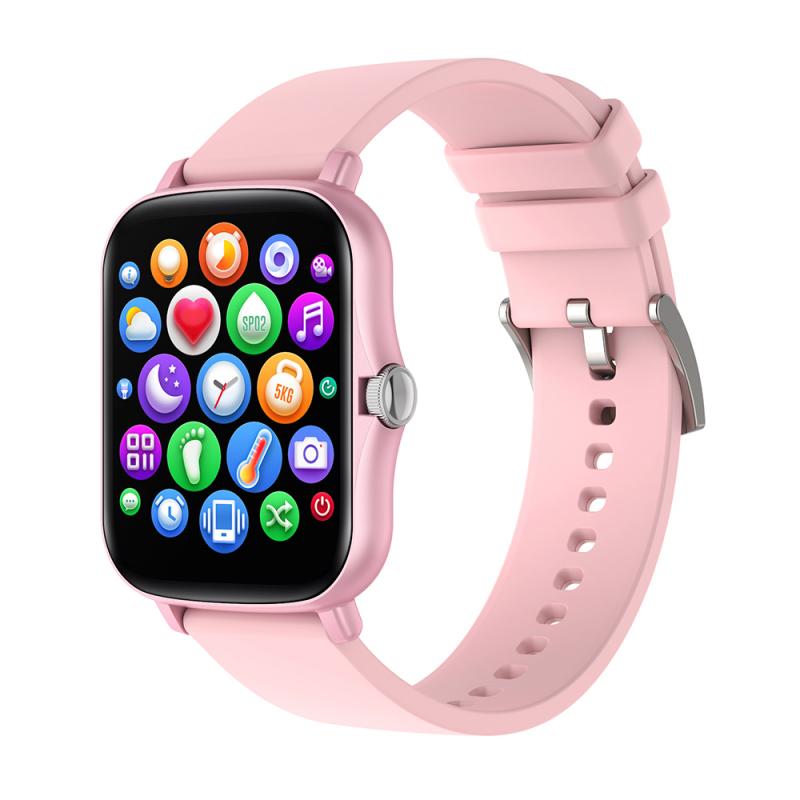
When you first unbox your Apple Watch Series 8, you'll find the watch itself, a charging cable, and a user manual. To set up your watch, follow these steps:

1. Charge Your Watch: Connect the charging cable to a power source and attach the magnetic charger to the back of your watch. Allow it to charge fully before proceeding with the setup.

2. Pair with Your iPhone: Turn on your Apple Watch by pressing and holding the side button. Open the Apple Watch app on your iPhone and follow the on-screen instructions to pair your devices.

3. Customize Settings: During the setup process, you'll be prompted to customize various settings, such as language, wrist preference, and passcode. Take your time to configure these settings according to your preferences.

Navigating the Apple Watch Series 8
how to use smart watch series 8 3

Understanding the Interface

how to use smart watch series 8 4

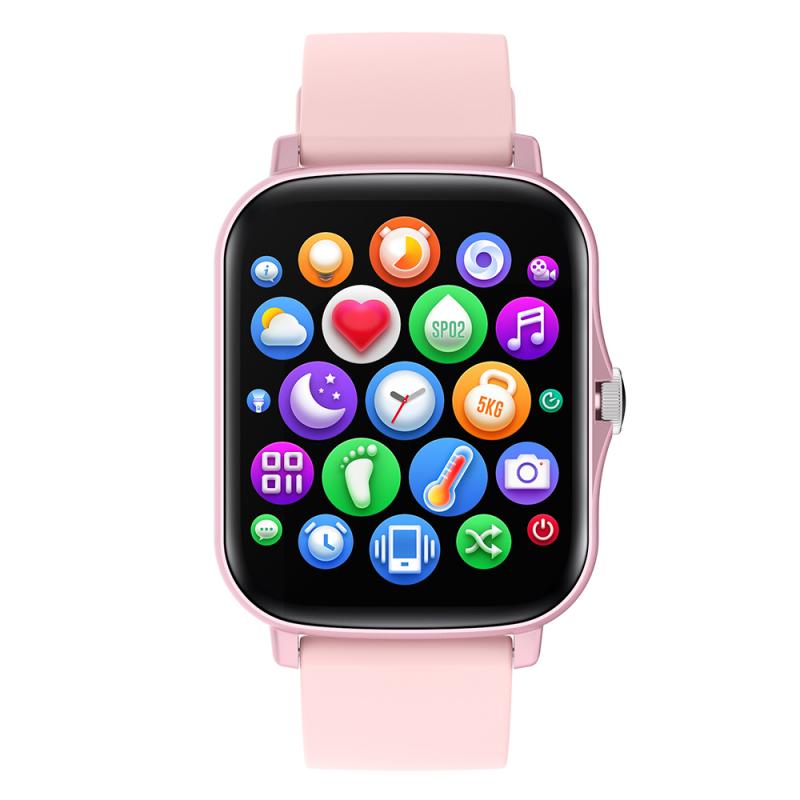
The Apple Watch Series 8 features a user-friendly interface that consists of the following key elements:

- Watch Face: The main screen of your Apple Watch, which displays the time and other customizable complications (widgets).

- Dock: Accessed by pressing the side button, the Dock allows you to quickly switch between your most recently used apps.

- Control Center: Swipe up from the bottom of the watch face to access the Control Center, where you can manage settings like Wi-Fi, Do Not Disturb, and battery life.

- Notifications: Swipe down from the top of the watch face to view your notifications.

Using the Digital Crown and Side Button

The Digital Crown and side button are essential for navigating your Apple Watch:

- Digital Crown: Rotate the Digital Crown to scroll through lists, zoom in and out, and adjust settings. Press the Digital Crown to return to the watch face or access the app screen.

- Side Button: Press the side button to open the Dock, double-click to access Apple Pay, and press and hold to turn off the watch or access emergency services.

Customizing Your Apple Watch

Changing Watch Faces

One of the most enjoyable aspects of the Apple Watch is the ability to customize your watch face. To change your watch face:

1. Press and Hold: Press and hold the current watch face until it zooms out.

2. Swipe Left or Right: Swipe left or right to browse through available watch faces.

3. Customize: Tap "Customize" to adjust the complications and colors of the selected watch face.

4. Add New Faces: Swipe all the way to the right and tap the "+" icon to add new watch faces from the gallery.

Installing and Managing Apps

The Apple Watch Series 8 supports a wide range of apps that can enhance its functionality. To install and manage apps:

1. Open the App Store: Access the App Store directly from your watch or through the Apple Watch app on your iPhone.

2. Browse and Install: Browse through available apps and tap "Get" to install them on your watch.

3. Manage Apps: Use the Apple Watch app on your iPhone to rearrange, uninstall, or update apps.

Health and Fitness Features

Tracking Your Activity

The Apple Watch Series 8 is equipped with advanced sensors that can track your daily activity, including steps, distance, and calories burned. To make the most of these features:

1. Open the Activity App: Access the Activity app from the app screen.

2. Set Goals: Set daily goals for Move, Exercise, and Stand rings.

3. Monitor Progress: Check your progress throughout the day and receive notifications to stay motivated.

Using the Workout App

The Workout app offers a variety of workout types, from running and cycling to yoga and swimming. To start a workout:

1. Open the Workout App: Access the Workout app from the app screen.

2. Select a Workout: Choose the type of workout you want to start.

3. Start and Monitor: Tap "Start" to begin your workout and monitor your stats in real-time.

Health Monitoring

The Apple Watch Series 8 includes several health monitoring features, such as heart rate tracking, ECG, and blood oxygen monitoring. To use these features:

1. Heart Rate: Open the Heart Rate app to check your current heart rate and view historical data.

2. ECG: Use the ECG app to take an electrocardiogram by placing your finger on the Digital Crown.

3. Blood Oxygen: Open the Blood Oxygen app to measure your blood oxygen levels.

Staying Connected

Receiving and Responding to Notifications

The Apple Watch Series 8 allows you to receive and respond to notifications directly from your wrist. To manage notifications:

1. Customize Notifications: Use the Apple Watch app on your iPhone to customize which notifications you receive on your watch.

2. Respond to Messages: Use quick replies, voice dictation, or Scribble to respond to messages.

3. Manage Notifications: Swipe down from the top of the watch face to view and manage your notifications.

Making and Receiving Calls

With the Apple Watch Series 8, you can make and receive calls without needing to take out your iPhone. To use this feature:

1. Answer Calls: Tap the green phone icon on the incoming call screen to answer a call.

2. Make Calls: Use the Phone app on your watch to dial a number or select a contact.

Using Siri

Siri is your personal assistant on the Apple Watch Series 8. To use Siri:

1. Activate Siri: Raise your wrist and say "Hey Siri," or press and hold the Digital Crown.

2. Ask Questions: Ask Siri to set reminders, send messages, get directions, and more.

Advanced Features

Apple Pay

Apple Pay allows you to make secure payments directly from your Apple Watch. To set up and use Apple Pay:

1. Add Cards: Open the Wallet app on your iPhone and add your credit or debit cards.

2. Make Payments: Double-click the side button on your watch and hold it near the payment terminal.

Music and Podcasts

Enjoy your favorite music and podcasts on the go with the Apple Watch Series 8. To listen to music and podcasts:

1. Sync Music: Use the Apple Watch app on your iPhone to sync playlists and albums to your watch.

2. Play Music: Open the Music app on your watch to play synced music or stream from Apple Music.

3. Listen to Podcasts: Use the Podcasts app to listen to your favorite shows.

Troubleshooting and Maintenance

Common Issues and Solutions

If you encounter any issues with your Apple Watch Series 8, try the following solutions:

1. Restart Your Watch: Press and hold the side button until the power off slider appears, then slide to turn off. Press and hold the side button again to turn it back on.

2. Update Software: Ensure your watch is running the latest software by checking for updates in the Apple Watch app on your iPhone.

3. Reset Settings: If problems persist, consider resetting your watch to factory settings through the Apple Watch app.

Maintaining Your Apple Watch

To keep your Apple Watch Series 8 in optimal condition:

1. Clean Regularly: Wipe the watch and band with a soft, lint-free cloth.

2. Avoid Extreme Conditions: Keep your watch away from extreme temperatures and moisture.

3. Check Battery Health: Monitor your battery health in the Settings app and replace the battery if necessary.

The Apple Watch Series 8 is a feature-rich device that can enhance various aspects of your life, from health and fitness to staying connected and productive. By understanding and utilizing its many features, you can make the most of your Apple Watch and enjoy a seamless and integrated experience. Whether you're new to the Apple Watch or upgrading from a previous
Leave your comment
Cancel reply
Note: HTML is not translated!
Related products
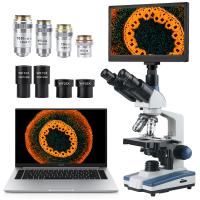
Compound Microscope with 9" Smart Screen, 5W Koehler Lighting, 40x-1600x Magnification PC Connection for Lab, Professionals Use Kentfaith
HOT Seller
Compound Microscope with 9" Smart Screen, 5W Koehler Lighting, 40x-1600x Magnification PC Connection for Lab, Professionals Use Kentfaith
17
$799.99 $639.99
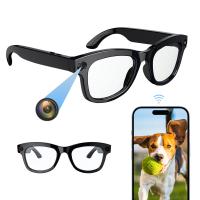
Smart Camera Glasses, HD 1080P, EIS Stabilization, WiFi Connect, Translation, 4H Playtime, Kentfaith
16
$119.99 $95.99
Gift Certificate: $200 Value - Can Use with Any Discounts
$200.00 $190.00
Gift Certificate: $300 Value  - Can Use with Any Discounts
Gift Certificate: $300 Value - Can Use with Any Discounts
$300.00 $285.00
Gift Certificate: $1000 Value  - Can Use with Any Discounts
Gift Certificate: $1000 Value - Can Use with Any Discounts
$1,000.00 $950.00
Gift Certificate: $500 Value  -Can Use with Any Discounts
Gift Certificate: $500 Value -Can Use with Any Discounts
$500.00 $475.00
Gift Certificate: $800 Value - Can Use with Any Discounts
$800.00 $760.00
Compound Microscope with 11.6-inch Smart Screen, 40X-2500X Magnification, PC Connection, Plan Optical System, Mechanical Stage, Kentfaith
$1,324.99 $1,059.99
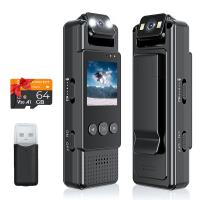
Mini WiFi Body Camera 1080P with Audio, 180° Rotatable Lens, 2 LED Fill Lights & Smart Motion Detection & 64G Memory Card
13
$74.99 $62.99
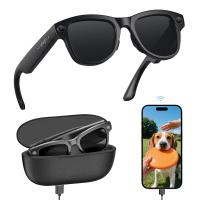
Smart Glasses with Camera, 8MP Sony Sensor, Capture 30MP Photos & 1080P Videos, With 3600mAh Charging Case, Clear Music & Calls, Kentfaith
16
$174.99 $139.99
Products You May Like
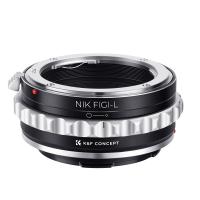
NIK(G)-L Manual Focus Compatible with Nikon F (G-Type) Lens to L Mount Camera Body Lens Mount Adapter
81
$62.99 $38.99
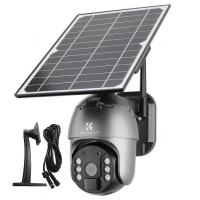
4G Solar Security Camera System Wireless LTE cctv Solar Camera PIR Motion Detection 2-Way Audio Built-in Battery 10400mAh 2K Infrared Night Vision 20m/65.6ft AU Version + Stand + 2m Extension Cable
118
$219.99 $161.99
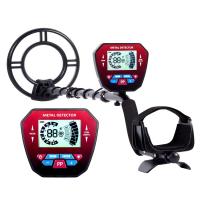
Professional Metal Detector, With Larger LCD Display, Waterproof, With 10 Inch Detection Disk, 5 Detection Modes
16
$309.99 $123.99
55MM, Nano-X, Japan Optical Glass ND32-CPL, ultra-clear, coated with waterproof, scratch-resistant and anti-reflection green film
$53.99 $34.99
82mm CPL Filter True Color Circular Polarizers Filter with 28 Multi-Layer Coatings for Camera Lens Nano-Xcel Series
46
$74.99 $59.99
DJI Mavic 3 Classic ND2-32 Lens Filter (1-5 Stop), 28 Multi-Coated Variable Neutral Density Filter
27
$22.99
77mm MCUV+CPL+ND1000+Adapter Ring Magnetic 4 in 1 Lens Filter Kit Waterproof Scratch-Resistant Anti-Reflection with Filter Pouch
45
$156.99 $124.99
58mm Black Diffusion Mist 1/4 & Variable ND2-32 2-in-1 Filter Cinematic Effect Neutral Density Filter for Camera Lens with 18 Multi-Layer Coatings - Nano-Klear Series
NEW Arrival
58mm Black Diffusion Mist 1/4 & Variable ND2-32 2-in-1 Filter Cinematic Effect Neutral Density Filter for Camera Lens with 18 Multi-Layer Coatings - Nano-Klear Series
35
$57.99 $42.99
82mm Snap-On Center Pinch Lens Cap 5 in 1 with Anti-Loss Keeper Leash Compatible with Nikon, Canon, Sony, Fujifilm Camera Lenses
$17.99 $8.99
100mm Handheld Kaleidoscope Filter, Semicircular Special Effects Filter with 3pcs Vacuum Cleaning Cloths Nano-B Series
14
$49.99 $36.99
Related articles
How To Connect Mobile Smart Watch?
How To Set Smart Watch Clock?
How To Setup Your Smart Watch?
How To Set Smart Band Watch?
How To Measure Smart Watch Size?
How To Charge Smart Tracker Watch?
How To Reset Your Smart Watch?
How To Find Your Smart Watch?
When To Buy Smart Watch?
How To Use A 3 Stop Nd Filter?
Blog You May Like
How To Check Filter Size Camera Lense?
What Mount For Digital Slr?
When To Buy Smart Watch?
Can You Turn The Microphone Off On Iphone?
How To Screen Record Audio On Youtube?
Can You Use A Rangefinder On Water?
How To Change Your Voice On Screen Recording?
What Type Of Digital Camera To Buy?
What's Inside My Camera Bag?
What Type Of Mount Is Nikon D7100?
Related categories
black pro mist 1 8 filter​ black pro mist 1 8 filter C mount lens adapter m4/3 adapter Outdoor Security Camera Wifi Floodlight Camera Wireless camera feeder
Popular products
bluetooth smart sports watch hd screen smart watch smartwatch with touch screen smart watch for girls waterproof smart watch for swimming 3atm smart watch new waterproof smart watch smart watch in waterproof Full Touch Screen Smart Watch smart watch compatible with iphone
Related searches
Smart Watch For Note 8 Smart Watch For 8 Years Old Girl Smart Watch Connect To Iphone Smart Watch To Monitor Heart Extra Smart Watch Outdoor Smart Watch Advanced Smart Watch Black Smart Watch Rugged Smart Watch Smart Wrist Watch
Popular searches
Canon Rf To Leica M Adapter In Ear Headphones With Mic Galaxy S10 Camera Lens Filter Canon Ae 1 Adapter Eos Canon 28-80mm F 3.5-5.6 Ef Mount Lens Gel Filter Holder At Rear Of Lens Fuji X100 Lens Mount 95mm Circular Polarizer Lensbaby Tilt Focus Lens Pl Mount Nintendo Switch Headset With Microphone
Blog Category
  • Activities
  • Guide
    • Filter Guide
    • Lens Adapter
    • Product Review
  • News & Reviews
    • Camera Reviews
    • Sample Gallery
    • News
  • Tutorials
    • Solar eclipse photography
    • Photography Basics
    • Landscape Photography
  • Inspiration
    • Travel
    • Travel Stories
Search Article
Latest from the Blog
How To Buy A Security Camera System?
How To Remove Memory Card From Nikon Camera?
How Does a WiFi Trail Camera Work?
Which Bluetooth Earphones?
How To Fix The Straps On A Camera?
Which Camera Is Best For Low Light Photography?
Where Can I Buy Samsung Camera Battery?
How To Make Your Eyes Flash On Camera?
UV Filter: Everything You Need to Know About UV Protection Lens Filters
What is A Variable ND Filter? The Complete Guide to Mastering Exposure Control
  • Easy Payment Multilple Payment Options

  • Free Shipping Global WareHouse Shipment

  • No Risk 30-Day No Reason Return

  • Limited Deals Buy More, Save More

  • Tax Free No any surcharges or tax fee

Information
  • About us
  • Contact Us
  • Site Map
  • Blog
  • Video
  • Gallery
  • VIP Membership Rewards
Service
  • Privacy Policy
  • Terms & Conditions
  • Shipping & Delivery
  • Payment Info
  • Warranty, Return & Refund
  • Intellectual Property Rights
  • Ambassador
  • Affiliates
  • Wholesale
Support
  • My account
  • Order History
  • FAQs
  • Extend Warranty
  • Logistics Tracking
Follow us
NewsLetter

Get the latest product, K&F Concept respects your privacy.

Powered By KENTFAITH © 2026