kfconcept

KENTFAITH
K&F Concept    Blog >

Enjoy Your Selected Digital Life

Recently Viewed
  • Recently Viewed
  • Recently Viewed list is empty.

Compare (0) 0
  • Compare
  • You have not chosen any products to compare.

  • Compare
Currency: USD
  • Currency
Shop by Scene Shop by Rank

Log Into Your Account

Account

Order History

Wish List

Login

Forgotten Password?

Or connect with

Register Account

Already have an Account?Log In

  • Shopping Cart
  • Your shopping cart is empty!

  • Register/Login to purchase, earn points
  • Favorite
  • Your wish list is empty.

  • Register/Login to like, earn points
  • Activities
  • Guide
    • Filter Guide
    • Lens Adapter
    • Product Review
  • News & Reviews
    • Camera Reviews
    • Sample Gallery
    • News
  • Tutorials
    • Solar eclipse photography
    • Photography Basics
    • Landscape Photography
  • Inspiration
    • Travel
    • Travel Stories
  • Home
  • Blog
  • How To Test Webcam Windows 7?

How To Test Webcam Windows 7?

Kentfaith 2024-08-07 01:05:21 1 Comment

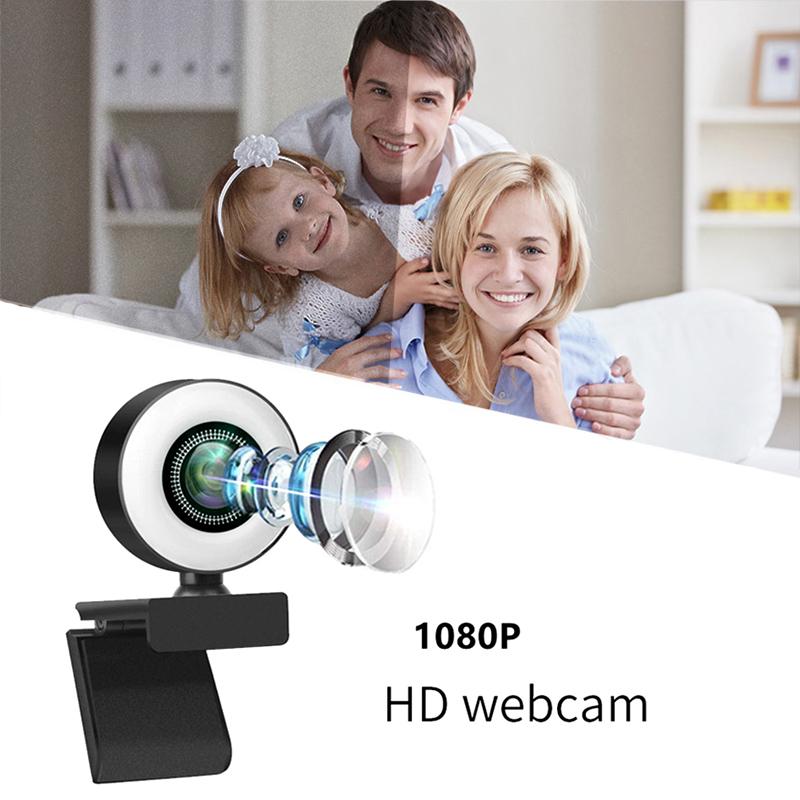
Testing a webcam on Windows 7 can be a straightforward process if you follow the right steps. Whether you are preparing for a video conference, recording a video, or simply ensuring that your webcam is functioning correctly, this guide will walk you through the necessary steps to test your webcam on a Windows 7 system.

Step-by-Step Guide to Testing Your Webcam on Windows 7
how to test webcam windows 7 1

1. Check Webcam Connection

Before diving into software solutions, ensure that your webcam is properly connected to your computer. If you are using an external webcam, make sure it is securely plugged into a USB port. For built-in webcams, ensure that your laptop's hardware is functioning correctly.

2. Install Webcam Drivers

Webcam drivers are essential for the proper functioning of your device. If your webcam is not working, it might be due to missing or outdated drivers. Here’s how to check and update your drivers:

- Open Device Manager: Click on the Start menu, type "Device Manager" in the search box, and press Enter.

- Locate Your Webcam: In the Device Manager window, look for "Imaging Devices" and expand the list. Your webcam should be listed there.

- Update Drivers: Right-click on your webcam and select "Update Driver Software." Follow the on-screen instructions to search for and install the latest drivers.

3. Use the Windows Camera App

Windows 7 does not come with a built-in camera app like Windows 10, but you can use third-party software or the pre-installed applications that came with your webcam. Here’s how to use some common options:

- Third-Party Software: Many webcams come with their own software. Install the software from the CD that came with your webcam or download it from the manufacturer’s website.

- Skype: If you have Skype installed, you can use it to test your webcam. Open Skype, go to Tools > Options > Video Settings. You should see a live feed from your webcam if it is working correctly.

4. Online Webcam Test Tools

There are several online tools available that can help you test your webcam. These tools are easy to use and do not require any installation. Here’s how to use them:

- Visit a Webcam Test Website: Open your web browser and go to a webcam test website such as webcamtests.com or testmycam.net.

- Allow Access: The website will ask for permission to access your webcam. Click "Allow" to proceed.

- Check the Feed: If your webcam is working, you should see a live feed on the screen. These tools often provide additional information about your webcam, such as resolution and frame rate.

5. Troubleshooting Common Issues

If your webcam is not working, here are some common issues and their solutions:

- Webcam Not Detected: Ensure that your webcam is properly connected and that the drivers are installed. Try plugging the webcam into a different USB port.

- Black Screen: This could be due to a software conflict. Close any other applications that might be using the webcam and try again.

- Poor Image Quality: Adjust the lighting in your room and clean the webcam lens. You can also check the settings in the webcam software to adjust the resolution and other parameters.

6. Using Built-in Diagnostics

Some laptops come with built-in diagnostic tools that can help you test your webcam. Here’s how to access them:

- Dell: For Dell laptops, you can use the Dell Webcam Central software. Open the software and follow the on-screen instructions to test your webcam.

- HP: HP laptops often come with HP MediaSmart Webcam software. Open the software and use the test feature to check your webcam.

7. Testing with Other Applications

You can also test your webcam with other applications that use video input. Here are a few examples:

- Zoom: Open Zoom, go to Settings > Video. You should see a live feed from your webcam.

- Google Meet: Open Google Meet in your web browser, start a new meeting, and check if your webcam feed is visible.

Testing your webcam on Windows 7 involves a few straightforward steps, from checking the connection and updating drivers to using third-party software and online tools. By following this guide, you can ensure that your webcam is functioning correctly and be prepared for any video calls or recordings you need to make. If you encounter any issues, the troubleshooting tips provided should help you resolve them quickly.

Remember, keeping your drivers up to date and ensuring that your webcam is clean and properly connected are key to maintaining good webcam performance. Whether you are using your webcam for professional meetings, online classes, or personal use, these steps will help you get the most out of your device.
Leave your comment
Cancel reply
Note: HTML is not translated!
Related products
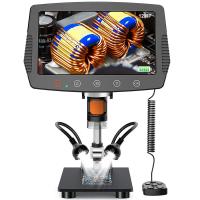
DM9 7" LCD Digital Microscope 10X-1200X, 1080P Coin Microscope with 12MP Camera Sensor Work with Windows/Mac OS
118
$149.99 $121.99
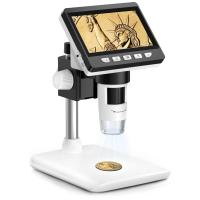
4.3" LCD Screen Digital Coin Microscope, 50X-1000X Magnification, Work with Windows/Mac iOS
24
$107.99 $88.99
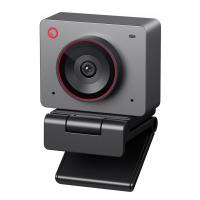
OBSBOT Tiny 2 Webcam 4K Voice Control PTZ, AI Tracking Multi-Mode & Auto Focus, Web Camera with 1/1.5" Sensor, Gesture Control, 60 FPS, HDR Light Correction, Webcam for PC, Streaming, Meeting
$374.99 $299.99
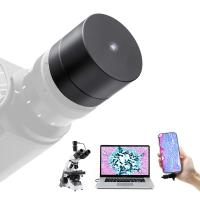
Digital Camera for Microscopes 5 Megapixel Color CMOS for Windows Mac OS Android Phones Kentfaith
12
$99.99 $79.99
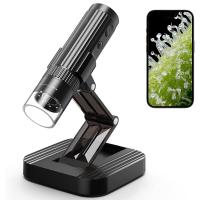
Wireless WiFi Microscope with Foldable Stand, 50X-1000X Magnification, Work with iPhone, iPad, Android, Mac, Windows
11
$47.99
Digital Microscope with 9" LCD Screen, 1000X Magnification Coin Microscope with 12MP Camera for Adults, Work with Windows/Mac OS
45
$215.99 $167.99
OBSBOT 4K 60 FPS Webcam for PC with 1/2" Sensor AI Framing & Autofocus Dual Mics Beauty Mode
$174.99 $139.99
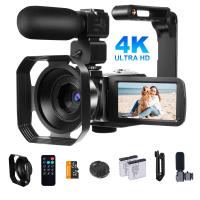
Video Camcorder with 4K 30FPS Videos, 80MP Photos, 13MP Sony CMOS, 11PCS Accessories, Night Vision, Webcam Mode, Kentfaith
12
$162.49 $129.99
2m HD Wireless WiFi Endoscope with 8 Adjustable Led Lights, Support Photo and Video Recording, for Android and Ios Smartphones, Windows Tablets
49
$25.99
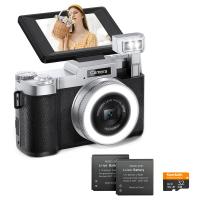
4K 64MP Digital Camera for Photography, Flash + Lens Fill Light, Auto Focus, Webcam, 180° Flip Screen, for Vlogging, Youtube, Traveling, Kentfaith
15
$112.49 $89.99
Products You May Like
67mm Black Mist 1/4 & ND2-400 Variable ND Filter with Double-sided 28-layer Anti-reflection Green Film and Lever Nano-Xcel Series
30
$112.99 $80.99
55mm Magnetic CPL Filter + Magnetic Basic Ring Kit Waterproof Scratch Resistant with 28 Multi-Coatings for Camera Lens (Nano-Xcel Series)
29
$57.99 $45.99
WiFi Security Camera with 15X Hybrid Zoom, Triple Lens, 6MP, Dual Views, Solar Powered, 360° Live View, Color Night Vision, Kentfaith
14
$187.49 $149.99
62mm 6-Point Fine-Line Star Effect Filter, Cine & Dreamlike Special Filter 18-Layer Coated Optical Glass with 3 Vacuum Cleaning Cloths - Nano-Klear Series
4
$37.99 $22.52
4G Security Camera with 4K Clarity, 180° Panoramic View with Dual Lens, Solar Powered, 360° Live View, Color Night Vision, 2 Packs,  Kentfaith
4G Security Camera with 4K Clarity, 180° Panoramic View with Dual Lens, Solar Powered, 360° Live View, Color Night Vision, 2 Packs, Kentfaith
$674.99 $539.99
39mm MCUV Protection Filter with 28 Multi-Layer Coatings HD/Hydrophobic/Scratch Resistant/Ultra-Slim UV Filter Nano-Xcel Series
14
$33.99 $19.99
K&F CONCEPT CPL Filter Compatible with DJI Osmo Nano Standard Combo, Mini Camera Circular Polarizer Polarizing Camera Lens Filter, Multi-Coated HD Optical Glass
NEW Arrival
K&F CONCEPT CPL Filter Compatible with DJI Osmo Nano Standard Combo, Mini Camera Circular Polarizer Polarizing Camera Lens Filter, Multi-Coated HD Optical Glass
$19.99
Beschoi Leica 28 mm/90 mm M39 Lens to Leica M Camera Body K&F Concept Lens Mount Adapter
$29.99 $27.99
T Mobile Compatible Trail Camera
10
$162.99 $106.99
WiFi Security Camera with 6MP,  Dual Lens, Solar Powered, 360° Live View, Color Night Vision Kentfaith
WiFi Security Camera with 6MP, Dual Lens, Solar Powered, 360° Live View, Color Night Vision Kentfaith
16
$168.74 $134.99
Related articles
How To Find Camera On Laptop Windows 7?
How To Test The Microphone?
Where To Take Drone Test?
How To Test Sd Card Speed On Android?
How To Format Sd Card In Windows?
How To Fix Microphone On Windows 11?
How To Access Sd Card Windows 10?
Where To Place Webcam?
How To Zoom In Logitech Webcam ?
How To Record Videos Without Sound?
Blog You May Like
How To Connect 2 Bluetooth Headphones To Laptop Windows 10 ?
What Is High Dynamic Filter Camera?
How Does A Smart Watch Read Blood Pressure?
Camera Settings When Using Flash?
Can I Use Alexa As A Microphone?
Camera Strap Can Hold?
How To Clean A Camera Bag?
How To Find Camera Sd Card On Mac?
Can You Have Cameras In Your House?
How Does A Simple Lens Camera Work?
Related categories
C mount lens adapter m4/3 adapter Lens filter Cap Live Ring Light Camera Parts | Studio Camera Accessories mini camera tripod neutral density filters black pro mist 1 filter
Popular products
soldering microscope with camera and led LCD Digital Microscope webcam for video recording live streaming video webcam webcam with microphone for pc external webcam for laptop usb webcam for streaming webcam with built in microphone best webcam conference room wireless conference room webcam
Related searches
Commlite Adapter Nikon Test Nikon Ft1 Adapter Test Nikon M42 Adapter Test Windows 10 Wireless Adapter For Sonio Vaio Lens Rentals Uv Filter Test Blue Light Filter Lens Test Canon Eos M Adapter Test Sony La-ea4 Adapter Test Iphone 7 Microphone Mamiya 7 Lens To Sony E Adapter
Popular searches
Canon Ef-rf Control Ring Adapter Moment O-series Lens Mount For Iphone 107-010 Lens Polarizer Vs Uv Filter Minolta Xg2 Lens Mount Tripod Without Head T2 T Mount Lens Square Filters Photography F 0.9 Best Lens E Mount Electronic Telescope Eyepiece Dual Sim Adapter Sony Xperia Z2
Blog Category
  • Activities
  • Guide
    • Filter Guide
    • Lens Adapter
    • Product Review
  • News & Reviews
    • Camera Reviews
    • Sample Gallery
    • News
  • Tutorials
    • Solar eclipse photography
    • Photography Basics
    • Landscape Photography
  • Inspiration
    • Travel
    • Travel Stories
Search Article
Latest from the Blog
What Does Tripod?
How To Remove Memory Card From Nikon Camera?
What is A Variable ND Filter? The Complete Guide to Mastering Exposure Control
What Is The Best Wireless Outdoor Security Camera?
How To Find Camera Roll On Iphone 5s?
How Much Storage For Security Camera?
Can I Charge Camera Battery With Power Bank?
Dash Cam That Can Connect To Phone?
Can You Save Facebook Videos To Camera Roll?
How To Put Sd Card In Camera?
  • Easy Payment Multilple Payment Options

  • Free Shipping Global WareHouse Shipment

  • No Risk 30-Day No Reason Return

  • Limited Deals Buy More, Save More

  • Tax Free No any surcharges or tax fee

Information
  • About us
  • Contact Us
  • Site Map
  • Blog
  • Video
  • Gallery
  • VIP Membership Rewards
Service
  • Privacy Policy
  • Terms & Conditions
  • Shipping & Delivery
  • Payment Info
  • Warranty, Return & Refund
  • Intellectual Property Rights
  • Ambassador
  • Affiliates
  • Wholesale
Support
  • My account
  • Order History
  • FAQs
  • Extend Warranty
  • Logistics Tracking
Follow us
NewsLetter

Get the latest product, K&F Concept respects your privacy.

Powered By KENTFAITH © 2025