kfconcept

KENTFAITH
K&F Concept    Blog >

Enjoy Your Selected Digital Life

Recently Viewed
  • Recently Viewed
  • Recently Viewed list is empty.

Compare (0) 0
  • Compare
  • You have not chosen any products to compare.

  • Compare
Currency: USD
  • Currency
Shop by Scene Shop by Rank

Log Into Your Account

Account

Order History

Wish List

Login

Forgotten Password?

Or connect with

Register Account

Already have an Account?Log In

  • Shopping Cart
  • Your shopping cart is empty!

  • Register/Login to purchase, earn points
  • Favorite
  • Your wish list is empty.

  • Register/Login to like, earn points
  • Activities
  • Guide
    • Filter Guide
    • Lens Adapter
    • Product Review
  • News & Reviews
    • Camera Reviews
    • Sample Gallery
    • News
  • Tutorials
    • Solar eclipse photography
    • Photography Basics
    • Landscape Photography
  • Inspiration
    • Travel
    • Travel Stories
  • Home
  • Blog
  • How To Record Phone Screen With Sound?

How To Record Phone Screen With Sound?

Kentfaith 2024-08-22 01:11:22 0 Comments

Recording your phone screen with sound has become an essential skill for many users, whether for creating tutorials, capturing gameplay, or saving video calls. With the increasing demand for this functionality, both Android and iOS devices have made significant strides in providing built-in solutions and third-party applications to meet user needs. This article will guide you through the various methods available to record your phone screen with sound, ensuring you can capture high-quality videos effortlessly.

Built-in Screen Recording Features
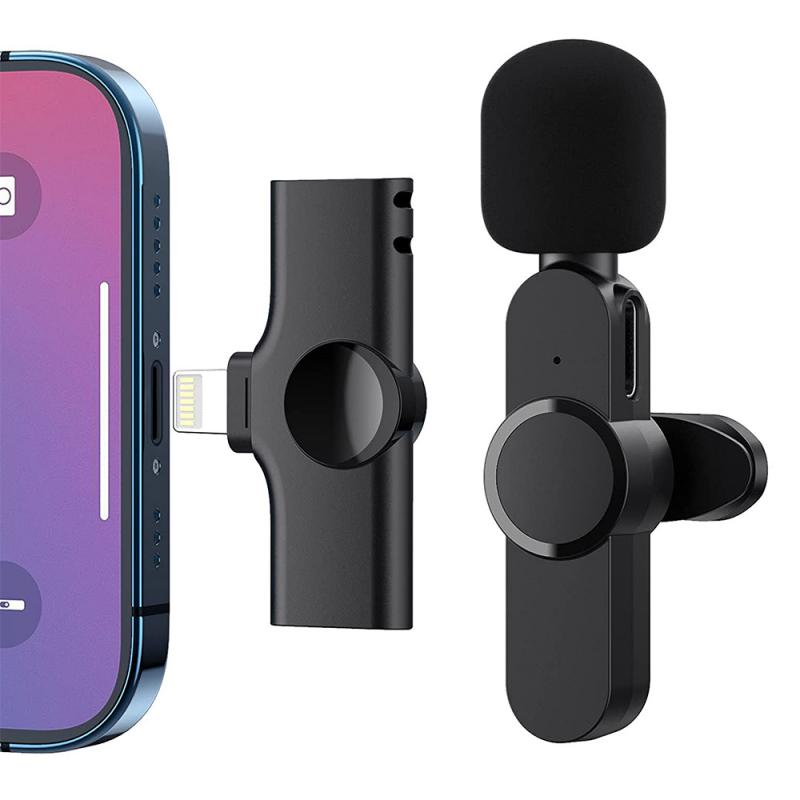
how to record phone screen with sound 1

iOS Devices

how to record phone screen with sound 2

Apple has integrated a screen recording feature directly into iOS, making it incredibly convenient for iPhone and iPad users. Here’s how you can use it:

1. Enable Screen Recording:

- Go to `Settings` > `Control Center` > `Customize Controls`.

- Add `Screen Recording` to your Control Center.

2. Start Recording:

- Open the Control Center by swiping down from the top-right corner of the screen (iPhone X and later) or swiping up from the bottom (iPhone 8 and earlier).

- Tap the `Screen Recording` button (a circle within a circle).

- To record with sound, press and hold the `Screen Recording` button, then tap the `Microphone Audio` button to turn it on.

- Tap `Start Recording`, and a three-second countdown will begin.

3. Stop Recording:

- Open the Control Center and tap the `Screen Recording` button again, or tap the red status bar at the top of your screen and select `Stop`.

The recorded video will be saved to your Photos app, where you can edit and share it as needed.

Android Devices
how to record phone screen with sound 3

Many Android devices also come with built-in screen recording features, though the exact steps may vary depending on the manufacturer and Android version. Here’s a general guide:

1. Access Screen Recording:

- Swipe down from the top of the screen to open the Quick Settings panel.

- Look for the `Screen Recorder` icon. If it’s not visible, you may need to edit your Quick Settings to add it.

2. Start Recording:

- Tap the `Screen Recorder` icon.

- Choose your sound settings. You can typically select between recording with no sound, media sounds, or media sounds and microphone.

- Tap `Start` to begin recording. A countdown will usually appear.

3. Stop Recording:

- Swipe down to access the Quick Settings panel again and tap the `Screen Recorder` icon, or tap the stop button in the notification bar.

The video will be saved to your device’s gallery or a designated folder in your file manager.

Third-Party Screen Recording Apps
how to record phone screen with sound 4

If your device doesn’t have a built-in screen recording feature, or if you need more advanced options, several third-party apps can help. Here are some popular choices:

AZ Screen Recorder (Android)

AZ Screen Recorder is a highly-rated app that offers a range of features, including screen recording with sound, live streaming, and video editing.

1. Install and Set Up:

- Download AZ Screen Recorder from the Google Play Store.

- Open the app and grant the necessary permissions.

2. Start Recording:

- Tap the overlay icon to access the recording controls.

- Tap the `Record` button. You can choose to record with internal audio, microphone, or both.

- A countdown will begin, and the recording will start.

3. Stop Recording:

- Swipe down to access the notification panel and tap the stop button, or use the overlay controls.

The recorded video will be saved in the app’s gallery, where you can edit and share it.

DU Recorder (iOS and Android)

DU Recorder is another versatile app available for both iOS and Android devices. It offers screen recording, live streaming, and video editing features.

1. Install and Set Up:

- Download DU Recorder from the App Store or Google Play Store.

- Open the app and grant the necessary permissions.

2. Start Recording:

- Tap the `Record` button. You can choose to record with internal audio, microphone, or both.

- A countdown will begin, and the recording will start.

3. Stop Recording:

- Swipe down to access the notification panel and tap the stop button, or use the overlay controls.

The recorded video will be saved in the app’s gallery, where you can edit and share it.

Tips for High-Quality Screen Recording

To ensure your screen recordings are of the highest quality, consider the following tips:

1. Stable Environment: Record in a quiet environment to minimize background noise if you’re using the microphone.

2. High Resolution: Set your screen resolution to the highest possible setting for clearer videos.

3. Sufficient Storage: Ensure you have enough storage space on your device to avoid interruptions.

4. Close Unnecessary Apps: Close any apps you’re not using to prevent notifications and improve performance.

5. Test Before Recording: Do a test recording to check audio levels and video quality.

Troubleshooting Common Issues

Despite the advancements in screen recording technology, you may encounter some common issues. Here’s how to address them:

1. No Sound:

- Ensure the microphone is enabled in the screen recording settings.

- Check that your device’s volume is turned up.

- Restart your device and try again.

2. Poor Video Quality:

- Increase the screen resolution in your device settings.

- Ensure good lighting if you’re recording in a dim environment.

- Use a stable internet connection if recording online content.

3. App Crashes:

- Update the screen recording app to the latest version.

- Clear the app’s cache and data.

- Restart your device and try again.

Recording your phone screen with sound is a valuable skill that can enhance your ability to create content, share information, and document important interactions. Whether you use built-in features or third-party apps, the methods outlined in this article will help you achieve high-quality recordings with ease. By following the tips and troubleshooting advice provided, you can ensure a smooth and successful screen recording experience. Happy recording!

Leave your comment
Cancel reply
Note: HTML is not translated!
Related products
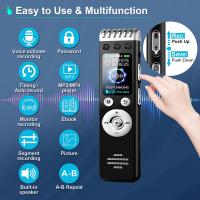
128G Mini Digital Voice Recorder with Color Screen Bluetooth Call Record 3072kbps Kentfaith
15
$119.99 $83.99
Mini Sound Recorder 128GB 1600H Recording Capacity with 1.4" Screen, Voice Activated Mode Kentfaith
12
$99.99 $79.99
Over Ear Headphones 7.1 Surround Sound Gaming Headset Works with PC, PS4 PRO, Xbox One S, Cell Phone SOMIC Active Noise Canceling with Mic HI-FI USB Jack Game Earphones
23
$65.99
67mm Clip-on CPL Phone Camera Lens Filter Kit Applicable to All Mobile Phone Models
24
$18.99
Mini Voice Recorder, Sound-activated & Magnetic, 128GB 1600H Capacity with AI Noise Cancelling Kentfaith
13
$94.99 $53.99
67mm Clip-on ND2-32 Phone Camera Lens Filter Kit Applicable to All Mobile Phone Models
24
$37.99
67mm Clip-on Black Mist 1/4 Phone Camera Lens Filter Kit Applicable to All Mobile Phone Models
24
$29.99
Children’s Entry-Level Metal Detector, High Sensitivity, With LCD Display and Sound Indication, Suitable for Beginners
144
$64.49 $50.99
52mm Clip-on CPL Phone Camera Lens Filter Kit, Circular Polarizer Polarizing Filter Applicable to All Mobile Phone Models
24
$16.99
5K Video Camera with 75MP Photos, 8X Optical Zoom, WiFi Transfer, Wireless Mic, Dual Batteries, Support PIP Record, Kentfaith
16
$274.99 $239.99
Products You May Like
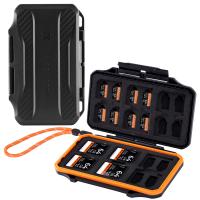
K&F Concept 36 Slots SD Micro SD Memory Card Case, Water-Resistant SD Card Holder, Anti-Shock Card Carrying Storage Box for 24 Micro SD SDXC SDHC TF Cards and 12 SD SDXC SDHC Cards
$18.99 $9.99
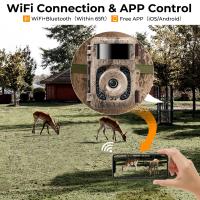
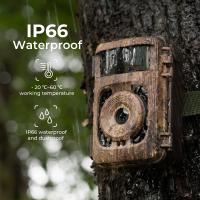
High Quality Trail Camera
10
$162.99 $106.99
55mm Magnetic Variable ND8-ND128(3-7 Stop) Lens Filters + Magnetic Filter Basic Ring Kit with 28 Multi-Layer Nano-Xcel Series (Compatible with 58mm magnetic cap)
8
$84.99 $67.99
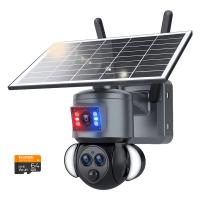
WiFi Security Camera with 15X Hybrid Zoom, Triple Lens, 6MP, Dual Views, Solar Powered, 360° Live View, Color Night Vision, Kentfaith
14
$187.49 $149.99
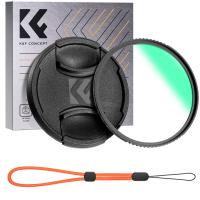
37mm MCUV Lens Protection Filter with Lens Cap Optical Glass Ultra Slim 18 Multi-Layer Coatings Nano-Klear Series
$8.99
58mm Magnetic Variable ND8-ND128(3-7 Stop) Lens Filters + Magnetic Filter Basic Ring Kit with 28 Multi-Layer Nano-Xcel Series (Compatible with 62mm magnetic cap)
8
$84.99 $67.99
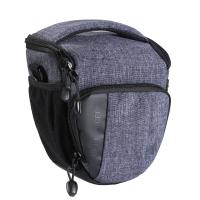
DSLR Camera Cases Bag Grey 7.09*3.94*6.49 inches
17
$34.99
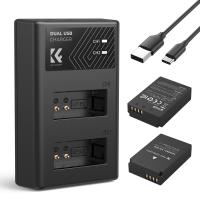
LP-E12 Battery and Charger Set with Dual Slot Charger for Canon M2, M200, M50, M100, M10, 100D
86
$25.99
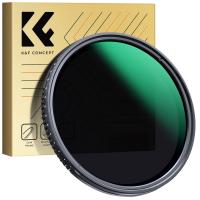
55mm ND2-ND400 Variable Filter (1-9 Stop), 24 Layers of Nano-coating, K&F Concept Nano-Dazzle Series
27
$53.99 $42.99
Quality Trail Cameras
10
$162.99 $106.99
Related articles
How To Put Screen Record With Sound?
How To Record Video On Screen With Sound?
How Do You Get Sound With Screen Record?
Can I Record My Phone Screen With Audio?
How To Screen Record Including Sound?
How To Screen Record Internal Sound?
How To Do Screen Recording With Sound?
Does Screen Record Include Sound?
How To Record Screen With System Audio?
How To Do Voice Recording On Macbook Air?
Blog You May Like
Camera Flash How It Works?
What Is The Best Budget Action Camera?
Can You Connect Bluetooth Earbuds To A Tv?
360 Degree Video Camera How Does It Work?
How To See Plant Cells With A Microscope?
Does The Ring Camera Still Record Without Wifi ?
How To Choose Filter Size For Lens?
White Mist Filter: When and When Not To Use One
How To Turn On Screen Record Audio?
Binoculars Which Are Best?
Related categories
trail camera with screen cell phone tripods phone camera lens iphone lens filter C mount lens adapter m4/3 adapter
Popular products
Mini Digital Voice Recorder​ digital voice recorder with usb video recording camera for youtube sony camera with microphone noise canceling in ear headphones Bluetooth Earbuds With Noise Cancellation Polarize Filter For Mobile Phone ai voice recorder device clip on phone camera lens entry level metal detector
Related searches
Best Microphones To Record Vocals Record Wifi Camera Telescope With Screen Binoculars With Screen Microscope With Screen Headphones With Surround Sound Sound System With Microphone Wifi Camera With Sound Video Recorder With Sound Cameras That Record Audio
Popular searches
Magnification Power Of Compound Microscope Gh5 Ef Lens Mount Motion Activated Security Camera Collapsible Camera Bag Sony Active Shoe Adapter Ulanzi Dof Adapter With Sony E Mount Smart Watch & Fitness Tracker Step Up Rings Camera Tripod With Light Wireless Security Cameras System
Blog Category
  • Activities
  • Guide
    • Filter Guide
    • Lens Adapter
    • Product Review
  • News & Reviews
    • Camera Reviews
    • Sample Gallery
    • News
  • Tutorials
    • Solar eclipse photography
    • Photography Basics
    • Landscape Photography
  • Inspiration
    • Travel
    • Travel Stories
Search Article
Latest from the Blog
How Much Storage For Security Camera?
What Power Binoculars For Long Distance Viewing?
How Do Trail Cameras Work? The Ultimate Guide to Trail Cameras
What Does A Uv Camera Filter Do?
Dash Cam That Can Connect To Phone?
What Does Tripod?
How To Stream Live From Surveillance Camera?
What Is Nd Filter On Video Camera?
Neutral Density Filter: The Ultimate Guide for Photographers and Videographers
What Tripod To Buy?
  • Easy Payment Multilple Payment Options

  • Free Shipping Global WareHouse Shipment

  • No Risk 30-Day No Reason Return

  • Limited Deals Buy More, Save More

  • Tax Free No any surcharges or tax fee

Information
  • About us
  • Contact Us
  • Site Map
  • Blog
  • Video
  • Gallery
  • VIP Membership Rewards
Service
  • Privacy Policy
  • Terms & Conditions
  • Shipping & Delivery
  • Payment Info
  • Warranty, Return & Refund
  • Intellectual Property Rights
  • Ambassador
  • Affiliates
  • Wholesale
Support
  • My account
  • Order History
  • FAQs
  • Extend Warranty
  • Logistics Tracking
Follow us
NewsLetter

Get the latest product, K&F Concept respects your privacy.

Powered By KENTFAITH © 2025