kfconcept

KENTFAITH
K&F Concept    Blog >

Enjoy Your Selected Digital Life

Recently Viewed
  • Recently Viewed
  • Recently Viewed list is empty.

Compare (0) 0
  • Compare
  • You have not chosen any products to compare.

  • Compare
Currency: USD
  • Currency
Shop by Scene Shop by Rank

Log Into Your Account

Account

Order History

Wish List

Login

Forgotten Password?

or connect with

Register Account

Already have an Account?Log In

  • Shopping Cart
  • Your shopping cart is empty!

  • Register/Login to purchase, earn points
  • Favorite
  • Your wish list is empty.

  • Register/Login to like, earn points
  • Activities
  • Guide
    • Filter Guide
    • Lens Adapter
    • Product Review
  • News & Reviews
    • Camera Reviews
    • Sample Gallery
    • News
  • Tutorials
    • Solar eclipse photography
    • Photography Basics
    • Landscape Photography
  • Inspiration
    • Travel
    • Travel Stories
  • Home
  • Blog
  • How To Record Game Audio And Voice?

How To Record Game Audio And Voice?

Kentfaith 2024-08-19 01:08:01 0 Comments

Recording game audio and voice simultaneously can be a bit tricky, but with the right tools and techniques, you can achieve high-quality results. Whether you're a gamer looking to share your gameplay with friends, a content creator aiming to produce engaging videos for your audience, or a professional streamer, understanding how to effectively record both game audio and voice is crucial. In this article, we will explore various methods and tools to help you achieve this goal.

Understanding the Basics
how to record game audio and voice 1

Before diving into the specifics, it's important to understand the basic components involved in recording game audio and voice:

1. Game Audio: This includes all the sounds generated by the game, such as background music, sound effects, and in-game dialogue.

2. Voice: This is your commentary or narration, typically captured through a microphone.

To record both simultaneously, you'll need software that can handle multiple audio inputs and outputs. Additionally, having a good quality microphone and a sound card can significantly improve the quality of your recordings.

Choosing the Right Software
how to record game audio and voice 2

There are several software options available for recording game audio and voice. Here are some of the most popular ones:

1. OBS Studio (Open Broadcaster Software): OBS Studio is a free and open-source software that is widely used by gamers and streamers. It allows you to capture both game audio and voice, and offers a range of customization options.

2. Audacity: While primarily an audio editing software, Audacity can also be used to record game audio and voice. It is free and open-source, making it a popular choice for many users.

3. NVIDIA ShadowPlay: If you have an NVIDIA graphics card, you can use ShadowPlay to record your gameplay and voice. It is easy to use and offers high-quality recordings.

4. Bandicam: Bandicam is a paid software that offers a range of features for recording game audio and voice. It is known for its high-quality recordings and user-friendly interface.

Setting Up Your Recording Environment

how to record game audio and voice 3

To achieve the best results, it's important to set up your recording environment properly. Here are some tips:

1. Choose a Quiet Location: Background noise can be distracting and reduce the quality of your recordings. Choose a quiet location to minimize unwanted sounds.

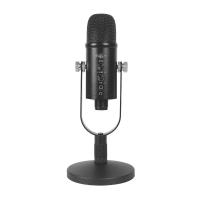
2. Use a Good Quality Microphone: A good quality microphone can make a significant difference in the clarity of your voice recordings. Consider investing in a USB or XLR microphone for better results.

3. Adjust Your Audio Settings: Make sure to adjust your audio settings to balance the game audio and your voice. You don't want one to overpower the other.

Recording with OBS Studio
how to record game audio and voice 4

OBS Studio is one of the most popular choices for recording game audio and voice. Here’s a step-by-step guide to help you get started:

1. Download and Install OBS Studio: You can download OBS Studio from the official website and follow the installation instructions.

2. Set Up Your Audio Sources: Open OBS Studio and go to the "Sources" section. Click on the "+" button and add "Audio Input Capture" for your microphone and "Audio Output Capture" for your game audio.

3. Adjust Audio Levels: Go to the "Mixer" section and adjust the audio levels for your microphone and game audio. Make sure they are balanced.

4. Start Recording: Click on the "Start Recording" button to begin capturing your game audio and voice. When you're done, click on "Stop Recording".

Recording with Audacity

While Audacity is primarily an audio editing tool, it can also be used to record game audio and voice. Here’s how:

1. Download and Install Audacity: You can download Audacity from the official website and follow the installation instructions.

2. Set Up Your Audio Devices: Open Audacity and go to the "Edit" menu. Select "Preferences" and then "Devices". Choose your microphone as the recording device and your speakers or headphones as the playback device.

3. Record Your Voice: Click on the "Record" button to start capturing your voice. You can use the "Pause" button if you need to take a break.

4. Record Game Audio: To record game audio, you can use a virtual audio cable or a similar tool to route the game audio into Audacity. Alternatively, you can use a secondary recording software to capture the game audio and then import it into Audacity for editing.

5. Edit and Export: Once you have recorded both your voice and game audio, you can use Audacity's editing tools to adjust the levels and remove any unwanted noise. When you're satisfied with the results, export the final recording.

Recording with NVIDIA ShadowPlay

If you have an NVIDIA graphics card, ShadowPlay is a convenient option for recording game audio and voice. Here’s how to use it:

1. Enable ShadowPlay: Open the NVIDIA GeForce Experience application and go to the "Settings" menu. Enable the "In-Game Overlay" option.

2. Set Up Your Audio Devices: Go to the "Audio" settings and choose your microphone as the input device. Make sure the game audio is set to be captured as well.

3. Start Recording: Press the "Alt + Z" keys to open the overlay and click on the "Record" button. You can also use the "Alt + F9" shortcut to start and stop recording.

4. Save and Edit: Once you have finished recording, the file will be saved to your designated folder. You can use video editing software to make any necessary adjustments.

Recording with Bandicam

Bandicam is a paid software that offers a range of features for recording game audio and voice. Here’s how to use it:

1. Download and Install Bandicam: You can download Bandicam from the official website and follow the installation instructions.

2. Set Up Your Audio Devices: Open Bandicam and go to the "Video" tab. Click on the "Settings" button and choose your microphone as the primary sound device and your speakers or headphones as the secondary sound device.

3. Adjust Audio Levels: Make sure to adjust the audio levels to balance the game audio and your voice.

4. Start Recording: Click on the "Record" button to start capturing your game audio and voice. When you're done, click on "Stop Recording".

5. Edit and Export: Bandicam offers basic editing tools, but you can also use third-party software for more advanced editing. Export the final recording when you're satisfied with the results.

Tips for High-Quality Recordings

To ensure high-quality recordings, keep the following tips in mind:

1. Use a Pop Filter: A pop filter can help reduce plosive sounds (such as "p" and "b" sounds) that can cause distortion in your voice recordings.

2. Monitor Your Audio Levels: Keep an eye on your audio levels to ensure they are not too high or too low. Clipping can cause distortion, while low levels can make it difficult to hear your voice.

3. Use Noise Reduction Tools: Many recording and editing software offer noise reduction tools to help remove background noise. Use these tools to improve the clarity of your recordings.

4. Practice Good Microphone Technique: Speak directly into the microphone and maintain a consistent distance to ensure clear and consistent audio quality.

Recording game audio and voice simultaneously can be a rewarding experience, whether you're creating content for YouTube, streaming on Twitch, or simply sharing your gameplay with friends. By choosing the right software, setting up your recording environment, and following best practices, you can achieve high-quality recordings that will engage and entertain your audience. With a bit of practice and experimentation, you'll be able to find the perfect setup that works for you. Happy recording!

Leave your comment
Cancel reply
Note: HTML is not translated!
Related products
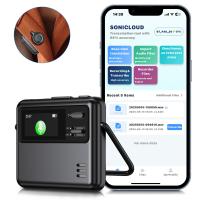
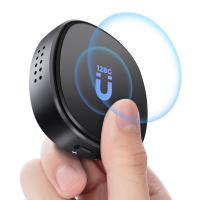
128G Mini Digital Voice Recorder with Color Screen Bluetooth Call Record 3072kbps Kentfaith
HOT Seller
128G Mini Digital Voice Recorder with Color Screen Bluetooth Call Record 3072kbps Kentfaith
15
$119.99 $83.99
Digital Voice Recorder with 64Gb Storage, 1536 kbps, Voice Activated & Line-in Record, 85H Battery Life, Stores 800 Hours of Recording, Kentfaith
$99.99 $79.99
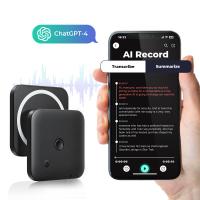
AI Voice Recorder Transcriber Summary Translation Audio Activated 128G Kentfaith
NEW Arrival
AI Voice Recorder Transcriber Summary Translation Audio Activated 128G Kentfaith
15
$99.99 $79.99
AI Voice Recorder Voice-to-Text & Transcription for Meetings, Calls, Interviews, 64G Kentfaith Mini & Magnetic
HOT Seller
AI Voice Recorder Voice-to-Text & Transcription for Meetings, Calls, Interviews, 64G Kentfaith Mini & Magnetic
26
$119.99 $69.99
Carrying Case with 8 Game Cards Slots, Portable Game Bag for Consoles & Accessories, Lightweight Sling Crossbody Bag Compatible with Nintendo Switch 2/Steam Deck OLED/PlayStation
$35.99
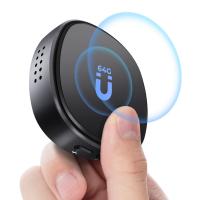
Mini Voice Recorder Magnetic & Voice-activated, 800H Recording with Noise Cancelling, Kentfaith Voice Recorder for Meetings, Lectures, Studying, Interviews 64G
TOP Best
Mini Voice Recorder Magnetic & Voice-activated, 800H Recording with Noise Cancelling, Kentfaith Voice Recorder for Meetings, Lectures, Studying, Interviews 64G
635
$69.99 $59.99
Mini Voice Recorder Magnetic & Voice-activated, 1600H Recording with Noise Cancelling, Kentfaith Voice Recorder for Meetings, Lectures, Studying, Interviews 128G
635
$82.49 $69.99
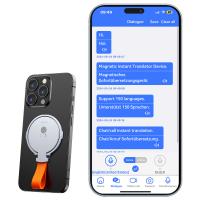
Instant Cross-APP Translator Device for Business & Trade, Video Call Translation, Record, & Transcription, Kentfaith AI Translator Devices
12
$124.99 $99.99
Mini Voice Recorder Voice-activated & Magnetic 64G 800 Hours Capacity Noise Cancelling
635
$69.99 $59.99
Mini Voice Recorder Voice-activated & Magnetic 128G 1600 Hours Capacity Noise Cancelling
635
$82.49 $69.99
Products You May Like
DJI Osmo Action 3 ND64 Filter with Single-sided Anti-reflection Green Film
21
$29.99 $15.99
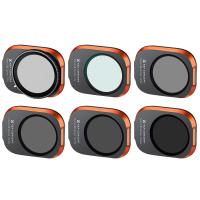
DJI Drone Filter Mini 3 Pro HD Filter 6pcs Set (UV+CPL+ND8+ND16+ND32+ND64) with 28 Layer Anti-reflection Green Coating, Waterproof and Scratchproof
121
$109.99 $69.99
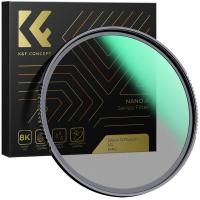
52mm  Black Mist Filter 1/4 Special Effects Filter Ultra-Clear Multi-layer Coated With Waterproof Scratch-Resistant and Anti-Reflection Nano-Xcel Series
52mm Black Mist Filter 1/4 Special Effects Filter Ultra-Clear Multi-layer Coated With Waterproof Scratch-Resistant and Anti-Reflection Nano-Xcel Series
95
$58.99 $46.99
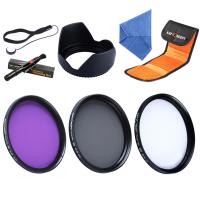
58mm Filter Set (UV, CPL, FLD)
8
$32.99 $17.99
Transmitting Trail Camera
10
$162.99 $106.99
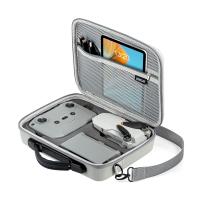
DJI Mavic Mini 2 SE Carrying Case, Portable Travel Bag for DJI Mini 2/Mini 2 SE Fly More Combo Drone Accessories
16
$37.49 $29.99
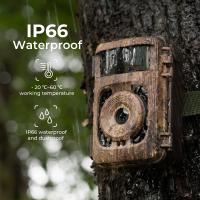
1080P 20MP Trail Camera with Night Vision 0.2S Trigger Motion Activated IP66 Waterproof
TOP Best
1080P 20MP Trail Camera with Night Vision 0.2S Trigger Motion Activated IP66 Waterproof
77
$119.99 $55.99
M42 Lenses to Canon EOS M Lens Mount Adapter K&F Concept M10141 Lens Adapter
4
$49.99 $27.99
82mm MC UV Protection Filter with 24 Multi-Layer Green Coatings HD/Hydrophobic/Scratch Resistant Ultra-Slim UV Filter Nano-Dazzle
77
$34.99 $27.69
55mm Black Mist 1/8 Filter Waterproof Mist Cinematic Effect Camera Lens Filter with 24 Multi-Coatings for Video/Vlog/Portrait Photography (Nano-Dazzle)
25
$43.99 $34.99
Related articles
How To Record Voice Audio On Mac?
How To Record Video And Voice On Pc?
How To Record Messenger Audio Call?
How To Record Facebook Audio Calls?
How To Record Discord Voice Calls?
How Record Audio On Pc?
Can Discord Record Audio?
How To Turn On Screen Record Audio?
How To Record Audio From A Video?
How To Enable Camera And Microphone On Instagram ?
Blog You May Like
How To Make Light Painting Video?
What Is The Best Camera To Record Videos?
Where Is The Depth Finder On A Boat?
How To Make A Chicken Coop Automatic Door?
How To Remove Sound From A Recorded Video?
How To Insert Sd Card Into Akaso Camera?
How To Find A Camera In Your Home?
Smart Watch That Can Take Blood Pressure?
What Is 4g Camera?
What Is 4g Camera?
Where To Get Camera Batteries?
Related categories
lens adapters camera and lens cleaning kit C mount lens adapter m4/3 adapter Fujifilm G Mount Adapter Solar Cellular Trail Camera magnetic variable ND filter tripod light stand
Popular products
Mini Digital Voice Recorder​ phone voice call recording microphone for pc gaming microphone for computer gaming game and trail cameras video recording camera for youtube mini sound recorder device mini magnetic voice recorder sony camera with microphone mini magnetic voice recorder
Related searches
Digital Voice Recorder Audio Audio Sound Voice Recorder Pen Mini Voice Activated Audio Recorder Voice Activated Audio Recorder Device Cheap Camera To Record Videos Best Camera To Record Time Lapse Voice Recorder And Music Player Mp3 Player And Voice Recorder Voice And Video Recorder Device Wireless Video And Audio Camera
Related Scenes
Best Video Camera To Record Sports Best Camera To Video Sports Best Camera To Capture Wildlife Best Trail Camera With Audio Best Wireless Security Camera With Audio Best Two Way Audio Security Camera Best Security Camera With 2 Way Audio Best Home Security Camera With 2 Way Audio Best Wireless Security Camera With Two Way Audio Best Camera And Drone Backpack
Blog Category
  • Activities
  • Guide
    • Filter Guide
    • Lens Adapter
    • Product Review
  • News & Reviews
    • Camera Reviews
    • Sample Gallery
    • News
  • Tutorials
    • Solar eclipse photography
    • Photography Basics
    • Landscape Photography
  • Inspiration
    • Travel
    • Travel Stories
Search Article
Latest from the Blog
Which Ring Light Is Best?
Can A Tripod Fit Any Camera?
What Size Screen For Projector?
What Bluetooth Headphones Work With Switch?
Can Trail Cameras Be Used For Home Security?
What Is The Zoom On Binoculars?
What Is The Best Smartwatch For A Woman?
Prime Day 2026 - K&F Concept 15th Anniversary Celebration
Can You Drive With Headphones?
How Fast Is A Camera Flash?
  • Easy Payment Multilple Payment Options

  • Free Shipping Global WareHouse Shipment

  • No Risk 30-Day No Reason Return

  • Limited Deals Buy More, Save More

  • Tax Free No any surcharges or tax fee

Information
  • About us
  • Contact Us
  • Site Map
  • Blog
  • Video
  • Gallery
  • VIP Membership Rewards
Service
  • Privacy Policy
  • Terms & Conditions
  • Shipping & Delivery
  • Payment Info
  • Warranty, Return & Refund
  • Intellectual Property Rights
  • Ambassador
  • Affiliates
  • Wholesale
Support
  • My account
  • Order History
  • FAQs
  • Extend Warranty
  • Logistics Tracking
Follow us
NewsLetter

Get the latest product, K&F Concept respects your privacy.

Powered By KENTFAITH © 2026