kfconcept

KENTFAITH
K&F Concept    Blog >

Enjoy Your Selected Digital Life

Recently Viewed
  • Recently Viewed
  • Recently Viewed list is empty.

Compare (0) 0
  • Compare
  • You have not chosen any products to compare.

  • Compare
Currency: USD
  • Currency
Shop by Scene Shop by Rank

Log Into Your Account

Account

Order History

Wish List

Login

Forgotten Password?

Or connect with

Register Account

Already have an Account?Log In

  • Shopping Cart
  • Your shopping cart is empty!

  • Register/Login to purchase, earn points
  • Favorite
  • Your wish list is empty.

  • Register/Login to like, earn points
  • Activities
  • Guide
    • Filter Guide
    • Lens Adapter
    • Product Review
  • News & Reviews
    • Camera Reviews
    • Sample Gallery
    • News
  • Tutorials
    • Solar eclipse photography
    • Photography Basics
    • Landscape Photography
  • Inspiration
    • Travel
    • Travel Stories
  • Home
  • Blog
  • How To Record Audio On Zoom For Podcast?

How To Record Audio On Zoom For Podcast?

Kentfaith 2024-09-11 01:16:54 0 Comments

Recording audio on Zoom for a podcast has become an increasingly popular method due to its convenience and the platform's robust features. Whether you're a seasoned podcaster or a beginner, understanding how to effectively use Zoom for your recordings can significantly enhance the quality of your podcast. This article will guide you through the process, from setting up your Zoom meeting to post-production tips, ensuring you get the best possible audio for your podcast.

Setting Up Your Zoom Meeting
how to record audio on zoom for podcast 1

Before you start recording, it's crucial to set up your Zoom meeting correctly. Here are the steps to follow:

1. Schedule Your Meeting: Open Zoom and schedule a new meeting. You can do this by clicking on the "Schedule" button on the home screen. Fill in the necessary details such as the meeting topic, date, and time.

2. Enable Recording: Ensure that the recording option is enabled. You can do this by going to the "Settings" menu, selecting "Recording," and then toggling the "Local Recording" option. This allows you to save the recording directly to your computer.

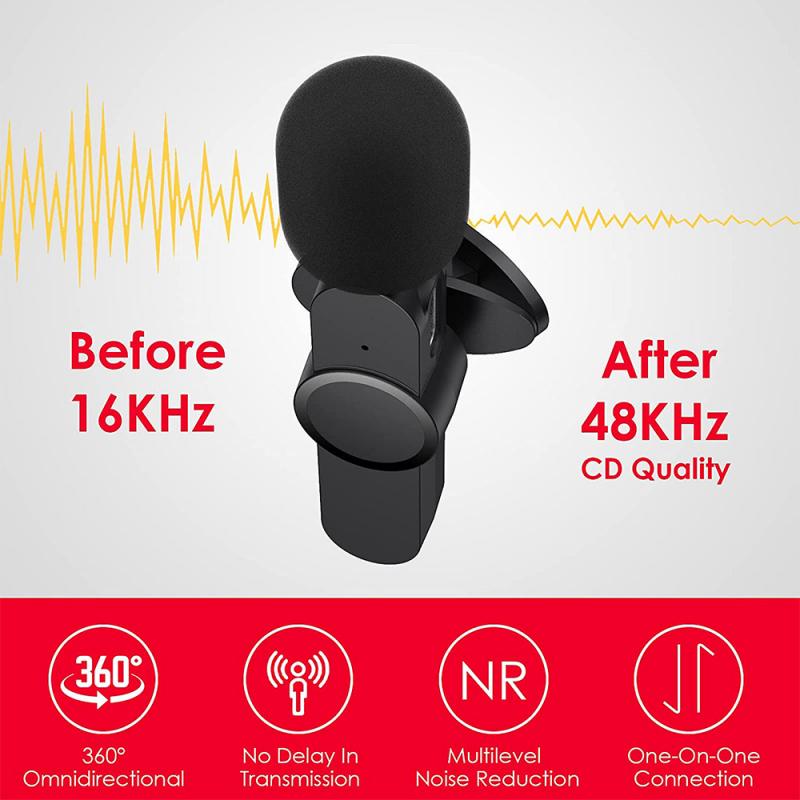
3. Check Audio Settings: Good audio quality is paramount for a podcast. Go to the "Audio" settings and select the appropriate microphone and speaker. If you have an external microphone, make sure it is selected as the input device. Additionally, enable the "Suppress background noise" option to minimize unwanted sounds.

4. Enable Original Sound: Zoom has a feature called "Enable Original Sound" which preserves the sound from your microphone without applying Zoom’s audio enhancements. This is particularly useful for podcasting as it maintains the natural quality of your voice. You can enable this feature in the "Audio" settings.

Recording the Podcast
how to record audio on zoom for podcast 2

Once your meeting is set up, you can start recording your podcast. Here’s how:

1. Start the Meeting: Begin the meeting at the scheduled time. Make sure all participants are present and ready.

2. Start Recording: Click on the "Record" button at the bottom of the Zoom window. You will have the option to record on your computer or to the cloud. For better control and quality, it’s recommended to record locally.

3. Conduct the Podcast: Proceed with your podcast as planned. Ensure that all participants are aware that the session is being recorded. Encourage them to speak clearly and avoid talking over each other to maintain audio clarity.

4. Monitor the Recording: Keep an eye on the recording indicator to ensure that the session is being recorded. If you encounter any issues, address them promptly to avoid losing valuable content.

Post-Recording Steps
how to record audio on zoom for podcast 3

After you’ve finished recording, there are several steps you need to take to prepare your audio for publication:

1. Save the Recording: Once the meeting ends, Zoom will automatically convert the recording and save it to your specified location. The file will typically be in MP4 format, which includes both audio and video. For podcast purposes, you will need to extract the audio.

2. Extract Audio: Use a video editing software or an online converter to extract the audio from the MP4 file. Save the audio in a high-quality format such as WAV or MP3.

3. Edit the Audio: Editing is a crucial step in producing a professional-sounding podcast. Use audio editing software like Audacity, Adobe Audition, or GarageBand to edit your recording. Remove any unwanted sections, background noise, and adjust the levels to ensure consistent volume throughout the podcast.

4. Add Intro and Outro: If your podcast has an intro and outro, add them to the beginning and end of your recording. This helps in branding your podcast and providing a professional touch.

5. Export the Final File: Once you’re satisfied with the edits, export the final audio file. Ensure that the file is in a format suitable for podcast distribution, typically MP3.

Tips for High-Quality Audio
how to record audio on zoom for podcast 4

To ensure the best possible audio quality, consider the following tips:

1. Use a Good Microphone: Invest in a high-quality microphone. USB microphones like the Blue Yeti or XLR microphones like the Audio-Technica AT2020 are excellent choices for podcasting.

2. Use Headphones: Wearing headphones can prevent audio feedback and help you monitor the recording in real-time.

3. Record in a Quiet Environment: Choose a quiet location for recording to minimize background noise. Inform participants to do the same.

4. Test Before Recording: Conduct a test recording to check the audio levels and quality. This helps in identifying and resolving any issues before the actual recording.

5. Stable Internet Connection: Ensure a stable internet connection to avoid disruptions during the recording.

Recording audio on Zoom for a podcast is a straightforward process that, when done correctly, can yield high-quality results. By following the steps outlined in this article, you can set up your Zoom meeting, record your podcast, and edit the audio to produce a professional-sounding episode. Remember to invest in good equipment, choose a quiet recording environment, and take the time to edit your audio meticulously. With these practices, you can create engaging and high-quality podcasts that resonate with your audience. Happy podcasting!
Leave your comment
Cancel reply
Note: HTML is not translated!
Related products
5K Video Camera with 75MP Photos, 8X Optical Zoom, WiFi Transfer, Wireless Mic, Dual Batteries, Support PIP Record, Kentfaith
16
$274.99 $239.99
5K Video Camera with 75MP Photos, 8X Optical Zoom, WiFi Transfer, Foldable Tripod, Wireless Mic, Dual Batteries, Support PIP Record, Kentfaith
$312.49 $249.99
Instant Cross-APP Translator Device for Business & Trade, Video Call Translation, Record, & Transcription, Kentfaith AI Translator Devices
12
$124.99 $99.99
128G Mini Digital Voice Recorder with Color Screen Bluetooth Call Record 3072kbps Kentfaith
HOT Seller
128G Mini Digital Voice Recorder with Color Screen Bluetooth Call Record 3072kbps Kentfaith
15
$119.99 $83.99
AI Translator Device for Business & Trade, 142 Languages Real-Time Online & Offline, Smart Office/Cross-App/Video/Photo Translation, Record & Transcription, Kentfaith
15
$182.49 $145.99
4G Cellular Security Camera, Dual Lens 6X Optical Zoom 1080P, Magnetic 360-Degree PIR Motion Detection, 8m/26ft Infrared Night Vision, 90 Days Standby, 2-Way Audio, Kentfaith
14
$149.99 $119.99
67mm Clip-on CPL Phone Camera Lens Filter Kit Applicable to All Mobile Phone Models
40
$18.99
67mm Clip-on ND2-32 Phone Camera Lens Filter Kit Applicable to All Mobile Phone Models
NEW Arrival
67mm Clip-on ND2-32 Phone Camera Lens Filter Kit Applicable to All Mobile Phone Models
13
$37.99
67mm Clip-on Black Mist 1/4 Phone Camera Lens Filter Kit Applicable to All Mobile Phone Models
7
$29.99
52mm Clip-on CPL Phone Camera Lens Filter Kit, Circular Polarizer Polarizing Filter Applicable to All Mobile Phone Models
24
$19.99
Products You May Like
96*96mm Filter Pouch, 3-Pocket Filter Case,  Maximum Size to Fit Circular Filter 62mm (Including 62mm)
96*96mm Filter Pouch, 3-Pocket Filter Case, Maximum Size to Fit Circular Filter 62mm (Including 62mm)
31
$18.99 $17.99
72mm ND2-ND400 (9 Stops) Variable ND Filter Neutral Density Adjustable Filter for Canon Nikon DSLR Cameras + Lens Cleaning Cloth
100
$45.99 $36.49
63'' Magnetic Iphone Tripod Phone Selfie Stick Tripod And Clip-On ND Filter(1-9 stops) For All Phone Set
207
$113.99 $59.99
55mm CPL Filter Circular Polarizer Filter with Lens Cap Optical Glass Ultra Slim 18 Multi-Layer for Camera Lens Nano-Klear Series
23
$21.99 $16.99
8K HDMI Cable 6.6ft, HDMI 2.1 48Gbps High Speed Nylon Braided HDMI Cord with eARC HDR10
5
$16.99
K&F Concept 8x21 Compact Binoculars for Kids and Adults, with BAK4 Prism, FMC Lens, IP65 Waterproof & Neck Strap for Bird Watching Hunting Travel Camping Stargazing
33
$49.99 $36.99
Touch Lighting Kit for Laptop Video Conference, K&F Concept 6500K Computer LED Video Light with Suction Cup, 4 Color Filters for Remote Working,Zoom Meeting, Self Broadcasting, Vlogging and Make Up
64
$39.99 $29.99
DJI MINI 3 PRO Dedicated High-Definition Tempered Film Explosion-Proof Screen Remote Control Protective Film (2 Pieces)
$24.99 $12.99
K&F Concept IP68 10 Meters Waterproof 10x42 Compact Binoculars for Kids and Adults, with Tripod Converter, BAK4 Prism, FMC Lens, Cleaning Cloth for Bird Watching Hunting Travel Camping Stargazing
28
$119.99 $59.99
12 Rolls Kids Camera Paper Roll Refill, Color Printing, BPA and BPS Free
$18.74 $14.99
Related articles
How To Download Zoom Audio Recording?
How To Record Only Sound Meeting On Zoom?
How Record Audio On Pc?
How To Turn On Screen Record Audio?
How To Record Voice Audio On Mac?
How To Record Discord Audio On Xbox?
How To Record External Audio On Pc?
How To Record On Pc With Audio?
How To Record Audio On Xbox Clips?
How To Setup Camera For Video Conferencing?
Blog You May Like
How To Fix My Lenovo Laptop Microphone ?
What Is The Best Surveillance Cameras Wireless?
What Are Fujifilm X Mount R Lenses?
How To Record Online Video With Sound?
What Is 16 Stop Filter In Nd?
How To Camouflage Outdoor Security Cameras?
How To Turn Off Auto Filter On Camera?
Can You Use Microphone Cable For Speakers?
Can Sd Card Slow Down Phone?
How Does The Nd Filter Control Lights?
Related categories
On-Dash Camera C mount lens adapter m4/3 adapter light pollution filter for astrophotography Lens Filters for DJI Osmo Pocket 4/3 phone camera lens
Popular products
video recording camera for youtube sony camera with microphone wireless system for microphone light with power bank Mini Digital Voice Recorder​ high quality condenser microphone Polarize Filter For Mobile Phone security camera with local storage 360 degree car camera 360 outdoor security camera
Related searches
Clip On Microphone For Zoom Cheap Camera To Record Videos Microphone For Recording Audio On Computer Wireless Podcast Microphone Ip Camera Outdoor Audio Zoom Best Camera To Record Time Lapse Podcast Headphones With Microphone Night Vision Binoculars That Record Audio Speakers For Home Audio Recorder For Car
Popular searches
Rebel T7 Lens Mount Chest Strap Mount For Gopro Infrared Security Cameras For Home Canon Eos M200 Lens Adapter K&f Concept Step Up Rings Lens Mount For Nikon D700 Nikon Coolpix P510 Adapter Micro Sd Card 128gb Class 10 Lensbaby Pentax K Mount Adapter For Etr Lens To Eos Canon
Blog Category
  • Activities
  • Guide
    • Filter Guide
    • Lens Adapter
    • Product Review
  • News & Reviews
    • Camera Reviews
    • Sample Gallery
    • News
  • Tutorials
    • Solar eclipse photography
    • Photography Basics
    • Landscape Photography
  • Inspiration
    • Travel
    • Travel Stories
Search Article
Latest from the Blog
How Do Night Vision Goggles Work?
UV Filter: Everything You Need to Know About UV Protection Lens Filters
Kentfaith x Citadel Season 2
Best Metal Detector for Kids in 2025
What Does A Uv Camera Filter Do?
Dash Cam That Can Connect To Phone?
How To Setup A Tripod?
Is the Sony A7M5 worth buying?
How To Find A Good Digital Camera?
How To Keep Earbuds In Your Ear?
  • Easy Payment Multilple Payment Options

  • Free Shipping Global WareHouse Shipment

  • No Risk 30-Day No Reason Return

  • Limited Deals Buy More, Save More

  • Tax Free No any surcharges or tax fee

Information
  • About us
  • Contact Us
  • Site Map
  • Blog
  • Video
  • Gallery
  • VIP Membership Rewards
Service
  • Privacy Policy
  • Terms & Conditions
  • Shipping & Delivery
  • Payment Info
  • Warranty, Return & Refund
  • Intellectual Property Rights
  • Ambassador
  • Affiliates
  • Wholesale
Support
  • My account
  • Order History
  • FAQs
  • Extend Warranty
  • Logistics Tracking
Follow us
NewsLetter

Get the latest product, K&F Concept respects your privacy.

Powered By KENTFAITH © 2026