How To Format Memory Card In Camera?
Formatting a memory card is an important maintenance step for anyone using cameras, phones, or other devices. It creates a file system that is compatible with your camera, so the camera knows where to store your images and how to find them later. It's a bit like preparing a perfectly organised folder before putting documents in it. Formatting also serves to prepare the card specifically for your device — even if the card has already been used elsewhere, formatting allows the camera to configure it according to its own settings, which limits compatibility issues. Finally, formatting helps prevent bugs and data corruption. A poorly recognised or poorly organised card can cause errors during recording.
Why You Should Format a Memory Card
Formatting an SD card is recommended for several reasons. Here is why you should format your memory card regularly:
- Remove unwanted data: Formatting clears all files from the card, giving you a clean slate before a new session.
- Fix corruption and errors: Formatting resets the card's file structure and resolves issues caused by improper ejection, settings changes, or device updates.
- Ensure device compatibility: A card used in another device may use a different file system. Formatting in your camera configures the card to its own system, preventing compatibility issues.
- Improve performance: Overall performance may decrease over time, especially during burst shooting or video recording, if the card is never formatted.
- Prevent future problems: Regular formatting reduces the risk of "SD card not detected," "write-protected," or similar errors.
If you never format your SD card, invisible files may accumulate, the system may become less stable, and some photos may take longer to save or may even fail. In some cases, an improperly formatted card may produce unreadable photos — they will display on the device but will no longer open on the computer.
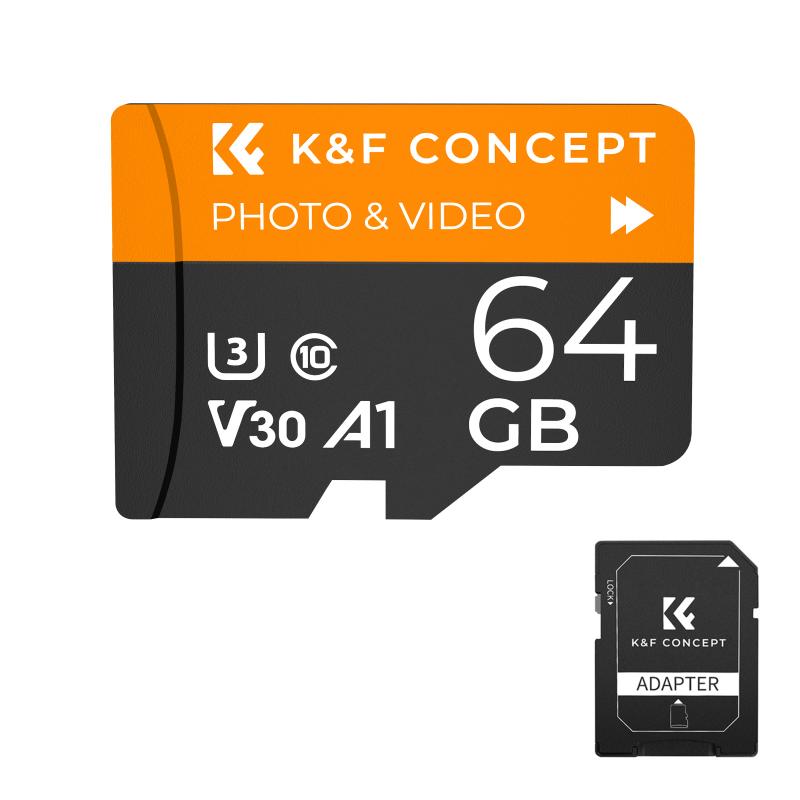
Choosing the Right File System
Choosing the right file system format is key for SD card compatibility and performance. The two most common options are FAT32 and exFAT — each with its own advantages. NTFS is mainly for Windows hard drives and is not recommended for SD cards in cameras or phones.
- FAT32
- Best for SD cards ≤32 GB. Maximum file size: 4 GB. Maximum card size: 32 GB. Compatible with nearly all cameras, PCs, and game consoles. SD/SDHC cards are formatted in FAT32.
- exFAT
- Best for SD cards >32 GB (e.g. 64 GB+). Maximum file size: 16 EB (exabytes). Maximum card size: 2 TB+. Compatible with modern cameras, phones, Windows, and macOS (10.6+). SDXC cards are formatted in exFAT. When shooting a movie with a card formatted in exFAT, the movie will be recorded in a single file even if it exceeds 4 GB.
- NTFS
- Best for some Windows storage only. Very large file and card size support. Windows only — not for cameras or phones.
If you're unsure, exFAT is usually the best file system for SD cards 64 GB and above. For smaller cards or older devices, choose FAT32. Note that exFAT-formatted cards may not be recognised by some computer operating systems or card readers.

How to Format a Memory Card in Your Camera
Most digital cameras have a formatting function in their menu. Formatting in the camera is the safest method, as it formats the card in the device's specific file system and avoids incompatibility errors. It is advisable to reformat the card in the device that will use it, even if it has already been formatted elsewhere. If the card is new or was previously formatted by another camera or computer, format the card with your camera.
- Turn on your camera with the SD card inserted.
- Go to the settings menu or configuration section.
- Look for the "Format" or "Format Card" option. It is often found in the "Tools" or "Configuration" section.
- Select it, then confirm. The device will ask you to confirm before starting the formatting process.
- Wait for the process to finish. In a few seconds, the card will be ready to use.
For Nikon cameras (e.g. D780): navigate to Setup Menu > Format Memory Card, choose a memory card slot, and select Yes. If two memory cards are inserted, the flashing indicator will show the card selected for formatting; rotate the main command dial to select a different card. Do not turn the camera off or remove the battery or memory card during formatting.
When the card is formatted, all images and data on the card will be erased. Even protected images will be erased, so make sure there is nothing you need to keep. If necessary, transfer the images and data to a computer before formatting the card.
How to Format a Memory Card on Windows and Mac
If you are experiencing issues with your camera or other devices that use an SD card, formatting the SD card on your computer can help fix the issue.
On Windows (Windows 11):
- Insert the SD card into your computer's card reader. Use a USB reader if your PC doesn't have a built-in slot.
- Open File Explorer and locate your SD card under "This PC."
- Right-click the card and select "Format."
- Choose your file system (FAT32 or exFAT).
- Click "Start" and confirm any warnings.
- Safely eject the card when formatting is complete.
On Mac (using Disk Utility):
- Insert the SD card into your Mac's card reader.
- Open "Disk Utility." Find it using Spotlight search or in Applications > Utilities.
- Select your SD card in the left panel.
- Click "Erase."
- Choose the format: exFAT or MS-DOS (FAT32).
- Name your SD card.
- Click "Erase," then click "Done."
If the SD card is write-protected or won't format on Mac, try toggling the physical switch on the card's side or use Disk Utility's "First Aid" feature to repair errors.

How to Format a Memory Card on Android
- Insert the SD card into your Android phone or tablet.
- Open the "Settings" app.
- Go to "Storage" (or search for "SD card" in Settings).
- Select the SD card under Portable Storage.
- Tap "Format" (or "Format as portable storage").
- Confirm by tapping "Erase & Format" — this will delete all data.
- Wait for the process to finish. You'll see a message when formatting is complete.
- Safely remove or start using your SD card as needed.
Note: some Android devices offer an "Internal Storage (Adoptable Storage)" option. Only use this if you want the SD card to act as permanent storage for apps and data on that specific device. The card won't be readable on other devices until it's reformatted again. If you see errors like "SD card not detected" or "corrupted," try restarting your device or formatting the card on a computer first.
Common SD Card Formatting Errors and Fixes
Sometimes formatting an SD card isn't as straightforward as it should be. Here are some of the most common errors and how to fix them:
- SD card write protected
- Slide the physical switch on the card to "Unlock." If it's still protected, use Windows "Diskpart" to clear write protection.
- SD card not recognised
- Try a different card reader or USB port. Update your computer's drivers. Check if the card works in another device.
- Unable to format SD card
- Run Command Prompt as admin and use "Diskpart clean." Try the official SD Memory Card Formatter tool.
- SD card corrupted or showing errors
- Use built-in repair tools: "chkdsk" on Windows or "First Aid" in Mac Disk Utility. Format the card after repair.
Always back up important data before trying any fixes. If your SD card keeps failing to format, disconnects mid-format, or shows repeated "corrupted/write-protected" errors, the card may be worn out or damaged. Formatting usually fixes file-system issues, but if the card keeps failing, replacing it is often the fastest fix.
How to Recover Photos After Accidental Formatting
When you have formatted a card by mistake, all is not necessarily lost. There is recovery software that can recover some of the files, especially if you have not saved anything new after formatting. Tools such as Recuva, Disk Drill, or PhotoRec are available in free versions. They scan the SD card for old deleted files. These programmes do not guarantee 100% recovery, but they often offer good results if you act quickly. To maximise your chances, avoid reusing the card immediately — the more new photos you save, the more likely the old ones are to be overwritten. Ideally, start the recovery process as soon as you notice the error.
Best Practices for Formatting a Memory Card
To ensure your SD cards work reliably and last longer, follow these practices every time you format:
- Always back up important files before formatting. Formatting will erase everything on the SD card, including protected images.
- Choose the right file system: exFAT for cards 64 GB and above; FAT32 for smaller cards or older devices.
- Format regularly to prevent corruption: How often you reformat depends on how heavily you use the cards — maybe once a month, maybe less.
- Avoid removing the card during use: Do not turn the camera off or remove the memory card until formatting is confirmed complete.
- Use the device's format option: When possible, format the SD card directly in the camera, phone, or device you plan to use it with. This maximises compatibility and reduces potential errors. The camera sets up its own file structure — only use the computer to read and copy files.
- Back up to multiple locations: Copy images from your SD card to at least two places — for example, two external hard drives, or your computer's hard drive and an external hard drive — before reformatting.
Formatting or erasing data on a card does not completely erase the data. Be aware of this when selling or discarding the card. When disposing of cards, take steps to protect personal information if necessary, such as by physically destroying the card.