How To Read Heart Rate On Smartwatch?
Heart rate is an important way to monitor your body's condition. You can check your heart rate during physical training, view your heart rate at rest, while walking, during workouts, after workouts, and during breathing exercises, and you can also measure your heart rate at any time to view new readings.
How Smartwatches Measure Heart Rate
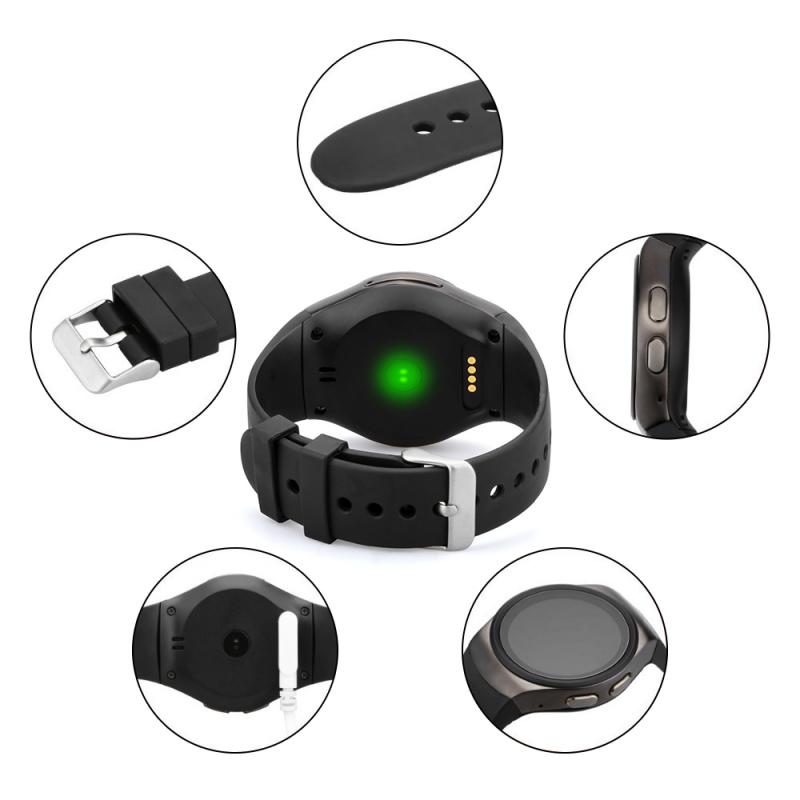
Smartwatches measure heart rate using a technology called photoplethysmography, or PPG for short. On the underside of your watch, you'll notice tiny green LED lights. These shine light onto your skin, and sensors beside them detect how much light is reflected back. Because blood absorbs light differently as it flows through your veins, your watch can detect the tiny changes that occur with every heartbeat. By analysing these fluctuations, your smartwatch calculates your beats per minute (BPM).
It's a completely non-invasive, light-based measurement, which means you can monitor your heart rate comfortably throughout the day, whether you're working, resting or exercising.
- Why Green Light?
- Most heart rate sensors use green LEDs because green light is absorbed well by red blood (which contains oxygen). This makes it easier to detect the pulse signal from the wrist. Some high-end wearables also use infrared light for low-power, continuous monitoring, especially during sleep, but green LEDs remain the most responsive for daytime activity.
- PPG vs. Medical Devices
- In a real medical device, the PPG sensor is measured on the opposite side of the finger or ear lobe, which makes them more precise than smartwatches. These sensors measure both heart rate and SpO2. They are also very sensitive to movement — if you put your hand still on a table it works well, but during a workout it does not work as well.
- ECG on Smartwatches
- Smartwatches use optical heart rate sensors for pulse detection, usually with green LEDs and photodiodes to measure blood flow. Some models also include ECG sensors for detailed heart activity. A real medical ECG device will use at least 3 electrodes that have gel on them for a better signal. The sensor on the watch is a single contact point without gel, so movement can affect signal quality. Some Galaxy Watch models require placing a finger from the opposite hand on a button to take an ECG reading.
Getting the Most Accurate Readings
Samsung Health measures your heart rate using lights and sensors located on the back of your watch. To get the best measurement results, check the following:
- Use a Samsung-approved band specifically designed for your watch.
- Measurements may need to be repeated at least five times for the most accurate results.
- Remove the protective plastic from the heart rate measurement sensor before taking measurements.
- If the heart rate sensor is not working properly, wipe the sensor, and adjust the position of the watch to sit above your wrist.
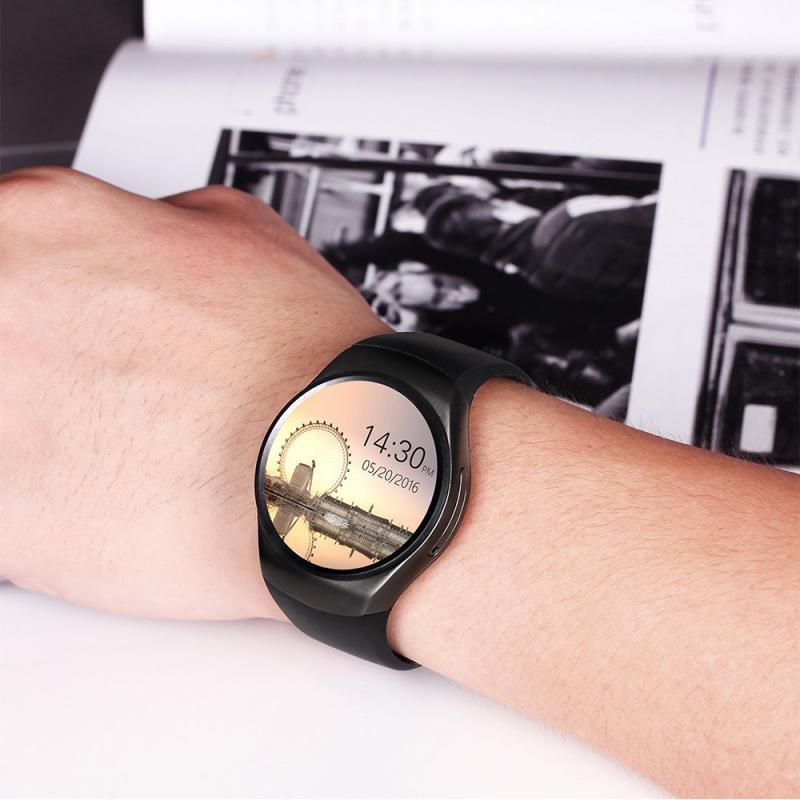
For best results, your smartwatch should sit snugly against your wrist, about one finger above your wrist bone. It shouldn't feel tight, but it should stay in place when you move. Dirt, moisture, tattoos, or even a very loose fit can affect how well the light reflects into your skin, so it's worth cleaning the back of your watch regularly and ensuring the strap is secure. During workouts, a slightly tighter fit helps keep the sensor stable, reducing noise from wrist movement.
Environmental Factors That Cause Inaccuracy
Even if you are wearing your smartwatch or fitness band correctly, certain factors may affect how well your heart rate is read:
- The heart rate figures may not be accurate depending on measurement conditions and surroundings.
- If heart rate measurements are taken at low temperatures, the results may be inaccurate. Keep yourself warm when measuring your heart rate. Temperature can also influence readings — cold skin may cause blood flow to slow slightly, which can lead to lower or delayed heart rate readings. If you've just stepped outside on a chilly morning, give your watch a few minutes to warm up before checking your BPM.
- If the heart rate sensor is dirty, wipe the sensor with a soft, clean, dry cloth and try again.
- Obstructions between the watch band and your wrist, such as body hair, dirt, or other objects may prevent the light from reflecting evenly.
Manually Measuring Your Heart Rate
You can manually measure your heart rate any time you need to. Remember to read the guidelines mentioned above before measuring.
- Galaxy Watch models: On your watch, navigate to and tap Samsung Health. Swipe to and tap Heart Rate, and then tap Measure.
- Fitness bands: Swipe to and tap the heart rate tracker, and then tap Measure.
- If your watch or fitness band is set to always measure your heart rate, your current measurement will display instead of "Measure."
Note: You cannot manually measure your heart rate on the Galaxy Fit. Available features, menu options, and settings will vary by the watch and software version.
Setting Up Continuous Heart Rate Monitoring
You can set your smartwatch or fitness band to continuously measure your heart rate. Navigate to the heart rate settings in the Samsung Health app on your watch. Depending on which watch you have, the steps may be different:
- Wear OS models: Navigate to and open Samsung Health on your watch. Swipe to the very bottom of the screen, and then tap Settings. Tap Heart Rate.
- Previous smart watch models: Press the Home key (Power key) on the watch, and then navigate to and tap Samsung Health. Swipe to and tap Heart Rate, and then swipe to the bottom of the screen. Tap HR and Stress Measurement or Auto HR Settings.
- Galaxy Fit and Galaxy Fit2: On the connected phone, open the Galaxy Wearable app, and then tap Health Settings. Tap Auto Heart Rate Settings.
- Gear Fit2 and Gear Fit2 Pro: Press the Power key on the watch, and then swipe to and tap Auto HR.
Once you get to the heart rate settings screen, options for measurement may vary depending on your watch:
- Measures Continuously or Always
- Measures your heart rate continuously. Choose this option if you don't want to worry about your watch missing your measurements.
- Every 10 Mins While Still or Frequent
- Measures your heart rate every 10 minutes when you're still.
- Manual Measurement Only or Never
- Measure your heart rate manually.
Setting Up Heart Rate Alerts
HR Alert Settings is only available for the Galaxy Watch Active2, Galaxy Watch Active, Galaxy Watch, Galaxy Fit, and Wear OS models. With the Galaxy Watch series, you can receive HR alerts from your watch if your heart rate is above a certain level for 10 minutes when resting.
On Wear OS models:
- Swipe up on the screen to open apps.
- Navigate to and tap Samsung Health.
- Swipe to and tap Settings.
- Tap Heart Rate.
- Make sure the heart rate tracker is not set to manual.
- Scroll down to the Heart Rate Alert section. High HR and Low HR will automatically be turned on. Tap the switch next to each option to turn the alert on or off.
- You can also tap High HR or Low HR, and then swipe up or down to set the heart rate measurement you want to receive alerts for.
On previous watches:
- Press the Power button or swipe up on the screen.
- Navigate to and tap Samsung Health.
- Swipe to and tap Settings, and then swipe to the bottom of the screen.
- Tap HR and Stress Measurement. Make sure the heart rate tracker is not set to manual.
- Tap More Options (the three vertical dots), and then tap HR Alert Settings.
- High HR and Low HR will automatically be turned on. Tap the switch next to each option to turn the alert on or off.
- You can also tap High HR or Low HR, and then swipe up or down to set the heart rate measurement you want to receive alerts for.
For a Galaxy Fit or Fit2, you can only manage High HR alert settings. To do so, open the Galaxy Wearable app on your phone, tap Samsung Health Setting, and then tap High Heart Rate Alerts.
Viewing Heart Rate Trends
You can view your overall heart rate trends to find patterns and enhance your performance. To see a summary of your past heart rate measurements, swipe through the chart. You can select the date you want to view your heart rate trends and measurements throughout the day. Below the chart you can see each reading and the associated activities, such as general or resting, while your heart rate was recorded.
Alternatively, you can track your heart rate trends for the week directly on the watch. From the watch screen, swipe left until you see the heart rate widget, and then tap it. Then, swipe up to view your heart rate trends.
On Apple Watch, rotate the Digital Crown to "Range," "Resting Heart Rate," or "Walking Average Heart Rate" to display all-day heart rate. You can also open the Heart app, tap Heart, and then tap an entry. You can display past heart data for one hour, one day, one week, one month, or one year.
What Your Heart Rate Data Tells You
Your heart rate can reveal a lot about your overall wellbeing. A consistently lower resting heart rate can indicate good cardiovascular fitness, while sudden increases during normal activities might signal stress, dehydration, or fatigue. Monitoring trends over time helps you understand how your body responds to exercise, rest, and lifestyle changes. For example, if your resting heart rate is lower after regular workouts or improved sleep, it's a good sign that your health is moving in the right direction.
Many smartwatches offer both continuous and on-demand heart rate tracking. Continuous monitoring measures your pulse at regular intervals throughout the day, giving you a complete picture of how your heart rate changes during rest, activity, and recovery. On-demand tracking lets you take a manual reading whenever you choose, perfect for spot checks during exercise or relaxation.
The information gathered from your device or related software is not intended to diagnose, cure, mitigate, treat or prevent disease or other health conditions. Users should not interpret or take clinical action based on the device output without consulting a healthcare professional. The accuracy of your device and its related software, including heart rate readings, may be affected by environmental conditions, skin condition, activity performed while using the device, device settings, user configuration, placement of the sensor, and other end-user interactions.