Can A Smart Watch Take Pictures?
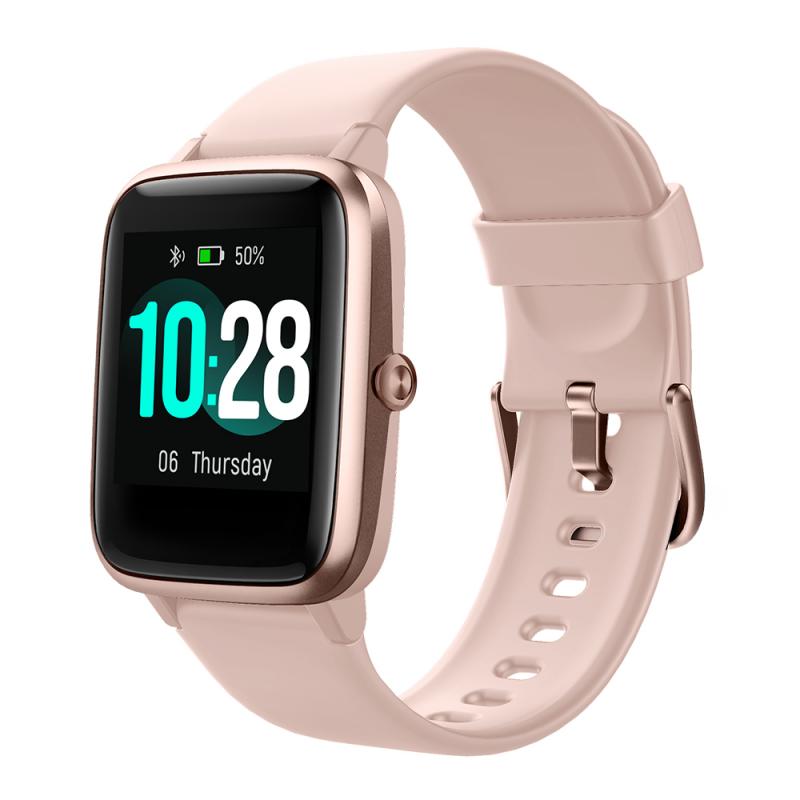
Most smartwatches, including popular models from Apple, Samsung, Garmin, and Fitbit, don't have built-in cameras, so you can't take photos directly. However, many allow remote control of your smartphone's camera, perfect for users seeking convenience.
Why Mainstream Smartwatches Don't Have Built-In Cameras
Mainstream brands like Apple, Samsung, Garmin, and Fitbit prioritize health, connectivity, and usability over cameras due to space, battery, and privacy concerns. The Samsung Galaxy Gear (2013) had a 1.9MP camera, but this trend didn't continue. As one experienced smartwatch user noted, smart watches are remote control devices for smartphones — nothing more. That doesn't mean they aren't useful, just that they need to interface very well with their host phones.
- Space constraints
- The small form factor of a smartwatch makes it difficult to fit a camera module without significantly increasing bulk.
- Battery life impact
- Adding a camera would place additional drain on the already limited smartwatch battery.
- Privacy concerns
- A wrist-worn camera raises privacy issues in public and private settings.
- Poor image quality potential
- The limited space available for optics and sensors results in low image quality.
How Smartwatches Can Be Used to Take Photos
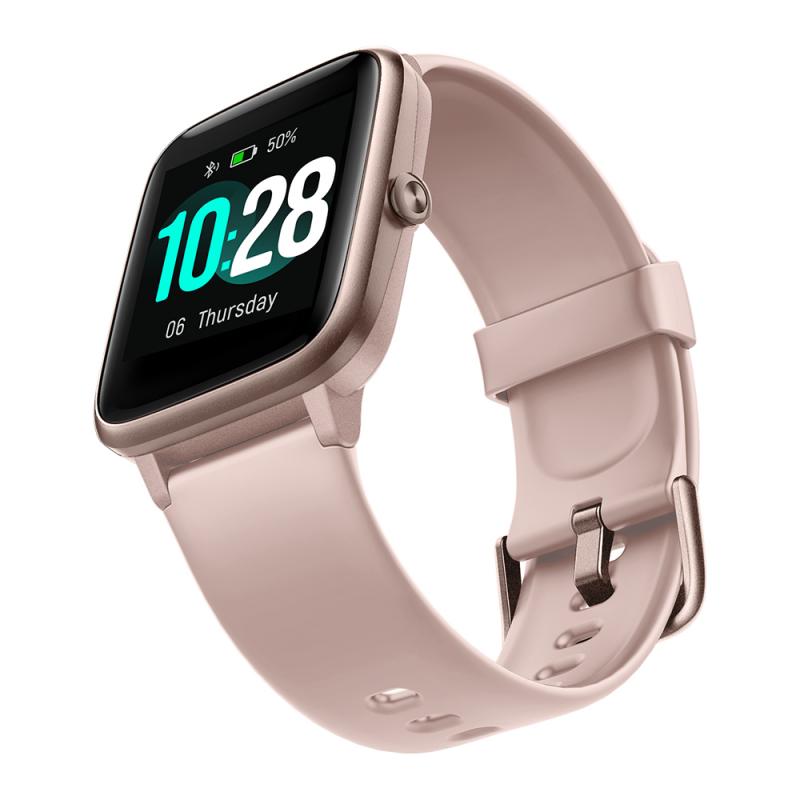
Smartwatches can act as a remote shutter via Bluetooth or Wi-Fi, controlling your phone's camera for group shots, selfies, or tripod setups. You open your phone's camera app via the smartwatch, view a preview, and snap photos remotely.
- No need for timers
- Better selfies without mirrors
- Easy group photos
- Stable tripod shots
Models with Remote Camera Control
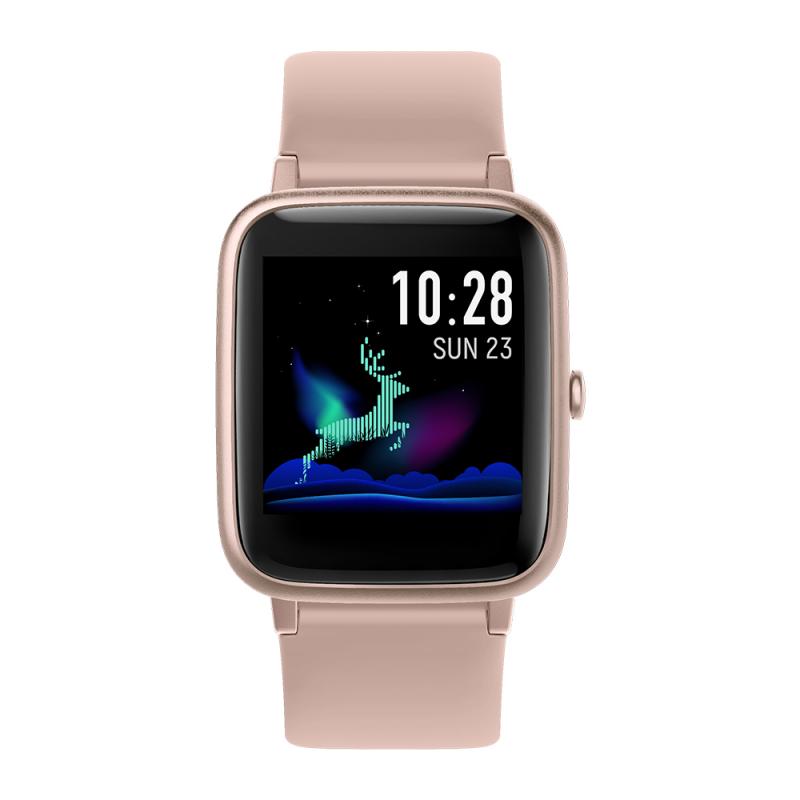
The following smartwatches support remote camera control but do not have a built-in camera:
- Apple Watch Series 10 — remote camera control ✔️, built-in camera ❌
- Samsung Galaxy Watch 7 — remote camera control ✔️, built-in camera ❌
- Garmin Venu 3 — remote camera control ✔️ (via app), built-in camera ❌
- Fitbit Versa 4 — remote camera control ✔️ (limited), built-in camera ❌
- TicWatch Pro 3 — remote camera control ✔️, built-in camera ❌
How to Enable Camera Controller on Samsung Galaxy Watch
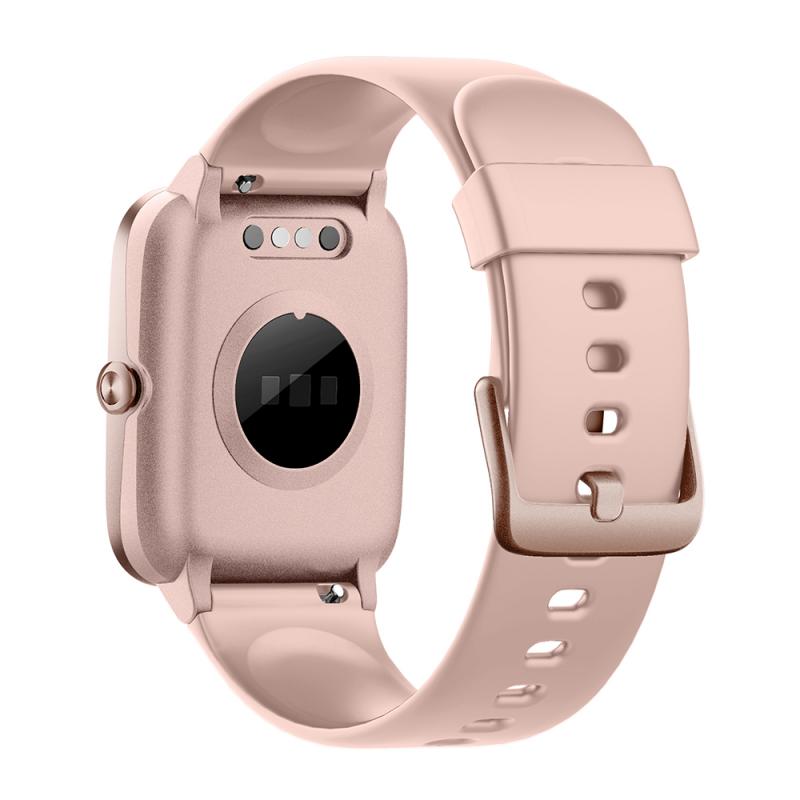
You can take pictures using your Samsung Galaxy Watch7 or Galaxy Watch Ultra by enabling the camera controller feature. This allows you to remotely control your connected phone's camera, adjust settings like zoom, and capture photos or videos directly from your watch.
- Open the Settings app on your Samsung Galaxy Watch7 or Galaxy Watch Ultra.
- Scroll down and tap on Camera Controller.
- Tap Allow to grant permissions for the feature.
- Toggle the switch to turn on location if you want to tag your photos with location data.
- On your watch, navigate to the Camera Controller app. The camera will automatically launch on your connected phone.
- Point the phone's camera to the desired location, and then tap Capture on the watch.
To record videos, you will need to switch to video mode on your phone first, and then you can tap Record on your watch. You can also flick up on your watch to switch between front and rear facing cameras, and tap the Timer icon to turn the timer on or off. A preview of the previous photo taken will display when you tap the Gallery icon next to the capture icon.
The camera controller feature is compatible with Samsung Galaxy Watch7, Galaxy Watch Ultra, and other Samsung Galaxy smartwatches that support remote camera control. Ensure your watch and phone are connected via Bluetooth for seamless functionality. If you have a watch model with Wear OS, the app is already installed, but previous watches running Tizen will need to download the Camera Controller app onto your watch and phone.
Can Smartwatches Record Video?
No, without built-in cameras, smartwatches can't record video directly. You can control your phone's video recording remotely. Niche accessories like the Wristcam for Apple Watch add video capabilities, but they're not standard.
- Limited storage capacity
- Short battery life impact
- Privacy concerns
- Poor image quality potential
Smartwatches with Built-In Cameras
Mainstream brands avoid cameras, but some lesser-known or Chinese brands offer them (0.3–2MP), often with poor quality and limited support. Regarding cheap Android smartwatches, the camera was absolute crap and looked worse than a photo from an iPhone 3G.
- Wristcam for Apple Watch: 8MP + 2MP cameras, ~£259
- Kospet Prime 2: 13MP rotating camera
- Lemfo Lem T: 5MP camera
These models are bulkier and less refined.
Photography Apps for Smartwatches
Remote camera control can be enhanced with dedicated apps. Support varies by phone and OS.
- Apple Watch
- Camera Remote (built-in), Wristcam (with accessory)
- Android & Wear OS
- Camera One, Wear Camera Remote, Google Camera (with Pixel)
- Third-party cross-platform
- Camera Remote Watch — available for iPhone, Android, Wear OS, Fitbit, Garmin, and Amazfit. Open the phone app "Camera Remote Watch" and adjust the camera view. On your watch, tap the camera button to trigger the camera shutter on your phone. The photo will be stored in your phone photo gallery. A copy of the photo will be shown on your watch, so that you can check if it looks good or if you should take another picture.
Before starting to take pictures, make sure that the watch and the phone are connected and in sync. Be patient when downloading the new photo. If the watch display goes black during the download of the photo, just tap the watch screen to switch the display on again. If the camera picture download was interrupted by a watch notification display and stopped working, press the back button and try again.
Using a Smartwatch as a Photography Remote for ILC Cameras
As far as triggering an ILC shutter from your watch, this lies firmly with the camera manufacturer's app developers — nothing to do with Apple or Android themselves. Android phones only allow the inbuilt camera to be the default, and watch apps will only connect to the default camera. A way around it would be for the camera app developers and the watch developers to work together so the watch can fire the ILC through the ILC's own app. Until some smart camera manufacturer licenses the right to interface with a watch, they will remain marginal for photographers.