How To Watch Movies On A Projector?
There are various ways to seamlessly transform any room into a personal theatre. This guide will provide valuable insights into how to watch movies on a projector and ensure that your cinematic experiences are visually captivating and effortlessly accessible.
Devices You Can Use to Play Movies on a Projector
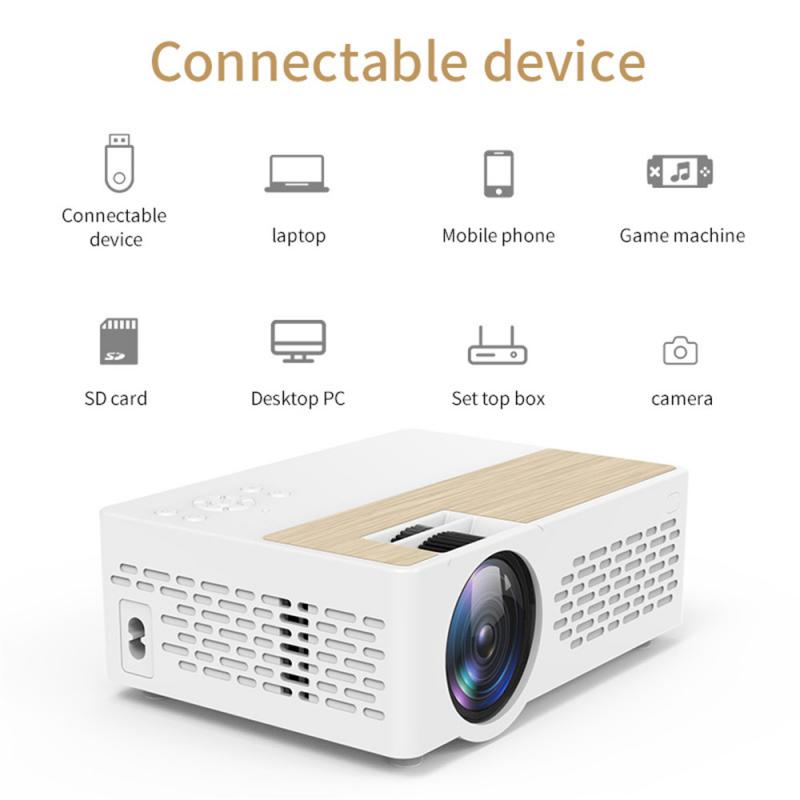
In most cases, you need extra devices if you want to play movies and videos on a projector. Some projectors have their own media player and smart functions, but most projectors don't. Here are the most important solutions:
- Smart Projector
- Some projectors have their own smart functions, which allows you to stream movies, series, and videos without the help of extra devices. Sometimes, your projector even has direct access to apps like YouTube. All you need is an internet connection. Most smart projectors have to be connected to the internet via WiFi, and some projectors via an ethernet cable. Smart projectors have varying smart platforms, each with their own apps and functions. So when you choose a smart projector, carefully check which functions the smart projector has. For example, a smart home projector equipped with an Android TV system can directly install Netflix and support movie playback.
- Media Player
- If you connect a media player to the projector, you can quickly and easily stream movies, series, and videos from your favorite apps. You connect media players like a Chromecast or Apple TV via an HDMI cable. That does mean that your projector needs to have an HDMI input. With these compact devices, you get direct access to apps like Netflix and YouTube. Most media players also need to be supplied with power, so some media players also have to be connected to a USB input that supplies power. If your projector has HDMI slots, you can buy a streaming device and download the Netflix app to your streaming device.
- USB Flash Drive or Hard Drive
- If you want to watch your own videos and photos on a projector, a USB flash drive or hard drive is the solution. You can use the remote of the projector to navigate the menu and to determine what you watch. If you want to play content from a USB device, it's important for the projector to have a built-in media player. Keep in mind that if a projector has a USB input, that it doesn't necessarily mean it has a media player.
- Laptop or PC
- A different way to play something on your projector is to connect your laptop or PC to it. This way, you can watch your own movies or stream from your internet browser. With the mouse and keyboard, you can control all the functions. With most new devices, you can connect via an HDMI connector. If you have an older laptop or PC, connect it to the projector with a VGA cable. Anything you can see on a computer screen can be seen with the right projector, so as long as you buy a projector that works with your computer, it will work with Netflix. For example, a laptop kept in the living room, hooked up to a 1080p projector via HDMI, can be used to watch shows on a Netflix account as a multiple monitor setup.
- Blu-ray Player
- You can easily connect a Blu-ray player to your projector as well. To reach the best image quality with your Blu-rays, you need a projector with at least a Full HD resolution. If you have an Ultra HD Blu-ray player, you need a projector with a 4K resolution. You can easily connect a Blu-ray player to a projector via an HDMI input.
Projector Connectivity Options
When selecting the connectivity option for your projector, it's crucial to consider the compatibility between your source device and projector. Check the available ports on both devices and ensure they support the same type of connection.
- HDMI: HDMI (High-Definition Multimedia Interface) is a popular and versatile connectivity option. It allows you to transmit high-quality audio and video signals from your device to the projector. HDMI connections are widely supported by most modern projectors, making them a convenient choice for connectivity.
- VGA: VGA (Video Graphics Array) is an older type of connection that is still commonly found in projectors. It allows you to transmit analog video signals from your device to the projector. While not as advanced as HDMI, VGA connections can still deliver decent video quality.
- Component Video and Audio: Component video and audio connections use separate cables for transmitting video and audio signals, resulting in better quality compared to VGA. However, not all projectors support component video and audio connections, so it's important to check compatibility before using this option.
How to Watch Netflix on a Projector
Most Netflix-supported devices come with the Netflix app pre-installed. You can get to Netflix from the main menu, a list of apps, or from a Netflix button on the remote. If you can't find Netflix in the main menu or on the remote, you might need to download it from your device's app store first.
The Netflix app only works on projectors made by brands that have partnered with Netflix to make sure the app is compatible with their projector model. Note that some projector models made before 2016 may no longer be supported.
For projectors not made by a supported brand, you can connect your projector to a Netflix-supported device (like a computer, streaming stick, or mobile device) and connect it to your projector with an HDMI or other video cable adapter. This will let you stream Netflix from that device to your projector.
To stream Netflix in 4K Ultra HD, you will need:
- A projector that is capable of streaming 4K Ultra HD content at 60 Hz.
- A Netflix plan that supports streaming in Ultra HD.
- A steady internet connection speed of 15 megabits per second or higher.
- Playback quality set to Auto or High in your Netflix profile settings.
To stream Netflix in HDR, you will need a projector that supports Netflix and one of these HDR formats: Dolby Vision, HDR10, or HDR10+, along with a Netflix plan that supports streaming in Ultra HD and a steady internet connection speed of 15 megabits per second or higher.
How to Watch Movies Offline on a Projector
For users without internet access — for example, at an off-grid cabin — watching movies on a projector requires a different approach. Netflix allows users to download movies for offline viewing on several devices, including Android smartphones, iPhones, iPads, Windows machines, and Chromebooks. Downloading Netflix titles is useful when you don't need an active internet connection to watch.
Other options for offline movie playback include:
- Ripping DVDs to a hard drive using a program like HandBrake and playing them back with VLC media player, which is a free media player that can read almost any media file format. This way you aren't limited to just AVI files.
- Connecting the projector to a laptop via HDMI cord and playing back files stored locally on the laptop. A laptop is likely to have multiple different types of ports, which is easier than relying only on a USB drive.
- Using a USB flash drive with movie files saved in a compatible format (such as AVI) and connecting it to the projector's USB input, provided the projector has a built-in media player.
- Buying DVDs and using an external disc player connected to the projector.
Adjusting Display Settings for the Best Viewing Experience
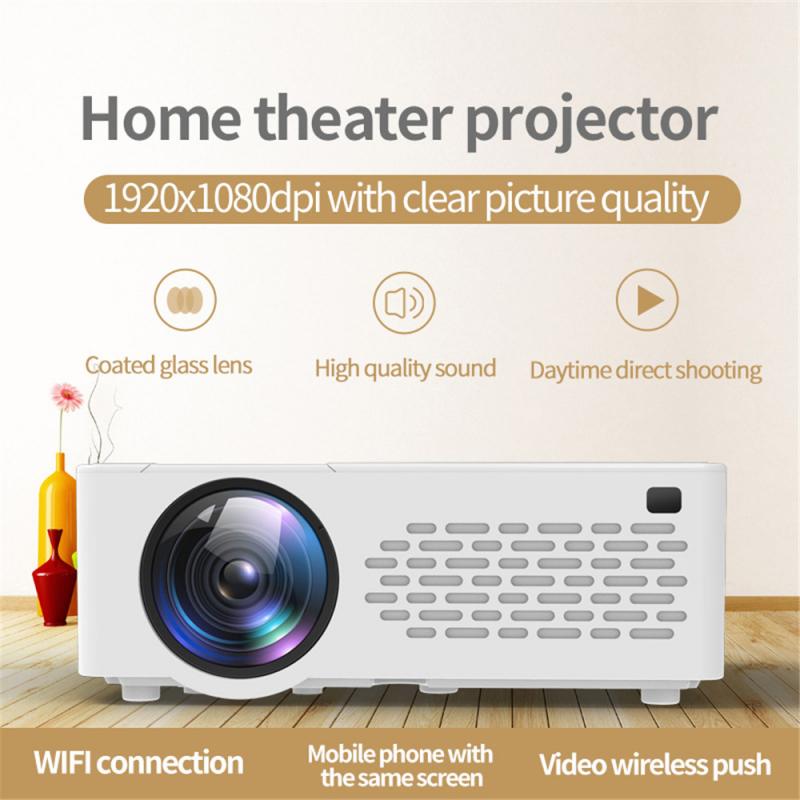
Once you have set up your projector and connected it to your video source, it is important to adjust the display settings for the best viewing experience.
- Resolution: Go to the settings menu and look for the display or picture settings. Select the resolution option and choose the highest resolution available for the best picture quality. Keep in mind that the resolution may be limited by the inputs of your video sources.
- Aspect Ratio: Aspect ratio refers to the proportional relationship between the width and height of the image. Most projectors offer various aspect ratio options, such as 16:9 for widescreen content or 4:3 for standard content. Adjust the aspect ratio according to the source material you are watching to avoid image stretching or cropping.
- Color Calibration: Access the color settings in the menu and look for options like color temperature or color balance. Aim for accurate color reproduction by adjusting the contrast, brightness, hue, and saturation settings.
- Keystone Correction: Keystone correction is useful for correcting image distortion caused by the projector being placed at an angle or not aligned properly with the screen. Most projectors offer automatic keystone correction, but if not, you can use the manual keystone adjustment controls.
- Focus Adjustment: Most projectors have a focus ring or button that allows you to adjust the focus manually. Use test patterns or text to help you achieve the sharpest focus possible. Keep in mind that the projector's distance to the screen can affect the focus.
Audio Setup for Projector Movie Watching
When watching movies on a projector, getting the audio setup right is essential for an immersive viewing experience. Most projectors have no speakers, or mediocre ones, so you usually need extra speakers to play sound. How you can connect these speakers depends on the connectors of your projector and speakers.
- External speakers or soundbars: Check if your projector has an audio output port, and if so, connect it to the input port of your sound device. Adjust the projector's audio settings to route sound through the connected device.
- Built-in speakers: If your projector has built-in speakers, simply connect the necessary audio cables to the appropriate ports, then adjust the volume settings on your projector and any external devices as needed.
- Bluetooth speakers: Some projectors have built-in Bluetooth. If your speakers also have Bluetooth, you can easily connect them to your projector wirelessly.
- Audio-video synchronization: Verify if your projector offers audio delay settings. Navigate to the projector's menu to access these settings, then fine-tune the delay until both audio and video are perfectly synchronized.
Optimizing the Viewing Environment
Creating a good viewing environment is crucial to ensure the best possible experience when watching movies on a projector. Here are some tips to help you optimize the viewing experience:
- Close curtains or blinds to minimize natural light entering the room.
- Avoid using bright overhead lighting and opt for softer, ambient lighting instead.
- Consider using blackout curtains or shades to completely darken the room if necessary.
- Place the projector on a stable surface or mount it securely on the ceiling.
- Position the projector at the optimal distance from the projection screen to avoid distortion and ensure sharp image quality. Consult the projector's manual for the recommended distance.
- Adjust the projector's angle and keystone correction settings, if applicable, to align the image properly on the screen.
- Ensure proper ventilation around the projector to prevent overheating.
When choosing a projection screen, consider screen material (options include matte white, high-gain, and ambient-light rejecting screens), screen size to suit your viewing environment, aspect ratio to match the content you will be watching, and screen gain, which refers to the amount of light reflected back to the audience. Higher gain screens offer brighter images but may also result in narrower viewing angles.