kfconcept

KENTFAITH
K&F Concept    Blog >

Enjoy Your Selected Digital Life

Recently Viewed
  • Recently Viewed
  • Recently Viewed list is empty.

Compare (0) 0
  • Compare
  • You have not chosen any products to compare.

  • Compare
Currency: USD
  • Currency
Shop by Scene Shop by Rank

Log Into Your Account

Account

Order History

Wish List

Login

Forgotten Password?

Or connect with

Register Account

Already have an Account?Log In

  • Shopping Cart
  • Your shopping cart is empty!

  • Register/Login to purchase, earn points
  • Favorite
  • Your wish list is empty.

  • Register/Login to like, earn points
  • Activities
  • Guide
    • Filter Guide
    • Lens Adapter
    • Product Review
  • News & Reviews
    • Camera Reviews
    • Sample Gallery
    • News
  • Tutorials
    • Solar eclipse photography
    • Photography Basics
    • Landscape Photography
  • Inspiration
    • Travel
    • Travel Stories
  • Home
  • Blog
  • How To Find Camera On Laptop Windows 7?

How To Find Camera On Laptop Windows 7?

Kentfaith 2024-10-22 03:02:54 0 Comments

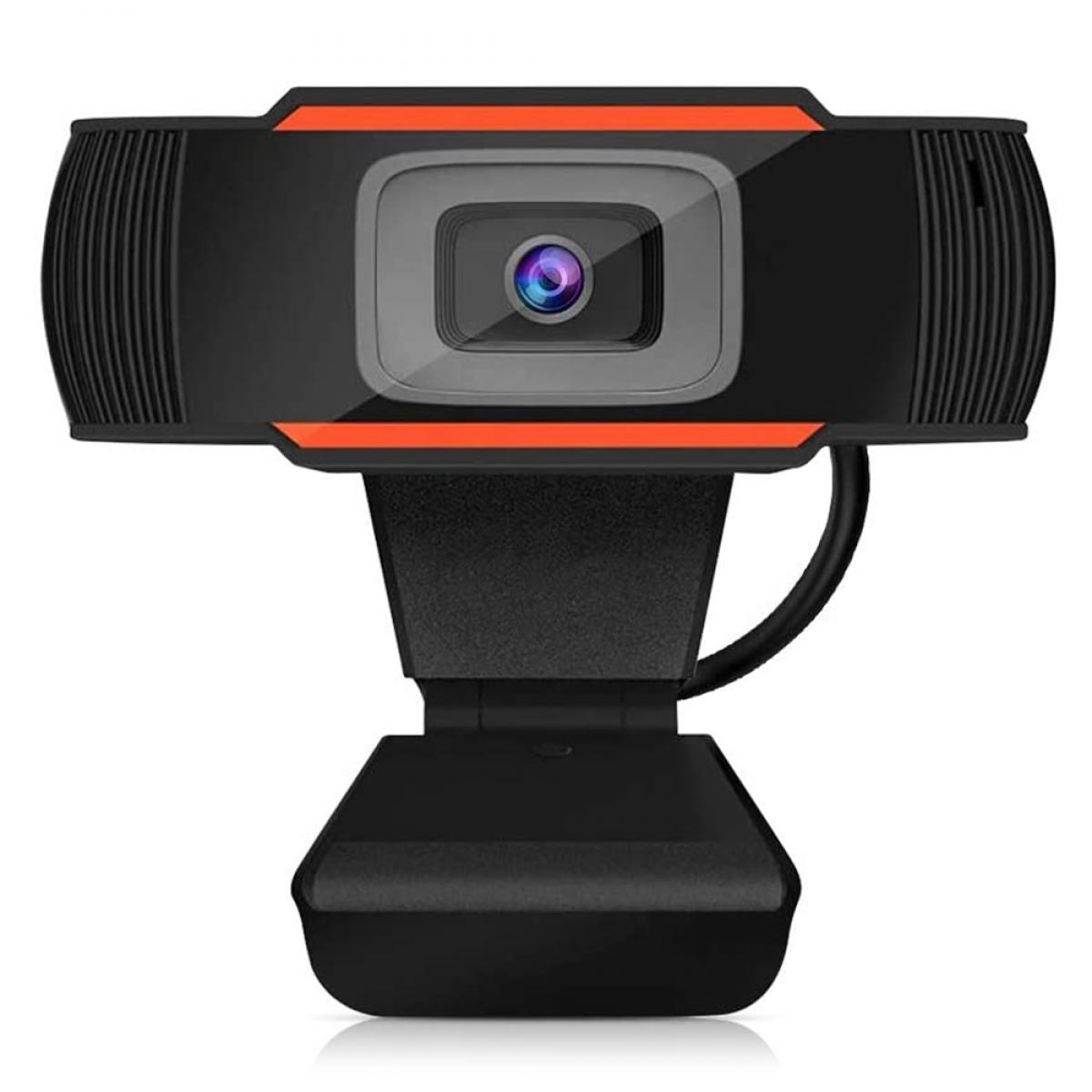
In today's digitally connected world, having a functional camera on your laptop is almost a necessity. Whether you're using it for virtual meetings, taking pictures, or video chatting with family and friends, knowing how to locate and utilize your laptop's camera is essential. If you're using a Windows 7 operating system, finding and activating the camera can seem a bit daunting, especially if you're not particularly tech-savvy. This article aims to guide you step-by-step through the process of locating and using your laptop's camera effectively on Windows 7.

Preliminary Steps: Ensuring Your Camera is Installed

Before diving into the details of how to use the camera, it's important to ensure that your laptop actually has one and that it's properly installed.

1. Physical Check: Most laptops come with an integrated webcam, usually located at the top center of the screen. If you don’t see one, you might need to purchase an external webcam.

2. Device Manager: Open the Device Manager to confirm that your camera drivers are installed. You can do this by:

- Clicking on the “Start” button.

- Typing “Device Manager” in the search box.

- Expanding the “Imaging devices” section to ensure your camera appears in the list.

If the camera doesn’t appear in the Device Manager, it could indicate that the drivers are missing or the camera is not working. In such cases, you might have to download the appropriate drivers from your laptop manufacturer’s website.

Step-by-Step Guide to Find and Use Your Camera

Once you've confirmed that your camera is installed, follow these steps to start using it.

1. Using the Built-in Camera App

Windows 7 doesn’t come with a native camera app like Windows 10, but most laptop manufacturers include their own webcam software. Here’s how to find it:

- Open the Start Menu: Click on the “Start” button.

- Search for Camera Software: Type the name of the camera software provided by your laptop manufacturer. Common names include “HP Camera,” “Dell Webcam Central,” “Acer Crystal Eye,” etc.

- Launch the Application: Click on the application to open it. This software usually allows you to take pictures, record videos, and adjust camera settings.

If you don’t have any built-in camera software, you can download free webcam applications like "WebcamViewer" or "ManyCam" which are compatible with Windows 7.

2. Using Skype or Other Video Calling Software

Another way to access your camera is through video calling software like Skype, Zoom, or Microsoft Teams. Follow these steps:

- Install Skype: If you don’t already have Skype, download it from the official Skype website. The process is similar for other video calling software.

- Sign In: Open Skype and sign in with your credentials.

- Check Camera Settings: Go to Tools > Options > Video Settings to make sure your camera is selected. You should see a live video feed from your camera if it’s properly set up.

- Start a Call: Initiate a video call to see your camera in action.

3. Using Third-Party Webcam Software

Third-party webcam software often provides more advanced features and settings compared to built-in applications. Here’s how you can use them:

- Download Software: Choose a reputable third-party webcam software like "ManyCam," "WebcamMax," or "OBS Studio."

- Install the Software: Follow the on-screen instructions to install it on your laptop.

- Launch and Configure: Open the software and go to the settings to configure your camera. These applications often come with various settings to enhance video quality, add filters, and more.

Troubleshooting Common Issues

Despite following the steps above, you might encounter some issues when trying to use your camera. Here are some common problems and their solutions:

No Camera Detected

If your camera is not detected, try the following:

- Restart Your Laptop: Sometimes a simple restart can solve the problem.

- Reinstall Drivers: Go to the Device Manager, right-click on your camera, and select “Uninstall.” Then, restart your laptop which should prompt the drivers to reinstall.

- Check Connections: If you’re using an external webcam, ensure it’s properly connected to your laptop’s USB port.

Poor Video Quality

If the video quality is poor, consider these tips:

- Lighting: Ensure you have adequate lighting. Poor lighting conditions can significantly affect video quality.

- Clean the Lens: A dirty camera lens can result in unclear images. Use a soft cloth to gently clean the lens.

- Update Drivers: Outdated drivers can affect performance. Visit the laptop manufacturer’s website to download the latest drivers for your camera.

Software Conflicts

Sometimes, multiple applications trying to use the camera simultaneously can cause conflicts:

- Close Unnecessary Applications: Make sure no other software is using the camera.

- Check Permissions: Some applications might need permission to access the camera. Check the software settings to grant necessary permissions.

Finding and using the camera on a Windows 7 laptop might seem like a complex task, but by following the steps outlined above, it becomes considerably easier. Ensure your camera is properly installed and recognized by the system, utilize built-in or third-party software to access it, and troubleshoot any issues that may arise.

Whether it's for professional meetings, personal chats, or simply taking a quick snapshot, having a functional camera on your laptop can significantly enhance your digital experience. With this guide, you should now be equipped with the knowledge to navigate through any challenges related to using your camera on a Windows 7 laptop confidently.
Leave your comment
Cancel reply
Note: HTML is not translated!
Related products
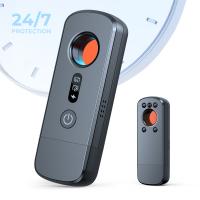
Anti-Spy Detector Scan & Disconnect for 24/7 Protection Find Bugs Hidden Cams
15
$89.99 $59.99
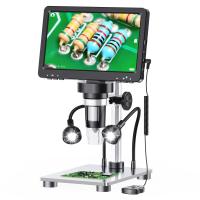
DM9 7" LCD Digital Microscope 10X-1200X, 1080P Coin Microscope with 12MP Camera Sensor Work with Windows/Mac OS
HOT Seller
DM9 7" LCD Digital Microscope 10X-1200X, 1080P Coin Microscope with 12MP Camera Sensor Work with Windows/Mac OS
118
$149.99 $121.99
37mm Snap-On Center Pinch Lens Cap 7 in 1 with Anti-Loss Keeper Leash Compatible with Nikon, Canon, Sony, Fujifilm Camera Lenses
$7.49
40.5mm Snap-On Center Pinch Lens Cap 7 in 1 with Anti-Loss Keeper Leash Compatible with Nikon, Canon, Sony, Fujifilm Camera Lenses
$7.49
43mm Snap-On Center Pinch Lens Cap 7 in 1 with Anti-Loss Keeper Leash Compatible with Nikon, Canon, Sony, Fujifilm Camera Lenses
$7.49
46mm Snap-On Center Pinch Lens Cap 7 in 1 with Anti-Loss Keeper Leash Compatible with Nikon, Canon, Sony, Fujifilm Camera Lenses
$7.49
49mm Snap-On Center Pinch Lens Cap 7 in 1 with Anti-Loss Keeper Leash Compatible with Nikon, Canon, Sony, Fujifilm Camera Lenses
$7.49
52mm Snap-On Center Pinch Lens Cap 7 in 1 with Anti-Loss Keeper Leash Compatible with Nikon, Canon, Sony, Fujifilm Camera Lenses
$7.49
55mm Snap-On Center Pinch Lens Cap 7 in 1 with Anti-Loss Keeper Leash Compatible with Nikon, Canon, Sony, Fujifilm Camera Lenses
$7.49
58mm Snap-On Center Pinch Lens Cap 7 in 1 with Anti-Loss Keeper Leash Compatible with Nikon, Canon, Sony, Fujifilm Camera Lenses
$7.49
Products You May Like
67mm Circular Polarizer Filter with 24 Multi-Layer Green Coatings HD/Hydrophobic/Scratch Resistant CPL Filters Nano-Dazzle
40
$34.99 $27.58
Lens Mount Adapter MD-NEX IV Manual Focus Compatible with Minolta Rokkor (SR/MD/MC) Lens and Sony E Mount Camera Body
74
$70.99 $39.99
58mm MC UV Protection Filter with 24 Multi-Layer Green Coatings HD/Hydrophobic/Scratch Resistant Ultra-Slim UV Filter Nano-Dazzle
77
$28.99 $22.79
52mm ND2-ND400 (9 Stops) Variable ND Filter Neutral Density Filter for Camera Lens Ultra-Slim, Multi Coated Nano-Klear
70
$29.99 $23.69
55mm Magnetic Black Mist Filter 1/4 Special Effects Filter HD Multi-layer Coated, Waterproof/Scratch-Resistant/ Anti-Reflection Nano-Xcel Series
30
$78.99 $62.99
62mm True Color Variable ND2-32 (1-5 Stops) and CPL Circular Polarizing Lens Filter 2 in 1 for Camera Lens Neutral Density Polarizer Filter Nano-X Series
52
$109.99 $87.99
55mm Black mist filter 1/8 28 layers of anti-reflection green film waterproof and scratch-resistant with metal lens cover Nano-X series
32
$61.99 $39.99
8-32x50 Continuous High-Definition Zoom Monocular Telescope, Black, with Mobile Phone Clip
11
$99.99 $46.99
4G solar security camera System Wireless LTE cctv solar camera PIR human sensor + AI human detection 2-Way Audio Built-in Battery 7800mAh 1080P Infrared Night Vision 15m/49ft EU Version
30
$139.99 $122.99
Sony A Lenses to M43 MFT Lens Mount Adapter K&F Concept M22121 Lens Adapter
112
$53.99 $29.99
Related articles
How To Test Webcam Windows 7?
Can T Find Camera On Windows 10?
How To Connect 2 Bluetooth Headphones To Laptop Windows 10 ?
How To Use Video Camera On Laptop?
How To Change Video Camera On Laptop?
How To Fix Microphone On Windows 11?
How To Record With Sound On Laptop Camera?
How To Turn On Microphone And Camera On Hp Laptop ?
How To Turn On Camera And Microphone On Dell Laptop ?
How To Use A Sandisk Sd Card?
Blog You May Like
Where To Put Cameras On House?
How To Clean Microphone On Iphone?
How To Use Filter On Iphone 12 Camera?
What Is Largest Micro Sd Card?
How To Install Outdoor Web Camera?
How Should Standing Lights Be Positioned?
Note 4 No Sound When Recording?
Home Security Where To Put Outdoor Cameras?
How To Screen Record Internal Sound?
What Is The Best Surveillance Camera For Home?
Related categories
On-Dash Camera C mount lens adapter m4/3 adapter Camera Parts | Studio Camera Accessories streaming video camera digital camera for beginner Solar Cellular Trail Camera Non Cellular Trail Camera camera shoulder bag
Popular products
no spy hidden camera detector soldering microscope with camera and led LCD Digital Microscope professional camera backpacks camera laptop backpacks Polarize Filter For Mobile Phone Gold Detector Kit clip on phone camera lens light with power bank camera backpack with tripod strap
Related searches
Metal Detector Find Bag Camera And Laptop Bag Camera Laptop Travel Backpack On Camera Flashes Metal Detectors That Find Gold And Silver 24 7 Security Camera Outdoor Solar Camera 24 7 Recording 24 7 Video Camera Surveillance Camera Backpack 16 Inch Laptop Best Camera And Laptop Backpack
Popular searches
Dji Action 4 Lens Dji Mini Tripod Xl Camera Backpack A-mount For Sony A6300 Praktica B Mount Adapter Canon R8 Hot Shoe Cover Minolta To Ef Mount Canon Sl2 Lens Mount Fuji S1600 Lens Adapter Om Lens To Fd Mount Cobversion
Blog Category
  • Activities
  • Guide
    • Filter Guide
    • Lens Adapter
    • Product Review
  • News & Reviews
    • Camera Reviews
    • Sample Gallery
    • News
  • Tutorials
    • Solar eclipse photography
    • Photography Basics
    • Landscape Photography
  • Inspiration
    • Travel
    • Travel Stories
Search Article
Latest from the Blog
Black Friday 2025 Special at Kentfaith
Kentfaith x Citadel Season 2
How Big A Memory Card For Camera?
Which Binoculars To Buy?
What Is A Good Quality Dash Cam?
What Is The Best Wireless Outdoor Security Camera?
How To Make A Camera Flash After Effects?
How To Remove Memory Card From Nikon Camera?
What Is Surveillance Camera Control System?
What Does Tripod?
  • Easy Payment Multilple Payment Options

  • Free Shipping Global WareHouse Shipment

  • No Risk 30-Day No Reason Return

  • Limited Deals Buy More, Save More

  • Tax Free No any surcharges or tax fee

Information
  • About us
  • Contact Us
  • Site Map
  • Blog
  • Video
  • Gallery
  • VIP Membership Rewards
Service
  • Privacy Policy
  • Terms & Conditions
  • Shipping & Delivery
  • Payment Info
  • Warranty, Return & Refund
  • Intellectual Property Rights
  • Ambassador
  • Affiliates
  • Wholesale
Support
  • My account
  • Order History
  • FAQs
  • Extend Warranty
  • Logistics Tracking
Follow us
NewsLetter

Get the latest product, K&F Concept respects your privacy.

Powered By KENTFAITH © 2026