kfconcept

KENTFAITH
K&F Concept    Blog >

Enjoy Your Selected Digital Life

Recently Viewed
  • Recently Viewed
  • Recently Viewed list is empty.

Compare (0) 0
  • Compare
  • You have not chosen any products to compare.

  • Compare
Currency: USD
  • Currency
Shop by Scene Shop by Rank

Log Into Your Account

Account

Order History

Wish List

Login

Forgotten Password?

Or connect with

Register Account

Already have an Account?Log In

  • Shopping Cart
  • Your shopping cart is empty!

  • Register/Login to purchase, earn points
  • Favorite
  • Your wish list is empty.

  • Register/Login to like, earn points
  • Activities
  • Guide
    • Filter Guide
    • Lens Adapter
    • Product Review
  • News & Reviews
    • Camera Reviews
    • Sample Gallery
    • News
  • Tutorials
    • Solar eclipse photography
    • Photography Basics
    • Landscape Photography
  • Inspiration
    • Travel
    • Travel Stories
  • Home
  • Blog
  • How To Connect A Microphone To A Smart Tv ?

How To Connect A Microphone To A Smart Tv ?

Kentfaith 2022-12-23 03:23:15 0 Comments

With the continuous upgrading of home entertainment systems, smart TVs have become an indispensable part of modern homes. And in order to improve the home entertainment experience, connecting a microphone to a smart TV to realize functions such as family Karaoke and voice control has gradually become a user requirement. In this article, we will introduce in detail how to connect a microphone to a smart TV and solve the problems that may be encountered during the connection process.
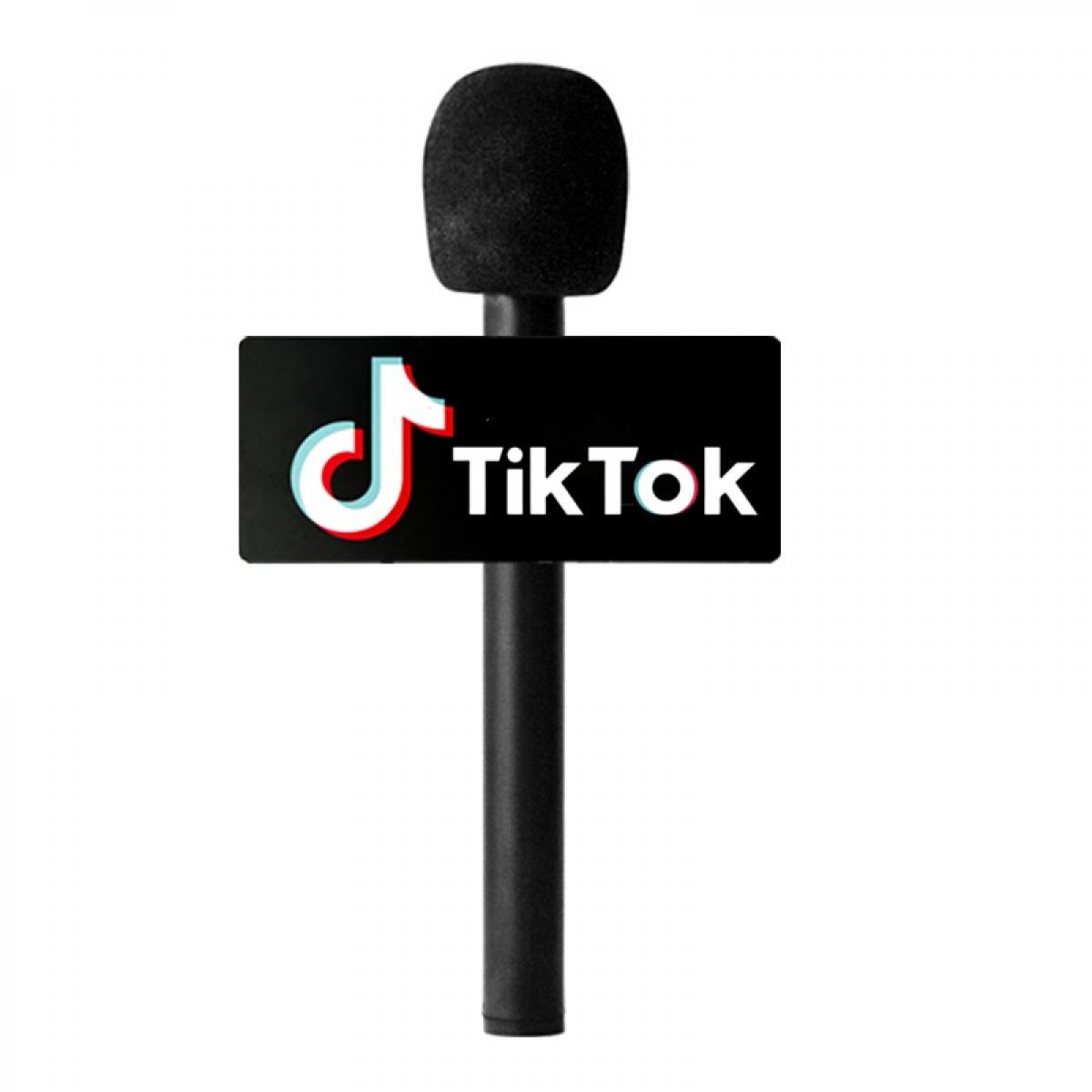

First, understand how to connect the microphone to the smart TV

Connecting a microphone to a smart TV is not a complicated thing, but you need to choose the right connection method according to different TV and microphone models. Here are a few common connection methods:


Connecting using Bluetooth

Step 1: Make sure both your Smart TV and microphone support Bluetooth.

Step 2: Open the Bluetooth settings of your Smart TV, search for and select the microphone for pairing.

Step 3: After successful pairing, the microphone can be connected to your Smart TV.


Using Wired Connection

Step 1: Make sure the Smart TV has an audio input port (e.g. 3.5mm headphone jack or RCA jack).

Step 2: Connect the microphone to your Smart TV with the appropriate audio cable.

Step 3: Select the appropriate audio input source in the TV settings.

Using the USB Port

Step 1: Confirm that your Smart TV supports USB audio devices.

Step 2: Connect the microphone to the Smart TV via the USB port.

Step 3: Select USB audio input in TV settings.

With the above ways, users can choose the suitable connection method to connect the microphone to the Smart TV.


Second, solve the problem of microphone and smart TV connection failure

During the connection process, you may encounter the problem that the microphone can't connect to the smart TV, here are some solutions:


Check device compatibility

Confirm whether the Smart TV and the microphone are compatible.

Check the device manual or official website to confirm the supported connection methods.

Re-pair the Bluetooth device

If using a Bluetooth connection, try deleting the existing pairing record and re-pairing.

Make sure the Bluetooth device is in pairing mode and the distance is within the valid range.

Check the connection cable and interface

Confirm that the audio cable and interface used are intact and securely connected.

Try replacing the audio cable or interface with a different one to troubleshoot hardware problems.

Update device firmware

Check that the firmware version of your Smart TV and microphone is up to date.

Perform a firmware update in the device settings to improve compatibility and stability.

Reboot the device

Reboot the Smart TV and microphone to clear cache and temporary faults.

Try to reconnect the device after powering off.

Third, common troubleshooting of microphone and Smart TV connection

Even if successfully connected, sometimes you may encounter some faults that affect the use, the following are common problems and solutions:


No sound output

Check the audio settings of the Smart TV to make sure the correct audio input source has been selected.

Make sure the microphone volume is adjusted to the right level and not muted.

Sound delay

Bluetooth connection may have sound delay, try using a wired connection to improve the delay issue.

Confirm that the firmware version of the Smart TV and microphone is up to date to improve performance.

Sound Distortion

Adjust the input gain of the microphone to avoid distortion caused by excessive volume.

Try replacing the audio cable or interface to troubleshoot hardware issues.

Unstable connection

Bluetooth connection is susceptible to interference, keep the distance of the device within the effective range to reduce the source of interference.

Ensure that the device firmware is the latest version to improve connection stability.

Fourth, the detailed steps and settings for connecting the microphone to the smart TV

After a detailed understanding of the connection method and troubleshooting, let's look at the specific connection steps and settings:

Preparation

Confirm the connection method of the smart TV and the microphone (Bluetooth, wired or USB).

Prepare the required audio cables or accessories.

Bluetooth connection steps

Switch on the Bluetooth function of the Smart TV and microphone.

Search for and select the microphone for pairing in the TV's Bluetooth settings.

After successful pairing, adjust the microphone volume and sound effect to start using.

Wired Connection Steps

Connect the microphone to the audio input connector of your Smart TV using an appropriate audio cable.

Select the appropriate audio input source in the TV's audio settings.

Adjust the microphone volume to ensure the sound is output properly.

USB Connection Procedure

Connect the microphone to the Smart TV via the USB port.

Select USB audio input in the TV audio settings.

Adjust the microphone volume and sound effect to start using it.

Improve the sound quality and stability of the microphone connected to the Smart TV

For a better experience, here are some suggestions to improve sound quality and connection stability:

Use high-quality equipment

Choose microphones and audio cables with good sound quality and stability.

Avoid using cheap equipment that affects sound quality and connection stability.

Optimise device settings

Adjust audio parameters in Smart TV and microphone settings to optimise sound quality.

Use professional audio processing software to enhance sound.

Keep your devices up to date

Regularly check and update the firmware of your Smart TV and microphone to improve performance and compatibility.

Follow updates and optimisation recommendations released by device manufacturers.

Reduce interference

Bluetooth connections are susceptible to interference, minimise sources of interference such as other wireless devices.

Keep the distance of the device within the effective range to avoid signal attenuation.
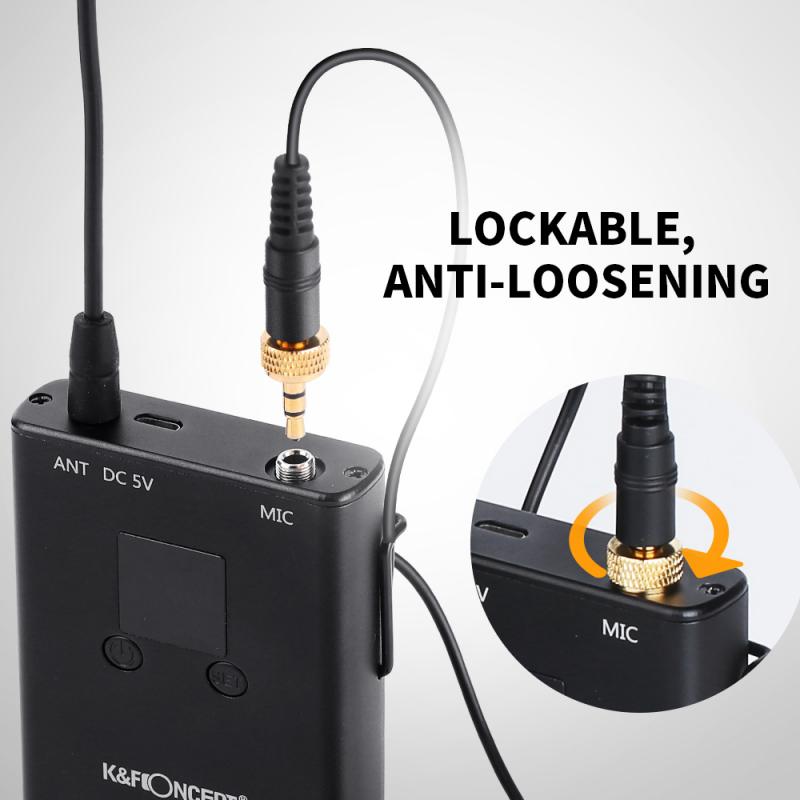
how to connect a microphone to a smart tv

With the above methods, users can not only smoothly connect the microphone to the smart TV, but also improve the sound quality and connection stability, and enjoy a better home entertainment experience. If you encounter problems that can't be solved in practice, it is recommended that you consult the customer service of the device manufacturer or consult the relevant technical documents.

In short, connecting a microphone to a smart TV to enhance the home entertainment experience is not complicated. I hope this article can provide practical reference and help for the majority of users to enjoy the convenience and fun of smart life.
Leave your comment
Cancel reply
Note: HTML is not translated!
Related products
Smart Camera Glasses, HD 1080P, EIS Stabilization, WiFi Connect, Translation, 4H Playtime, Kentfaith
16
$119.99 $95.99
Minolta A / Sony A Lenses to Pentax Q Lens Mount Adapter K&F Concept M22161 Lens Adapter
$45.99 $23.99
Minolta A / Sony A Lenses to Pentax Q Lens Mount Adapter with Tripod Mount K&F Concept M22162 Lens Adapter
$55.99 $28.99
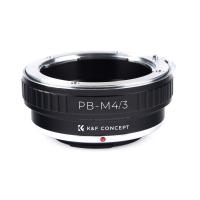
Sony A Lenses to M43 MFT Lens Mount Adapter K&F Concept M22121 Lens Adapter
112
$53.99 $29.99
Sony A Lenses to Fuji X Lens Mount Adapter K&F Concept M22111 Lens Adapter
7
$53.99 $27.99
Sony Alpha Minolta AF A-Type Lens to NEX E-Mount Mirrorless Camera with Matting Varnish Design
146
$64.99 $35.99
Lens Mount Adapter Compatible with Sony Alpha Minolta AF A-Type Lens to NEX E-Mount Mirrorless Camera Body
155
$53.99 $27.99
Lens Mount Adapter for Pentax K/M/A/FA/DA Mount Lens to Sony NEX E-Mount Camera Body
146
$60.99 $34.99
Pentax K/M/A/FA/DA Lenses to Fuji X Lens Mount Adapter K&F Concept M35111 Lens Adapter
5
$60.99 $33.99
M42 42mm Lens to Alpha Minolta AF / Sony A Adapter Ring A77 A99 A900 A390 A580 K&F Concept Lens Mount Adapter
3
$37.99 $19.99
Products You May Like
K&F CONCEPT Screen Protector for Insta360 X5, [3 Pack] 9H Hardness Tempered Glass Cover Anti-Scratch Anti-Bubble Anti-Dust LCD Screen Protector Curved Edge Protection for Insta360 X4/X5 Accessories
36
$9.99
Mini Handheld Microscope for Kids, 1000x Zoom 8 Adjustable LED Lights PC Compatible
78
$119.99 $83.99
60W LED Video Light 2700K-6500K Photography Lighting for Vlogging, Live Stream
$248.99 $174.99
Samsung 128GB MicroSD EVO Memory Card 100MB/s U3
59
$51.99
Praktica Lens to M43 MFT Lens Mount Adapter K&F Concept M30121 Lens Adapter
106
$53.99 $27.99
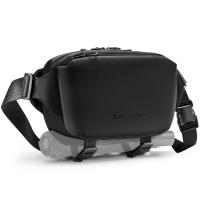
K&F Concept Alpha Camera Sling Bag 4L Photography Shoulder Bag, Compatible with Canon / Nikon / Sony Camears / DJI Mavic Drones - Sling Bag 4L Urban Wander 12 (Black)
NEW Arrival
K&F Concept Alpha Camera Sling Bag 4L Photography Shoulder Bag, Compatible with Canon / Nikon / Sony Camears / DJI Mavic Drones - Sling Bag 4L Urban Wander 12 (Black)
132
$39.99 $34.99
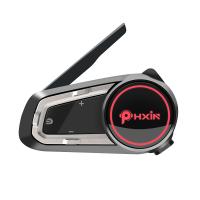
10 Riders Intercom Motorcycle Helmet Bluetooth Headset Music Sharing
11
$149.99 $104.99
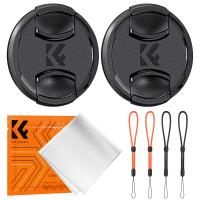
77mm Snap-On Center Pinch Lens Cap 7 in 1 with Anti-Loss Keeper Leash Compatible with Nikon, Canon, Sony, Fujifilm Camera Lenses
$7.49
95mm ND4-64 (2-6 Stop) Variable ND Filter and CPL Circular Polarizing Filter 2 in 1, 28 Layers Coated Nano-Xcel Series
$167.99 $149.99
40.5mm Variable ND2-32 (1-5 Stops) & Circular Polarizing Filter CPL & Black Mist 1/4 3 in 1 HD Lens Filter with 28 Multi-Coated for Camera Lenses Nano-Xcel Series
NEW Arrival
40.5mm Variable ND2-32 (1-5 Stops) & Circular Polarizing Filter CPL & Black Mist 1/4 3 in 1 HD Lens Filter with 28 Multi-Coated for Camera Lenses Nano-Xcel Series
33
$99.99 $79.99
Related articles
How To Connect Wifi Camera To Smart Tv ?
How To Connect A Wifi Smart Camera?
Can You Connect Bluetooth Earbuds To A Tv?
How Can I Connect A Microphone To A Bluetooth Speaker ?
Can You Connect A Microphone To An Ipad?
How To Find If Smart Tv Has Camera Or Microphone ?
How To Connect Hisense Tv To Bluetooth Headphones ?
How To Connect A Phone To A Rca Projector ?
Can I Connect Apple Tv To Projector?
How Much Does Camera Lens Repair Cost?
Blog You May Like
How To Record Voice Audio On Mac?
Travel Tripod That Can Go Low?
How Use Button On Selfie Stick?
Trail Camera How Set Up New?
What Are Binoculars For?
What Is Ring Flash Macro Photography?
How To Make Your Recording Sound Clear?
How To Change Your Voice On Screen Recording?
What Is The Most Accurate Archery Rangefinder?
Can I Use Indoor Camera As Baby Monitor?
Related categories
A Mount Lens Adapter Sony A Mount Lens Adapters minolta a mount lenses C mount lens adapter Handheld Kaleidoscope Filters
Popular products
leica m sony e mount adapter sony minolta adapter sony a mount to minolta adapter mft adapter sony Fuji Mount Adapter sony a57 lens adapter minolta md to sony lens adapter adapter for canon eos to sony lens adapter for sony sony alpha a7r mirrorless digital camera
Related searches
Wireless Headphones For A Smart Tv Retro Game Console Connect To Tv Smart Watch Connect To Iphone Sony A To Mft Adapter Sony E To A Adapter Md To A Mount Adapter A To E Mount Adaptor Best Microphone For A Laptop Wired Headphones With A Microphone Microphone For A Laptop Computer
Popular searches
3d Printed Canon Lens Adapter A6700 Battery Canon Yh19x6.7 Kts On Eos Adapter Sony Zve10 Lens Mount Canon Battery Lp E10 Best Video Camera With Gimbal Cpl Filter 62mm C Mount Lens Gopro Ltm To Nikon F Adapter Best Camera Without Wifi
Blog Category
  • Activities
  • Guide
    • Filter Guide
    • Lens Adapter
    • Product Review
  • News & Reviews
    • Camera Reviews
    • Sample Gallery
    • News
  • Tutorials
    • Solar eclipse photography
    • Photography Basics
    • Landscape Photography
  • Inspiration
    • Travel
    • Travel Stories
Search Article
Latest from the Blog
How To Fix The Straps On A Camera?
What Tripod To Buy?
Black Friday 2025 Special at Kentfaith
How To Find Camera Roll On Iphone 5s?
How To Place Cameras Around Your House?
What Is The Best Camera To Record Videos?
How To Wear Monocular?
Can I Charge Camera Battery With Power Bank?
How Do Metal Detectors Work? A Complete Guide for Beginners and Pros
How To Stream Live From Surveillance Camera?
  • Easy Payment Multilple Payment Options

  • Free Shipping Global WareHouse Shipment

  • No Risk 30-Day No Reason Return

  • Limited Deals Buy More, Save More

  • Tax Free No any surcharges or tax fee

Information
  • About us
  • Contact Us
  • Site Map
  • Blog
  • Video
  • Gallery
  • VIP Membership Rewards
Service
  • Privacy Policy
  • Terms & Conditions
  • Shipping & Delivery
  • Payment Info
  • Warranty, Return & Refund
  • Intellectual Property Rights
  • Ambassador
  • Affiliates
  • Wholesale
Support
  • My account
  • Order History
  • FAQs
  • Extend Warranty
  • Logistics Tracking
Follow us
NewsLetter

Get the latest product, K&F Concept respects your privacy.

Powered By KENTFAITH © 2026