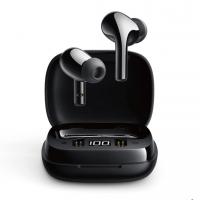
Can You Connect Bluetooth Earphones To Laptop?
Connecting Bluetooth earphones to a laptop is a fairly common requirement in today’s tech-dominated world and can significantly enhance your productivity and convenience. Whether it's for listening to music, joining virtual meetings, or watching movies, wireless earphones offer seamless connectivity. However, despite the simplicity of using Bluetooth devices in theory, many users experience confusion or issues during the pairing and connection process. In this article, I'll walk through detailed step-by-step instructions to connect your Bluetooth earphones to your laptop, troubleshoot common problems, and provide solutions for issues that may appear along the way.
Understanding the Basics: Are Your Devices Compatible?
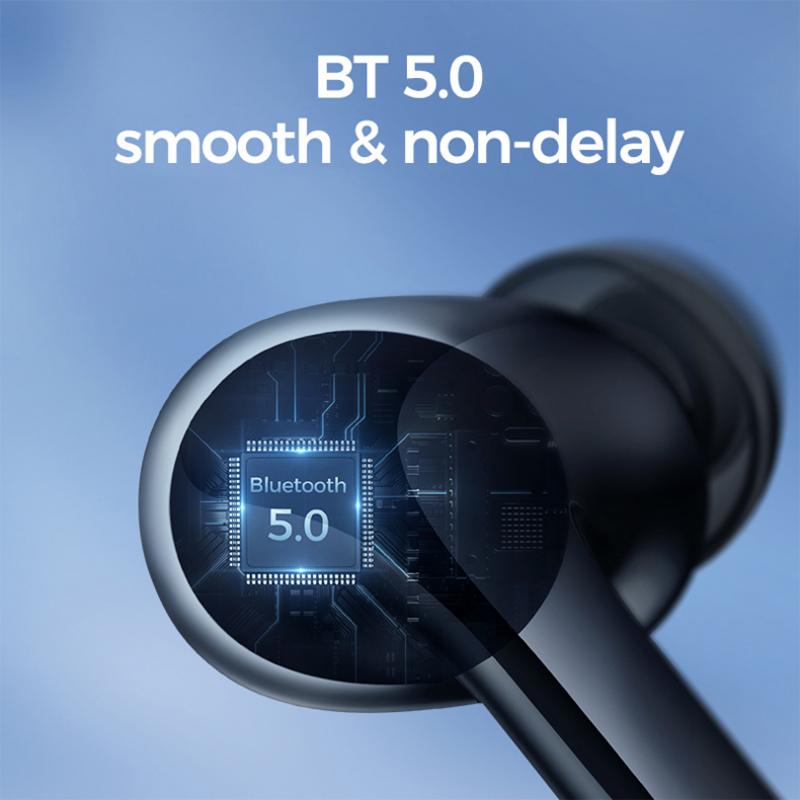
Before diving into the process, it is essential to confirm that your devices are compatible. Bluetooth-enabled laptops and earphones are ubiquitous in the modern market, but verifying is always a good first step.
1. Does Your Laptop Support Bluetooth?
Most laptops today come with built-in Bluetooth support. However, older models may not include this functionality. To check, navigate to your laptop's settings or Device Manager (on Windows) and look for "Bluetooth." If not available, you might need to use an external Bluetooth adapter.
2. Is Your Bluetooth Earphone Compatible?
Ensure your earphones support the standard Bluetooth protocols used by your laptop. The majority of Bluetooth devices are backward-compatible, so even older Bluetooth versions generally work with modern devices.
If both devices are compatible, proceed to the connection process.
Step-by-Step Guide to Connecting Bluetooth Earphones to a Laptop
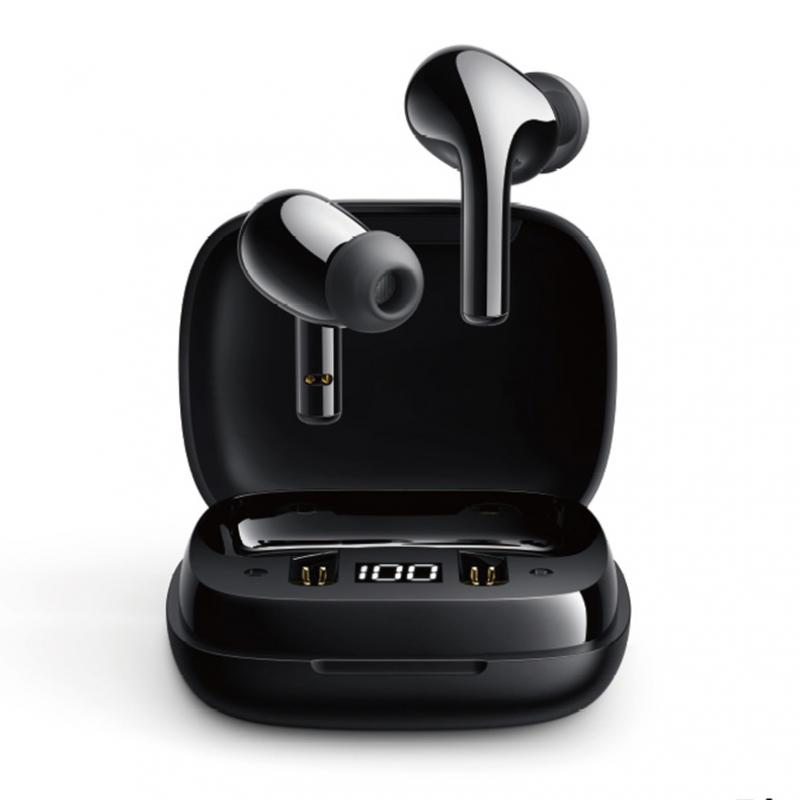
1. Enable Bluetooth on Your Laptop

For a successful pairing, ensure that Bluetooth is turned on.
Windows:
- Go to the "Settings" menu by pressing Windows + I.
- Open "Devices," and under the "Bluetooth & other devices" tab, toggle the Bluetooth switch to “On.”
- If you cannot find the toggle, ensure the "Bluetooth Support Service" is enabled in the Services app.
Mac:
- Look for the Bluetooth symbol in the menu bar. Click it and choose "Turn Bluetooth On."
- Alternatively, go to "System Preferences" and select "Bluetooth." Ensure the Bluetooth functionality is enabled.
2. Put Your Earphones in Pairing Mode
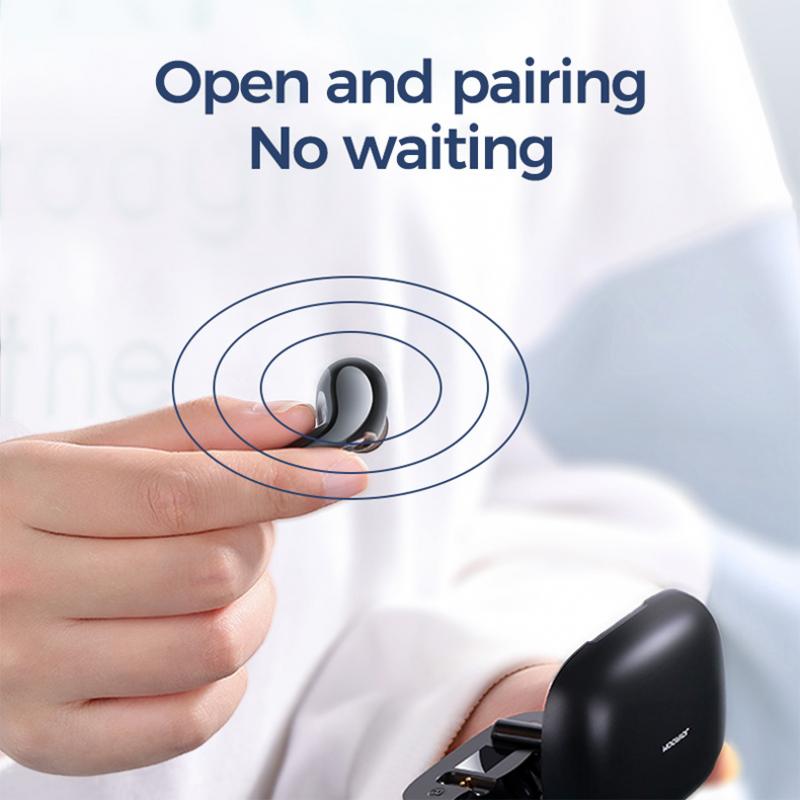
Bluetooth earphones need to be placed in pairing mode before a laptop can detect them. This typically involves holding a specific button or combination of buttons until the status light flashes (usually blue or red).
Consult the instruction manual that came with your earphones if you're unsure how to activate pairing mode. Common steps include:
- Holding the power button for a few seconds.
- Pressing a dedicated Bluetooth pairing button.
3. Find and Pair the Device
Once your Bluetooth earphones are in pairing mode, proceed to pair them with your laptop.
On Windows:
- Go to "Bluetooth & other devices" in the settings and click "Add Bluetooth or other device."
- In the popup, choose "Bluetooth."
- Your laptop will now scan for devices. Select your earphones from the list when they appear.
On Mac:
- In the Bluetooth settings, wait for your earphones to appear on the list under "Devices."
- Click "Connect" next to the name of your earphones.
4. Set the Earphones as Default Audio Output
Even after connecting your Bluetooth earphones, your laptop may not automatically redirect audio to them.
On Windows:
- Right-click on the volume icon in the taskbar and select "Sounds."
- Under the "Playback" tab, find your earphones, right-click them, and select "Set as Default Device."
On Mac:
- Go to "System Preferences" and select "Sound."
- From the "Output" tab, choose your earphones as the preferred audio output device.
Troubleshooting Common Issues
Despite following these steps, users can sometimes face challenges. Here are common problems and their solutions:
1. Laptop Cannot Detect Bluetooth Earphones
- Ensure Bluetooth is enabled on both your laptop and earphones.
- Verify that your earphones are in pairing mode.
- Restart both devices to refresh their connection options.
- Check for system or driver updates on your laptop. For Windows, you can access "Device Manager" and update the Bluetooth driver.
2. Frequent Disconnects
- Ensure the battery level of your earphones is sufficient. Low battery often causes frequent disconnections.
- Minimize interference by keeping the devices within a 10-meter (33-foot) range and away from competing wireless signals, like Wi-Fi routers or other Bluetooth devices.
- Unpair and re-pair the devices.
3. Audio Quality Issues
- Check your laptop’s audio settings to ensure the correct profile is being used. Many Bluetooth earphones support both high-quality stereo audio and a hands-free calling mode, which could sound muffled.
- Update your Bluetooth driver software or firmware on both the laptop and earphones.
4. Earphones Connect but No Sound
- Ensure the earphones are set as the default playback device in the laptop’s audio settings.
- Verify that the earphones’ volume is not muted.
- Restart the playback application, as some apps may not recognize newly connected output devices.
5. Pairing Process Feels Slow or Complex
You might want to clear previous connectivity records from your devices. On your laptop, remove unused or older devices from the Bluetooth device list. Reset your earphones as per the manufacturer's instructions for a "fresh slate."
Additional Tips for Optimal Connectivity
1. Ensure Regular Updates
Bluetooth drivers and firmware updates often include improved bug fixes and compatibility. Monitor updates for both your laptop and Bluetooth earphones.
2. Invest in a Bluetooth 5.0 Device
For smoother connectivity, faster data rates, and reduced latency, ensure both your laptop and earphones support the current Bluetooth 5.0 standard or higher.
3. Optimize Battery Life
To avoid interruptions during extended use, ensure your earphones and laptop are fully charged before beginning your connection. Some laptops also reduce Bluetooth connectivity strength when running on low battery.
4. Multiple Device Connections
Many Bluetooth earphones support simultaneous pairing with multiple devices (like phones and laptops). However, this can sometimes cause conflicts. Temporarily disconnect from other devices to ensure a stable connection with your laptop.
When to Seek Professional Help
If you’ve exhausted all troubleshooting avenues and your devices still won’t connect, consider reaching out to customer support for your laptop or earphones. The issue could stem from a hardware defect, in which case the manufacturer’s service team may offer repair or replacement options.
Conclusion
Connecting Bluetooth earphones to your laptop is not only about convenience but an essential setup in a wireless world. While the process is generally straightforward, occasional hiccups in compatibility or software configurations can occur. By following the steps outlined above and keeping your devices updated, you can ensure a seamless connection experience.
As technology continues to evolve, Bluetooth connectivity will likely become faster and simpler. Until then, mastering the basics of troubleshooting and configuration will go a long way in enhancing your productivity and enjoyment. Now that you know how to successfully connect Bluetooth earphones to your laptop, take some time to experience the joys of truly wireless audio wherever your work or relaxation leads you. Happy listening!