kfconcept

KENTFAITH
K&F Concept    Blog >

Enjoy Your Selected Digital Life

Recently Viewed
  • Recently Viewed
  • Recently Viewed list is empty.

Compare (0) 0
  • Compare
  • You have not chosen any products to compare.

  • Compare
Currency: USD
  • Currency
Shop by Scene Shop by Rank

Log Into Your Account

Account

Order History

Wish List

Login

Forgotten Password?

Or connect with

Register Account

Already have an Account?Log In

  • Shopping Cart
  • Your shopping cart is empty!

  • Register/Login to purchase, earn points
  • Favorite
  • Your wish list is empty.

  • Register/Login to like, earn points
  • Activities
  • Guide
    • Filter Guide
    • Lens Adapter
    • Product Review
  • News & Reviews
    • Camera Reviews
    • Sample Gallery
    • News
  • Tutorials
    • Solar eclipse photography
    • Photography Basics
    • Landscape Photography
  • Inspiration
    • Travel
    • Travel Stories
  • Home
  • Blog
  • Where Can I Find My Camera In Laptop?

Where Can I Find My Camera In Laptop?

Kentfaith 2024-07-26 01:14:10 0 Comments

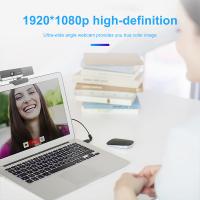
In today's digital age, laptops have become an essential tool for both personal and professional use. One of the key features of modern laptops is the built-in camera, which is crucial for video conferencing, online classes, and even casual video chats with friends and family. However, many users often find themselves puzzled about where to locate their laptop camera and how to ensure it is functioning correctly. This article aims to provide a comprehensive guide on finding and using your laptop camera, addressing common issues, and offering practical solutions.

Locating the Camera on Your Laptop

The first step in using your laptop camera is to locate it. Most modern laptops come with a built-in camera, typically positioned at the top center of the screen bezel. This placement is ideal for capturing your face during video calls. Here are some steps to help you find it:

1. Visual Inspection: Open your laptop and look at the top center of the screen bezel. You should see a small lens, which is the camera. Some laptops also have a small LED light next to the camera that lights up when the camera is in use.

2. Check the Specifications: If you can't find the camera through a visual inspection, refer to your laptop's user manual or the manufacturer's website. The specifications section will usually indicate whether your laptop has a built-in camera and its location.

3. Look for a Camera Icon: Some laptops have a small camera icon or an indentation around the camera area, making it easier to identify.

Ensuring Your Camera is Enabled

Once you've located the camera, the next step is to ensure it is enabled and functioning correctly. Here are some steps to follow:

1. Check the Privacy Shutter: Some laptops come with a physical privacy shutter that covers the camera for security reasons. Make sure this shutter is open.

2. Enable the Camera in Settings:

- Windows: Go to `Settings` > `Privacy` > `Camera`. Ensure that the camera access for the device is turned on and that apps are allowed to use the camera.

- Mac: Go to `System Preferences` > `Security & Privacy` > `Camera`. Ensure that the camera access is enabled for the apps you want to use.

3. Update Camera Drivers: Outdated or missing drivers can cause the camera to malfunction. To update the drivers:

- Windows: Open `Device Manager`, find `Imaging devices`, right-click on your camera, and select `Update driver`.

- Mac: macOS usually handles driver updates automatically, but ensure your system is up to date by going to `System Preferences` > `Software Update`.

Testing Your Camera

Before you start using your camera for important meetings or classes, it's a good idea to test it to ensure it is working correctly. Here are some ways to test your camera:

1. Built-in Camera App:

- Windows: Use the `Camera` app. Open the Start menu, type `Camera`, and select the app. You should see a live feed from your camera.

- Mac: Use the `Photo Booth` app. Open `Applications`, find `Photo Booth`, and launch it. You should see a live feed from your camera.

2. Online Camera Test: There are several websites that allow you to test your camera online. Simply search for "online camera test" and follow the instructions on the website.

3. Video Conferencing Apps: Most video conferencing apps like Zoom, Skype, and Microsoft Teams have built-in camera testing features. Open the app, go to the settings or preferences, and look for the video or camera section to test your camera.

Troubleshooting Common Camera Issues

Despite following the above steps, you might still encounter issues with your laptop camera. Here are some common problems and their solutions:

1. Camera Not Detected:

- Ensure the camera is enabled in the device settings.

- Check for any physical obstructions or privacy shutters.

- Update or reinstall the camera drivers.

2. Camera Shows a Black Screen:

- Restart your laptop to reset the camera.

- Close any other apps that might be using the camera.

- Check the camera settings in the app you are using to ensure the correct camera is selected.

3. Poor Image Quality:

- Clean the camera lens with a soft, dry cloth.

- Ensure you have adequate lighting in the room.

- Adjust the camera settings in the app you are using to improve image quality.

4. Camera Not Working After Windows Update:

- Sometimes, Windows updates can cause issues with the camera. Roll back the update or check for any new updates that might fix the issue.

- Reinstall the camera drivers.

Enhancing Your Camera Experience

To get the most out of your laptop camera, consider the following tips:

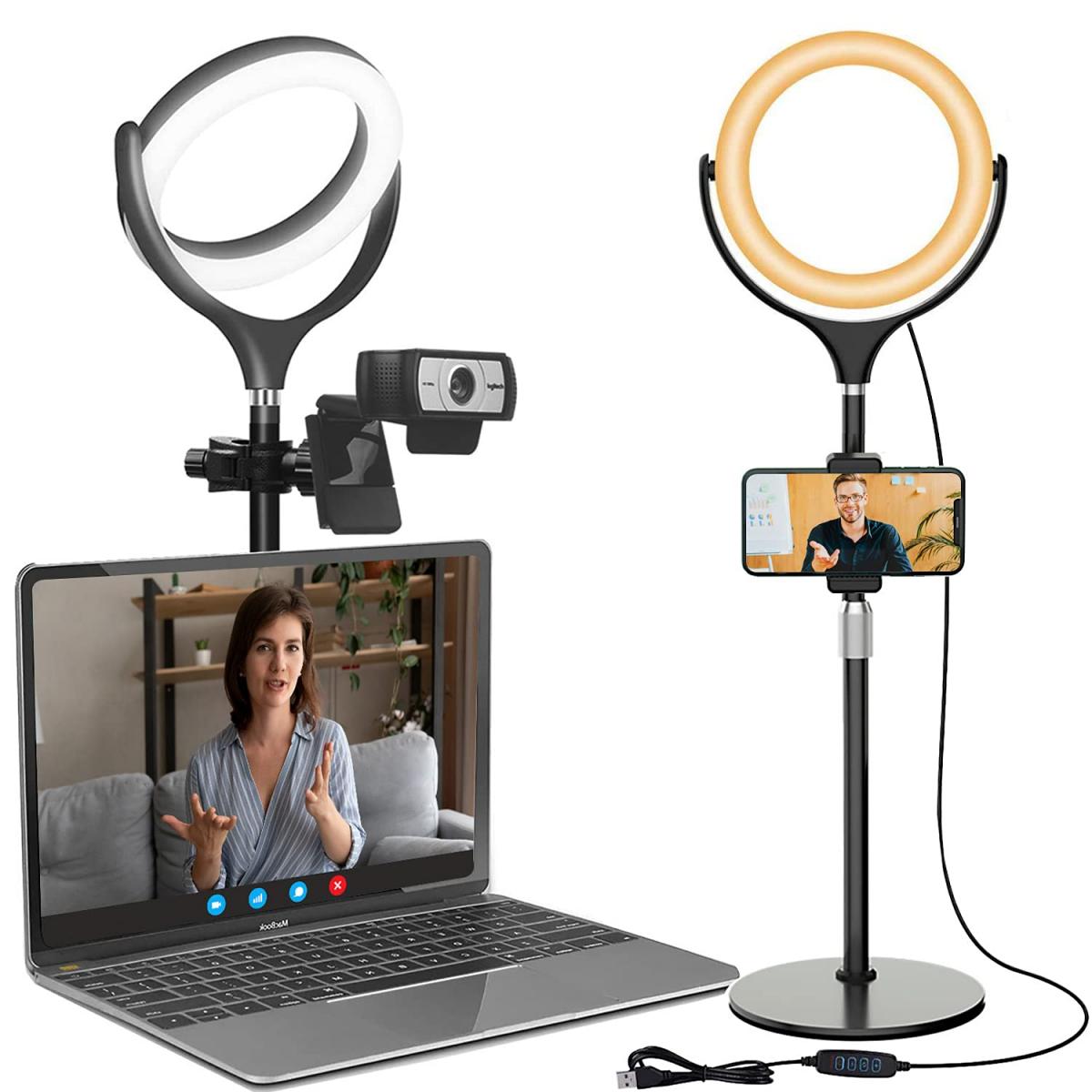
1. Use External Lighting: Good lighting can significantly improve the quality of your video. Consider using a ring light or positioning yourself near a window for natural light.

2. Adjust Camera Angle: Ensure the camera is at eye level to create a more natural and engaging video experience.

3. Use External Microphone: While most laptop cameras come with built-in microphones, using an external microphone can improve audio quality.

4. Background and Environment: Choose a clean and professional background for your video calls. Avoid clutter and distractions.

Finding and using your laptop camera doesn't have to be a daunting task. By following the steps outlined in this guide, you can easily locate your camera, ensure it is enabled, test its functionality, and troubleshoot common issues. With a few additional tips to enhance your camera experience, you'll be well-prepared for any video conferencing, online classes, or virtual hangouts that come your way. Remember, the key to a successful video call is not just the camera itself, but also the environment and settings you choose to complement it.

Leave your comment
Cancel reply
Note: HTML is not translated!
Related products
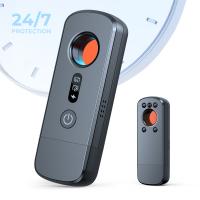
Anti-Spy Detector Scan & Disconnect for 24/7 Protection Find Bugs Hidden Cams
15
$89.99 $59.99
Gift Certificate: $200 Value - Can Use with Any Discounts
$200.00 $190.00
Gift Certificate: $300 Value  - Can Use with Any Discounts
Gift Certificate: $300 Value - Can Use with Any Discounts
$300.00 $285.00
Gift Certificate: $1000 Value  - Can Use with Any Discounts
Gift Certificate: $1000 Value - Can Use with Any Discounts
$1,000.00 $950.00
Gift Certificate: $500 Value  -Can Use with Any Discounts
Gift Certificate: $500 Value -Can Use with Any Discounts
$500.00 $475.00
Gift Certificate: $800 Value - Can Use with Any Discounts
$800.00 $760.00
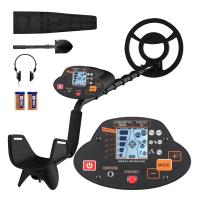
Metal Detectors for Adults and Kids, Gold Detector Kit with LCD Display & IP68 Waterproof Search Coil for Find Valuables
NEW Arrival
Metal Detectors for Adults and Kids, Gold Detector Kit with LCD Display & IP68 Waterproof Search Coil for Find Valuables
285
$215.99 $151.99
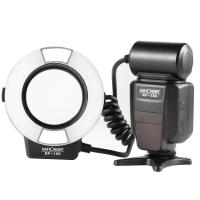
K&F Concept KF-150 I-TTL Macro Ring Light Flashs LCD Display and Wireless Slave Function Speedlite with 6pcs Adapter Rings Compatible with Nikon DSLR Cameras
102
$119.99 $115.99
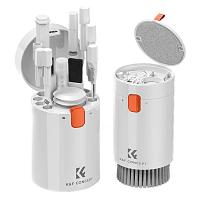
K&F Concept Laptop Mobile Screen 20-in-1 Cleaning Kit, Computer Keyboard Brush Cleaning Spray, Suitable for iPhone AirPods MacBook iPad
$26.99 $19.99
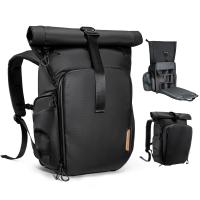
K&F Concept 20L Camera Backpack Nature Wander 11 Black, Waterproof Travel Photography Bag with Laptop Compartment for 15.6" Laptop, Tripod Holder & Expandable Storage for Photographers
13
$142.99 $99.99
Products You May Like
Beschoi L541 Speedlite Flash Universal On-camera Flash with LCD Display for Canon Nikon Panasonic Olympus Pentax and Other DSLR Cameras with Standard Hot Shoe
$44.99
DJI Mini 3/Mini 3 Pro Sun Hood Sunshade for DJI Mini 3/Mini 3 Pro RC Controller Accessories
$29.99 $23.99
82mm Snap-On Center Pinch Lens Cap 4 in 1 with Anti-Loss Keeper Leash Compatible with Nikon, Canon, Sony, Fujifilm Camera Lenses
2
$11.99 $5.99
67mm Magnetic Black Mist Filter 1/4 Special Effects Filter HD Multi-layer Coated, Waterproof/Scratch-Resistant/ Anti-Reflection Nano-Xcel Series
31
$91.99 $72.99
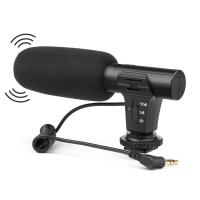
Universal on-Camera Shotgun Microphone With Shock Mount for Dslr
28
$25.99
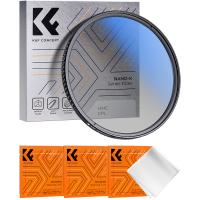
37mm Circular Polarizer Optical Glass Lens Filter Ultra-Slim 18 Multi-Layer Coatings Circular Polarizing Filters for Camera Lens Nano-Klear
62
$21.99 $17.49
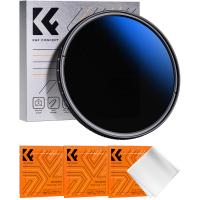
52mm ND2-ND400 (9 Stops) Variable ND Filter Neutral Density Filter for Camera Lens Ultra-Slim, Multi Coated Nano-Klear
70
$29.99 $23.69
110*106mm Filter Pouch, 3-Pocket Filter Case,  Maximum Size to Fit Circular Filter 82mm (Including 82mm)
110*106mm Filter Pouch, 3-Pocket Filter Case, Maximum Size to Fit Circular Filter 82mm (Including 82mm)
31
$18.99 $17.99
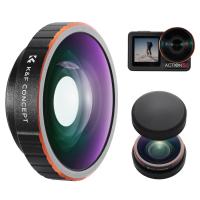
K&F CONCEPT Wide-Angle Lens Compatible with DJI Osmo Action 5 Pro, Screw On 185° Wider View Multi-Coated Optical Glass Action Camera Accessories for Osmo Action 4
NEW Arrival
K&F CONCEPT Wide-Angle Lens Compatible with DJI Osmo Action 5 Pro, Screw On 185° Wider View Multi-Coated Optical Glass Action Camera Accessories for Osmo Action 4
25
$54.99
77mm  Black Mist Filter 1/8 Special Effects Filter Ultra-Clear Multi-layer Coated With Waterproof Scratch-Resistant and Anti-Reflection Nano-Xcel Series
77mm Black Mist Filter 1/8 Special Effects Filter Ultra-Clear Multi-layer Coated With Waterproof Scratch-Resistant and Anti-Reflection Nano-Xcel Series
135
$99.99 $79.99
Related articles
Where Can I Sell My Video Camera?
Where Do I Find Camera In System Preferences?
Where Can I Find Hidden Cameras?
How Do I Find My Camera?
Where Can I Buy Binoculars?
Where Can I Buy Hidden Surveillance Camera?
How Do I Find My Camera's Shutter Count?
Can I Have A Camera Outside My House?
How Can I Clean My Iphone Camera Lens?
How To Use Microphone On Mac?
Blog You May Like
Which Is Best Wired Or Wireless Earphones?
How To Filter It Light From Cameras?
How To Run Sd Card On Laptop?
How To View Security Cameras On Smart Tv?
Pixel C How To Get Flash Camera?
Can You Use Any Webcam On Ps5 ?
What Is A Cpl Camera Filter?
How To Connect Mobile Smart Watch?
How To Mount Cameras On House?
No Lens Attached?--After Attaching an Lens Mount Adapter
Related categories
2 in 1 Filter Screw-In Filter Camera Parts | Studio Camera Accessories streaming video camera digital camera for beginner Solar Cellular Trail Camera Non Cellular Trail Camera camera shoulder bag digital camera cases
Popular products
no spy hidden camera detector uhf wireless microphone system mini web camera wifi Gold Detector Kit high speed microsd card class 10 micro sd card micro sd card speed USB endoscope waterproof inspection camera anti theft camera backpack kingston 32gb microsdhc memory card
Related searches
Metal Detector Find Bag Laptop With Built In Webcam And Microphone Camera And Laptop Bag Camera Laptop Travel Backpack I Touch Smart Watch Amscope Ca-can-slr Canon Slr Dslr Camera Adapter Metal Detectors That Find Gold And Silver Cameras That Can Adapt Canon Fd Lens In Wall Camera Camera Backpack 16 Inch Laptop
Popular searches
Smallrig V Lock Battery Cy To Nikon F Adapter Hidden Camera With Wifi Nisi True Color Vnd Canon Fd To Eos Adapter Lumix G7 Canon Lens Adapter Nikon D5300 Fx Mount Sony To Panasonic Battery Adapter Nikon D3000 Lens Mount Type Gopro Max Lens Mod Nd Filter
Blog Category
  • Activities
  • Guide
    • Filter Guide
    • Lens Adapter
    • Product Review
  • News & Reviews
    • Camera Reviews
    • Sample Gallery
    • News
  • Tutorials
    • Solar eclipse photography
    • Photography Basics
    • Landscape Photography
  • Inspiration
    • Travel
    • Travel Stories
Search Article
Latest from the Blog
Black Friday 2025 Special at Kentfaith
Is the Sony A7M5 worth buying?
Neutral Density Filter: The Ultimate Guide for Photographers and Videographers
Can You Save Facebook Videos To Camera Roll?
What Is Surveillance Camera Control System?
How Do Metal Detectors Work? A Complete Guide for Beginners and Pros
What Is The Best Camera To Record Videos?
How To Find A Good Digital Camera?
How Do Trail Cameras Work? The Ultimate Guide to Trail Cameras
How Do Cellular Trail Cameras Work? – The Complete Guide for Hunters and Wildlife Enthusiasts
  • Easy Payment Multilple Payment Options

  • Free Shipping Global WareHouse Shipment

  • No Risk 30-Day No Reason Return

  • Limited Deals Buy More, Save More

  • Tax Free No any surcharges or tax fee

Information
  • About us
  • Contact Us
  • Site Map
  • Blog
  • Video
  • Gallery
  • VIP Membership Rewards
Service
  • Privacy Policy
  • Terms & Conditions
  • Shipping & Delivery
  • Payment Info
  • Warranty, Return & Refund
  • Intellectual Property Rights
  • Ambassador
  • Affiliates
  • Wholesale
Support
  • My account
  • Order History
  • FAQs
  • Extend Warranty
  • Logistics Tracking
Follow us
NewsLetter

Get the latest product, K&F Concept respects your privacy.
Powered By KENTFAITH © 2026