kfconcept

KENTFAITH
K&F Concept    Blog >

Enjoy Your Selected Digital Life

Recently Viewed
  • Recently Viewed
  • Recently Viewed list is empty.

Compare (0) 0
  • Compare
  • You have not chosen any products to compare.

  • Compare
Currency: USD
  • Currency
Shop by Scene Shop by Rank

Log Into Your Account

Account

Order History

Wish List

Login

Forgotten Password?

Or connect with

Register Account

Already have an Account?Log In

  • Shopping Cart
  • Your shopping cart is empty!

  • Register/Login to purchase, earn points
  • Favorite
  • Your wish list is empty.

  • Register/Login to like, earn points
  • Activities
  • Guide
    • Filter Guide
    • Lens Adapter
    • Product Review
  • News & Reviews
    • Camera Reviews
    • Sample Gallery
    • News
  • Tutorials
    • Solar eclipse photography
    • Photography Basics
    • Landscape Photography
  • Inspiration
    • Travel
    • Travel Stories
  • Home
  • Blog
  • How To Set Up V380 Wifi Camera On Android Phone ?

How To Set Up V380 Wifi Camera On Android Phone ?

Kentfaith 2023-07-03 05:47:27 0 Comments

With the increasing demand of home security, more and more people choose to use WiFi cameras to monitor their home environment. And V380 WiFi camera is widely welcomed for its ease of use and cost-effectiveness. In this article, we will explain in detail how to set up V380 WiFi camera on Android phone and solve the problems you may encounter during the connection process.
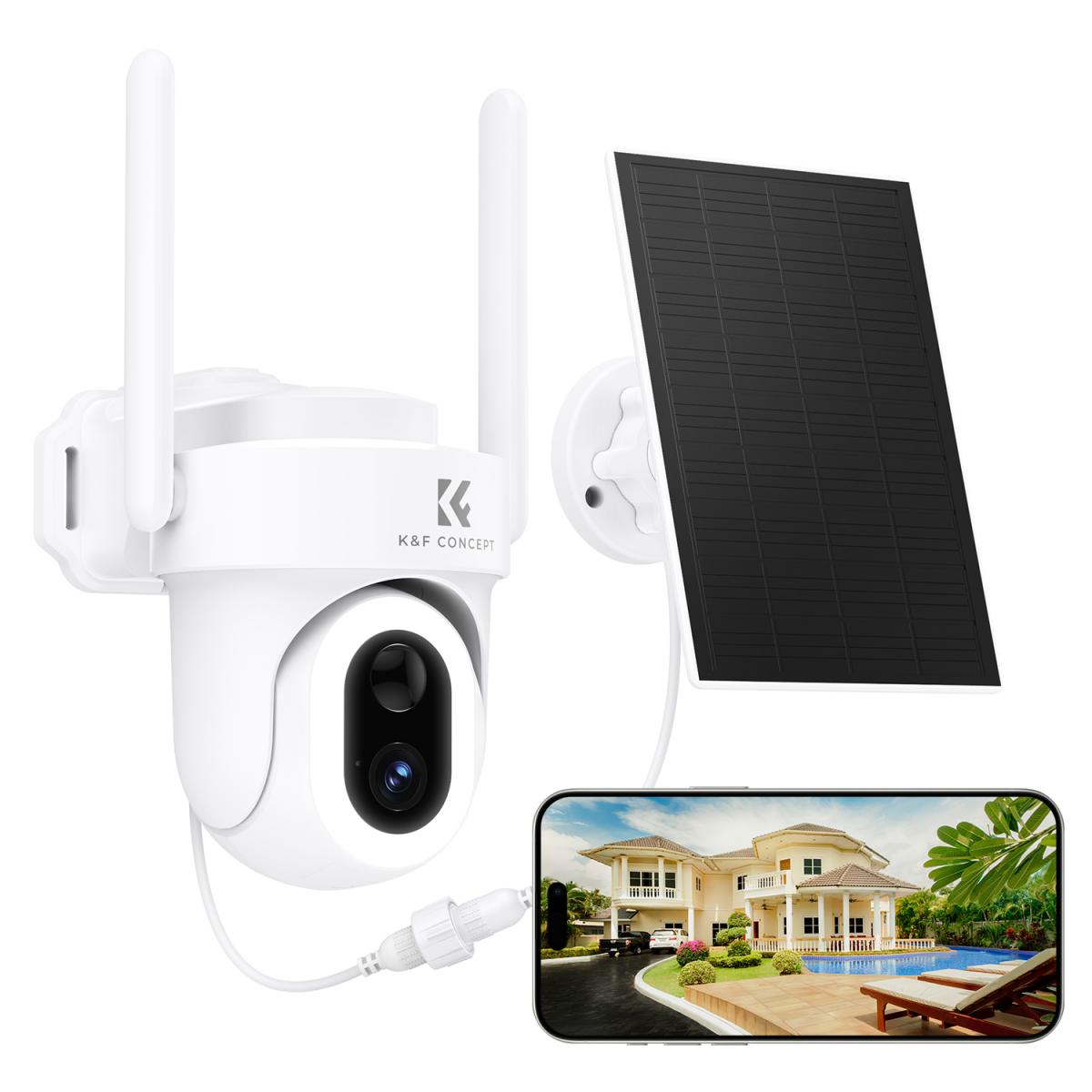
WithUnderstanding how to set up V380 WiFi camera on Android phone

To set up V380 WiFi camera on your Android phone, you need the following steps:

Download and install the V380 app

Open Google Play Store, search for "V380" and download the app.

After installation, open the app and register a new account or sign in with an existing account.

Power up the camera

Make sure the V380 camera is connected to a power source and wait for it to start. The camera will usually beep when it starts up.

Add a camera device

Open the V380 app and click the "Add Device" button.

Select the "WiFi Smart Camera" option and follow the app's prompts for the next step.

Configure WiFi connection

Enter the name and password of your home WiFi network in the app.

Bring your phone close to the camera and make sure the camera and phone are connected to the same WiFi network.

Wait for the camera to connect to the WiFi, there will be a voice prompt or indicator light change when the connection is successful.

Complete the setup

Name the camera in the app for easy management later.

After finishing the setup, you can view the live monitoring screen through the app and configure it accordingly.
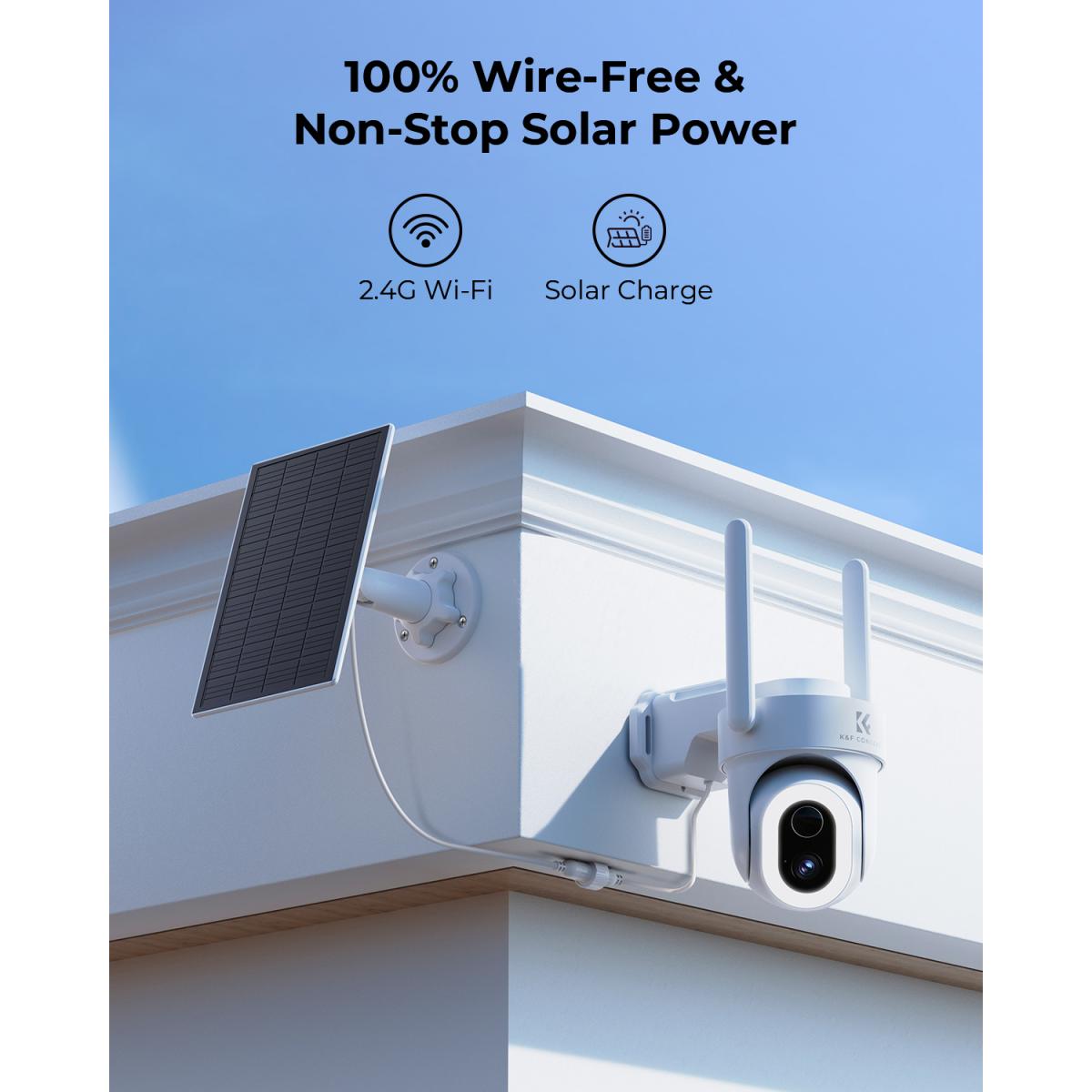

Second, solve the problem of failed connection between V380 WiFi camera and Android phone

During the connection process, you may encounter various problems leading to connection failure. Here are some common problems and their solutions:

Unstable WiFi signal

Check WiFi signal strength: Make sure the camera and the phone are within the WiFi signal coverage and the signal strength is good.

Reboot the device: Reboot the camera and phone, clear the cache.

Apps can't recognize the camera

Check app permissions: Make sure the app has obtained the necessary permissions, such as location, storage and camera permissions.

Update apps: Make sure the app is the latest version to avoid compatibility issues.

Problems with network settings

Check network settings: Make sure the camera and phone are connected to the same WiFi network.

Reset Network Settings: If the connection problem is still not solved, you can try to reset the network settings of the camera and phone.


Troubleshooting common problems of V380 WiFi camera and Android phone connection

Even if the connection is successful, sometimes you may encounter some faults affecting the use, the following are common problems and solutions:

No signal or black screen

Check the connection cable: If the camera is powered by cable, make sure the power cable is firmly connected.

Check the input source setting: Make sure the correct camera is selected in the application.

Delayed or Stuck Screen

Optimize network environment: Make sure there are no other high-traffic devices on the WiFi network taking up bandwidth.

Upgrade firmware: Make sure the camera and phone firmware are the latest version to improve performance and stability.

Sound is out of sync

Check audio settings: Adjust the audio output options in the application.

Use an audio cable: If the sound is out of sync on the wireless connection, try connecting using an audio cable.

Application crashes

Update app: Make sure you are using the latest version of the app.

Phone Performance: Make sure the phone performance is enough to run the monitoring app, close other background apps to free up resources.


Detailed steps and settings for connecting V380 WiFi camera to Android phone

Below are the detailed steps and settings for connecting V380 WiFi camera to your Android phone:

Preparation

Make sure the camera and phone are fully charged.

Download and install the V380 app.

Turn on the camera WiFi feature

Find the WiFi settings option on the camera and turn on the WiFi function to put it into the distribution mode.

Connect to WiFi

In your phone's WiFi settings, search for and connect to the camera's WiFi hotspot.

Open the app and follow the prompts for device addition and network configuration.

Complete Setup

Complete the network configuration of the camera in the app and make sure the camera is connected to the home WiFi network.

View the real-time monitoring screen through the app and make relevant settings, such as alarm settings, video recording settings, etc.


Improve the stability and picture quality of the connection between V380 WiFi camera and Android phone

For a better experience, here are some suggestions to improve connection stability and picture quality:

Use a high-quality WiFi network

Choose a stable and fast WiFi network, avoid using public WiFi or networks with poor signals.

If possible, use a WiFi network in the 5GHz band to reduce interference and increase speed.

Optimize camera and phone settings

Turn off unnecessary background apps and features in your camera and phone settings to reduce resource usage.

Regularly check and update the firmware and software of your camera and phone to keep your devices performing optimally.

Reduce interference

Avoid obstacles blocking between the camera and cell phone, such as walls and metal objects.

Try to stay away from other electronic devices to reduce signal interference.


All in all, it is not complicated to connect V380 WiFi camera to Android phone to improve home security and monitoring experience. We hope this article can provide practical reference and help for users to enjoy the convenience and fun brought by smart technology.


 

Leave your comment
Cancel reply
Note: HTML is not translated!
Related products
67mm Clip-on CPL Phone Camera Lens Filter Kit Applicable to All Mobile Phone Models
40
$18.99
67mm Clip-on ND2-32 Phone Camera Lens Filter Kit Applicable to All Mobile Phone Models
NEW Arrival
67mm Clip-on ND2-32 Phone Camera Lens Filter Kit Applicable to All Mobile Phone Models
13
$37.99
K&F CONCEPT Neck Phone Holder, 2-in-1 Magnetic & Clip-on Phone Neck Holder, POV Phone Holder, Hand Free Chest Stand Compatible with iPhone 17-12 Seires Android Phones
63
$29.99
67mm Clip-on Black Mist 1/4 Phone Camera Lens Filter Kit Applicable to All Mobile Phone Models
7
$29.99
52mm Clip-on CPL Phone Camera Lens Filter Kit, Circular Polarizer Polarizing Filter Applicable to All Mobile Phone Models
24
$19.99
63'' Magnetic Iphone Tripod Phone Selfie Stick Tripod And Clip-On ND Filter(1-9 stops) For All Phone Set
207
$113.99 $59.99
67mm Clip-on CPL&Black Mist 1/4 2-in-1 Phone Camera Lens Filter Kit Applicable to All Mobile Phone Models
3
$29.99
Wireless WiFi Microscope with Foldable Stand, 50X-1000X Magnification, Work with iPhone, iPad, Android, Mac, Windows
11
$47.99
11 in 1 Step Up Ring Set
56
$37.99 $19.99
K&F CONCEPT 71" Phone Tripod, Auto Open Selfie Stick with 4 Legs & Stabilizing Handle, 360° Rotation Cell Phone Tripod Stand with Wireless Remote Control, Compatible with iPhone, Android, Camera
$29.99
Products You May Like
52mm Variable ND Filter ND2-400 (1-9 Stop) Lens Filter Waterproof Scratch Resistant Nano-Xcel Series
57
$81.99 $64.99
Square Lens Holder Adapter 37mm (Laser Size)
$17.99 $9.99
STARTRC Mini 3 Pro Remote Control Protective Silicone Case, Gray
$17.99
AP004 Plug and Play Wireless Lavalier Microphone for for iPhone 14 pro Recording, Wireless Microphone for YouTube, TikTok, Facebook Live, Vlog No App
2
$22.99
W200 2500K-9000K full-color handheld RGB video fill light, 3000mah rechargeable, magnet-attached RGB video fill light
108
$44.45
V53 3.0" IPS 4K HD Car Recorder with 170° Recording Angle with G Sensor, GPS, WiFi, Loop Recording, Parking Monitoring, Night Vision (4K @3840*2160P) Dual Cameras
113
$155.99 $94.99
Mini 4 Pro UV Filter, MCUV Protection Filter, HD Optical Glass Multi-Coated Filter Compatible with DJI Mini 4 Pro
76
$20.99
95mm True Color Variable ND2-32 (1-5 Stops) ND Lens Filter, Adjustable Neutral Density Filter with 28 Multi-Layer Coatings Nano-Xcel Series
83
$159.99 $119.99
49mm ND8-ND2000 (3-11stop) Variable ND Filter Neutral Density Filter with Multi-Resistant Coating Nano-Dazzle
78
$49.99 $39.99
37mm ND2-ND400 (9 Stops) Variable ND Filter Neutral Density Filter for Camera Lens Ultra-Slim, Multi Coated Nano-Klear
62
$23.99 $21.99
Related articles
How To Set Up Mini Wifi Camera?
How To Connect Wifi Camera To Android Phone ?
Can Connect Wifi Camera To Android Phone?
How To Set Up My Android Smart Watch?
How To Setup V380 Wifi Smart Net Camera ?
How To Set Up Action Camera?
How To Set Up Earphone Mic On Pc?
How To Set Up Lavalier Microphone On Laptop?
How To Set Up Earbuds?
What Size Filter For 24-70mm Lens?
Blog You May Like
Can I Use A Video Camera For Zoom?
What Is Neutral Density Filter Used For?
How To Search For Sound Recordings?
How To Put On Fuji Camera Strap?
How To Improve Video Quality In Low Light?
How To Turn On Flash In Iphone Camera?
What Is A Control Ring Mount Adapter?
How Do Smart Watches Work With Phones?
What Is The Best Strobe Lighting For Photography?
Why Uv Filter For Lens?
Related categories
phone camera lens cell phone tripods Outdoor Security Camera Wifi On-Dash Camera camera lens adapter C mount lens adapter camera filter kit Wifi Trail Cameras Handheld Kaleidoscope Filters
Popular products
Polarize Filter For Mobile Phone clip on phone camera lens travel tripod for iphone 20 camera tripod smartwatch heart rate monitor gimbal stabilizer for phone 3 axis gimbal stabilizer for iphone cell phone camera stand tripod USB Digital Microscope lens step up adapter
Related searches
Endoscope Camera For Android Phone Wifi Camera For Android Mobile External Microphone Android Phone Android Wifi Bluetooth Projector Zoom Lens For Android Phone Camera Usb Endoscope Camera For Android Phone Wireless Security Camera For Android Phone Android Tablet With Camera And Wifi Microscope On Phone Security Camera That Connects To Phone Without Wifi
Popular searches
Adapter Sony Lens To Vivitar Nikon F To Canon Ef Mount Adapter Ef Lens On Fd Mount Fujifilm Sl300 Lens Adapter Sony Fe 85mm 1.8 Full Frame E-mount 35mm F1.8 Sony E Mount Smart Watches With Camera Headphones With Surround Sound Top Professional Video Cameras 2x Anamorphic Lens Adapter
Blog Category
  • Activities
  • Guide
    • Filter Guide
    • Lens Adapter
    • Product Review
  • News & Reviews
    • Camera Reviews
    • Sample Gallery
    • News
  • Tutorials
    • Solar eclipse photography
    • Photography Basics
    • Landscape Photography
  • Inspiration
    • Travel
    • Travel Stories
Search Article
Latest from the Blog
How Do Metal Detectors Work? A Complete Guide for Beginners and Pros
How Does a WiFi Trail Camera Work?
Kentfaith x Citadel Season 2
How To Fix The Straps On A Camera?
What Does Tripod?
Camera Use Which Lens?
What Is Nd Filter On Video Camera?
Can I Charge Camera Battery With Power Bank?
UV Filter: Everything You Need to Know About UV Protection Lens Filters
What Is A Good Quality Dash Cam?
  • Easy Payment Multilple Payment Options

  • Free Shipping Global WareHouse Shipment

  • No Risk 30-Day No Reason Return

  • Limited Deals Buy More, Save More

  • Tax Free No any surcharges or tax fee

Information
  • About us
  • Contact Us
  • Site Map
  • Blog
  • Video
  • Gallery
  • VIP Membership Rewards
Service
  • Privacy Policy
  • Terms & Conditions
  • Shipping & Delivery
  • Payment Info
  • Warranty, Return & Refund
  • Intellectual Property Rights
  • Ambassador
  • Affiliates
  • Wholesale
Support
  • My account
  • Order History
  • FAQs
  • Extend Warranty
  • Logistics Tracking
Follow us
NewsLetter

Get the latest product, K&F Concept respects your privacy.
Powered By KENTFAITH © 2026