kfconcept

KENTFAITH
K&F Concept    Blog >

Enjoy Your Selected Digital Life

Recently Viewed
  • Recently Viewed
  • Recently Viewed list is empty.

Compare (0) 0
  • Compare
  • You have not chosen any products to compare.

  • Compare
Currency: USD
  • Currency
Shop by Scene Shop by Rank

Log Into Your Account

Account

Order History

Wish List

Login

Forgotten Password?

Or connect with

Register Account

Already have an Account?Log In

  • Shopping Cart
  • Your shopping cart is empty!

  • Register/Login to purchase, earn points
  • Favorite
  • Your wish list is empty.

  • Register/Login to like, earn points
  • Activities
  • Guide
    • Filter Guide
    • Lens Adapter
    • Product Review
  • News & Reviews
    • Camera Reviews
    • Sample Gallery
    • News
  • Tutorials
    • Solar eclipse photography
    • Photography Basics
    • Landscape Photography
  • Inspiration
    • Travel
    • Travel Stories
  • Home
  • Blog
  • How To Screen Record Audio On Youtube?

How To Screen Record Audio On Youtube?

Kentfaith 2025-02-20 03:11:29 0 Comments

How to Screen Record Audio on YouTube: A Comprehensive Guide
how to screen record audio on youtube 1

In today’s digital age, screen recording has become a valuable tool for a variety of purposes—whether for creating tutorials, preserving memorable content, or even for professional projects. YouTube, as one of the largest video-sharing platforms, is no exception to the appeal of screen recording. Many users wish to record the audio from YouTube videos, either to capture dialogue, music, or sound effects for later use. While this can be done for personal use in many scenarios, it's important to remember that recording content from YouTube for redistribution or commercial purposes may violate copyright laws unless the content is royalty-free or the user has permission from the content creator.

In this article, we will delve into how to screen record audio from YouTube videos, looking at both desktop and mobile solutions, as well as discussing the tools, tips, and legal considerations involved.

What You Need to Know Before You Start
how to screen record audio on youtube 2

Before diving into the process, let’s first discuss what’s legally permissible. While YouTube allows users to view videos, recording and redistributing their content may be restricted due to copyright laws. As per YouTube’s Terms of Service, users are generally prohibited from recording, reproducing, or distributing the content without the proper permissions unless it's explicitly allowed (such as in the case of Creative Commons licensed videos). Always respect copyright rules and consider fair use guidelines for educational, non-commercial purposes.

For personal use (such as capturing audio for learning, research, or reference), screen recording is generally acceptable. However, it’s essential to remember that any recorded content is meant for personal use unless you have clear permission from the content creator or the video is public domain or Creative Commons licensed.

Method 1: Screen Recording Audio from YouTube on Desktop
how to screen record audio on youtube 3

1. Using Built-in Windows Tools (Windows 10/11)

If you are a Windows user, you can utilize the built-in Xbox Game Bar for screen recording. While this tool is primarily designed for recording gameplay, it can also be used to record audio from any source playing on your computer, including YouTube.

Steps:

1. Open YouTube and start playing the video you wish to record.

2. Press Windows + G to open the Game Bar.

3. On the Game Bar, click the Record button (the circular button) or press Windows + Alt + R to start recording.

4. You can capture the audio along with the screen by enabling the “Record in the background” feature, ensuring that the audio is captured while you're working on other tasks or browsing.

5. When you're done, press Windows + Alt + R again to stop the recording.

The recorded video, including the audio, will be saved to the Videos folder under Captures. You can later extract the audio using video editing software if needed.

2. Using OBS Studio (Open Broadcaster Software)

OBS Studio is a free and powerful tool for both screen and audio recording. It's highly recommended for users who want more control over their recordings and need additional features, such as recording specific audio sources or adding multiple audio tracks.

Steps:

1. Download and install OBS Studio from the official website.

2. Open OBS Studio and go to Settings to configure your preferred output location for recordings.

3. In the Sources panel, click on the + button and select Display Capture or Window Capture depending on whether you want to record the entire screen or just the YouTube video window.

4. Ensure that you have selected the correct audio source. For YouTube audio, you’ll typically want to choose Desktop Audio in the Audio Mixer.

5. Once everything is set up, click Start Recording to begin capturing both the screen and audio from YouTube.

6. After you’re done recording, click Stop Recording. You can find your recording in the output folder you configured earlier.

OBS Studio is an excellent choice for those who need high-quality, customizable recordings with the ability to record both video and audio simultaneously.

3. Using Third-Party Screen Recording Software

There are several third-party applications that offer screen and audio recording, such as Camtasia, Bandicam, and Snagit. These tools typically provide more features and ease of use compared to the built-in Xbox Game Bar, though many of them are paid software with free trials available.

Steps:

1. Download and install the screen recording software.

2. Open the software and choose the screen area or window where the YouTube video is playing.

3. Make sure that system audio is enabled to capture the audio from the video.

4. Press the record button, and once done, stop the recording.

5. Save the recording in your desired format.

These applications offer features like video editing, better audio control, and higher recording quality, making them suitable for users who require professional-grade recordings.

Method 2: Screen Recording Audio from YouTube on Mobile
how to screen record audio on youtube 4

1. Using iOS Screen Recording (iPhone & iPad)

iOS offers an integrated screen recording feature that allows users to capture both video and audio directly from their devices. To capture YouTube audio, you will need to make sure the screen recording feature is enabled.

Steps:

1. Go to Settings > Control Center and add Screen Recording if it's not already there.

2. Open the YouTube app and find the video you want to record.

3. Swipe down from the top-right corner (for iPhones with Face ID) or swipe up (for older models) to open the Control Center.

4. Press the Screen Recording button (a circle within a circle), and the recording will start after a short countdown.

5. While recording, make sure the sound is turned up to capture the YouTube video’s audio.

6. To stop the recording, tap the red bar at the top of the screen and select Stop. The video will be saved in your Photos app, and you can extract the audio using any audio editing software or by converting the video.

Note: When recording YouTube on iOS, the screen recording feature will capture internal audio only if the YouTube app is playing the audio. You cannot capture audio from apps that restrict screen recording due to privacy policies.

2. Using Android Screen Recording

Android devices, like iPhones, also have built-in screen recording features. For newer Android versions, this feature is available natively in the Quick Settings menu.

Steps:

1. Swipe down from the top of your screen to open the Quick Settings.

2. Look for the Screen Recorder option and tap it to start recording.

3. Open the YouTube app and play the video you want to record.

4. To stop recording, pull down the Quick Settings menu again and tap the Stop button. The recorded video will be saved to your phone’s gallery or a designated file folder.

If you need more advanced features, you can also use third-party apps like AZ Screen Recorder or Mobizen, which allow more customization and control over your recordings.

Method 3: Using Online Screen Recording Tools

If you prefer not to install software, online screen recording tools provide an easy, browser-based solution. Platforms like Screencast-O-Matic and Loom allow you to record audio and video from YouTube directly through the web.

Steps:

1. Sign up for an online screen recording tool (e.g., Screencast-O-Matic).

2. Launch the screen recorder and set it to record your screen along with system audio.

3. Open YouTube in your browser and play the video you want to record.

4. Start the recording, and once done, stop it and download the video.

These online tools are ideal for quick recordings, though they may have limitations such as recording time or lower quality compared to desktop apps like OBS Studio.

Recording audio from YouTube videos is a straightforward process that can be done on both desktop and mobile devices. The tools and methods mentioned above cater to a range of needs, from casual users who want quick recordings to professionals who require higher-quality outputs. Whether you're using built-in features, dedicated software, or online tools, the key to success lies in selecting the right tool for the job based on your recording preferences.

However, always ensure that your recordings are for personal use and that you respect the copyright rules of the content you are capturing. By following these methods and guidelines, you can easily record audio from YouTube videos for reference, learning, or personal projects.

Leave your comment
Cancel reply
Note: HTML is not translated!
Related products
128G Mini Digital Voice Recorder with Color Screen Bluetooth Call Record 3072kbps Kentfaith
HOT Seller
128G Mini Digital Voice Recorder with Color Screen Bluetooth Call Record 3072kbps Kentfaith
15
$119.99 $83.99
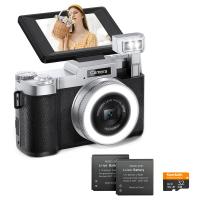
4K 64MP Digital Camera Dual Screen Selfie, 18X Zoom, 32GB Card & 2 Batteries for Beginners YouTube Vlog, Kentfaith
116
$99.99 $79.99
75MP 4K Digital Camera for Photography, 12X Optical Zoom, 180° Flip Screen, WiFi Vlogging Camera for Video, YouTube, Kentfaith
15
$269.99 $229.99
4K 64MP Digital Camera for Photography, Flash + Lens Fill Light, Auto Focus, Webcam, 180° Flip Screen, for Vlogging, Youtube, Traveling, Kentfaith
15
$112.49 $89.99
Upgraded 4K 64MP Digital Camera for Photography Beginners, Video, YouTube Vlog, 4" WiFi Touch Screen with Flash, 32GB SD Card, Lens Hood, 3000mAH Battery
661
$269.99 $179.99
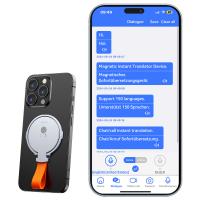
Instant Cross-APP Translator Device for Business & Trade, Video Call Translation, Record, & Transcription, Kentfaith AI Translator Devices
12
$124.99 $99.99
67mm Clip-on CPL Phone Camera Lens Filter Kit Applicable to All Mobile Phone Models
40
$18.99
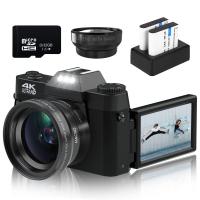
Digital Camera for Photography & Video 4K 48MP Blog YouTube With 180° Flip Screen, 16X Digital Zoom, 52mm Wide Angle & Macro Lens, 32GB TF Card, 2 Batteries, Black
HOT Seller
Digital Camera for Photography & Video 4K 48MP Blog YouTube With 180° Flip Screen, 16X Digital Zoom, 52mm Wide Angle & Macro Lens, 32GB TF Card, 2 Batteries, Black
106
$185.99 $124.99
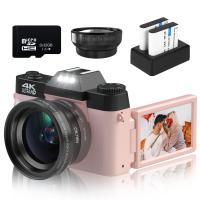
Digital Camera for Photography & Video 4K 48MP Vlog YouTube With 180° Flip Screen, 16X Digital Zoom, 52mm Wide Angle & Macro Lens, 32GB TF Card, 2 Batteries, Pink
111
$185.99 $124.99
67mm Clip-on ND2-32 Phone Camera Lens Filter Kit Applicable to All Mobile Phone Models
NEW Arrival
67mm Clip-on ND2-32 Phone Camera Lens Filter Kit Applicable to All Mobile Phone Models
13
$37.99
Products You May Like
Square Filter Holder System Pro Kit (Filter Holder + 95mm Circular Polarizer + Square GND8 Filter + ND1000 (10 Stop) + 4 Filter Adapter Rings Nano-Xcel Pro
48
$346.99 $242.99
W200 2500K-9000K full-color handheld RGB video fill light, 3000mah rechargeable, magnet-attached RGB video fill light
108
$44.45
58mm Soft Graduated GND16 (4 Stop) Lens Filter Ultra-Clear Optical Glass Multi-Coated Nano-Xcel series
$64.99 $33.99
Camera Sling Bag Small Crossbody Camera Case DSLR/SLR/Cute Compact Shoulder Photography Bags for Photographers - Sling Bag 5L Urban Wander 05 (Red)
NEW Arrival
Camera Sling Bag Small Crossbody Camera Case DSLR/SLR/Cute Compact Shoulder Photography Bags for Photographers - Sling Bag 5L Urban Wander 05 (Red)
94
$39.99 $25.99
DJI Drone Mini 3 Pro & Mini 3 Variable ND32-ND512 Filter with Single-sided Anti-reflection Green Film, Waterproof and Scratch-resistant
121
$24.99
32G micro SD card U3/V30/A1 with adapter 7 packs memory card suitable for home surveillance camera hunting camera and driving recorder memory card K&F CONCEPT
$52.99
95mm Variable ND Filter ND2-400 (1-9 Stop) Lens Filter Waterproof Scratch Resistant Nano-Xcel Series
84
$174.99 $139.99
Zhiyun Weebill 3 Combo Three Axis Handheld Gimbal Stabilizer for DSLR Camera Mirrorless Camera Compatible with Sony Nikon Canon Panasonic LUMIX, TransMount Wrist Rest Including Retractable Sling Grip
$679.99 $549.99
Sony FDA-EP20 Camera Viewfinder Eyecup*2+Hot Shoe Level*2+Vacuum Cleaning Cloth*1 for Sony A6700, A7C II, A7C R
$8.99
Related articles
How To Turn On Screen Record Audio?
How To Record Audio During Screen Recording?
How To Record Screen With System Audio?
How To Record Your Ipad Screen With Audio?
How Record Audio On Pc?
When Screen Recording Does It Record Audio?
How To Record Voice Audio On Mac?
How To Record Discord Audio On Xbox?
How To Record External Audio On Pc?
Kentfaith and Sony to Co-Promote Brand Collaboration, Creating a New Era of Photography and Moviemaking
Blog You May Like
How To Make Your Own Bluetooth Earphones?
Can You Attach A Microphone To Headphones?
Can I Sleep With Earbuds?
Which Telescope For Astrophotography?
How Much Does Camera Lens Repair Cost?
What Is Ring Flash Macro Photography?
How To Find Camera Sd Card On Mac?
How Do Metal Detectors Work? A Complete Guide for Beginners and Pros
How To Have Good Lighting For A Video?
How To Set Up Selfie Stick Iphone 6?
Related categories
On-Dash Camera trail camera with screen C mount lens adapter m4/3 adapter camera lens filters beginner telescope canon lens filters UV lens filter
Popular products
Mini Digital Voice Recorder​ video recording camera for youtube sony camera with microphone camera with flip screen for vlogging Polarize Filter For Mobile Phone infrared hd video camera vlogging camera with a flip screen clip on phone camera lens Digital Camera for Beginners video camera for monitor
Related searches
Cameras That Record Audio Best Microphones To Record Vocals Record Wifi Camera Microphones For Youtube Digital Camera With Screen On Front Youtube Video Lighting Kit Phone Tripod For Youtube Mini Microphone For Youtube Best Camera For Youtube Videos Youtube Video Camera With Microphone
Popular searches
Celestron Canon T Ring Adapter Lithium Batteries For Cameras Binocular Light Microscope Lens Mount Light Leak Nikon F Threaded Adapter M54 Nikon Lens On Pl Mount Best Sd Card Trail Camera Car Camera Security System Fujifilm X100vi Square Hood Zeiss Touit 12mm 2.8 Für Sony E-mount
Blog Category
  • Activities
  • Guide
    • Filter Guide
    • Lens Adapter
    • Product Review
  • News & Reviews
    • Camera Reviews
    • Sample Gallery
    • News
  • Tutorials
    • Solar eclipse photography
    • Photography Basics
    • Landscape Photography
  • Inspiration
    • Travel
    • Travel Stories
Search Article
Latest from the Blog
Where Can I Find Hidden Cameras?
How Much Does It Cost For Security Cameras?
What Tripod To Buy?
Which Camera Is Best For Low Light Photography?
ND Filter: The Complete Guide to Neutral Density Filters for Photography and Video
What Is The Best Wireless Outdoor Security Camera?
Dash Cam That Can Connect To Phone?
How To Wear Monocular?
Can You Zoom In With Binoculars?
Best Metal Detector for Kids in 2025
  • Easy Payment Multilple Payment Options

  • Free Shipping Global WareHouse Shipment

  • No Risk 30-Day No Reason Return

  • Limited Deals Buy More, Save More

  • Tax Free No any surcharges or tax fee

Information
  • About us
  • Contact Us
  • Site Map
  • Blog
  • Video
  • Gallery
  • VIP Membership Rewards
Service
  • Privacy Policy
  • Terms & Conditions
  • Shipping & Delivery
  • Payment Info
  • Warranty, Return & Refund
  • Intellectual Property Rights
  • Ambassador
  • Affiliates
  • Wholesale
Support
  • My account
  • Order History
  • FAQs
  • Extend Warranty
  • Logistics Tracking
Follow us
NewsLetter

Get the latest product, K&F Concept respects your privacy.
Powered By KENTFAITH © 2026