
How To Change Smart Watch Time?
Most smartwatches automatically sync the time from your paired phone via bluetooth. When the automatic sync fails — or when you travel to a different time zone — you can set the time manually. The 6-step process below applies to most smartwatches available, including models running Wear OS, Samsung's One UI, and proprietary operating systems used by brands such as Noise, Amazfit, and boAt. The exact menu names may vary slightly by brand and model, but the overall approach is the same.
Check for Automatic Sync First
Android smartwatches automatically set themselves to the correct time when connected to the internet. Most smartwatches automatically update time when paired with a smartphone via bluetooth. When connected, most watches automatically pull the correct time from your phone without any manual input needed. One important trade-off: relying solely on automatic sync means your watch may briefly show the wrong time if it loses bluetooth connection in a low-signal area or after a firmware update.
- Ensure bluetooth is switched on and your smartwatch is paired with your smartphone
- On your phone, go to Settings → System → Date and Time, and enable "Automatic date and time" and "Automatic time zone"
- Open your smartwatch's companion app and check that time sync is enabled in the device or general settings
- If the time still does not update, try toggling bluetooth off and on, or restarting both your phone and watch
- For some models — such as certain Amazfit and Haylou smartwatches — time sync can only be managed through the companion app, not directly on the watch
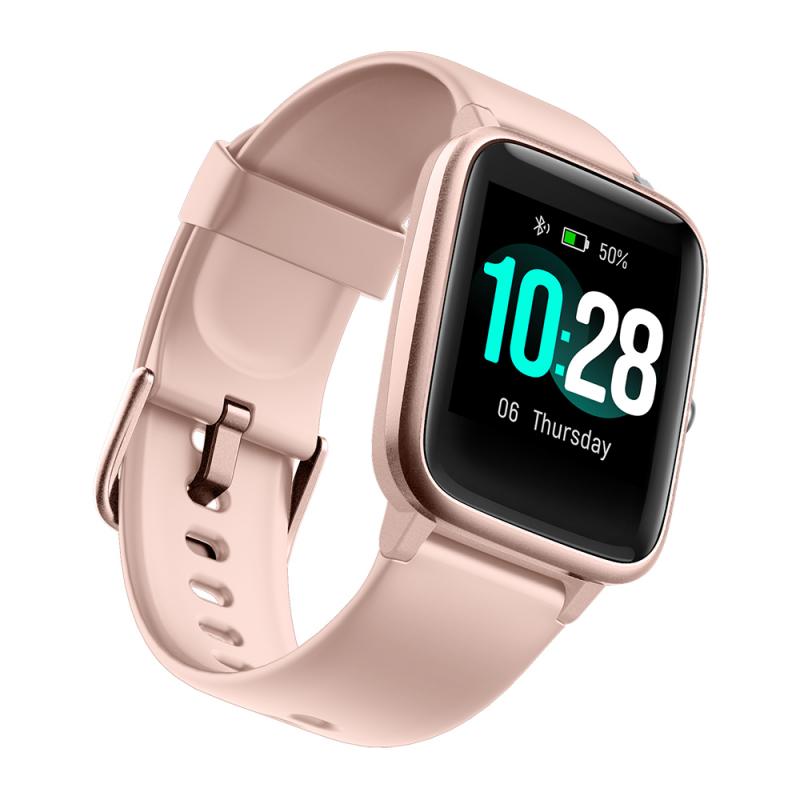
How to Change Smart Watch Time Manually (6 Steps)
When automatic sync is unavailable or the time displayed is incorrect, follow these steps to set the time manually. Setting the time takes only a few minutes whether you are syncing automatically or adjusting manually.
- Check for automatic sync: Make sure your smartwatch is connected to your smartphone via bluetooth. When connected, most watches automatically pull the correct time from your phone without any manual input needed.
- Access settings: Open the settings menu on your smartwatch. This is usually done by swiping down from the top of the home screen or pressing the crown button or side button.
- Find the date and time settings: Look for a section labelled "Date and Time", "Time Settings", or "System" depending on your model. Tap it to open.
- Adjust the time manually: If the time shown is incorrect, toggle off the "Automatic Sync" or "Set Automatically" option. You can then manually adjust the hours, minutes, and date using the on-screen controls.
- Select the correct time zone: Choose your time zone from the list. For users in India, select India Standard Time (IST) or GMT +5:30 to ensure accurate local time display.
- Save your changes: Confirm the adjustments and exit the settings menu. Your smartwatch will now display the updated time.
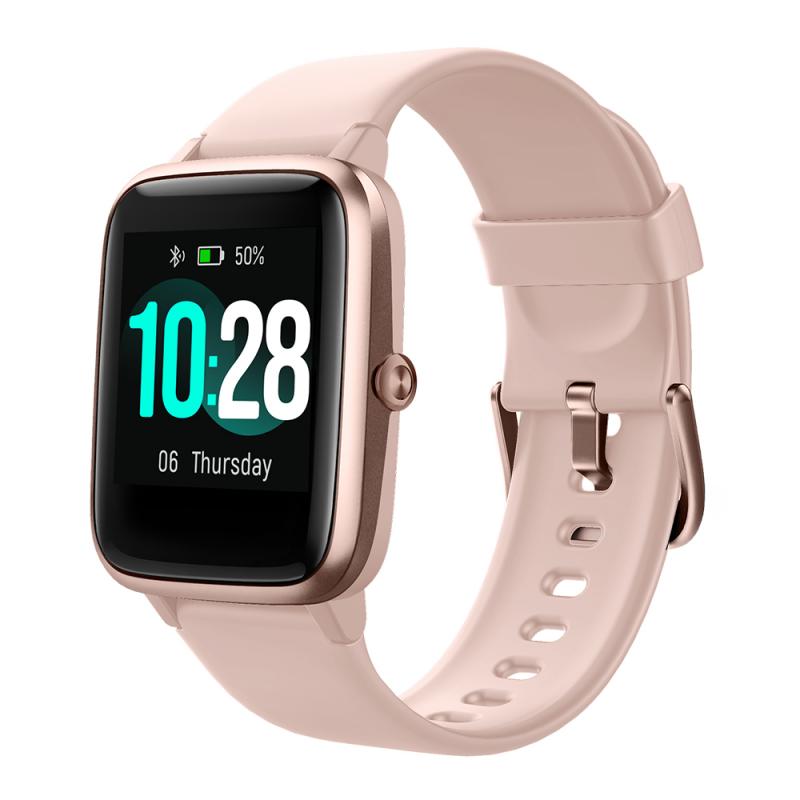
How to Fix Time on Samsung Smartwatch Without a Phone
When you enter a different time zone, your watch may display the incorrect time if it is set up as a standalone. In this case, the watch will not automatically update. Additionally, if the watch has been powered off for an extended period of time between the last use, you may need to manually set the time. Note: if the watch cannot be set up as a standalone like the Galaxy Watch4, Watch5, or Galaxy Fit, the steps below do not apply. Available features, menu options, and settings may vary by the watch and software.
- From the watch's home screen, press the power key, and then tap Settings. You can also swipe down the status panel, and then tap the settings icon.
- Tap General, and then tap Date and Time. Set the date, time, and time zone for your region, and then check if the watch displays correctly. If the date and time on the watch is still incorrect, reset the watch.
- Depending on the watch, "Automatic Time" may be available. If the switch next to the feature is turned on, the provided date and time information is generated from the network the watch is connected to. To manually set the date and time, turn off the switch.
- Press and hold the power key, and then tap Power Off. On the Galaxy Watch3, press and hold the power key and back simultaneously, and then tap Power Off. Leave the watch off for 30 seconds, and then press power key to turn it back on.
- If the date and time displaying on the watch is still incorrect, you will need to factory reset the watch. Navigate to Settings, tap General, tap Reset, and then tap Reset again. All data stored on the watch will be erased. Make sure to backup the watch data before the reset.
- Once the reset completes, set the time as described in step 2.
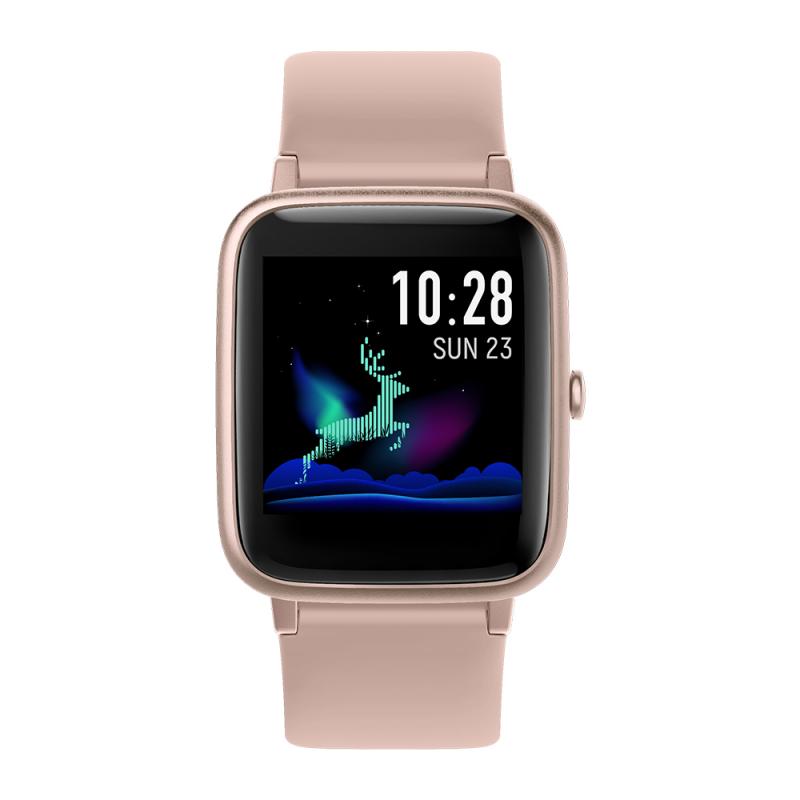
How to Change the Time Zone on Your Smartwatch
Changing the time zone correctly is essential when travelling to another city or country. An incorrect time zone affects not just the clock display, but also reminders, calendar alerts, and fitness tracking timestamps.
- Travelling to a different time zone
- Disable automatic time zone and select your destination time zone manually in Settings → Date and Time.
- Watch showing time one hour off
- Check if Daylight Saving Time (DST) is active in your phone's settings and toggle automatic time zone off and back on to refresh.
- Time zone stuck after returning from travel
- Reconnect to bluetooth, open the companion app, and re-enable automatic time zone sync.
- Watch not reflecting correct IST time in India
- Set time zone manually to GMT +5:30 or India Standard Time in settings.
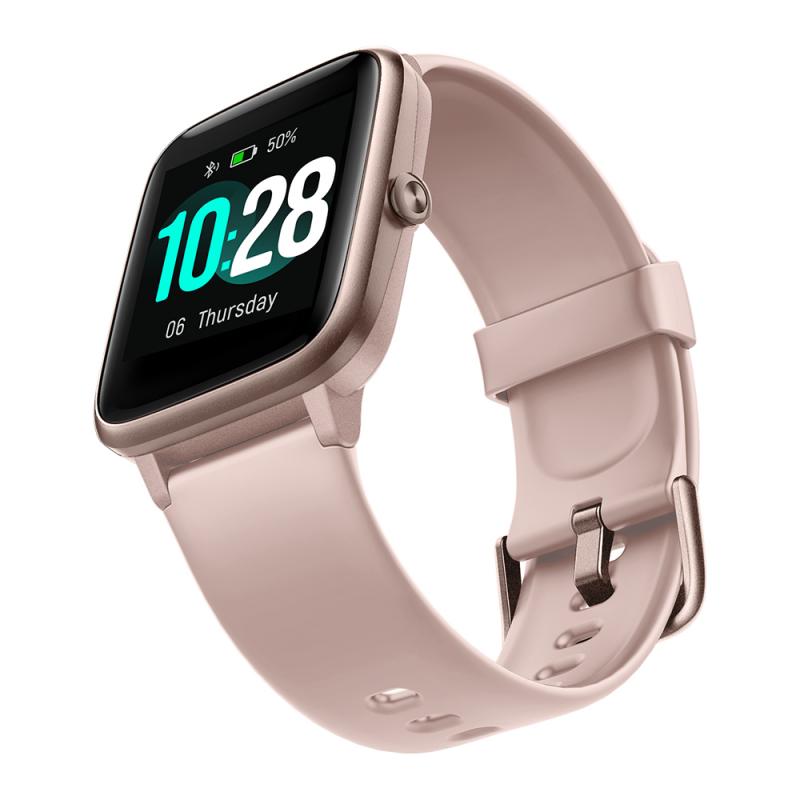
Troubleshooting: Smartwatch Keeps Showing Wrong Time
If your smartwatch consistently shows incorrect time despite following the steps above, a few common issues may be causing the problem. Common causes of wrong time include poor bluetooth connection, outdated software, or wrong time zone settings.
- Poor bluetooth connection: Disconnect and reconnect your smartwatch to your phone. If the issue persists, unpair and re-pair the devices through the companion app.
- Outdated software: Check for firmware updates on your watch and companion app updates on your phone. Outdated software is one of the most common causes of sync errors.
- Wrong time zone on your phone: Your watch syncs from your phone, so if your phone's time zone is incorrect, your watch will reflect the same error. Fix the phone's time zone first.
- Low battery: Some budget smartwatches reset time settings when the battery drops critically low. Keep your watch charged above 20% to prevent this.
Pairing Your Watch With a Phone to Prevent Time Issues
The watch needs to be connected (paired) to a mobile phone so that it can sync the time with the phone. If it is an Android-based phone, the OS of the phone needs to be version 4.4 or higher — it will not function correctly with Android versions lower than 4.4. If it is an iPhone, the OS version of the phone needs to be iOS 7.0 or higher. When a Samsung smart watch is paired with a phone, it will sync time with the phone. Consider pairing your watch with a phone to prevent time issues in the future. For LD5 smart watch and Apple replica designs, there is an option to change time in settings — change the sync time from auto to manual, then adjust the time in settings.