How To Unlock A Digital Camera Memory Card?
The "SD card locked" message tends to have terrible timing. It seemingly likes to occur when you're about to capture that perfect shot or just as you need to save important files. While sometimes it's a simple fix (just flip that tiny switch!), it can also signal deeper issues like file system corruption or card failure. Thankfully, you can unlock your SD card in several ways, depending on what caused the problem.
Understanding the Physical Lock Switch
SD cards have a tiny little tab on the left side edge (as seen from the front of the card). When this tab is in the lock position, a sensor switch in the camera tells the camera that the card should not be written to, i.e. the card is locked. Most standard-size SD cards come with a small physical lock switch on the left side. This tiny plastic slider can cause an SD card to get locked in several different ways.
There is a small switch in the card reader that senses the lock switch position. The lock switch on the card is just a piece of plastic with no influence on the card itself — only the reader. On Sony cameras, if the tab is in the up position, the memory card is unlocked. When the tab is down, the memory card is locked.

How to Check and Flip the Lock Tab
- Remove the SD card from the camera.
- Check the position of the locking tab and make sure it is not in the lock position.
- Reinsert the card and try again.
If you are positively sure that the locking tab is not in the lock position and the camera continues to tell you the card is locked, the camera's sensor switch might be stuck. Some worn SD cards behave erratically even when the switch appears intact. Since the lock switch is detected by the card reader (not the card itself), try using a different reader first. If your card still seems "locked," try moving the switch to the middle position instead of fully up or down. Similarly, rapidly flicking the switch up and down multiple times might restore functionality by clearing microscopic debris.
What to Do When the Lock Tab Is Missing
Sometimes the locking tab pops out of its notch and goes missing. If you see the notch where the locking tab should be, but the locking tab itself is absent, you can tape over the notch with a tiny piece of thin adhesive tape. Be careful — if this is not done cleanly or the tape is too thick, the SD card might get stuck in the slot and you'll have difficulty getting it to eject.

Troubleshooting the Camera's Card Slot
If flipping the switch does not resolve the issue, the following steps may help clear the problem:
- Inserting and releasing the card a few times, thereby jogging the sensor switch, may clear the problem.
- Inspect the card slot with a light and magnifying glass, paying strict attention to where the lock switch would be located when inserted. Maybe something has gotten into the reader — blow it out with compressed air.
- As a last resort, you can give the SD card slot a blast of compressed air from a can. Be careful because the "air" from the can might cool down the card slot to the point of causing condensation, so wait a while before turning the camera on again.
- If the problem refuses to clear, have the camera looked at by someone knowledgeable.
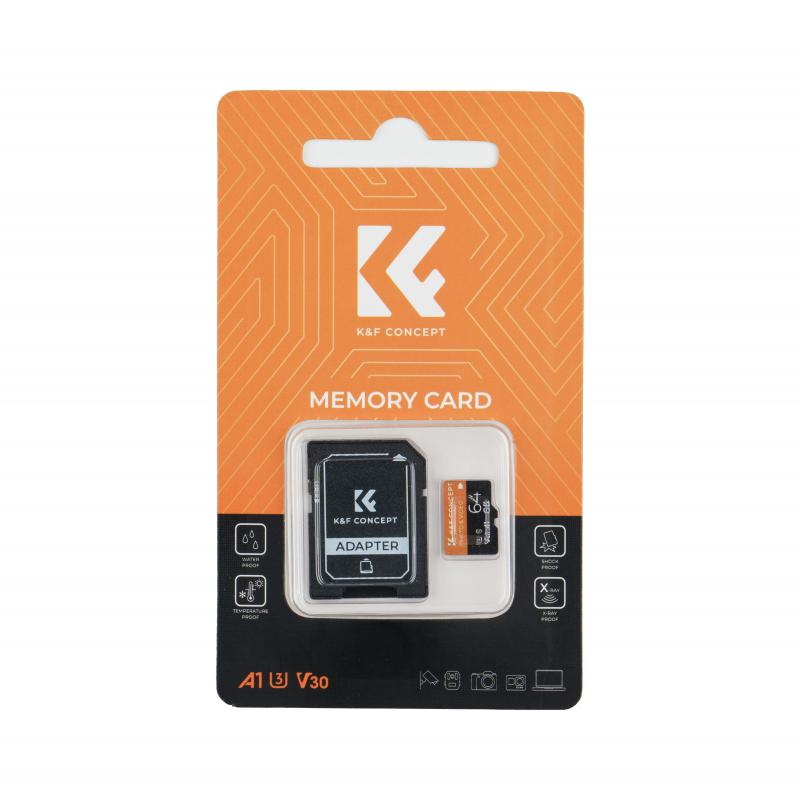
Testing With a Different Memory Card
There is nothing in your camera that is responsible for the card locked error — it is the card. If you have moved the tab on the card to the unlocked position and you still have that error message, your card is at fault. Try a different card.
Also check the card compatibility. Some old cameras have a maximum capacity for readable storage. For example, some cameras support only classic SD cards no larger than 2 gigabytes, and will not read SDHC cards. Verify what is the maximum amount of storage supported by the camera, as this could be part of the issue.
Removing Write Protection via Windows (CMD/DiskPart)
Write protection works on the file system level. If it is a camera or smartphone, look into their options for locking and unlocking your SD card's contents. Alternatively, plug your SD card into your computer and on Windows 10:
- Press Windows key + X and run CMD or PowerShell with admin privileges.
- Type
diskpartand press Enter. - Type
list diskand press Enter. Note your write-protected SD card's number. - Use
select disk sd_card's_numberfollowed by Enter to choose your SD card. - Type
attributes disk clear readonlyto make it writable again.
Fixing File Permissions on Windows
If your SD card's file system was corrupted and with it some file access permissions, one way to fix them on a PC running Windows 10 would be:
- Connect your SD card to your PC.
- Find the locked files with a file manager like File Explorer.
- Right-click on them and ensure Read-only is deselected.
- Right-click on your locked SD card and choose Properties.
- Select Everyone in the Security tab and then, from the list below, change all access options to Allow.
Unlocking an SD Card on Mac
All SD cards unlock in the same way: change the position of their locking switch to unlocked. If that doesn't work, try the following on a Mac:
- Connect your SD card to your Mac.
- Run Disk Utility.
- Select your locked SD card from Disk Utility's list on the left.
- Click on the First Aid button and follow the on-screen instructions.
- If the card appears read-only, select the card, click Unmount first, and then click Mount again. This remounting process often removes the read-only attribute automatically.
- Should the problem occur again, it's probably time to recycle your SD card and purchase a new one.
Recovering Data From a Locked SD Card
You can copy the files on your computer with a file manager. However, for best results (and locating lost files), it's better to use a file recovery tool like Disk Drill. The process is simple:
- Step 1: Connect the card
- Connect your locked SD card to your computer.
- Step 2: Run Disk Drill
- Download, install, and run Disk Drill. Select your SD card from the list of devices.
- Step 3: Scan
- Start an "All Recovery Methods" scan, and when it completes, click on Review Found Items.
- Step 4: Recover files
- Select the files you want to copy, click Recover, and choose where you want to save them.
Note: low-level formatting can sometimes resurrect seemingly "dead" cards, but if your card locked itself due to reaching its write cycle limit or due to physical damage, even this option might only be a temporary fix. Just know that these mechanical workarounds signal that your SD card (or card reader) should be promptly replaced.