kfconcept

KENTFAITH
K&F Concept    Blog >

Enjoy Your Selected Digital Life

Recently Viewed
  • Recently Viewed
  • Recently Viewed list is empty.

Compare (0) 0
  • Compare
  • You have not chosen any products to compare.

  • Compare
Currency: USD
  • Currency
Shop by Scene Shop by Rank

Log Into Your Account

Account

Order History

Wish List

Login

Forgotten Password?

Or connect with

Register Account

Already have an Account?Log In

  • Shopping Cart
  • Your shopping cart is empty!

  • Register/Login to purchase, earn points
  • Favorite
  • Your wish list is empty.

  • Register/Login to like, earn points
  • Activities
  • Guide
    • Filter Guide
    • Lens Adapter
    • Product Review
  • News & Reviews
    • Camera Reviews
    • Sample Gallery
    • News
  • Tutorials
    • Solar eclipse photography
    • Photography Basics
    • Landscape Photography
  • Inspiration
    • Travel
    • Travel Stories
  • Home
  • Blog
  • How To Change A Smart Watch Time?

How To Change A Smart Watch Time?

Kentfaith 2025-01-15 01:08:53 0 Comments

Changing the time on a smartwatch might seem straightforward, but the process can vary depending on the brand and model of the device. However, understanding the key steps can make the process simple, whether you’re dealing with a Wear OS device, Apple Watch, or another brand like Fitbit or Garmin. Here, we’ll delve into how to change the time on some of the most popular smartwatches on the market.
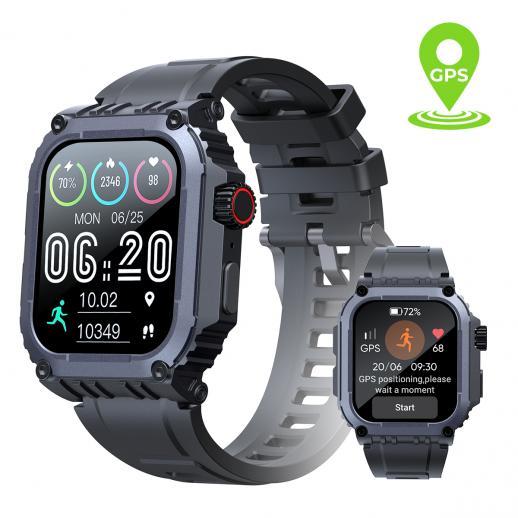

1. Changing Time on Wear OS Smartwatches (Android-Based)

Wear OS is the smartwatch operating system developed by Google, which powers several brands like Fossil, TicWatch, and others. The good news is that Wear OS typically syncs the time automatically, but there might be times when you need to adjust it manually, especially if the watch hasn’t synced with your phone or if you’re traveling across time zones.

Automatic Time Sync

Most Wear OS watches are designed to sync the time with your smartphone’s time zone, provided that:

- Your smartwatch is connected to your phone via Bluetooth.

- The “Time Zone” setting on your phone is correct and updated.

- You have internet access, so the phone can retrieve the time data.

Manual Time Setting

If you need to manually change the time or time zone, follow these steps:

1. Open the Settings app on your Wear OS smartwatch.

2. Scroll down and tap on System.

3. Under System, tap on Date & time.

4. You can toggle the Automatic time zone and Automatic date & time off if they’re enabled.

5. Then, manually adjust the Time zone, Date, and Time as necessary.

6. Once done, save your changes, and the new time should appear on the watch.

2. Changing Time on Apple Watch

Apple Watch, paired with an iPhone, makes changing time relatively easy as it automatically syncs the time from your iPhone. However, in certain cases (for instance, when traveling to a different time zone or using the watch without a phone), you might need to adjust the time manually.

Automatic Time Sync

By default, your Apple Watch will automatically adjust to the time zone set on your iPhone. Ensure that:

- Time Zone settings on the iPhone are correctly set.

- Both devices are connected, and the iPhone’s Date & Time settings are set to automatically update.

Manual Time Setting

If automatic syncing isn't working, follow these steps:

1. Open the Settings app on your Apple Watch.

2. Scroll down and tap on General.

3. Tap on Date & Time.

4. Toggle off Set Automatically.

5. You can now manually set the time and time zone.

3. Changing Time on Fitbit Smartwatches

Fitbit smartwatches, like the Fitbit Charge or Versa series, usually sync with the time settings of your paired smartphone. However, if you're experiencing issues or want to adjust it manually, the process is simple.

Automatic Time Sync

Fitbit devices typically sync the time from the phone’s time settings. Ensure that:

- The watch is connected to your phone via Bluetooth.

- The phone’s time zone settings are correct.

Manual Time Setting

To change the time manually:

1. Open the Fitbit app on your phone.

2. Tap on the Account icon in the top left corner.

3. Select your Fitbit device from the list.

4. Tap on Clock Face.

5. Depending on the model, you may have an option to adjust the time zone, or you can toggle the automatic time sync off and adjust manually.

4. Changing Time on Garmin Smartwatches

Garmin watches, such as the Forerunner and Fenix series, often use a GPS signal to sync time and typically adjust automatically when you travel. However, manual adjustments can be made if necessary.

Automatic Time Sync

Garmin watches sync to the time based on GPS or Bluetooth signals, so time should be accurate as long as:

- The watch has a GPS fix (especially for outdoor models).

- The watch is synced with your smartphone.

Manual Time Setting

If you need to manually change the time:

1. Press and hold the Light button to access the main menu.

2. Select Settings > System > Time.

3. You can toggle off Auto set and manually set the time, date, and time zone.

5. Changing Time on Samsung Galaxy Watch (Tizen OS)

Samsung's Galaxy Watch series runs on Tizen OS, and time adjustments are relatively simple.

Automatic Time Sync

Samsung watches sync automatically with your phone’s time settings via Bluetooth. To ensure proper synchronization:

- The phone and watch must be paired and connected.

- Time and time zone settings on your phone should be correct.

Manual Time Setting

To manually change the time:

1. On your Galaxy Watch, swipe down to open the Quick Settings.

2. Tap on Settings > General > Date and Time.

3. Turn off Automatic date and time and Automatic time zone.

4. Adjust the Date, Time, and Time zone manually.

6. Changing Time on Amazfit Watches

Amazfit watches, like the GTR and Bip series, use the Zepp app to sync with your smartphone. Time changes are typically managed via the app.

Automatic Time Sync

Amazfit watches sync their time with the phone’s settings, provided:

- The watch is connected to the Zepp app.

- The phone’s time settings are set to automatically update.

Manual Time Setting

If you need to set the time manually:

1. Open the Zepp app on your phone.

2. Select your watch from the app’s main screen.

3. Go to Device Settings > Time Settings.

4. Disable the Automatic Time Sync and manually set the time.

7. General Tips for Managing Time on Smartwatches

Even though time syncing is often automatic, there are a few tips to keep in mind for optimal performance:

1. Always Keep Your Watch Updated: Firmware updates can affect how your watch handles time and time zone settings. Ensure your smartwatch’s software is up to date to avoid glitches.

2. Check the Time Zone on Your Phone: Since many smartwatches rely on the phone’s time settings, ensure your phone’s time zone and date settings are correct before troubleshooting your watch.

3. Use the GPS for Accurate Time Syncing: For watches that support GPS, make sure it’s activated when you want precise time (useful for long-distance running or when traveling).

4. Manually Adjust for Travel: If you're traveling across time zones, you may need to manually change the time zone on your watch, especially if it doesn’t update automatically.

Changing the time on your smartwatch is generally a straightforward task, but the exact steps depend on the type of device you own. Whether it's a Wear OS, Apple Watch, Fitbit, Garmin, or another brand, most smartwatches will sync the time automatically through your smartphone. However, if you encounter issues or need to change the time zone manually, the process is easy to follow. By knowing how to adjust the time settings, you can ensure your smartwatch remains accurate, no matter where you are or what your schedule entails.
Leave your comment
Cancel reply
Note: HTML is not translated!
Related products
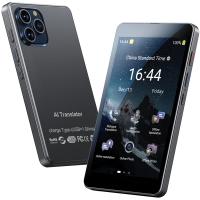
AI Translator Device for Business & Trade, 142 Languages Real-Time Online & Offline, Smart Office/Cross-App/Video/Photo Translation, Record & Transcription, Kentfaith
15
$182.49 $145.99
Smart Bird Feeder with 1080P Camera, 11000+ Birds Species Identification, Non-Stop Solar Power, Real Time Alert, 145 ° Super Wide Angle, All-in-one Bird Feeder
27
$299.99 $178.99
AI Smart Glasses with 164 Languages Real-Time Translation, 4 Translation Modes, Voice Control, AI Assistant, Music Playing All-in-one Bluetooth Smartglasses for iPhone, Android, iPad
NEW Arrival
AI Smart Glasses with 164 Languages Real-Time Translation, 4 Translation Modes, Voice Control, AI Assistant, Music Playing All-in-one Bluetooth Smartglasses for iPhone, Android, iPad
93
$99.99 $79.99
4G Cellular Trail Camera, 2.7K Videos 32MP Photos with Real-time Notifications, 0.3S Trigger Time, 65ft Night Vision, IP66 Waterproof, Kentfaith
15
$137.49 $109.99
Smart Camera Glasses, HD 1080P, EIS Stabilization, WiFi Connect, Translation, 4H Playtime, Kentfaith
16
$119.99 $95.99
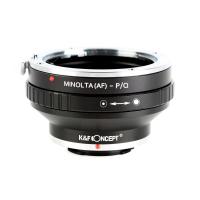
Minolta A / Sony A Lenses to Pentax Q Lens Mount Adapter K&F Concept M22161 Lens Adapter
$45.99 $23.99
Minolta A / Sony A Lenses to Pentax Q Lens Mount Adapter with Tripod Mount K&F Concept M22162 Lens Adapter
$55.99 $28.99
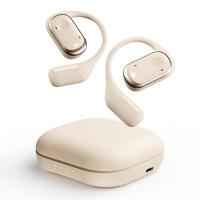
Real-Time Translation Earbuds 2-Way 150 Languages & Accents Open-Ear Kentfaith
13
$99.99 $79.99
Language Translator Device Real-Time Online & Offline 142 Languages 5.5in Screen Kentfaith
12
$112.49 $89.99
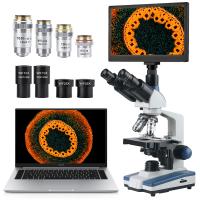
Compound Microscope with 11.6-inch Smart Screen, 40X-2500X Magnification, PC Connection, Plan Optical System, Mechanical Stage, Kentfaith
$1,324.99 $1,059.99
Products You May Like
Insta360 GO3 ND8+ND16+ND32+ND64 Filter Set,Optical Glass with 28 Multi-Coated Filter Action Camera Accessories
3
$59.99 $36.99
DJI Air 2S/2 LED Colorful Landing Gear Compatible ,Foldable Height-Enhancing Extender for DJI Air 2S/2 Landing Gear Accessory
$31.24 $24.99
Canon FD Lenses to Canon EOS M Lens Mount Adapter K&F Concept M13141 Lens Adapter
6
$53.99 $32.99
K&F CONCEPT Double-Sided Magnetic Lens Filter Mount Adapter, Compatible with iPhone 17 Pro and 58mm Threaded Filters, iPhone Filter Mount (Filter Not Included)
59
$25.99
72mm True Color Variable ND2-32 (1-5 Stops) and CPL Circular Polarizing Lens Filter 2 in 1 for Camera Lens Neutral Density Polarizer Filter Nano-X Series
52
$124.99 $99.99
Inspection Camera Articulating Borescope Single Lens 1080P HD 4.3" Screen 360° Adjustable Lens 8.5mm Cable with 32G Memory Card
HOT Seller
Inspection Camera Articulating Borescope Single Lens 1080P HD 4.3" Screen 360° Adjustable Lens 8.5mm Cable with 32G Memory Card
241
$563.99 $199.99
Transmitting Trail Camera
10
$162.99 $106.99
KIT-06LM Vlogging kit for YouTube, with fill light, microphone and light mobile phone holder tripod, compatible with iPhone/smartphone/camera
19
$45.69
Portable Laser Engraver with 0.05mm Accuracy Protective Cover Engraving Preview 3W Entry Level
14
$374.99 $262.99
M42 Lenses to Canon EF Lens Mount Adapter K&F Concept M10131 Lens Adapter
31
$37.99 $27.99
Related articles
How To Set Time On Huawei Smart Watch?
How To Download Games On A Smart Watch?
How Much Is A Smart Watch Charger?
How To Secure A Time Lapse Camera?
Smart Life Camera How To Change Wifi Network?
How To Connect Mobile Smart Watch?
How To Set Smart Watch Clock?
How To Setup Your Smart Watch?
How To Set Smart Band Watch?
What Digital Camera Has The Best Zoom?
Blog You May Like
Type C Earphones How To Use?
Can Airbnb Have Cameras In The House?
How To Take Video On Mac Camera?
How To Set Up Surveillance Camera Online?
How To Install Camera Outside House?
How Much Is An Sd Card?
How To Use Camera Flash Effectively?
What Does Ef Mean On A Camera Lens?
How To Find Size For Camera Filter?
What Is A Dslr Uv Filter Used For?
Related categories
time lapse camera A Mount Lens Adapter Sony A Mount Lens Adapters minolta a mount lenses C mount lens adapter m4/3 adapter Outdoor Security Camera Wifi
Popular products
bluetooth smart sports watch hd screen smart watch waterproof smart watch for swimming 3atm smart watch new waterproof smart watch smart watch in waterproof Full Touch Screen Smart Watch smart watch compatible with iphone android smart watch for women sleep monitoring smart watch
Related searches
Smart Watch Connect To Iphone Smart Watch To Monitor Heart Extra Smart Watch Outdoor Smart Watch Advanced Smart Watch Black Smart Watch Rugged Smart Watch Smart Wrist Watch Smart Watch Alexa Smart Watch Store
Popular searches
Filter For Nikon 24 70mm Lens Best 5 In 1 Reflector Weather Station With Rain Gauge Filter For Sony 35mm 1.8 Lens Canon Compact Camera Bag C Mount Lens Adapter Promaster Spectrum 7 1 49mm Filter Lens Digital Camera Memory Card Speed Nikon Coolpix L310 Lens Adapter Fuji X Mount To M42 Adapter
Blog Category
  • Activities
  • Guide
    • Filter Guide
    • Lens Adapter
    • Product Review
  • News & Reviews
    • Camera Reviews
    • Sample Gallery
    • News
  • Tutorials
    • Solar eclipse photography
    • Photography Basics
    • Landscape Photography
  • Inspiration
    • Travel
    • Travel Stories
Search Article
Latest from the Blog
Camera Use Which Lens?
How To Remove Memory Card From Nikon Camera?
Is the Sony A7M5 worth buying?
How To Wear Monocular?
How To Stream Live From Surveillance Camera?
How To Setup A Tripod?
How Do Trail Cameras Work? The Ultimate Guide to Trail Cameras
Best Metal Detector for Kids in 2025
Which Memory Card For Dash Cam?
What Is Surveillance Camera Control System?
  • Easy Payment Multilple Payment Options

  • Free Shipping Global WareHouse Shipment

  • No Risk 30-Day No Reason Return

  • Limited Deals Buy More, Save More

  • Tax Free No any surcharges or tax fee

Information
  • About us
  • Contact Us
  • Site Map
  • Blog
  • Video
  • Gallery
  • VIP Membership Rewards
Service
  • Privacy Policy
  • Terms & Conditions
  • Shipping & Delivery
  • Payment Info
  • Warranty, Return & Refund
  • Intellectual Property Rights
  • Ambassador
  • Affiliates
  • Wholesale
Support
  • My account
  • Order History
  • FAQs
  • Extend Warranty
  • Logistics Tracking
Follow us
NewsLetter

Get the latest product, K&F Concept respects your privacy.

Powered By KENTFAITH © 2026