Can Bluetooth Headphones Be Used With Tv?
How do wireless headphones connect to a TV?
Wireless headphones connect to TVs primarily via Bluetooth or radio frequency (RF) technology.
Bluetooth headphones pair directly with TVs that support Bluetooth audio output, while RF headphones use a dedicated transmitter connected to the TV’s audio output.
Infrared headphones are less common and require a direct line of sight to the transmitter.
Understanding your TV’s audio output options and headphone compatibility is key to choosing the right connection method.
- Bluetooth-enabled TVs: Direct pairing
- Non-Bluetooth TVs: Bluetooth transmitter
- Wireless headphones with external Bluetooth transmitter
- Dedicated wireless headphones for TV: RF or infrared headphones
- Wired connection (alternative): Wired headphones via remote or TV ports
Overall, whether wireless headphones will work depends on your TV's features or the accessories you use (like Bluetooth transmitters).
Nowadays, smart TV or Bluetooth-enabled TV is very easy to get on the market.
With modern technology, most TVs support wireless headphones, so you can mostly enjoy watching TV with wireless headphones for TV watching.
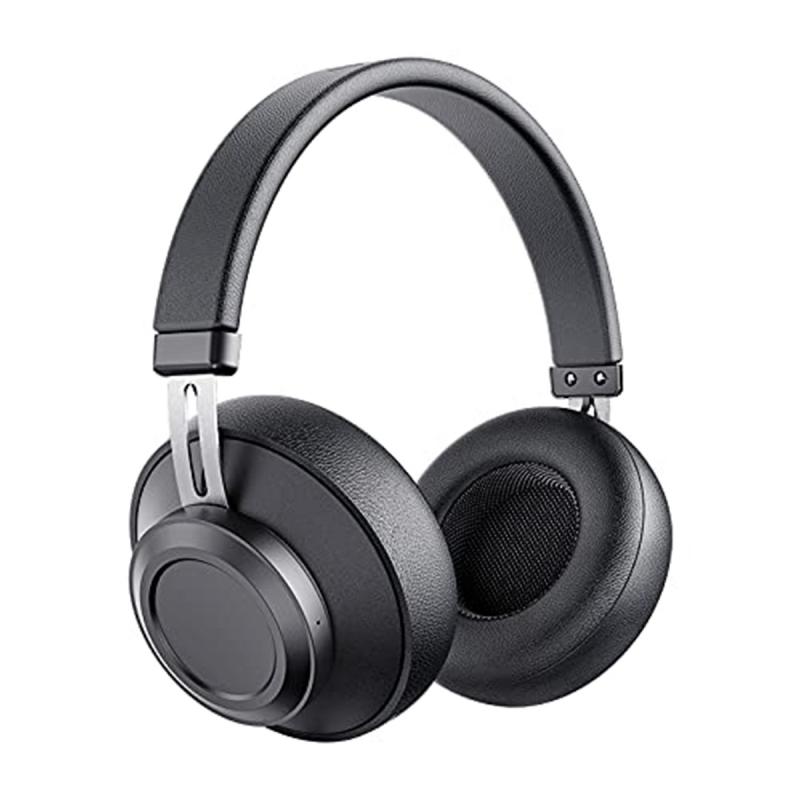
Connect Bluetooth headphones to a TV with built-in Bluetooth
If your TV has Bluetooth, then the easiest way is to connect a wireless headphone or earbuds via your TV's settings.
Open the settings, look for Bluetooth devices and pair your device.
Then adjust the volume to your preference.
- Put headphones in pairing mode: Follow your headphone manual to activate pairing mode.
- Enable Bluetooth on TV: Navigate to your TV’s settings menu, usually under sound or connections.
- Select Bluetooth audio devices: Scan for available devices and select your headphones.
- Confirm pairing: Accept any pairing prompts on your TV or headphones.
- Test audio: Play content and ensure audio routes through the headphones.
- Adjust volume: Use TV or headphone controls to set comfortable volume levels.
Put the headphones into Bluetooth pairing mode and make sure they are discoverable.
See the product's user manual for how to do this, if needed.
Navigate to the Bluetooth audio device list on your TV and select the headphones to pair with.
The process is slightly different depending on what model of TV you have.
On most models, it will be Menu, then Settings, then Sound.
From there, select Sound Output, then Bluetooth Speaker List.
No Bluetooth on your TV?
No stress.
You can also use a Bluetooth transmitter that you connect to your TV's audio output.
Or just go old school with a cable, depending on your headphones and your TV's ports.
- Choose a Bluetooth transmitter: Select one compatible with your TV’s audio output (optical, RCA, or 3.5mm aux).
- Connect the transmitter: Plug the transmitter into your TV’s audio output.
- Power the transmitter: Use USB power or included adapter.
- Pair headphones: Put headphones in pairing mode and connect them to the transmitter.
- Test and adjust: Play TV audio and adjust volume as needed.
Most modern TVs have at least a 3.5-mm analog output (aka headphone jack).
Many also add an optical digital output.
An older TV may use a set of RCA stereo analog jacks instead of, or in addition to, the headphone jack.
You can connect TVs to your audio gear in a few different ways depending on the brand, model, year of manufacture, and so forth.
Before you buy a pair of wireless TV headphones, check out the side or back of your TV.
What types of audio outputs does it have?
Look for a label that says “out” or “output.”
Things to keep in mind
- Put your headphones or earbuds in pairing mode.
- Make sure the distance to the TV is not too great.
- Update your TV's software.
- Check if there are no obstacles or interference from other devices.
- Make sure the headphones or earbuds have enough battery.
While you can pair more than one Bluetooth audio device at a time, only one can output audio.
You can't use Bluetooth devices and the Wi-Fi speaker surround setup feature simultaneously.
Compatibility issues may occur, depending on the Bluetooth device.
For instance, some Bluetooth headphones are designed for mobile devices exclusively and won't pair with a TV.
Lip-sync errors may occur.
The TV and Bluetooth device may disconnect, depending on the distance between them.
- Bluetooth version mismatch
- Not every TV is compatible with all Bluetooth devices. Check the manual or the manufacturer's website.
- Obstacles or interference
- Make sure there are no walls, metal objects, or other active Bluetooth devices in between.
- Incorrect audio settings
- Set your TV's output to 'Bluetooth' or 'external device' if necessary.
- Restarting often helps
- Remove the device from your Bluetooth list and try pairing again.
- Distance
- Keep your headphones close to the TV while pairing.
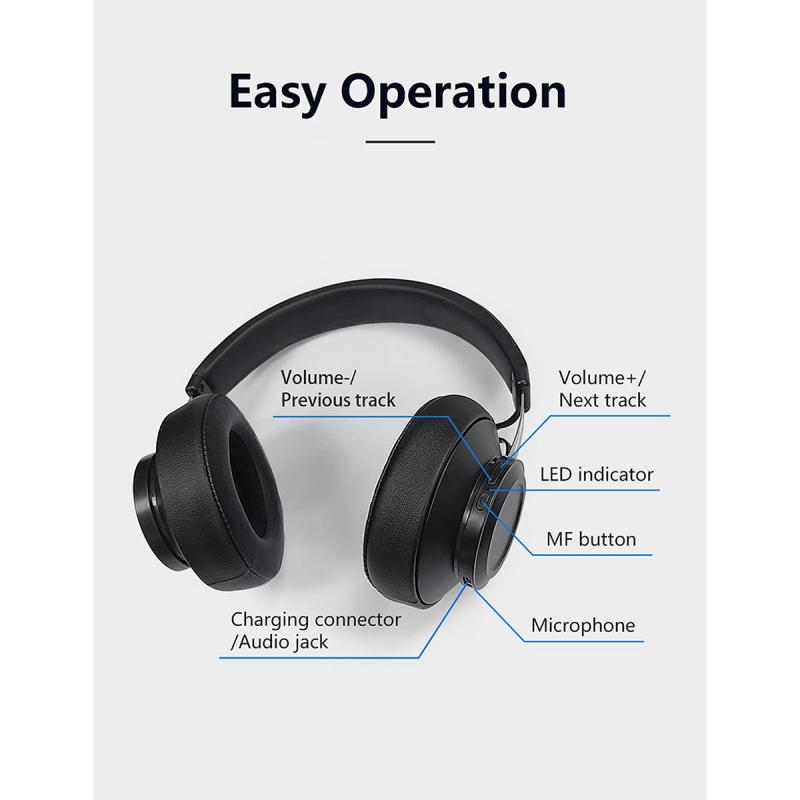
Low latency and TV audio
Low latency ensures that audio and video stay synchronized, preventing lip-sync issues that disrupt viewing.
Bluetooth headphones and transmitters supporting aptX Low Latency or similar codecs reduce delay to under 40 milliseconds, making audio appear in real-time with the picture.
We measured each headphone pair’s latency.
The higher the latency, the more likely it is that the video and audio will be out of sync.
Our testing found that radio-frequency-based wireless TV headphones performed better than Bluetooth options, with less latency.
Bluetooth systems generally work over shorter distances and have a higher latency, which doesn’t always make them ideal for TV use.
There’s a strong chance that Bluetooth latency will cause the audio to lag behind the video, creating annoying lip-sync problems.
| Type | Connection method | Range | Pros | Cons |
|---|---|---|---|---|
| Bluetooth | Bluetooth pairing | ~10-30 meters | Wide compatibility, easy setup | Possible latency without aptX |
| RF (radio frequency) | Dedicated transmitter | ~100-300 meters | Long range, stable connection | Requires base station |
| Infrared | Infrared transmitter | Line of sight | No interference | Limited range, needs direct line of sight |
Private listening
Connecting wireless headphones to your TV allows you to enjoy private, high-quality audio without disturbing others.
Wireless TV headphones allow you to enjoy TV shows, movies, and video games without disturbing people around you.
Do you want to watch your favorite series or movie without disturbing others?
Then connecting your headphones or earbuds to the TV is the solution.
Whether you choose wireless or old-fashioned with a cable, we'll explain exactly how it works.
- Gaming: Enjoy immersive sound without cables.
- Listening to music: High-quality wireless audio.
- Late-night viewing: Avoid disturbing others.
- Public spaces: Use with compatible transmitters for private listening.
- Streaming devices: Compatible with Fire TV, Roku, and others.
You can turn on both the TV speaker and a Bluetooth device designed for someone who is deaf or hard of hearing at the same time.
The person can then set the volume of their Bluetooth device higher than the volume of the TV speaker without affecting the volume of the TV speaker, allowing everyone to listen to the TV at comfortable sound levels.