How To Hook Up A Wireless Backup Camera?
Installing a wireless backup camera can greatly improve your driving safety by providing a clear view behind your vehicle while reversing. Whether you're outfitting a car, truck, or trailer, the process is relatively straightforward compared to wired systems, as it eliminates the hassle of running lengthy cables through your vehicle. This article will walk you through step-by-step instructions for hooking up a wireless backup camera, along with some important tips to make the process smooth and effective.
Preparing for Installation

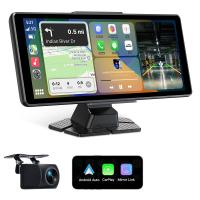
Before starting, ensure you have all required tools and that your wireless backup camera kit is well-suited to your vehicle. Typically, a wireless backup camera package includes:
- The wireless camera itself (usually mounted to or near the license plate).
- A transmitter to send video signals wirelessly.
- A monitor or a screen for the front dashboard to display the camera feed.
- Power cables for the camera and monitor.
It’s also helpful to have tools such as a screwdriver, wire crimpers, electrical tape, or zip ties to secure connections. You should verify compatibility with your vehicle's electrical system and confirm the backup camera can pair successfully with the monitor or digital display.
Step 1: Locating the Ideal Mounting Spot for the Camera

The first step is to determine where to mount the camera. Most wireless backup cameras are designed to install onto or near the rear license plate area due to their central and unobstructed view. Remove the license plate if required and confirm there’s enough space around it for the camera bracket or mounting hardware.
Make sure the camera's field of view will capture the area directly behind your vehicle, with minimal obstruction. If you often tow trailers or haul large objects, consider an adjustable-unit camera that allows you to angle it appropriately for your needs.
Step 2: Powering the Camera
Unlike wired systems, wireless cameras still have to be powered to function. The easiest and most common method is using the reverse light as the power source. Here’s how you set it up:
1. Access the Wiring for Reverse Lights: Open your vehicle’s trunk or rear hatch to locate the reverse light wiring. Consult your vehicle’s manual or online schematics if you’re unsure where the wiring is located.
2. Connect the Camera Wires: The wireless camera kit will typically have two wires—a positive and a ground wire. Use wire crimpers or splice connectors to attach the positive wire to the reverse light’s positive cable and the ground wire to the reverse light’s negative cable or a grounding screw.
3. Secure the Connection: Use electrical tape or zip ties to ensure the wires are secure and insulated from potential damage.
When you engage reverse gear, your reverse light activates, and the camera will start sending signals to the monitor. This ensures the camera operates only when needed.
Step 3: Mounting the Camera

Once the power source is set, mount the wireless backup camera securely. Follow the steps below:
1. Position the camera bracket where you previously decided on the mounting spot. Ensure the bracket aligns with your license plate holes, rear bumper, or the manufacturer's recommended mounting location.
2. Use screws or adhesive mounts (depending on the package design) to secure the camera.
3. Adjust the angle of the camera to optimize visibility. Most models allow for tilting or swiveling so you can fine-tune the view.
Double-check the stability of the unit by gently rocking it back and forth. Any loose-fitting could compromise the visual feed during vehicle movements.
Step 4: Installing the Video Monitor
The monitor or display screen is typically placed in the driver's cabin for easy access to the live feed. Depending on the model, your monitor may come with a combination of suction cups, adhesive mounts, or dashboard-mounted hardware.
1. Choose a Spot for the Monitor: The monitor should be placed where you can see it comfortably while driving. Recommended locations include the dashboard, rearview mirror, or windshield corner near the driver’s seat.
2. Power the Monitor: Most wireless backup monitors are powered through the cigarette lighter port or a dedicated USB power port. Plug in the monitor for power and route cables discreetly to avoid interference with driving controls.
3. Pair the Monitor with the Camera: Follow the manufacturer’s instructions to sync the monitor with the wireless camera. Typically, this involves switching on both devices and ensuring they operate on the same frequency. Some monitors will connect automatically, while others require manual input.
Step 5: Testing the System
After installation, it’s crucial to test the system thoroughly to ensure it functions as intended:
1. Start your vehicle.
2. Shift into reverse gear. The monitor should instantly display the live video feed from your backup camera.
3. Adjust the angle of the camera if necessary to capture a clear view behind the vehicle.
4. Check for interference: Wireless cameras may experience occasional signal disruptions due to nearby devices or poor installation. If you notice flickering or loss of image quality, reposition or secure the transmitter.
If everything works properly, zip-tie or tape down any loose wiring so it doesn’t obstruct your vehicle’s interior.
Tips for Professional Installation Results
Use Quality Equipment: Investing in a high-quality wireless backup camera ensures better video resolution and more reliable signal transmission. Look for models with wide-angle lenses, infrared or night vision capabilities, and waterproof ratings.
Understand Frequency Ranges: Many wireless systems operate on 2.4 GHz frequencies, which can occasionally overlap with Wi-Fi devices causing interference. Modern kits with digital encryption reduce this issue.
Consider Additional Features: Some advanced camera systems provide guidelines or trajectory overlays to help with parking or reversing. If you’re not confident in your spatial awareness, this feature can be invaluable.
Troubleshooting Common Issues
If your wireless backup camera isn’t functioning properly after setup, consider these troubleshooting tips:
1. No Image Display on Monitor:
- Check if the camera and monitor are powered correctly.
- Ensure proper pairing.
- Inspect the wireless transmitter placement—make sure it isn’t blocked off by metal objects.
2. Flickering or Poor Signal:
- Relocate the transmitter closer to the monitor or consider adding a signal booster.
- Reduce interference by disabling nearby Wi-Fi devices temporarily during testing.
3. Dark or Discolored Image:
- Clean the camera lens.
- Adjust brightness and resolution settings on the monitor.
Benefits of Wireless Backup Cameras
Opting for wireless technology eliminates the complex wiring that can be time-consuming and costly to install in traditional backup camera setups. Wireless systems are compatible with a range of vehicles and can be relocated easily if you upgrade or switch vehicles in the future.
Moreover, many wireless models now boast HD-quality feeds and enhanced durability, giving you long-term safety and convenience. Whether it’s maneuvering through tight parking spaces or avoiding obstacles in your blind spot, a well-installed wireless backup camera improves your driving confidence.
Final Thoughts
Hooking up a wireless backup camera can seem daunting at first, but with proper guidance and a bit of patience, it’s a manageable DIY project for most vehicle owners. Take your time to plan the setup carefully, select equipment that suits your needs, and ensure connections are secure.
With a wireless backup camera installed, you’ll enjoy heightened safety and visibility during reverse maneuvers, giving you peace of mind every time you get behind the wheel.