kfconcept

KENTFAITH
K&F Concept    Blog >

Enjoy Your Selected Digital Life

Recently Viewed
  • Recently Viewed
  • 72mm CPL Filter True Color Circular Polarizers Filter with 28 Multi-Layer Coatings for Camera Lens Nano-Xcel Series
    72mm CPL Filter True Color Circular Polarizers Filter with 28 Multi-Layer Coatings for Camera Lens Nano-Xcel Series
    $62.99 $49.99
    82mm Shimmer Diffusion 1 Filter Optical Glass Glimmer Effect Filter for Camera Lens Nano-Xcel Series
    82mm Shimmer Diffusion 1 Filter Optical Glass Glimmer Effect Filter for Camera Lens Nano-Xcel Series
    $99.99 $79.99
    72mm Magnetic Variable ND8-ND128(3-7 Stop) Lens Filters + Magnetic Filter Basic Ring Kit with 28 Multi-Layer Nano-Xcel Series (Compatible with 77mm magnetic cap)
    72mm Magnetic Variable ND8-ND128(3-7 Stop) Lens Filters + Magnetic Filter Basic Ring Kit with 28 Multi-Layer Nano-Xcel Series (Compatible with 77mm magnetic cap)
    $103.99 $82.99
    72mm Magnetic CPL Filter + Magnetic Basic Ring Kit Waterproof Scratch Resistant with 28 Multi-Coatings for Camera Lens (Nano-Xcel Series)
    72mm Magnetic CPL Filter + Magnetic Basic Ring Kit Waterproof Scratch Resistant with 28 Multi-Coatings for Camera Lens (Nano-Xcel Series)
    $69.99 $55.99
    Underwater Camera for Kids 4K 48MP, 3M Waterproof, Dual Screen, for Snorkeling Swimming, Includes EVA Storage Case, Tripod, Kentfaith
    Underwater Camera for Kids 4K 48MP, 3M Waterproof, Dual Screen, for Snorkeling Swimming, Includes EVA Storage Case, Tripod, Kentfaith
    $131.24 $104.99
    Underwater Camera for Kids 4K 48MP, 3M Waterproof, Dual Screen, for Snorkeling Swimming, Includes EVA Storage Case, Kentfaith
    Underwater Camera for Kids 4K 48MP, 3M Waterproof, Dual Screen, for Snorkeling Swimming, Includes EVA Storage Case, Kentfaith
    $112.49 $89.99
    72mm Empty Magnetic Base Ring (Works ONLY with K&F Concept Magnetic Filters / Quick Swap System)
    72mm Empty Magnetic Base Ring (Works ONLY with K&F Concept Magnetic Filters / Quick Swap System)
    $17.99
    72mm Black Diffusion Pro-Mist 1/4 + 1/8 Filter Kit Cinematic Effect Filter for Vlog/Video/Portrait Image with 28 Multi-Layer Coated-Nano-X
    72mm Black Diffusion Pro-Mist 1/4 + 1/8 Filter Kit Cinematic Effect Filter for Vlog/Video/Portrait Image with 28 Multi-Layer Coated-Nano-X
    $115.99 $92.49
    67mm Magnetic Black Mist Filter 1/8 Special Effects Filter HD Multi-layer Coated, Waterproof/Scratch-Resistant/ Anti-Reflection Nano-Xcel Series
    67mm Magnetic Black Mist Filter 1/8 Special Effects Filter HD Multi-layer Coated, Waterproof/Scratch-Resistant/ Anti-Reflection Nano-Xcel Series
    $73.99
    82mm Magnetic MCUV Filter,HD Waterproof Scratch-Resistant Anti-Reflection Green Film with Magnetic Metal Cover Nano-Xcel series
    82mm Magnetic MCUV Filter,HD Waterproof Scratch-Resistant Anti-Reflection Green Film with Magnetic Metal Cover Nano-Xcel series
    $66.99 $52.99
Compare (0) 0
  • Compare
  • You have not chosen any products to compare.

  • Compare
Currency: USD
  • Currency
Shop by Scene Shop by Rank

Log Into Your Account

Account

Order History

Wish List

Login

Forgotten Password?

Or connect with

Register Account

Already have an Account?Log In

  • Shopping Cart
  • Your shopping cart is empty!

  • Register/Login to purchase, earn points
  • Favorite
  • Your wish list is empty.

  • Register/Login to like, earn points
  • Activities
  • Guide
    • Filter Guide
    • Lens Adapter
    • Product Review
  • News & Reviews
    • Camera Reviews
    • Sample Gallery
    • News
  • Tutorials
    • Solar eclipse photography
    • Photography Basics
    • Landscape Photography
  • Inspiration
    • Travel
    • Travel Stories
  • Home
  • Blog
  • How To Use Microphone On Mac?

How To Use Microphone On Mac?

Kentfaith 2024-08-13 00:59:15 0 Comments

Using a microphone on a Mac can be a straightforward process, but it can also come with its own set of challenges, especially for those who are not tech-savvy. Whether you are using an external microphone for podcasting, video conferencing, or recording music, or simply trying to get the built-in microphone to work properly, understanding the steps involved can save you a lot of time and frustration. In this article, we will cover everything you need to know about using a microphone on a Mac, from setting it up to troubleshooting common issues.

Setting Up Your Microphone
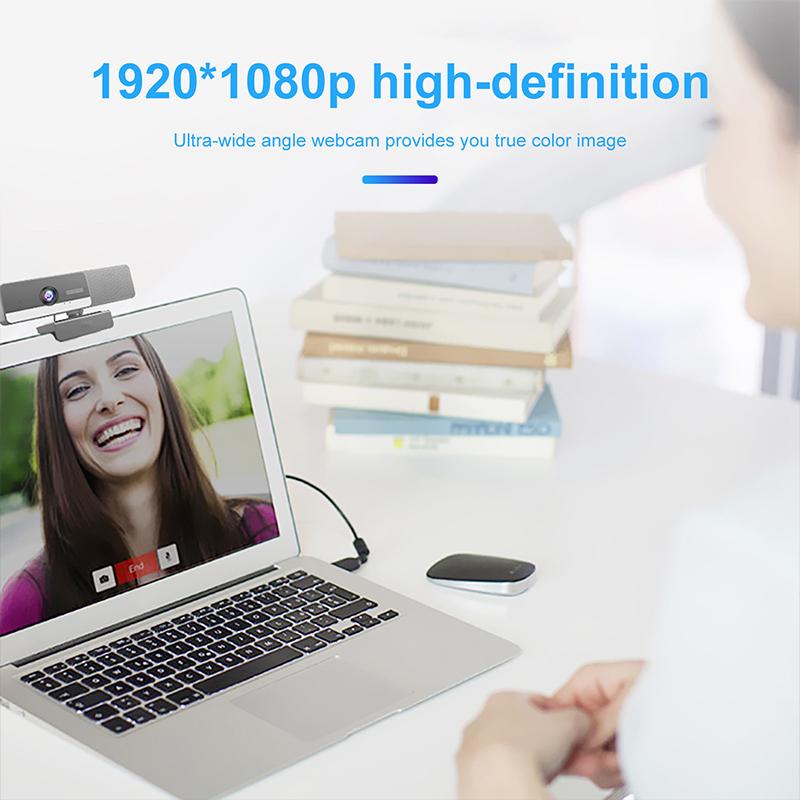
how to use microphone on mac 1

Built-in Microphone

how to use microphone on mac 2

Most Mac computers come with a built-in microphone that is sufficient for basic tasks like video calls and voice memos. Here’s how to ensure it’s set up correctly:

1. Access System Preferences: Click on the Apple logo in the top-left corner of your screen and select "System Preferences."

2. Select Sound: In the System Preferences window, click on "Sound."

3. Input Tab: Navigate to the "Input" tab. Here, you will see a list of available microphones, including the built-in one.

4. Select Built-in Microphone: Click on "Internal Microphone" to select it as your input device.

5. Adjust Input Volume: Use the slider to adjust the input volume. Speak into the microphone to test the levels. The input level meter should move as you speak.

External Microphone
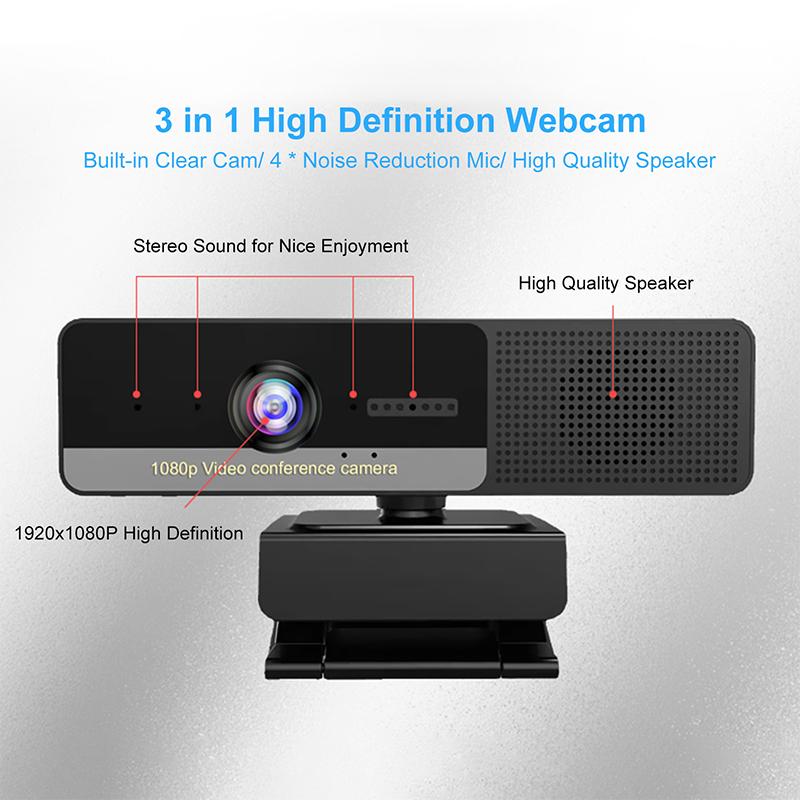
how to use microphone on mac 3

If you are using an external microphone, the setup process is slightly different but still straightforward:

1. Connect the Microphone: Plug your external microphone into the appropriate port on your Mac. This could be a USB port, a 3.5mm audio jack, or a specialized port depending on your microphone.

2. Access System Preferences: Click on the Apple logo in the top-left corner of your screen and select "System Preferences."

3. Select Sound: In the System Preferences window, click on "Sound."

4. Input Tab: Navigate to the "Input" tab. Your external microphone should appear in the list of available input devices.

5. Select External Microphone: Click on your external microphone to select it as your input device.

6. Adjust Input Volume: Use the slider to adjust the input volume. Speak into the microphone to test the levels. The input level meter should move as you speak.

Configuring Microphone Settings for Specific Applications
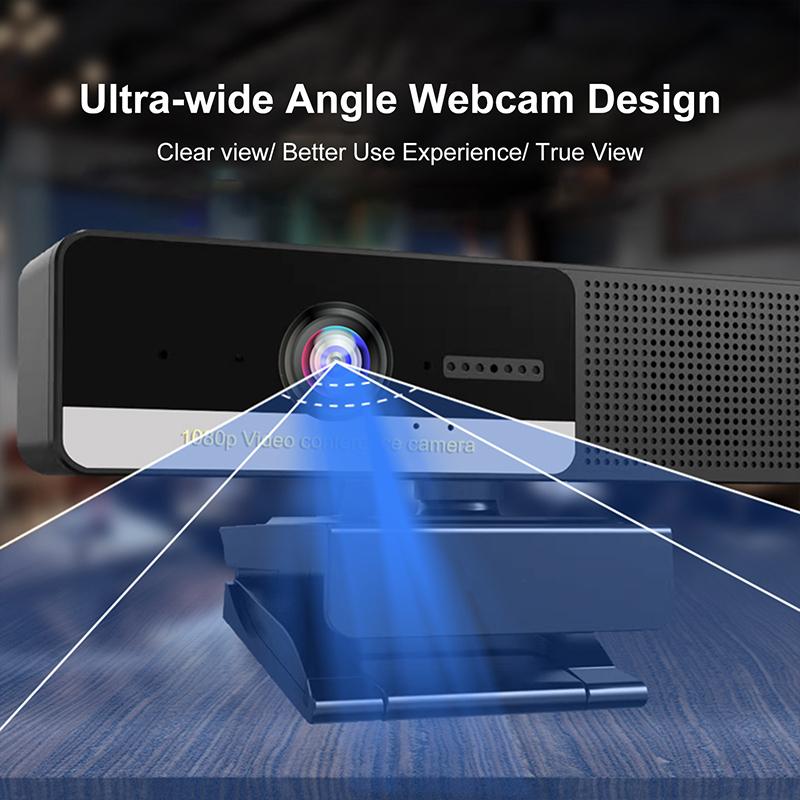
how to use microphone on mac 4

Different applications may have their own settings for microphone input. Here’s how to configure your microphone for some common applications:

Zoom

1. Open Zoom: Launch the Zoom application.

2. Access Settings: Click on your profile picture in the top-right corner and select "Settings."

3. Select Audio: In the settings menu, click on "Audio."

4. Microphone: Under the "Microphone" section, select your desired microphone from the dropdown menu.

5. Test Microphone: Click on "Test Mic" to ensure it’s working correctly.

GarageBand

1. Open GarageBand: Launch the GarageBand application.

2. Create New Project: Start a new project or open an existing one.

3. Select Track: Click on the track you want to record on.

4. Input Source: In the track settings, select your desired microphone as the input source.

5. Record: Click the record button to start recording.

Skype

1. Open Skype: Launch the Skype application.

2. Access Settings: Click on your profile picture and select "Settings."

3. Select Audio & Video: In the settings menu, click on "Audio & Video."

4. Microphone: Under the "Microphone" section, select your desired microphone from the dropdown menu.

5. Test Microphone: Speak into the microphone to test if it’s working correctly.

Troubleshooting Common Issues

Even with the correct setup, you may encounter issues with your microphone. Here are some common problems and how to fix them:

Microphone Not Detected

1. Check Connections: Ensure that your external microphone is properly connected to your Mac.

2. Restart Your Mac: Sometimes, a simple restart can resolve detection issues.

3. Update macOS: Make sure your operating system is up to date. Go to "System Preferences" > "Software Update" to check for updates.

4. Reset PRAM/NVRAM: Restart your Mac and hold down the Option + Command + P + R keys for about 20 seconds. This can reset certain system settings and may resolve the issue.

Low Input Volume

1. Adjust Input Volume: Go to "System Preferences" > "Sound" > "Input" and adjust the input volume slider.

2. Check Application Settings: Ensure that the application you are using has its input volume set correctly.

3. Microphone Position: Make sure the microphone is positioned correctly and not obstructed.

Background Noise

1. Use Noise Reduction: Some applications offer noise reduction features. Enable these if available.

2. External Software: Consider using external software like Audacity to filter out background noise.

3. Microphone Quality: Higher-quality microphones often have better noise-canceling features.

Advanced Tips

For those who need more advanced features, here are some additional tips:

Using Audio Interfaces

If you are a musician or podcaster, you might benefit from using an audio interface. These devices offer better sound quality and more control over your audio input.

1. Connect Audio Interface: Plug your audio interface into your Mac using a USB or Thunderbolt connection.

2. Select Audio Interface: Go to "System Preferences" > "Sound" > "Input" and select your audio interface as the input device.

3. Configure Software: Open your recording software and select the audio interface as the input source.

Using Multiple Microphones

If you need to use multiple microphones simultaneously, you can create an Aggregate Device in macOS:

1. Open Audio MIDI Setup: Go to "Applications" > "Utilities" > "Audio MIDI Setup."

2. Create Aggregate Device: Click the "+" button at the bottom-left corner and select "Create Aggregate Device."

3. Select Microphones: Check the boxes next to the microphones you want to include in the aggregate device.

4. Select Aggregate Device: Go to "System Preferences" > "Sound" > "Input" and select the aggregate device as the input source.

Using a microphone on a Mac can be a seamless experience if you know the right steps to follow. Whether you are using the built-in microphone for simple tasks or an external microphone for more professional needs, understanding how to set it up and troubleshoot common issues is crucial. By following the guidelines provided in this article, you can ensure that your microphone works effectively for any application you need.


Leave your comment
Cancel reply
Note: HTML is not translated!
Related products
4.3" LCD Screen Digital Coin Microscope, 50X-1000X Magnification, Work with Windows/Mac iOS
24
$107.99 $88.99
67mm Clip-on CPL Phone Camera Lens Filter Kit Applicable to All Mobile Phone Models
24
$18.99
Digital Camera for Microscopes 5 Megapixel Color CMOS for Windows Mac OS Android Phones Kentfaith
12
$99.99 $79.99
67mm Clip-on ND2-32 Phone Camera Lens Filter Kit Applicable to All Mobile Phone Models
24
$37.99
Wireless WiFi Microscope with Foldable Stand, 50X-1000X Magnification, Work with iPhone, iPad, Android, Mac, Windows
11
$47.99
67mm Clip-on Black Mist 1/4 Phone Camera Lens Filter Kit Applicable to All Mobile Phone Models
24
$29.99
K3 One Drag Two Wireless Lavalier Microphone for iPhone 14 pro, 2.4G Noise Reduction, Plug and Play Wireless Lavalier Microphone for YouTube TikTok
33
$37.19 $31.99
AP004 Wireless Lavalier Microphone for iPhone 14 pro  Android - USB C Mini Wireless Lavalier Microphone for Recording, Vlogging (No App or Bluetooth Required)
AP004 Wireless Lavalier Microphone for iPhone 14 pro Android - USB C Mini Wireless Lavalier Microphone for Recording, Vlogging (No App or Bluetooth Required)
$99.99 $23.99
52mm Clip-on CPL Phone Camera Lens Filter Kit, Circular Polarizer Polarizing Filter Applicable to All Mobile Phone Models
24
$16.99
Wireless Earbuds Bluetooth Headphones TWS Waterproof with Microphone
66
$31.99
Products You May Like
67"/1.7m Carbon Fiber Tripod 22lbs Load Lightweight Travel camera Tripod with Phone Mount and 6" Magic Arm with Super Clamp Set
74
$149.99
K&F Concept Camera Alpha Backpack Air 25L, Camera Bags for Photographers Large Capacity with Raincover - Backpack  25L Nature Wander 01(Black)
K&F Concept Camera Alpha Backpack Air 25L, Camera Bags for Photographers Large Capacity with Raincover - Backpack 25L Nature Wander 01(Black)
110
$161.99 $99.99
Straight Talk Trail Camera
10
$162.99 $106.99
K&F Concept Updated NIK to EF/EF-S Adapter, Manual Lens Mount Adapter for Nikon F/AI Mount Lens and Canon EOS EF EF-S Mount Camera
39
$55.99 $30.99
10Pcs Double-Headed Cleaning Stick + 20ML Cleaning Solution + Gloves, CMOS Full Frame 24mm Cleaning Cloth Sticks Set
$26.99
58mm Magnetic Lens Filter Kit GND8+ND8+ND64+ND1000+Magnetic Adapter Ring 5 in 1 Quick Swap System Nano-Xcel Series
62
$131.99 $105.99
Camera Case for insta360 ONE X3 X2 Compatible with insta360 70cm Grip/Selfie Stick and other accessories
$21.99
M42 Lenses to Nikon F Lens Mount Adapter K&F Concept M10171 Lens Adapter
8
$36.99 $18.99
Wireless CarPlay Adapter for iPhone 5.8GHz Stable Connection Auto Reconnect Support Multi User Kentfaith
16
$99.99 $79.99
K&F Concept Gimbal Head with 1/4'' Standard Quick Release Plate
98
$164.99 $80.99
Related articles
How To Use Earphone Microphone On Laptop?
How To Take Video On Mac Camera?
How To Record Voice Audio On Mac?
How To Use Condenser Microphone?
Bluetooth Microphone How To Use?
How To Find My Canon Camera On Mac?
How To Find Camera Sd Card On Mac?
How To Find Mac Address On Ring Camera?
How To Clean Microphone On Iphone?
What Nd Filter For 60fps Outside?
Blog You May Like
Which Bluetooth Earphone Is Best For Calling?
How To Set Up Wireless Surveillance Camera?
How To Choose A Camera Filter?
Can I Switch Sd Cards Between Phones?
Does An Nd Filter Affect Depth Of Field?
Skype Can T Find Video Camera?
How Much Is A Iphone Camera Lens Replacement?
How To Make A Trail Camera Mount?
What Mounts Do Nikon Cameras Use?
How High To Mount Outdoor Security Camera?
Related categories
On-Dash Camera C mount lens adapter m4/3 adapter black pro mist 1 2 filter
Popular products
wireless video camera ipad 1080p hd usb webcam skype camera microphone industrial digital microscope 4k drone photography digital medical microscope led digital microscope smart lavalier microphone digital wireless lavalier microphone handheld selfie stick
Related searches
Microphone For Mac Mini Adapter To Use Nikon Lens On Canon Adapter To Use Other Lens On Pentax Microphone For Outdoor Use Clip On Lavalier Microphone Microphone On Iphone 11 Microphone On Ipad Air On Camera Wireless Microphone Clip On Mini Microphone Bluetooth Clip On Microphone
Popular searches
Digital Camera Wireless Microphone Tripod Video Camera Mount Lens Cap That Goes Over Adapter Mic And Sound Recorder Sony A7s Lens Mount E Mount Lens Database Mavic Pro 2 Lens Filter Compact Travel Tripod For Dslr Budget Camera Gimbal Sony To Minolta Lens Adapter
Blog Category
  • Activities
  • Guide
    • Filter Guide
    • Lens Adapter
    • Product Review
  • News & Reviews
    • Camera Reviews
    • Sample Gallery
    • News
  • Tutorials
    • Solar eclipse photography
    • Photography Basics
    • Landscape Photography
  • Inspiration
    • Travel
    • Travel Stories
Search Article
Latest from the Blog
Where Can I Find Hidden Cameras?
Camera Use Which Lens?
How To Put Sd Card In Camera?
How Big A Memory Card For Camera?
How Does a WiFi Trail Camera Work?
Which Bluetooth Earphones?
What Is The Difference Between Binoculars And Telescope?
Can You Zoom In With Binoculars?
Can Security Cameras Detect Motion Through Glass?
What To Look For In A Dash Cam?
  • Easy Payment Multilple Payment Options

  • Free Shipping Global WareHouse Shipment

  • No Risk 30-Day No Reason Return

  • Limited Deals Buy More, Save More

  • Tax Free No any surcharges or tax fee

Information
  • About us
  • Contact Us
  • Site Map
  • Blog
  • Video
  • Gallery
  • VIP Membership Rewards
Service
  • Privacy Policy
  • Terms & Conditions
  • Shipping & Delivery
  • Payment Info
  • Warranty, Return & Refund
  • Intellectual Property Rights
  • Ambassador
  • Affiliates
  • Wholesale
Support
  • My account
  • Order History
  • FAQs
  • Extend Warranty
  • Logistics Tracking
Follow us
NewsLetter

Get the latest product, K&F Concept respects your privacy.
Powered By KENTFAITH © 2025