kfconcept

KENTFAITH
K&F Concept    Blog >

Enjoy Your Selected Digital Life

Recently Viewed
  • Recently Viewed
  • Recently Viewed list is empty.

Compare (0) 0
  • Compare
  • You have not chosen any products to compare.

  • Compare
Currency: USD
  • Currency
Shop by Scene Shop by Rank

Log Into Your Account

Account

Order History

Wish List

Login

Forgotten Password?

Or connect with

Register Account

Already have an Account?Log In

  • Shopping Cart
  • Your shopping cart is empty!

  • Register/Login to purchase, earn points
  • Favorite
  • Your wish list is empty.

  • Register/Login to like, earn points
  • Activities
  • Guide
    • Filter Guide
    • Lens Adapter
    • Product Review
  • News & Reviews
    • Camera Reviews
    • Sample Gallery
    • News
  • Tutorials
    • Solar eclipse photography
    • Photography Basics
    • Landscape Photography
  • Inspiration
    • Travel
    • Travel Stories
  • Home
  • Blog
  • How To Turn On Smart Band Watch?

How To Turn On Smart Band Watch?

Kentfaith 2025-02-17 09:23:19 0 Comments

How to Turn On Your Smart Band Watch: A Step-by-Step Guide
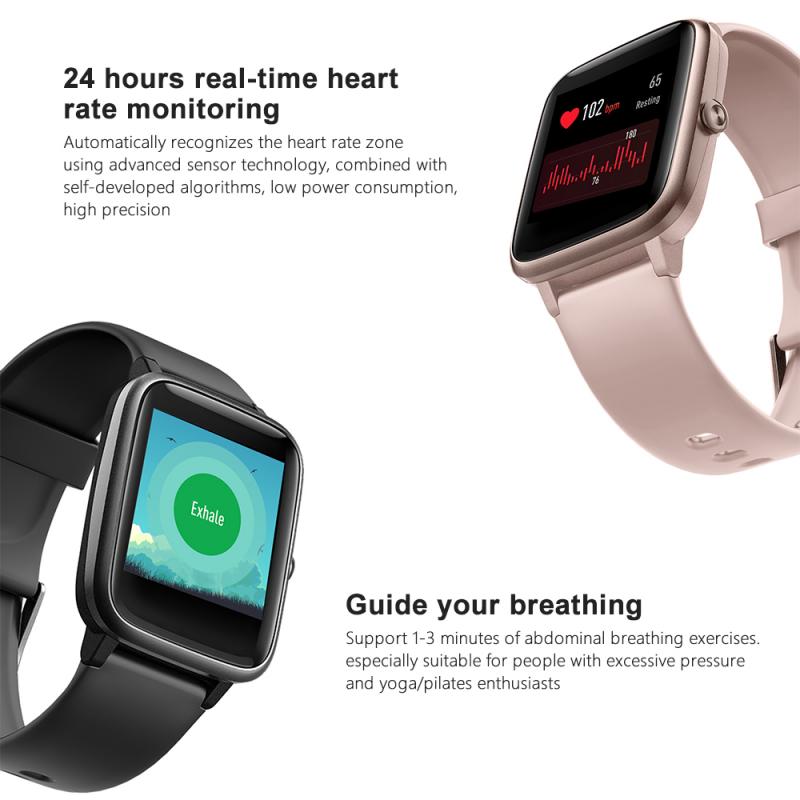
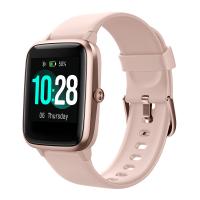
how to turn on smart band watch 1

Smart band watches are more than just fitness trackers—they are versatile, multifunctional devices that help you stay connected, track your health, monitor activity, and sometimes even manage your daily tasks. However, when you're setting up your new smart band for the first time, one of the first questions you might have is: *how do I turn it on?*

While each brand and model may have slightly different steps for powering on, the basic principles are generally the same. This article will walk you through the process of turning on a smart band watch, help you understand the initial setup, and give you tips for troubleshooting in case something goes wrong.

Step 1: Charge Your Smart Band
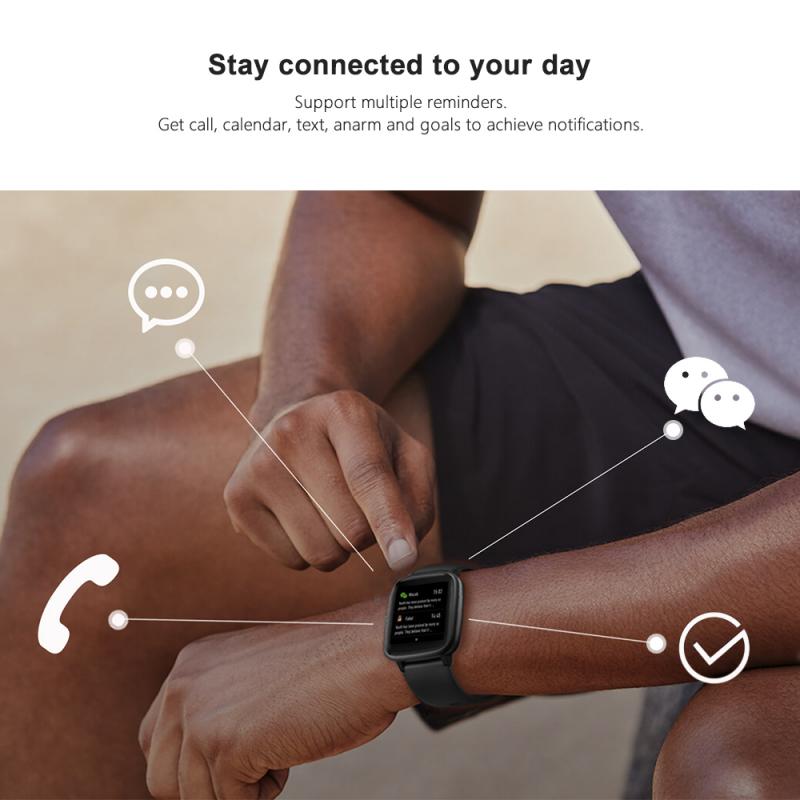
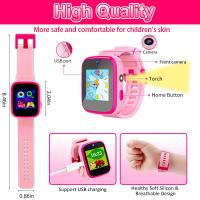
how to turn on smart band watch 2

Before attempting to turn on your smart band, make sure it’s fully charged. Many people jump straight into trying to power up their devices only to find that the battery is dead, and they end up troubleshooting unnecessarily. Here’s how you can avoid this:

1. Connect the charger: Most smart bands come with a proprietary charger or a USB cable that connects directly to the band. The charging port is often located on the underside of the watch or at one end of the strap.

2. Plug it in: Use the included charger to connect your smart band to a power source (like a wall adapter or a USB port). Wait until the band shows charging status—this could be an indicator light, a battery icon on the screen, or a vibration.

3. Wait for a full charge: While some bands may turn on with just a little charge, it's a good idea to allow it to charge fully before using it. Most smart bands will take between 1 to 2 hours to charge completely, depending on the battery capacity and the charging method.

Step 2: Locate the Power Button or Gesture Area
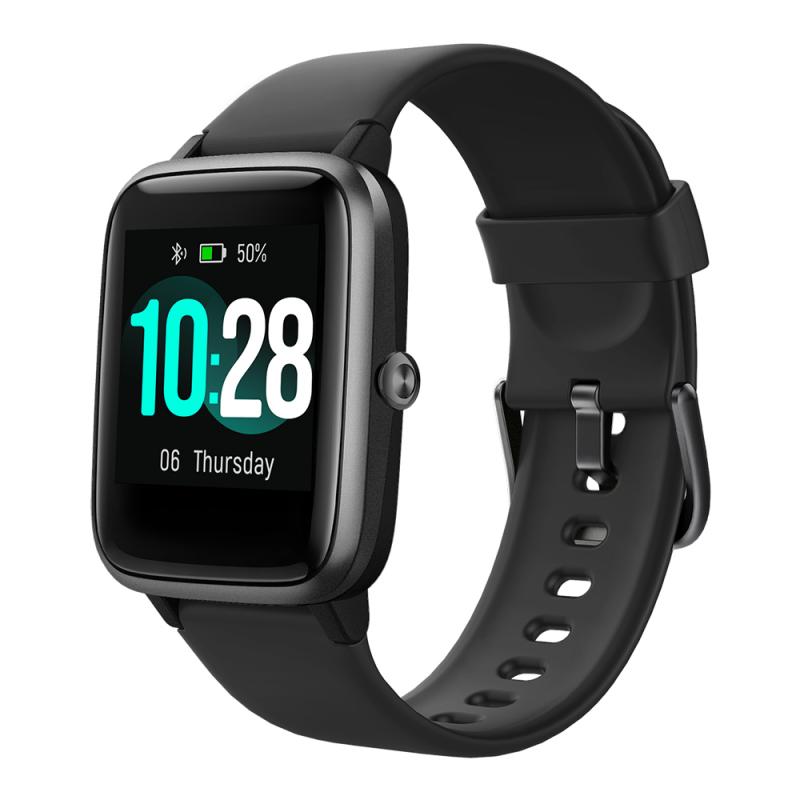
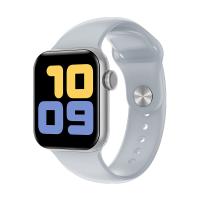
how to turn on smart band watch 3

Unlike traditional watches, most modern smart bands are powered on using touch or button controls. Here's a breakdown of how to locate and use the power switch or gesture function:

1. Power button: Some smart bands, especially those with physical buttons, may have a small button on the side of the device. This button can be used to turn the device on. Depending on the design of the band, it might be a tactile button or a capacitive button that requires a gentle touch.

2. Touchscreen wake-up: Many smart bands have a touchscreen interface and rely on touch gestures to wake up the device. If the band is off or the display is dark, simply tapping the screen once or holding it for a few seconds may activate it.

3. Gesture control: For bands that support gesture controls, you may be able to raise your wrist or shake the band to turn it on. This feature is commonly found in higher-end models that include motion sensors.

Step 3: Press and Hold (If Needed)
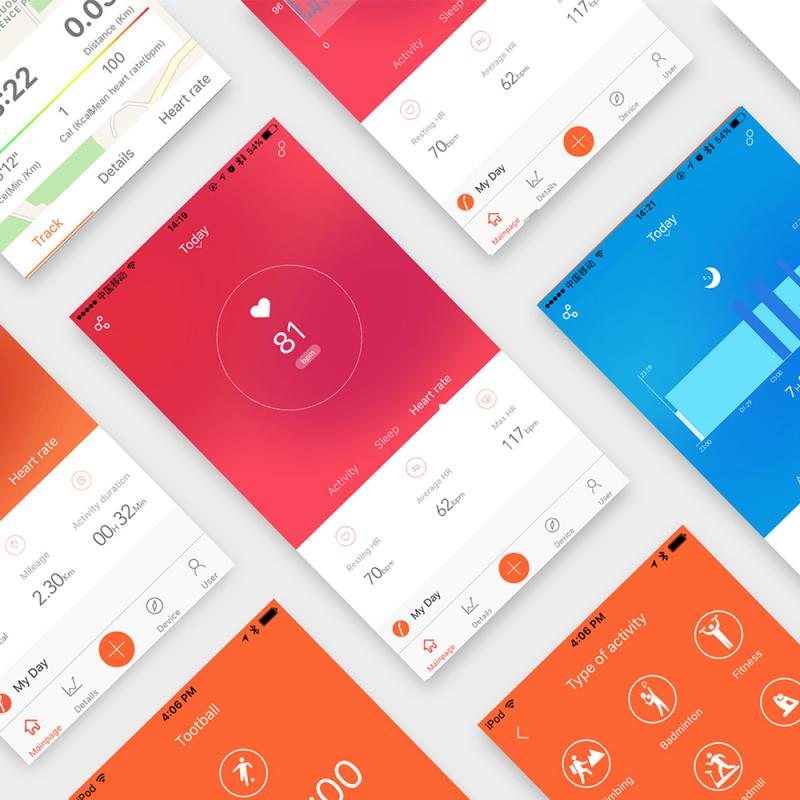
how to turn on smart band watch 4

If your smart band doesn’t respond to a simple touch, you may need to press and hold the power button (if available). This method can help if the device is in a deep sleep mode or if it has been inactive for a while. A common sequence for turning on is:

1. Press and hold the power button for about 3–5 seconds.

2. Wait for the screen to light up, and you should see the brand logo or a welcome screen appear.

3. The band may also vibrate or give an audible sound as it powers on.

Step 4: Wait for the Boot-up Process

Once you’ve pressed and held the power button or tapped the screen, the smart band will begin its boot-up process. This might take a few seconds or longer, depending on the brand and model. During this time, the device is loading its operating system and preparing to show data like the time, battery percentage, and health metrics.

If your smart band is new, it might also show a setup guide or prompt you to pair it with your smartphone. You’ll need to follow these instructions to get started with syncing and configuration.

Step 5: Sync with Your Smartphone (Optional)

In most cases, your smart band needs to be paired with your smartphone to access all its features. Whether you need to download an app like *Fitbit*, *Mi Fit*, *Samsung Health*, or another proprietary app depends on the band’s brand. Here’s how you can pair your smart band:

1. Download the companion app: Go to your smartphone’s app store (Google Play for Android or the App Store for iOS) and download the app that’s designed for your specific smart band.

2. Open the app and create an account: If it's your first time using the app, you'll need to create an account or sign in.

3. Activate Bluetooth on your smartphone: Make sure Bluetooth is enabled on your phone before attempting to pair the devices.

4. Pair your devices: Open the app and follow the pairing instructions. Typically, this involves selecting your device from a list of nearby Bluetooth devices, entering a code (if required), and confirming the connection.

5. Complete the setup process: Once paired, you may be prompted to configure your health settings, sync data, and customize the watch face and notifications.

Step 6: Customize Your Smart Band Settings

Once your smart band is powered on and paired with your smartphone, you can begin personalizing the settings. Most devices allow you to customize various options, including:

- Watch faces: Choose from a variety of pre-installed or downloadable watch faces to personalize your smart band’s display.

- Health settings: Set up heart rate monitoring, sleep tracking, and activity tracking preferences. You can adjust these settings based on your personal goals and preferences.

- Notifications: Configure which apps or notifications are allowed to display on your smart band. You can choose to receive text messages, app alerts, or even incoming call notifications.

- Activity tracking: Set up your fitness goals, such as steps, calories burned, or distance traveled. The band may track your physical activity automatically once the goals are set.

Troubleshooting Common Power-On Issues

If your smart band doesn’t turn on despite following the steps above, here are a few common problems and solutions to consider:

1. Low or no battery: Ensure that the device has been charged sufficiently. If it’s not charging, try using a different charging cable or adapter, or check for any damage to the charging port.

2. Frozen or unresponsive screen: If the device seems frozen during the boot-up process or is unresponsive to touch, try performing a reset. This may involve holding the power button for 10-15 seconds or using a dedicated reset option in the app.

3. Software issues: In some cases, software glitches can cause the band to remain unresponsive. Try restarting your phone and the smart band, or reinstalling the companion app.

4. Hardware failure: If none of the above solutions work, the smart band might have a hardware issue. In this case, it’s best to contact customer support or visit a service center for repairs.

Turning on and setting up your smart band may seem simple, but it can sometimes be tricky if you're not familiar with the process. By following the steps outlined above—ensuring your device is charged, pressing the power button (or using gestures), and syncing it with your phone—you should be able to get your smart band up and running without any problems.

Remember that every brand and model has its nuances, so always consult the user manual or the manufacturer's website for specific instructions. If you run into any issues, don’t hesitate to reach out to customer support for further assistance.

Smart bands are a fantastic tool for tracking fitness and staying connected on the go. Once you’ve successfully powered up your device, you can begin enjoying all the features it offers, from health monitoring to notifications and more.


Leave your comment
Cancel reply
Note: HTML is not translated!
Related products
Sport Smart Watch with GPS Tracker Bluetooth Calls 24h Heart Rate/Sleep Monitor
67
$97.49 $68.99
67mm Clip-on CPL Phone Camera Lens Filter Kit Applicable to All Mobile Phone Models
24
$18.99
67mm Clip-on ND2-32 Phone Camera Lens Filter Kit Applicable to All Mobile Phone Models
24
$37.99
67mm Clip-on Black Mist 1/4 Phone Camera Lens Filter Kit Applicable to All Mobile Phone Models
24
$29.99
52mm Clip-on CPL Phone Camera Lens Filter Kit, Circular Polarizer Polarizing Filter Applicable to All Mobile Phone Models
24
$16.99
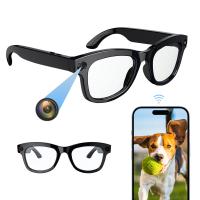
Smart Camera Glasses, HD 1080P, EIS Stabilization, WiFi Connect, Translation, 4H Playtime, Kentfaith
16
$119.99 $95.99
67mm Clip-on CPL&Black Mist 1/4 2-in-1 Phone Camera Lens Filter Kit Applicable to All Mobile Phone Models
24
$29.99
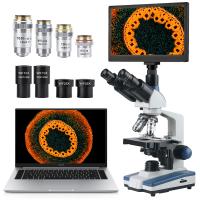
Compound Microscope with 9" Smart Screen 40x-1600x Magnification PC Connection for Lab, Professionals Use Kentfaith
17
$799.99 $639.99
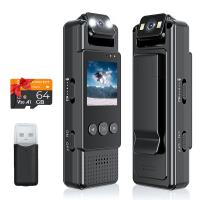
Mini WiFi Body Camera 1080P with Audio, 180° Rotatable Lens, 2 LED Fill Lights, Smart Motion Detection
13
$82.49 $57.99
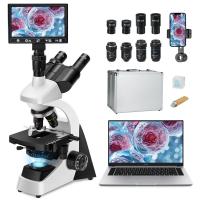
Compound Microscope with 11.6-inch Smart Screen, 40X-2500X Magnification, PC Connection, Plan Optical System, Mechanical Stage, Kentfaith
$1,324.99 $1,059.99
Products You May Like
55mm Filter Set (UV, CPL, FLD, ND2, ND4, ND8)
45
$43.99 $21.99
DJI Osmo Pocket 3 Accessories 11-Piece Kit (CPL + Black Mist 1/4 + ND2-32 + Charging Adapter Base + Magnetic Mount + 6pcs Camera Screen Protector)
$72.99
Fimi X8 mini V2 foldable drone with 4K camera, suitable for adult beginners, 245g ultra light, with 3-axis pan tilt, 37 min of flight time, 9 kilometers of video transmission, 27W Type-C battery, 12MP photos, intelligent tracking mode
$449.99 $359.99
Gift Certificate: $1000 Value  - Can Use with Any Discounts
Gift Certificate: $1000 Value - Can Use with Any Discounts
$1,000.00 $950.00
K&F Concept 78 inch Camera Tripod for DSLR Compact Aluminum Tripod with 360 Degree Ball Head and 8kgs Load for Travel and Work
52
$73.99
82mm MC UV Protection Filter with 24 Multi-Layer Green Coatings HD/Hydrophobic/Scratch Resistant Ultra-Slim UV Filter Nano-Dazzle
77
$34.99 $27.69
62mm CPL Filter 28 Layer Super Slim Circular Polarizing Filter Multi-coated Polarized MRC Filter Nano-Xcel Series
65
$44.99 $39.99
STARTRC Mini 3 Pro Battery Charging Butler DJI Mini 3 Pro Drone Accessories, Two-Way Charging Butler DJI Battery, Charging 3 Batteries
$43.99
Electric Essential Oil Diffuser 400ML, Home Essential Oil Diffuser Fresh Mist, Essential Oil Diffuser with APP and Bluetooth Speaker, 30 Colors Light, YOUNGDO
$30.99
K&F Concept 16MP 0.4s Waterproof Hunting and Hunting Infrared Night Vision Camera + Metal Four-Port 2-in-1 Card Reader (KF35 .006+835010001)
$60.50
Related articles
How To Set Smart Band Watch?
How To Watch Livebarn On Smart Tv ?
How To Play Video On Smart Watch?
How To Watch Cable On Vizio Smart Tv ?
How To Download Games On A Smart Watch?
How To Watch On Smart Tv From Android?
How To Replace Battery On Smart Health Watch?
How To Watch Movies On Samsung Smart Tv?
How To Watch Iphone On Lg Smart Tv?
Can A Wireless Security Camera System Work?
Blog You May Like
What Filter Should I Keep On My Lens?
How To Add Filters In Iphone Camera?
What Is A Good Binoculars To Buy?
How To Take Pictures With Studio Lighting?
How To Make Homemade Camera Backpack?
How To Install Security Cameras Front Of House?
How To Screen Share On Lg Projector?
What is the Best Golf Rangefinder with Slope?
How To Clean Mobile Camera Lens Glass?
How To Use Sd Card For Games?
Related categories
On-Dash Camera C mount lens adapter Outdoor Security Camera Wifi Floodlight Camera Wireless camera feeder digital camera strap magnetic adapter ring
Popular products
bluetooth smart sports watch hd screen smart watch waterproof smart watch for swimming 3atm smart watch new waterproof smart watch smart watch in waterproof Full Touch Screen Smart Watch smart watch compatible with iphone android smart watch for women sleep monitoring smart watch
Related searches
Sony Watch Band Adapter Extra Smart Watch Outdoor Smart Watch Advanced Smart Watch Black Smart Watch Rugged Smart Watch Aluminum Smart Watch Smart Watch Silver Smart Wrist Watch Green Smart Watch
Popular searches
K&f Concept Square Filter System Canon Fd To Ltm Adapter Nikon Wireless Flash Adapter Nikon 35mm F Mount Best Tripod Head Nikon D5300 Body To Cannon Lens Adapter Adapter Nikon Olympus Om Tamron 24-70 F2.8 Sony Adapter Wildlife Live Stream Camera Any Other Cameras Use Nikon Mount
Blog Category
  • Activities
  • Guide
    • Filter Guide
    • Lens Adapter
    • Product Review
  • News & Reviews
    • Camera Reviews
    • Sample Gallery
    • News
  • Tutorials
    • Solar eclipse photography
    • Photography Basics
    • Landscape Photography
  • Inspiration
    • Travel
    • Travel Stories
Search Article
Latest from the Blog
What To Look For In A Dash Cam?
How To Make A Camera Flash After Effects?
How To Make Your Eyes Flash On Camera?
Where Can I Buy Samsung Camera Battery?
How Do Metal Detectors Work? A Complete Guide for Beginners and Pros
Can I Charge Camera Battery With Power Bank?
What Is The Best Camera To Record Videos?
UV Filter: Everything You Need to Know About UV Protection Lens Filters
Dash Cam That Can Connect To Phone?
Which Camera Is Best For Low Light Photography?
  • Easy Payment Multilple Payment Options

  • Free Shipping Global WareHouse Shipment

  • No Risk 30-Day No Reason Return

  • Limited Deals Buy More, Save More

  • Tax Free No any surcharges or tax fee

Information
  • About us
  • Contact Us
  • Site Map
  • Blog
  • Video
  • Gallery
  • VIP Membership Rewards
Service
  • Privacy Policy
  • Terms & Conditions
  • Shipping & Delivery
  • Payment Info
  • Warranty, Return & Refund
  • Intellectual Property Rights
  • Ambassador
  • Affiliates
  • Wholesale
Support
  • My account
  • Order History
  • FAQs
  • Extend Warranty
  • Logistics Tracking
Follow us
NewsLetter

Get the latest product, K&F Concept respects your privacy.
Powered By KENTFAITH © 2025