kfconcept

KENTFAITH
K&F Concept    Blog >

Enjoy Your Selected Digital Life

Recently Viewed
  • Recently Viewed
  • Recently Viewed list is empty.

Compare (0) 0
  • Compare
  • You have not chosen any products to compare.

  • Compare
Currency: USD
  • Currency
Shop by Scene Shop by Rank

Log Into Your Account

Account

Order History

Wish List

Login

Forgotten Password?

Or connect with

Register Account

Already have an Account?Log In

  • Shopping Cart
  • Your shopping cart is empty!

  • Register/Login to purchase, earn points
  • Favorite
  • Your wish list is empty.

  • Register/Login to like, earn points
  • Activities
  • Guide
    • Filter Guide
    • Lens Adapter
    • Product Review
  • News & Reviews
    • Camera Reviews
    • Sample Gallery
    • News
  • Tutorials
    • Solar eclipse photography
    • Photography Basics
    • Landscape Photography
  • Inspiration
    • Travel
    • Travel Stories
  • Home
  • Blog
  • How To Turn On Camera And Microphone On Dell Laptop ?

How To Turn On Camera And Microphone On Dell Laptop ?

Kentfaith 2023-08-28 11:51:48 0 Comments

Dell laptops are widely popular for their reliability and performance. The webcam and microphone, as important components of a laptop, play an important role in video calling, online conferencing and multimedia recording. In this article, we will detail how to turn on the webcam and microphone on Dell laptops and solve the problems you may encounter during use.
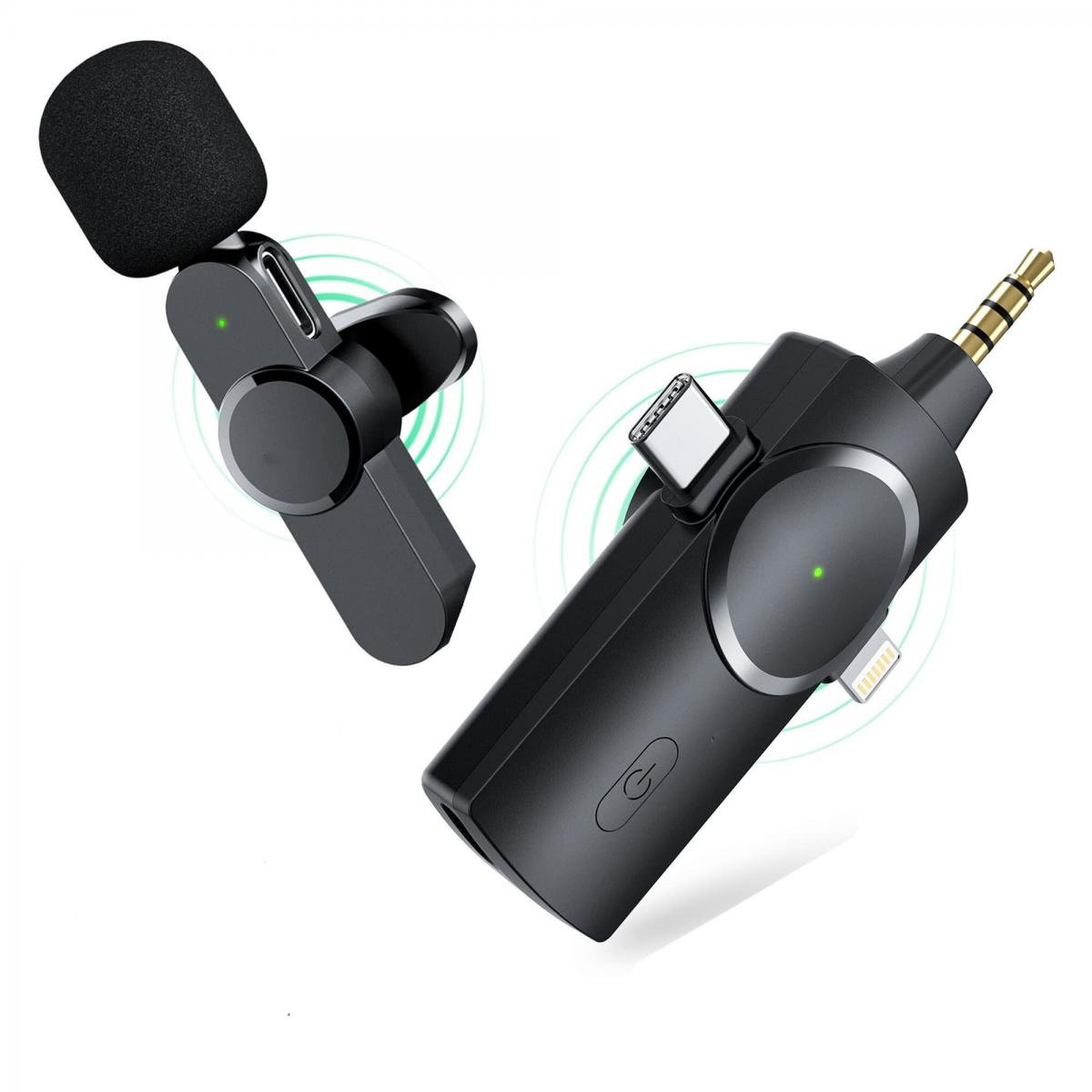

Learn how to turn on the webcam and microphone on Dell laptops

To use the webcam and microphone on your Dell laptop, you need to make sure the relevant drivers are installed and enabled. Here are the basic steps:

Enable the devices through system settings

Step 1: Open the "Start" menu and click on the "Settings" icon.

Step 2: Go to "Privacy" settings and select "Camera" or "Microphone" in the left menu.

Step 3: Make sure the "Allow apps to use camera" or "Allow apps to use microphone" option is enabled.


Check the driver via Device Manager 

Step 1: Right-click on the Start button and select Device Manager.

Step 2: Locate the "Image Devices" and "Audio Input and Output" options in the device list. 

Step 3: Make sure the camera and microphone devices are enabled, right-click on the device name and select "Enable Device" or "Update Driver".


Enabling Devices via Apps

Video calling apps: Open Skype, Zoom or other video calling apps and select the correct camera and microphone in the app settings.

Recording apps: Open your system's recorder app and make sure the microphone is enabled.


Second, solve the problem of Dell laptop camera and microphone not working

During the process of using, you may encounter the situation that the webcam and microphone can't work properly. Here are some common problems and their solutions:

Device is not recognized 

Check the drivers: Check if the drivers for the webcam and microphone work properly in Device Manager, update or reinstall the drivers if necessary. 

Restart your computer: Shut down and restart your computer to make sure the devices are recognized correctly. 

Device is occupied by other applications

Close other applications: Make sure no other applications are using the camera and microphone.

Check background processes: Open Task Manager and end background processes that may be using the device.

Permission issues

Check app permissions: Make sure that the relevant apps have been granted permission to use the camera and microphone.

Check system settings: Check the system permissions in the "Privacy" settings to make sure the camera and microphone are not disabled in the global settings.


Dell laptop camera and microphone use common troubleshooting

Even if the device is successfully enabled, sometimes you may encounter some faults affecting the use, the following are common problems and solutions:

Blurry or no picture

Clean the camera lens: Make sure the camera lens is clean and free of dust or dirt.

Adjusting app settings: Adjust the camera settings in the video call app to select the appropriate resolution and brightness.

Distorted or no sound

Check microphone settings: Make sure the microphone is enabled and select the correct audio input device in the app.

Adjust volume: Open the volume control panel and adjust the microphone input volume.

Sound and picture are not synchronized

Network Connection Problems: Ensure that the network connection is stable to avoid lags and stutters.

Restart the application: Close and reopen the application to resynchronize the audio and video.

Detailed steps and settings to enable webcam and microphone on Dell laptop

Here are the detailed steps and settings:

Enable the device in system settings 

Open "Settings" menu, select "Privacy", enable the camera and microphone privileges.

Check the device status in "Device Manager" and enable or update the driver. 

Application Settings 

Open the video call or recording application and enter the settings screen. 

Select the correct camera and microphone devices for audio/video testing. 

Optimize the usage environment 

Ensure that the usage environment is well lit and the camera lens is clean.

Use a high-quality microphone or headset to improve the sound quality.

Improve the quality and stability of Dell laptop webcam and microphone usage

For a better using experience, here are some suggestions to improve the quality and stability: 

Keep your device up-to-date

Regularly check and update the camera and microphone drivers to ensure the best device compatibility and performance.

Optimize device settings

Adjust the camera and microphone settings in the apps and choose the appropriate parameters.

Close unnecessary background apps to reduce system resource usage.

Use high-quality accessories

Use high-quality camera and microphone accessories to improve audio and video quality.

Check the network

Make sure to use it in a stable network environment to avoid problems caused by unstable network.


With the above methods, users can not only smoothly enable the webcam and microphone on Dell laptops, but also improve the quality and stability of use and enjoy a better audio and video experience. If you encounter problems that can't be solved in actual operation, we recommend consulting Dell customer service or checking the relevant technical documents.


Leave your comment
Cancel reply
Note: HTML is not translated!
Related products
67mm Clip-on CPL Phone Camera Lens Filter Kit Applicable to All Mobile Phone Models
40
$18.99
67mm Clip-on ND2-32 Phone Camera Lens Filter Kit Applicable to All Mobile Phone Models
NEW Arrival
67mm Clip-on ND2-32 Phone Camera Lens Filter Kit Applicable to All Mobile Phone Models
13
$37.99
67mm Clip-on Black Mist 1/4 Phone Camera Lens Filter Kit Applicable to All Mobile Phone Models
7
$29.99
52mm Clip-on CPL Phone Camera Lens Filter Kit, Circular Polarizer Polarizing Filter Applicable to All Mobile Phone Models
24
$19.99
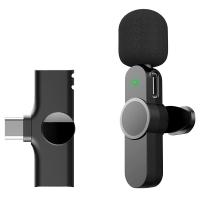
EP033 Mini Plug Play Microphone Wireless Lavalier Mic For Type-C Phones Laptop
6
$48.89
67mm Clip-on CPL&Black Mist 1/4 2-in-1 Phone Camera Lens Filter Kit Applicable to All Mobile Phone Models
3
$29.99
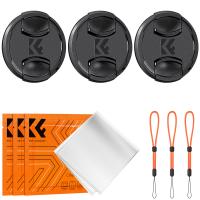
55mm Snap-On Center Pinch Lens Cap 9 in 1 with Anti-Loss Keeper Leash Compatible with Nikon, Canon, Sony, Fujifilm Camera Lenses (Shipped only to the USA)
73
$18.99 $9.99
72mm Snap-On Center Pinch Lens Cap 9 in 1 with Anti-Loss Keeper Leash Compatible with Nikon, Canon, Sony, Fujifilm Camera Lenses (Shipped only to the USA)
73
$18.99 $10.99
77mm Snap-On Center Pinch Lens Cap 9 in 1 with Anti-Loss Keeper Leash Compatible with Nikon, Canon, Sony, Fujifilm Camera Lenses (Shipped only to the USA)
73
$18.99 $10.99
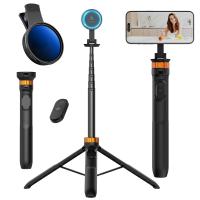
63'' Magnetic Iphone Tripod Phone Selfie Stick Tripod And Clip-On ND Filter(1-9 stops) For All Phone Set
207
$113.99 $59.99
Products You May Like
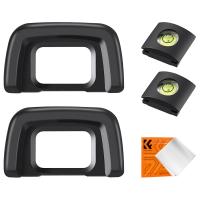
Nikon DK-24 Camera Viewfinder Eyecup*2+Hot Shoe Level*2+Vacuum Cleaning Cloth*1 for Nikon D5000, D5100, D3000, D3100
$17.99 $8.99
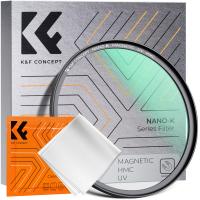
62mm Magnetic UV Filter Ultra Slim with Multi Coated Ultraviolet Protection Lens Filter with Cleaning Cloth Nano-K Series
34
$21.99 $16.99
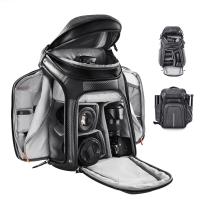
DSLR/SLR Photography Waterproof Camera Bag with 15.6 inch Laptop Compartment Tripod Holder Raincover Camera Backpack - Backpack 25L Star Wander02 (Grey)
63
$199.99 $139.99
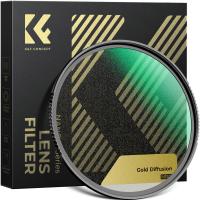
52mm Gold Diffusion 1/2 Filter Mist Soft Glow Warm Highlights Vintage Cinematic Aesthetic Camera Lens Filter Nano-Xcel Series
NEW Arrival
52mm Gold Diffusion 1/2 Filter Mist Soft Glow Warm Highlights Vintage Cinematic Aesthetic Camera Lens Filter Nano-Xcel Series
$93.99 $69.99
K&F Concept MCN1 43mm Lens Filter Kit ND1000 CPL with Multiple Layer Nano Coated
$53.99 $29.99
82mm ND64 Magnetic Neutral Density Lens Filter HD Waterproof Scratch-resistant Anti-reflection Nano-Xcel Series
15
$101.99 $80.99
52-82mm Step Up Ring Aviation-grade Aluminum Filter Adapter Ring 2-pack with a Cleaning Cloth
99
$6.99
4K WiFi 30MP Wildlife Hunting Camera with 940nm infrared LED with Light Night Vision,120°Wide-Angle
TOP Best
4K WiFi 30MP Wildlife Hunting Camera with 940nm infrared LED with Light Night Vision,120°Wide-Angle
240
$163.99 $93.99
Wireless Bluetooth 5.1 Headset with Microphone Gaming Earbuds Low Latency
2
$29.99
K&F Concept Premium Microfiber Cleaning Cloths, Lens Cleaning Cloth for Camera Lenses, Eyeglasses, Screens, Cameras, Tablets -Washable, 2 Pack, 6 x 7 inches (15 x 18 cm)
$5.99
Related articles
How To Turn On Microphone And Camera On Hp Laptop ?
How To Use Earphone Microphone On Laptop?
How To Enable Camera And Microphone On Instagram ?
How To Set Up Lavalier Microphone On Laptop?
How To Allow Access To Camera And Microphone On Android ?
Can You Turn The Microphone Off On Iphone?
How To Turn On Flip Video Camera?
How To Use Video Camera On Laptop?
How To Change Video Camera On Laptop?
Can You Use Rf Lens On Ef Mount?
Blog You May Like
Can You Point Phone Camera At Solar Eclipse?
Leica R To M Adapter What Are Cams?
How To Watch Cable On Vizio Smart Tv ?
How To Find Camera Model?
How To Select Binoculars?
How Do I Charge Up My Digital Camera?
How To Search For Cameras In Your House?
Telescope That Can Take Pictures?
How To Fix Night Vision On Security Camera?
How To Do Screen Recording With Sound?
Related categories
On-Dash Camera streaming video camera camera and lens cleaning kit C mount lens adapter lens adapters m4/3 adapter
Popular products
high quality condenser microphone wireless microphone transmitter receiver light with power bank Polarize Filter For Mobile Phone clip on phone camera lens travel tripod for iphone protective lens cap dslr nikon lens with 72mm filter camera lens sony compatible nd filter for dji osmo action
Related searches
Clip On Lavalier Microphone Microphone On Iphone 11 Bluetooth Clip On Microphone On Camera Flashes Microphone For Laptop And Phone Bluetooth Clip On Wireless Microphone Microphone On Ipad Pro 11 Microphone For Karaoke On Computer On Ear Headset With Microphone Microphone On Iphone 12 Pro
Related Scenes
Best Carry On Camera Bag Best Backpack For Camera And Laptop Best Travel Backpack For Camera And Laptop Best Camera To Video Sports Best Camera To Capture Wildlife Best Dslr Camera Laptop Backpack Best Video Camera To Record Sports Best Camera And Drone Backpack Best Digital And Video Camera Best Camera And Travel Backpack
Blog Category
  • Activities
  • Guide
    • Filter Guide
    • Lens Adapter
    • Product Review
  • News & Reviews
    • Camera Reviews
    • Sample Gallery
    • News
  • Tutorials
    • Solar eclipse photography
    • Photography Basics
    • Landscape Photography
  • Inspiration
    • Travel
    • Travel Stories
Search Article
Latest from the Blog
How Does a WiFi Trail Camera Work?
How To Reduce Noise In Bluetooth Headphones?
How To Setup A Tripod?
How To Pair Wireless Lavalier Microphone?
How Do Night Vision Goggles Work?
How To Take Great Photos With Digital Camera?
Pressure In Ear When Wearing Headphones?
How To Adjust Binoculars With Glasses?
What Is The Best Smartwatch For Heart Health?
What Hi Fi In Ear Headphones?
  • Easy Payment Multilple Payment Options

  • Free Shipping Global WareHouse Shipment

  • No Risk 30-Day No Reason Return

  • Limited Deals Buy More, Save More

  • Tax Free No any surcharges or tax fee

Information
  • About us
  • Contact Us
  • Site Map
  • Blog
  • Video
  • Gallery
  • VIP Membership Rewards
Service
  • Privacy Policy
  • Terms & Conditions
  • Shipping & Delivery
  • Payment Info
  • Warranty, Return & Refund
  • Intellectual Property Rights
  • Ambassador
  • Affiliates
  • Wholesale
Support
  • My account
  • Order History
  • FAQs
  • Extend Warranty
  • Logistics Tracking
Follow us
NewsLetter

Get the latest product, K&F Concept respects your privacy.

Powered By KENTFAITH © 2026