kfconcept

KENTFAITH
K&F Concept    Blog >

Enjoy Your Selected Digital Life

Recently Viewed
  • Recently Viewed
  • Recently Viewed list is empty.

Compare (0) 0
  • Compare
  • You have not chosen any products to compare.

  • Compare
Currency: USD
  • Currency
Shop by Scene Shop by Rank

Log Into Your Account

Account

Order History

Wish List

Login

Forgotten Password?

Or connect with

Register Account

Already have an Account?Log In

  • Shopping Cart
  • Your shopping cart is empty!

  • Register/Login to purchase, earn points
  • Favorite
  • Your wish list is empty.

  • Register/Login to like, earn points
  • Activities
  • Guide
    • Filter Guide
    • Lens Adapter
    • Product Review
  • News & Reviews
    • Camera Reviews
    • Sample Gallery
    • News
  • Tutorials
    • Solar eclipse photography
    • Photography Basics
    • Landscape Photography
  • Inspiration
    • Travel
    • Travel Stories
  • Home
  • Blog
  • How To Record Audio On A Macbook?

How To Record Audio On A Macbook?

Kentfaith 2024-12-31 01:38:42 0 Comments

Mastering Audio Recording on a MacBook: A Comprehensive Guide
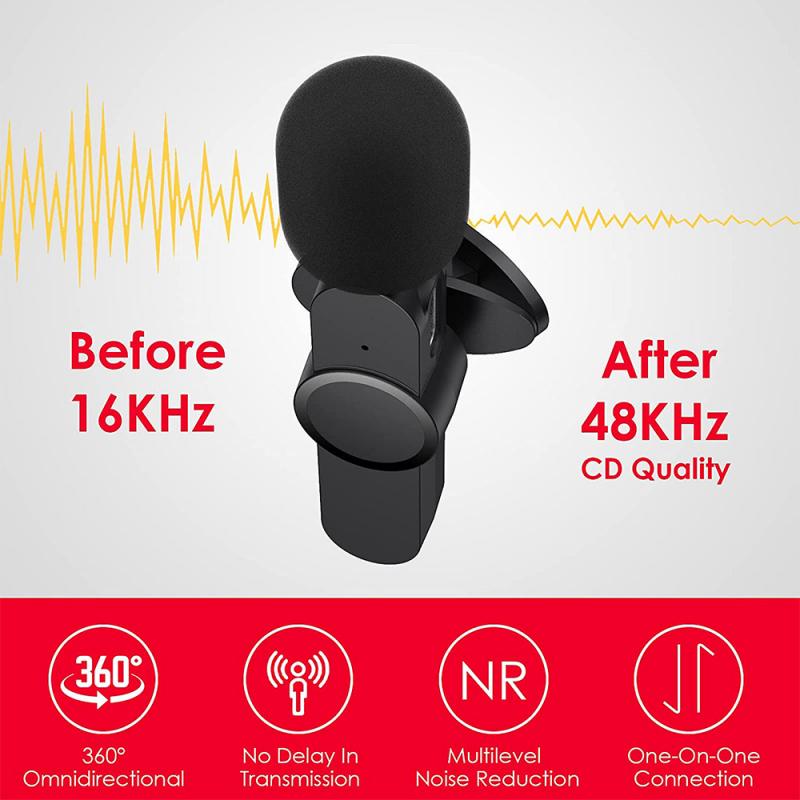
how to record audio on a macbook 1

Recording audio on a MacBook is an essential skill for students, professionals, podcasters, musicians, and casual users alike. Whether you’re looking to create high-quality content, capture notes from a meeting, or record your next musical masterpiece, macOS provides a suite of tools that cater to your needs. This article breaks down the various methods for audio recording on a MacBook, from built-in solutions to third-party options, so you can choose the best fit for your requirements.

---

Why Use a MacBook for Audio Recording?

MacBooks are renowned for their user-friendly interface, reliable hardware, and seamless integration with professional audio software. Here are a few reasons why they’re ideal for audio recording:

1. High-Quality Microphones: Modern MacBooks come equipped with advanced microphones, which ensure clarity and reduce background noise.

2. Robust Software Ecosystem: macOS offers a variety of built-in and third-party applications for audio recording and editing.

3. Portability: The lightweight design makes it easy to record audio anywhere, anytime.

Whether you’re using a built-in mic or an external device, MacBooks adapt well to diverse audio recording scenarios.

---

Preparation: Setting Up Your MacBook for Recording

Before diving into the recording process, it’s essential to optimize your MacBook for the best results:

1. Check Your Microphone:

- For casual recordings, the built-in microphone suffices. Ensure your MacBook’s microphone is clean and unobstructed.

- For professional-grade recordings, consider an external microphone. USB mics are plug-and-play, while XLR mics may require an audio interface.

2. Minimize Background Noise:

- Record in a quiet environment to reduce unwanted sounds.

- Use noise-dampening materials, like foam or heavy curtains, if recording in an echo-prone room.

3. Adjust Audio Settings:

- Go to `System Preferences` > `Sound` > `Input` to select your preferred microphone and adjust the input volume.

4. Install Necessary Software:

- Depending on your needs, download apps like GarageBand, QuickTime Player, or professional tools like Logic Pro or Audacity.

---

Methods for Audio Recording on a MacBook

1. Using QuickTime Player (For Basic Needs)

QuickTime Player is a pre-installed application that provides a simple and effective way to record audio.

Steps:

1. Open QuickTime Player.

2. Click `File` > `New Audio Recording`.

3. In the recording window, click the dropdown arrow next to the red record button.

- Choose your input source (e.g., internal mic or external mic).

- Adjust the input quality settings (choose "High" for better results).

4. Click the red button to start recording.

5. Click the same button to stop the recording. Save the file to your desired location.

Best For:

Quick voice memos, personal notes, or basic recordings.

---

2. Using GarageBand (For Music and Podcasts)

GarageBand is a powerful, free DAW (Digital Audio Workstation) included with macOS, making it perfect for creating music, podcasts, or layered audio projects.

Steps:

1. Open GarageBand and select a project template (e.g., "Empty Project").

2. Set up a new audio track by clicking `Track` > `New Track` > `Audio`.

- Choose between “Microphone” or “Instrument” based on your input device.

3. Configure input and output settings:

- Use the track settings to enable monitoring and adjust input levels.

4. Click the red record button to begin recording.

5. Use GarageBand’s editing tools to trim, layer, or add effects.

6. Export your audio by clicking `Share` > `Export Song to Disk`.

Best For:

Musicians, podcasters, and users requiring multi-track recording and advanced editing features.

---

3. Using Voice Memos App (For Convenience)

The Voice Memos app is simple, fast, and synced with your iCloud for easy access across Apple devices.

Steps:

1. Open the Voice Memos app.

2. Click the red record button to start recording.

3. Tap `Pause` or `Done` to stop and save the recording.

4. Rename and organize recordings for easy retrieval.

Best For:

Quick recordings, interviews, and capturing ideas on the go.

---

4. Using Third-Party Software (For Advanced Features)

If your requirements exceed what Apple’s native apps provide, consider using third-party software:

- Audacity: A free, open-source audio editor that supports multi-track recording and extensive post-processing options.

- Logic Pro: Apple’s professional-grade DAW, ideal for music production and complex audio projects.

- Adobe Audition: Perfect for audio editing, mixing, and mastering, favored by podcasters and sound designers.

General Steps:

1. Install the chosen software from its official website or the Mac App Store.

2. Connect your input device (if using an external microphone).

3. Follow the software’s instructions to set up your project, record audio, and edit as needed.

Best For:

Professional audio creators, sound engineers, and those with advanced editing needs.

---

Enhancing Audio Quality

Recording audio is only part of the process. To ensure your recordings are of the highest quality, consider the following:

1. Use Pop Filters and Windscreens:

- These tools reduce plosive sounds and wind noise, especially for vocals.

2. Apply Post-Processing:

- Use noise reduction tools to clean up background noise.

- Normalize and equalize your audio to balance sound levels.

3. Experiment with Effects:

- Tools like GarageBand and Logic Pro offer reverb, compression, and other effects to enhance your recordings.

4. Monitor While Recording:

- Use headphones to monitor the input and detect issues in real-time.

---

Troubleshooting Common Issues

1. Low Audio Quality

- Ensure your microphone is working properly and not obstructed.

- Increase input levels in `System Preferences`.

2. Background Noise

- Use noise reduction tools in GarageBand or Audacity.

- Record in a quieter environment.

3. External Microphone Not Detected

- Check the USB or audio interface connection.

- Verify input device settings in `System Preferences`.

4. Software Crashes

- Ensure macOS and your recording software are up-to-date.

- Close unnecessary applications to free up system resources.

---

Practical Applications of MacBook Audio Recording

1. Content Creation:

- Record podcasts, voiceovers, or video narration.

- Create tutorial or educational content.

2. Music Production:

- Compose and produce tracks with GarageBand or Logic Pro.

- Capture live instrument sessions or vocal performances.

3. Professional Use:

- Record meetings or presentations for later review.

- Create audio documentation for projects.

4. Personal Use:

- Maintain a digital diary with voice memos.

- Record interviews or conversations for personal archives.

---

Final Thoughts

Recording audio on a MacBook is straightforward, thanks to its versatile tools and intuitive interface. By choosing the right method—whether it’s QuickTime Player for simplicity, GarageBand for creative projects, or third-party software for advanced capabilities—you can tailor the recording process to your specific needs. With a bit of preparation and practice, you’ll be able to produce professional-quality audio recordings directly from your MacBook.

Whether you’re a beginner or an experienced audio producer, the tips and techniques shared in this guide will empower you to make the most of your MacBook’s audio recording capabilities. Start experimenting today, and turn your creative ideas into reality!

Leave your comment
Cancel reply
Note: HTML is not translated!
Related products
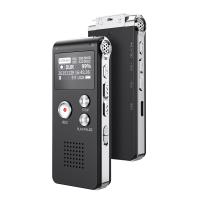
128G Mini Digital Voice Recorder with Color Screen Bluetooth Call Record 3072kbps Kentfaith
15
$119.99 $83.99
K&F Concept Laptop Mobile Screen 20-in-1 Cleaning Kit, Computer Keyboard Brush Cleaning Spray, Suitable for iPhone AirPods MacBook iPad
$26.99 $16.99
Minolta A / Sony A Lenses to Leica M Lens Mount Adapter K&F Concept M47151 Lens Adapter
31
$75.99 $39.99
Minolta A / Sony A Lenses to Pentax Q Lens Mount Adapter K&F Concept M22161 Lens Adapter
$45.99 $23.99
Instant Cross-APP Translator Device for Business & Trade, Video Call Translation, Record, & Transcription, Kentfaith AI Translator Devices
12
$124.99 $99.99
67mm Clip-on CPL Phone Camera Lens Filter Kit Applicable to All Mobile Phone Models
24
$18.99
Minolta A / Sony A Lenses to Pentax Q Lens Mount Adapter with Tripod Mount K&F Concept M22162 Lens Adapter
$55.99 $28.99
67mm Clip-on ND2-32 Phone Camera Lens Filter Kit Applicable to All Mobile Phone Models
24
$37.99
5K Video Camera with 75MP Photos, 8X Optical Zoom, WiFi Transfer, Wireless Mic, Dual Batteries, Support PIP Record, Kentfaith
16
$274.99 $239.99
67mm Clip-on Black Mist 1/4 Phone Camera Lens Filter Kit Applicable to All Mobile Phone Models
24
$29.99
Products You May Like
DJI Mini 3 Pro & Mini 3 (ND4 & PL) Filter HD, Light Reduction 2-stops, with Anti-reflection Green Film, Waterproof, Scratch-resistant
121
$28.99 $17.99
DJI Drone Filter Mini 3 Pro & Mini 3 HD Filter 5pcs Set (UV+ND8 / PL+ND16 / PL+ND32 / PL+ND64 / PL) with 28 Layer Anti-reflection Green Coating, Waterproof and Scratchproof
121
$76.99 $69.99
WiFi Security Camera with 4K Clarity, 180° Panoramic View with Dual Lens, Solar Powered, 360° Live View, Color Night Vision Kentfaith
$299.99 $239.99
55mm ND4-64 (2-6 Stop) Variable ND Filter and CPL Circular Polarizing Filter 2 in 1,28 Layers Coated Nano-Xcel Series
68
$107.99 $85.99
49mm ND64 Magnetic Neutral Density Lens Filter HD Waterproof Scratch-resistant Anti-reflection Nano-Xcel Series
26
$63.99 $50.99
M42 Thread Lenses to Pentax K Lens Mount Adapter K&F Concept M10221 Lens Adapter
4
$19.99
K&F Concept Digital Camera Case Waterproof & Protective Small Camera Bag Lightweight Camera Sling Bag with 2 Carrying Ways - Sling Bag 1L Urban Wander 07 (Silver)
93
$25.99 $16.99
best hunting trail cameras
10
$135.99 $106.99
TM2624L 69.7‘’/177cm  Camera Tripod 8.8lbs Load Phone Tripod with 3-Way Pan Head & Detachable Monopod for DSLR (Only Ship to US)
TM2624L 69.7‘’/177cm Camera Tripod 8.8lbs Load Phone Tripod with 3-Way Pan Head & Detachable Monopod for DSLR (Only Ship to US)
35
$69.99 $59.99
52mm Snap-On Center Pinch Lens Cap 5 in 1 with Anti-Loss Keeper Leash Compatible with Nikon, Canon, Sony, Fujifilm Camera Lenses
$15.99 $7.99
Related articles
How To Record Audio On My Macbook Pro?
How Record Audio On Pc?
How To Turn On Screen Record Audio?
How To Record Voice Audio On Mac?
How To Record Discord Audio On Xbox?
How To Record External Audio On Pc?
How To Record On Pc With Audio?
How To Record Audio On Xbox Clips?
How To Screen Record Audio On Youtube?
How To Improve Sound Voice Recordings?
Blog You May Like
How Many Stops Is An Nd 8 Filter?
What Is The Difference Between Binoculars And Telescope?
How To Setup V380 Wifi Smart Net Camera ?
How Do 4g Security Cameras Work?
How Do You Watch Youtube On Smart Tv?
Can I Sleep With Earbuds?
How To Use Selfie Monopod With Remote?
How To Find The Uv Filter Size?
How Do Cellular Cameras Work?
Is the Sony A7M5 worth buying?
Related categories
On-Dash Camera A Mount Lens Adapter Sony A Mount Lens Adapters minolta a mount lenses C mount lens adapter m4/3 adapter mini camera tripod camera lens filters
Popular products
Mini Digital Voice Recorder​ video recording camera for youtube sony camera with microphone leica m sony e mount adapter sony minolta adapter sony a mount to minolta adapter ipad pro camera lens kit spray to clean keyboard Polarize Filter For Mobile Phone clip on phone camera lens
Related searches
Cameras That Record Audio Best Microphones To Record Vocals Record Wifi Camera Condenser On A Microscope Camera On A Rope Flash On A Digital Camera Eyepiece Lens On A Microscope Lens Mount On A Canon 40d Best Video Camera On A Phone A Mount Lens On E Mount Camera
Popular searches
Monocular For Bird Watching Popular Science Solar Eclipse Lens Camera Filter Nikon F-mount Vs Af Mount Mft Wide Angle Adapter Pentax M Lens Mount Dual Wireless Microphone Best Filter For Nikon 24-70mm Lens M42 Tilt-shift Adapters Canon Minolta Maxxum 5 Lens Mount Canon Camera Nikon Lens Adapter
Blog Category
  • Activities
  • Guide
    • Filter Guide
    • Lens Adapter
    • Product Review
  • News & Reviews
    • Camera Reviews
    • Sample Gallery
    • News
  • Tutorials
    • Solar eclipse photography
    • Photography Basics
    • Landscape Photography
  • Inspiration
    • Travel
    • Travel Stories
Search Article
Latest from the Blog
Which Camera Is Best For Low Light Photography?
UV Filter: Everything You Need to Know About UV Protection Lens Filters
How To Put Sd Card In Camera?
Where Can I Buy Samsung Camera Battery?
How To Stream Live From Surveillance Camera?
How Does a WiFi Trail Camera Work?
What Is Nd Filter On Video Camera?
Is the Sony A7M5 worth buying?
What Does Tripod?
How To Find Camera Roll On Iphone 5s?
  • Easy Payment Multilple Payment Options

  • Free Shipping Global WareHouse Shipment

  • No Risk 30-Day No Reason Return

  • Limited Deals Buy More, Save More

  • Tax Free No any surcharges or tax fee

Information
  • About us
  • Contact Us
  • Site Map
  • Blog
  • Video
  • Gallery
  • VIP Membership Rewards
Service
  • Privacy Policy
  • Terms & Conditions
  • Shipping & Delivery
  • Payment Info
  • Warranty, Return & Refund
  • Intellectual Property Rights
  • Ambassador
  • Affiliates
  • Wholesale
Support
  • My account
  • Order History
  • FAQs
  • Extend Warranty
  • Logistics Tracking
Follow us
NewsLetter

Get the latest product, K&F Concept respects your privacy.

Powered By KENTFAITH © 2025