kfconcept

KENTFAITH
K&F Concept    Blog >

Enjoy Your Selected Digital Life

Recently Viewed
  • Recently Viewed
  • Recently Viewed list is empty.

Compare (0) 0
  • Compare
  • You have not chosen any products to compare.

  • Compare
Currency: USD
  • Currency
Shop by Scene Shop by Rank

Log Into Your Account

Account

Order History

Wish List

Login

Forgotten Password?

Or connect with

Register Account

Already have an Account?Log In

  • Shopping Cart
  • Your shopping cart is empty!

  • Register/Login to purchase, earn points
  • Favorite
  • Your wish list is empty.

  • Register/Login to like, earn points
  • Activities
  • Guide
    • Filter Guide
    • Lens Adapter
    • Product Review
  • News & Reviews
    • Camera Reviews
    • Sample Gallery
    • News
  • Tutorials
    • Solar eclipse photography
    • Photography Basics
    • Landscape Photography
  • Inspiration
    • Travel
    • Travel Stories
  • Home
  • Blog
  • How To Make A Screen Record Have Sound?

How To Make A Screen Record Have Sound?

Kentfaith 2024-09-20 02:25:41 0 Comments

Screen recording has become an essential tool for many professionals, educators, and content creators. Whether you're creating a tutorial, recording a gameplay session, or capturing a video call, having sound in your screen recordings can significantly enhance the value and clarity of your content. However, many users often face challenges when trying to include audio in their screen recordings. This article will guide you through the process of making a screen record with sound, addressing common issues and providing practical solutions.

Understanding the Basics
how to make a screen record have sound 1

Before diving into the technical aspects, it's important to understand the two main types of audio you might want to capture during a screen recording:

1. System Audio: This is the sound that comes from your computer, such as music, video audio, or any other sound played by your system.

2. Microphone Audio: This is the sound captured by your microphone, which could include your voice or any other external sounds.

Choosing the Right Software
how to make a screen record have sound 2

The first step in making a screen record with sound is choosing the right software. There are numerous screen recording tools available, each with its own set of features. Some popular options include:

- OBS Studio: A free and open-source software that offers extensive customization options.

- Camtasia: A paid software known for its user-friendly interface and powerful editing features.

- QuickTime Player: A built-in option for Mac users that offers basic screen recording capabilities.

- Windows Game Bar: A built-in option for Windows users, primarily designed for recording gameplay.

Setting Up Your Screen Recording
how to make a screen record have sound 3

Once you've chosen your software, follow these steps to set up your screen recording with sound:

For OBS Studio
how to make a screen record have sound 4

1. Download and Install: Download OBS Studio from the official website and install it on your computer.

2. Create a New Scene: Open OBS Studio and create a new scene by clicking the "+" button under the "Scenes" box.

3. Add Sources: Click the "+" button under the "Sources" box and add the following:

- Display Capture: To capture your screen.

- Audio Input Capture: To capture microphone audio. Select your microphone from the list.

- Audio Output Capture: To capture system audio. Select your speakers or headphones from the list.

4. Check Audio Levels: Ensure that the audio levels for both the microphone and system audio are visible and adjust them as needed.

5. Start Recording: Click "Start Recording" to begin your screen recording with sound.

For Camtasia

1. Download and Install: Download Camtasia from the official website and install it on your computer.

2. Open Camtasia Recorder: Launch Camtasia and open the Camtasia Recorder.

3. Select Recording Area: Choose the area of the screen you want to record.

4. Enable Audio: Ensure that both "Record System Audio" and "Record Microphone" options are enabled.

5. Start Recording: Click the "Rec" button to start your screen recording with sound.

For QuickTime Player (Mac)

1. Open QuickTime Player: Launch QuickTime Player from your Applications folder.

2. New Screen Recording: Go to "File" > "New Screen Recording".

3. Select Audio Source: Click the drop-down arrow next to the record button and select your microphone.

4. Start Recording: Click the record button to start your screen recording. Note that QuickTime Player does not natively support system audio recording, so you may need additional software like Soundflower to capture system audio.

For Windows Game Bar

1. Open Game Bar: Press "Win + G" to open the Game Bar.

2. Enable Audio: Ensure that the microphone icon is enabled to capture your voice.

3. Start Recording: Click the record button to start your screen recording with sound. Note that the Game Bar primarily captures system audio and microphone audio during gameplay.

Troubleshooting Common Issues

Even with the right setup, you might encounter some common issues when trying to record screen with sound. Here are some troubleshooting tips:

No System Audio

- Check Audio Settings: Ensure that your system audio is not muted and that the correct output device is selected.

- Update Drivers: Make sure your audio drivers are up to date.

- Use Virtual Audio Cable: For advanced users, using a virtual audio cable can help route system audio to your recording software.

No Microphone Audio

- Check Microphone Settings: Ensure that your microphone is not muted and that the correct input device is selected.

- Adjust Permissions: Check your operating system's privacy settings to ensure that the recording software has permission to access your microphone.

- Test Microphone: Use another application to test if your microphone is working properly.

Audio Out of Sync

- Adjust Sync Offset: Some recording software allows you to adjust the audio sync offset to match the video.

- Check Performance: Ensure that your computer is not overloaded, as high CPU usage can cause audio and video to go out of sync.

Enhancing Your Screen Recordings

To make your screen recordings more professional, consider the following tips:

- Use a Good Microphone: Investing in a quality microphone can significantly improve the audio quality of your recordings.

- Reduce Background Noise: Record in a quiet environment and use noise reduction features available in your recording software.

- Edit Your Recordings: Use editing software to trim unnecessary parts, add annotations, and enhance audio quality.

Making a screen record with sound is a valuable skill that can enhance your content and communication. By choosing the right software, setting up your recording correctly, and troubleshooting common issues, you can create high-quality screen recordings with clear audio. Whether you're a professional, educator, or content creator, these tips will help you produce engaging and informative screen recordings that meet your needs.

Leave your comment
Cancel reply
Note: HTML is not translated!
Related products
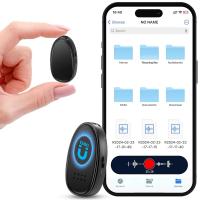
128G Mini Digital Voice Recorder with Color Screen Bluetooth Call Record 3072kbps Kentfaith
HOT Seller
128G Mini Digital Voice Recorder with Color Screen Bluetooth Call Record 3072kbps Kentfaith
15
$119.99 $83.99
Mini Sound Recorder 128GB 1600H Recording Capacity with 1.4" Screen, Voice Activated Mode Kentfaith
NEW Arrival
Mini Sound Recorder 128GB 1600H Recording Capacity with 1.4" Screen, Voice Activated Mode Kentfaith
12
$99.99 $79.99
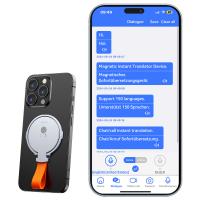
Instant Cross-APP Translator Device for Business & Trade, Video Call Translation, Record, & Transcription, Kentfaith AI Translator Devices
12
$124.99 $99.99
5K Video Camera with 75MP Photos, 8X Optical Zoom, WiFi Transfer, Wireless Mic, Dual Batteries, Support PIP Record, Kentfaith
16
$274.99 $239.99
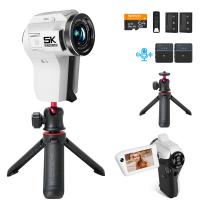
5K Video Camera with 75MP Photos, 8X Optical Zoom, WiFi Transfer, Foldable Tripod, Wireless Mic, Dual Batteries, Support PIP Record, Kentfaith
$312.49 $249.99
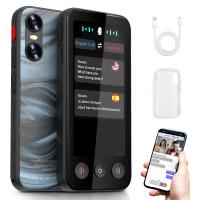
AI Translator Device for Business & Trade, 142 Languages Real-Time Online & Offline, Smart Office/Cross-App/Video/Photo Translation, Record & Transcription, Kentfaith
15
$182.49 $145.99
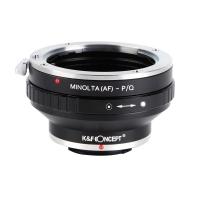
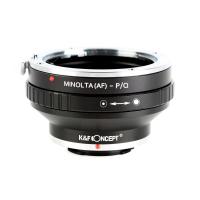
Minolta A / Sony A Lenses to Pentax Q Lens Mount Adapter K&F Concept M22161 Lens Adapter
$45.99 $23.99
Mini Voice Recorder, Sound-activated & Magnetic, 128GB 1600H Capacity with AI Noise Cancelling Kentfaith
13
$94.99 $53.99
Minolta A / Sony A Lenses to Pentax Q Lens Mount Adapter with Tripod Mount K&F Concept M22162 Lens Adapter
$55.99 $28.99
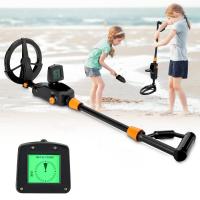
Children’s Entry-Level Metal Detector, High Sensitivity, With LCD Display and Sound Indication, Suitable for Beginners
TOP Best
Children’s Entry-Level Metal Detector, High Sensitivity, With LCD Display and Sound Indication, Suitable for Beginners
144
$64.49 $50.99
Products You May Like
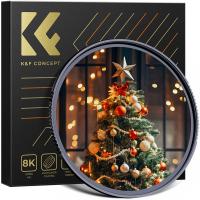
46mm Black Mist Filter 1/4 Special Effects Filter Cinematic Look Black Diffusion Effect Filter for Camera Lens Nano-X Series
$54.99 $35.99
82mm White Pro Mist Filter Cinematic Effect Filter with 18 Multi-Layer Coatings for Portrait and Landscape Photography Nano-K Series
$44.99 $27.99
52mm Magnetic Black Mist Filter 1/4 Special Effects Filter HD Multi-layer Coated, Waterproof/Scratch-Resistant/ Anti-Reflection Nano-Xcel Series
30
$78.99 $62.99
DJI Mini 3 Landing Gear Leg Foldable Extended Kit for DJI Mini 3 Accessories (Only for Mini 3)
$16.24 $12.99
Indoor TV Antenna Digital HDTV 4k 1080p ATSC Standard 20-50 miles with USB Amplifier 30*33cm
$15.99
Kentfaith Dual-Lens Articulating Endoscope, 5'' Split Screen Borescope Camera with 0.33in/8.5mm Two- Way Articulated Snake Camera,Inspection Camera with Light for Automotive Home Mechanics-6.6FT
62
$539.99 $293.99
49mm Variable ND Filter ND3-1000(1.5-10 Stops) Ultra-thin HD with Double-sided 28-layer Nano-coating Nano-Xcel Series
60
$87.99 $69.99
62mm Fader ND2-32 (1-5 Stop) Variable ND Lens Filter Neutral Density Filter for Camera Lens NO X Spot Nanotec Ultra-Slim Weather-Sealed
90
$54.99 $41.99
Minolta MD Lenses to Fuji GFX Mount Camera Lens Adapter K&F Concept M15211 Lens Adapter
10
$81.99 $42.99
Mini Voice Recorder, Sound-activated & Magnetic, 128GB 1600H Capacity with AI Noise Cancelling Kentfaith
13
$94.99 $53.99
Related articles
How Do You Have Sound On Screen Record?
How To Screen Record Including Sound?
How To Screen Record Internal Sound?
How To Make Sound In Screen Recording?
Does Screen Record Include Sound?
How To Record Phone Screen With Sound?
How To Put Screen Record With Sound?
How To Make Sound Recorder Record Computer?
How To Record Video On Screen With Sound?
Where Does The Slide Go On A Microscope?
Blog You May Like
How To Make A Bird Feeder Camera?
How To Install Secret Voice Recorder?
Can Projector Work On Wall?
How Much Are Night Vision Goggles?
How To Make Wifi Camera At Home?
Bluetooth Microphone How To Use?
How To Connect Wireless Cctv Cameras?
How To Find Hidden Camera Frequency?
How To Make Monopod Selfie Stick Work?
How To Make Camera Bag Padding?
Related categories
A Mount Lens Adapter Sony A Mount Lens Adapters trail camera with screen minolta a mount lenses C mount lens adapter m4/3 adapter camera lens hoods Astronomy & Optics
Popular products
Mini Digital Voice Recorder​ digital voice recorder with usb video recording camera for youtube sony camera with microphone leica m sony e mount adapter sony minolta adapter sony a mount to minolta adapter mft adapter sony Fuji Mount Adapter sony a57 lens adapter
Related searches
Cheap Camera To Record Videos Surround Sound For A Projector Best Camera To Record Time Lapse Adapter To Make Manual Lens Autofocus Lens Adapter To Make Focal Length Longer Extension To Make E Mount Lens Macro Night Vision Binoculars That Record Smartwatch Make And Receive Calls Dji Mini 4 Pro Accessories Must Have Cut To Fit Screen Protector
Popular searches
Usb Webcam With Microphone For Pc Mobile Bluetooth Headphones With Mic Smart Band Watch With Camera Sony A6000 Lens Mount Canon G3x Filter Adapter Outdoor Use Camera For House Adapting Canon Ef Lenses To Fujifilm X-t20 Canon To Samsung Nx Adapter Small Handheld Underwater Metal Detector Ear Bluetooth Headphones
Blog Category
  • Activities
  • Guide
    • Filter Guide
    • Lens Adapter
    • Product Review
  • News & Reviews
    • Camera Reviews
    • Sample Gallery
    • News
  • Tutorials
    • Solar eclipse photography
    • Photography Basics
    • Landscape Photography
  • Inspiration
    • Travel
    • Travel Stories
Search Article
Latest from the Blog
How To Place Cameras Around Your House?
Black Friday 2025 Special at Kentfaith
How Do Night Vision Goggles Work?
Can You Save Facebook Videos To Camera Roll?
What Is A Good Quality Dash Cam?
Kentfaith x ANACONDA: Capturing the Wild, Frame by Frame
Camera That Can Wifi Photos To Phone?
Is the Sony A7M5 worth buying?
Camera Use Which Lens?
Which Binoculars To Buy?
  • Easy Payment Multilple Payment Options

  • Free Shipping Global WareHouse Shipment

  • No Risk 30-Day No Reason Return

  • Limited Deals Buy More, Save More

  • Tax Free No any surcharges or tax fee

Information
  • About us
  • Contact Us
  • Site Map
  • Blog
  • Video
  • Gallery
  • VIP Membership Rewards
Service
  • Privacy Policy
  • Terms & Conditions
  • Shipping & Delivery
  • Payment Info
  • Warranty, Return & Refund
  • Intellectual Property Rights
  • Ambassador
  • Affiliates
  • Wholesale
Support
  • My account
  • Order History
  • FAQs
  • Extend Warranty
  • Logistics Tracking
Follow us
NewsLetter

Get the latest product, K&F Concept respects your privacy.

Powered By KENTFAITH © 2026