How To Insert Sd Card Into Security Camera?
When it comes to modern security cameras, storage solutions are a critical component. While many security cameras provide cloud storage services, others rely on local storage options such as SD cards. Inserting an SD card into a security camera may seem like a straightforward task, but small missteps can lead to the device not functioning as intended. Whether you’re a new camera owner or troubleshooting a device that doesn’t seem to recognize its SD card, this comprehensive guide will walk you through the entire process.
Understanding the Role of an SD Card in Your Security Camera
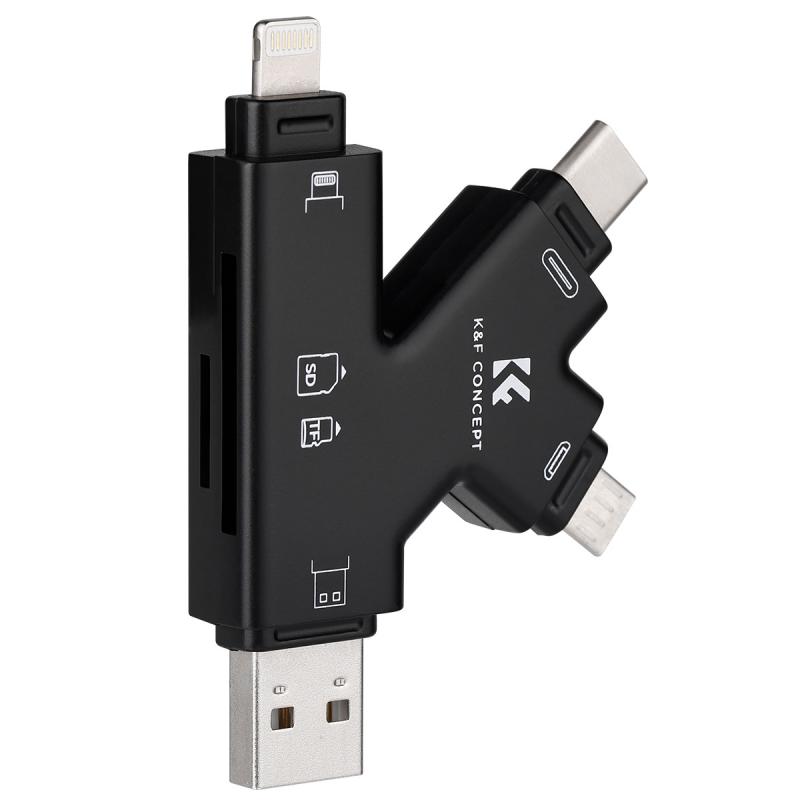
Before diving into the step-by-step guide, it’s essential to understand why an SD card is important for your security camera. SD cards serve as a convenient and efficient way to store video recordings, images, and logs. These cards are particularly useful for:
1. Offline Storage: Unlike cloud storage, SD cards allow for offline video recording, ensuring you have access to data even during an internet outage.
2. Cost Efficiency: Once you buy an SD card, there are no recurring subscription charges, making this a more affordable solution for many users.
3. Flexibility: An SD card enables on-the-go storage that can be accessed anytime simply by removing and transferring it to another device.
Choosing the Right SD Card for Your Camera
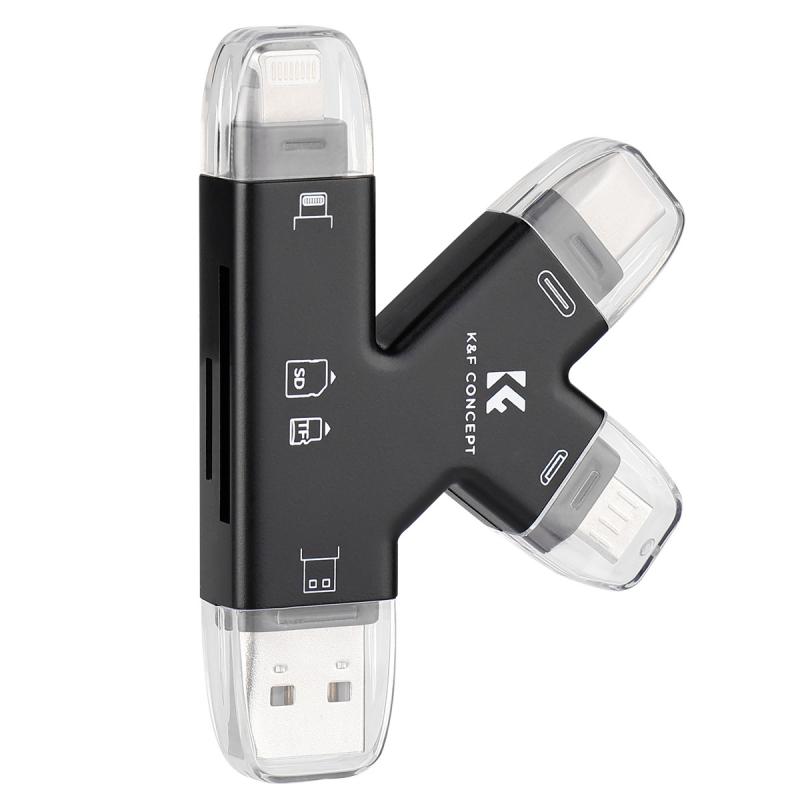
Before attempting to insert an SD card into a security camera, you need to ensure that you’re using the right card for your device. Pay attention to the following factors:
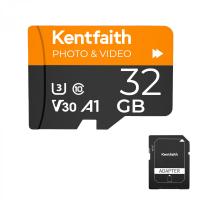
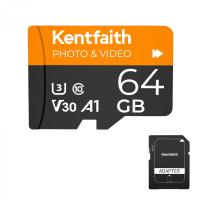
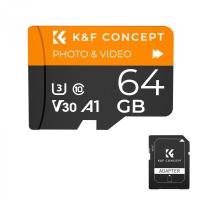
1. Storage Capacity: Different security cameras support varying SD card capacities. While some cameras support up to 64GB, others may handle 128GB or even 256GB cards. Refer to your camera's manual for its maximum supported capacity.
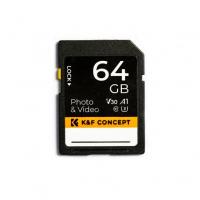
2. Speed Class: Video recording typically requires SD cards with higher speeds, especially for high-definition (HD) or 4K footage. Look for cards that are labeled as Class 10, UHS-I, UHS-II, or V30/V60/V90, depending on your camera’s requirements.
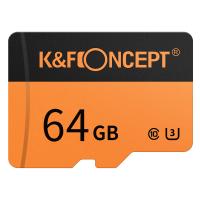
3. Card Type: Most cameras accept microSD cards. However, always double-check specifications to ensure that you're purchasing the correct type.
4. Durability: Since security cameras are often used outdoors or in long-term setups, choose an SD card rated for durability under extreme conditions (e.g., weather-proof, heat-resistant, and shock-proof).
Step-by-Step Guide to Inserting an SD Card into Your Security Camera
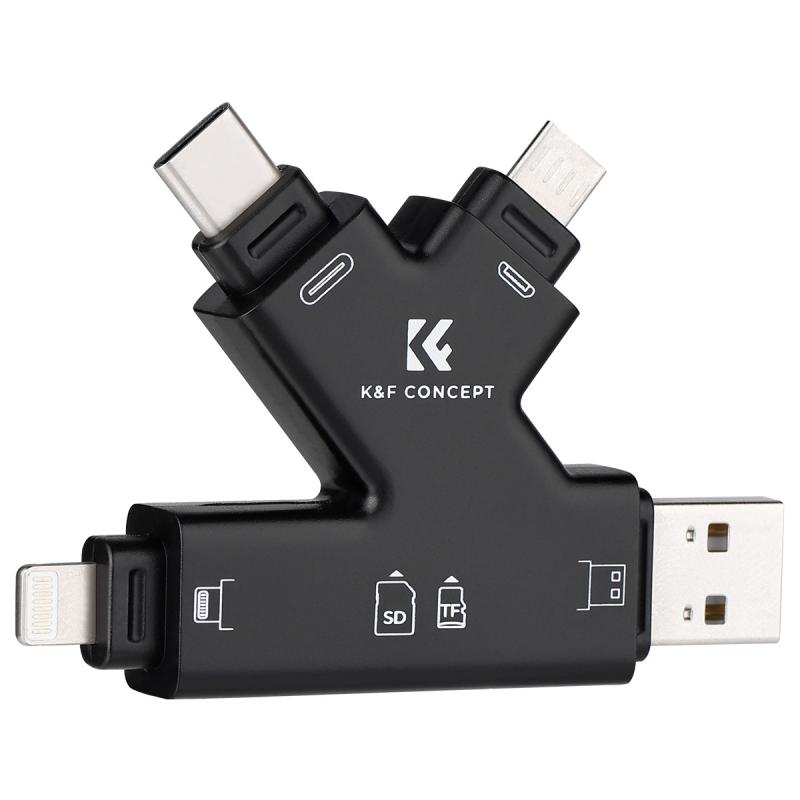
Once you’ve selected the appropriate SD card for your security camera, follow these steps to complete the installation correctly:
1. Power Off the Camera
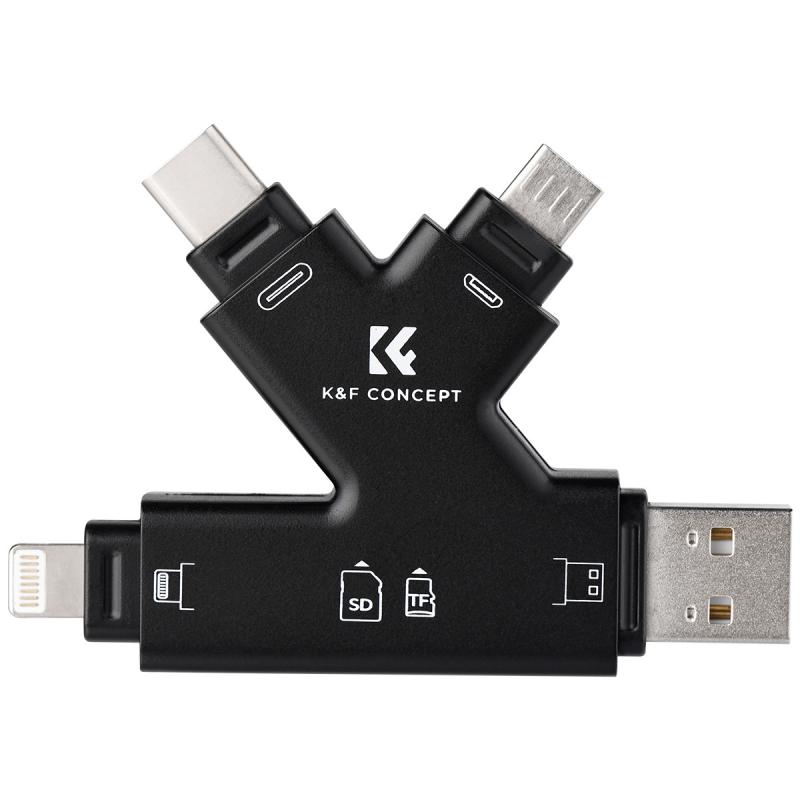
Always turn off the power supply to the security camera before handling its hardware. This is a crucial safety step that helps prevent electrical damage to the device and avoids corrupting the SD card. If your camera is connected to a power source, unplug it, or if it’s battery-operated, remove the battery before proceeding.
2. Locate the SD Card Slot
Identify the SD card slot on your security camera. The location of the slot can vary depending on the model and brand:
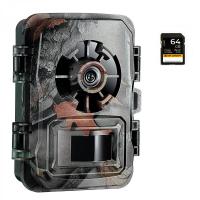
- On some cameras, the SD card slot is located underneath the device or behind a protective cover.
- For outdoor cameras, the slot might be hidden behind a screw-sealed panel to protect it from weather conditions.
Refer to the camera's user manual for specific instructions and diagrams for finding the slot.
3. Prepare the SD Card
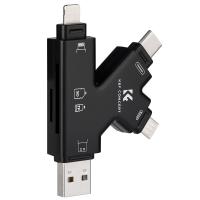
Take the SD card out of its packaging and make sure it is clean and free from dust or debris. If the card has been used previously, format the SD card to ensure it is completely empty and compatible with the camera. This can be done using the following steps:
- Insert the card into your computer or an SD card reader.
- Navigate to the "Format" option (usually accessible via the device’s file manager).
- Select the correct file system (commonly FAT32 or exFAT, depending on your camera specifications).
- Complete the formatting process.
4. Insert the SD Card
Insert the SD card into the slot with the metal contacts facing the right direction (usually downward). The card should slide in easily—do not force it. Push it gently until it clicks into place, which indicates that the card is secure.
5. Secure Any Covers or Panels
If the camera has a protective cover or panel for the SD card slot, make sure it is properly sealed. For outdoor cameras, ensure the panel is tightened to keep the card safe from moisture, dirt, and temperature fluctuations.
6. Reconnect the Power
After the SD card is secure, reconnect the power supply or reinsert the battery. Turn the camera back on and wait for it to boot up.
7. Verify the SD Card Installation
Access the camera’s app or interface to ensure the SD card is being recognized. Most security cameras will have a storage options menu where you can verify the card’s capacity and available space. If the camera doesn’t recognize the card, try the following troubleshooting steps:
- Ensure the SD card is formatted in the correct file system.
- Remove the card, clean the contacts, and reinsert it.
- Check if the card is fully inserted and locked in place.
- Test the card on another device to confirm it’s functioning properly.
Tips for Maintaining Your SD Card and Security Camera
1. Regular Check-Ups: Periodically check the SD card for available storage space. A full card can cause the camera to stop recording or overwrite existing data.
2. Backup Data: Transfer video footage regularly to another device to avoid losing important recordings in the event of SD card failure.
3. Use High-Endurance Cards: If your camera records video continuously in high quality, opt for high-endurance SD cards designed for heavy workloads.
4. Firmware Updates: Ensure the firmware of your security camera is updated to avoid software compatibility issues with the SD card.
Troubleshooting Common Problems
Camera Fails to Recognize SD Card: Reformat the SD card or try another card with a smaller capacity if your current card exceeds the camera’s limit.
Corrupted Files: This often happens if the SD card isn’t safely ejected or removed. Always turn off the device before handling the card.
Physical Damage: If the card slot or SD card is physically damaged, consult the device manufacturer for repairs or replacements.
Final Thoughts
Inserting an SD card into your security camera and ensuring it functions properly may seem complicated, but it’s a straightforward process when done correctly. Pay attention to the technical requirements of both your camera and card, follow the best practices outlined here, and ensure that your system is well-maintained. By doing so, you'll enjoy reliable and efficient video recording without interruptions.
Whether you're a homeowner securing their property or a business owner managing operations, understanding how to set up your security camera storage is an essential skill—and now, you’re equipped with the know-how to do it confidently!