kfconcept

KENTFAITH
K&F Concept    Blog >

Enjoy Your Selected Digital Life

Recently Viewed
  • Recently Viewed
  • Recently Viewed list is empty.

Compare (0) 0
  • Compare
  • You have not chosen any products to compare.

  • Compare
Currency: USD
  • Currency
Shop by Scene Shop by Rank

Log Into Your Account

Account

Order History

Wish List

Login

Forgotten Password?

or connect with

Register Account

Already have an Account?Log In

  • Shopping Cart
  • Your shopping cart is empty!

  • Register/Login to purchase, earn points
  • Favorite
  • Your wish list is empty.

  • Register/Login to like, earn points
  • Activities
  • Guide
    • Filter Guide
    • Lens Adapter
    • Product Review
  • News & Reviews
    • Camera Reviews
    • Sample Gallery
    • News
  • Tutorials
    • Solar eclipse photography
    • Photography Basics
    • Landscape Photography
  • Inspiration
    • Travel
    • Travel Stories
  • Home
  • Blog
  • How To Get A Filter On Iphone Camera?

How To Get A Filter On Iphone Camera?

Kentfaith 2025-09-26 01:59:31 0 Comments

How to Get a Filter on iPhone Camera: A Complete Guide

The advent of smartphone technology has revolutionized photography, enabling even amateur photographers to capture stunning visuals with minimal effort. The iPhone camera, renowned for its quality and performance, grants users the ability to enhance their photos with built-in filters. Whether you’re aiming for a dramatic black-and-white portrait or a vibrant pop of color, these filters have you covered. In this article, we'll explore step-by-step instructions on how to use filters on the iPhone camera and answer some common questions surrounding their usage for optimal results.

Understanding Camera Filters on iPhone

how to get a filter on iphone camera 1

Filters are editing tools that apply color adjustments and effects to your photos, altering their appearance for aesthetic or expressive purposes. With iPhones, you don’t necessarily need third-party applications to access filters—Apple provides a selection of built-in photo effects, both for capturing images directly and for editing photos post-capture.

iPhone filters are simple yet effective tools for quick photography enhancements. They work well for users who want to use creative effects without needing to delve deeply into professional editing apps like Adobe Lightroom or Photoshop. However, they can also complement advanced editing for those looking to experiment with styles before further refinement.

Getting Started: Using Filters While Capturing Photos
how to get a filter on iphone camera 2

Did you know you can apply filters while taking pictures, making it possible to preview your shot with the desired effect in real time? If you want to immediately capture photographs with filters built into the camera interface, follow these easy steps to access and use them:

1. Step 1: Open the Camera App

- Launch the default Camera app on your iPhone. Make sure you are using a model that supports real-time filters, as older iPhones may not have this feature integrated.

2. Step 2: Swipe to "Photo" Mode

- Ensure you are in "Photo" mode, as filters can’t be applied in other modes like "Video" or "Portrait" when previewing.

3. Step 3: Tap the Filter Icon

- Look for the filter icon in the top-right or bottom-right corner of the camera screen (depending on your iPhone model and iOS version). It typically looks like three overlapping circles. Tap on it to open the filter options.

4. Step 4: Choose a Filter

- A bar containing various filters will appear. Swipe through the available options to preview each effect in real time. Some common filters include "Vivid," "Mono," "Cool," "Warm," "Dramatic," and several others.

5. Step 5: Adjust and Take the Photo

- Once you’ve selected your preferred filter, adjust the framing of your shot and click the shutter button. The image will be captured with the applied filter, creating your desired aesthetic in one step.

How to Use Filters After Taking Photos
how to get a filter on iphone camera 3

If you’ve already taken a photo, worry not—iPhones allow filters to be applied during post-editing. This method is especially helpful if you want to experiment with multiple filters and decide later which effect works best for your image. Here’s how:

1. Step 1: Open the Photos App

- Navigate to the Photos app on your iPhone, where all your images are stored. Select the photo you want to edit.

2. Step 2: Tap "Edit"

- After selecting the image, tap the "Edit" button in the upper-right corner of the screen. This will open the editing interface.

3. Step 3: Browse Filter Options

- Look for the filter icon within the editing interface (again, represented by three overlapping circles). Tap it to open the filter collection.

4. Step 4: Apply Filters

- Scroll through the available filters and tap on each to preview its effect on the photo. Adjust your image to match your creative vision.

5. Step 5: Save the Edited Image

- Once satisfied, tap "Done" in the top corner to save your changes. The original photo will remain intact, as iPhone photo editing is non-destructive and allows you to revert edits if necessary.

Tips and Tricks for Better Filter Usage on iPhone
how to get a filter on iphone camera 4

Filters can elevate your photos, but they require careful selection and usage to avoid overediting or diminishing the quality of your image. Follow these tips for optimal results with filters:

1. Choose Filters That Match the Mood of Your Scene

Not all filters are suitable for every image. For example, if you're capturing a serene landscape, filters like “Cool” or “Dramatic” might accentuate the colors and ambiance. On the other hand, portraits often look stunning with softer filters such as “Warm.”

2. Avoid Overusing Filters

While filters can make photos look more interesting, excessive use might result in unnatural-looking images. Use filters subtly to enhance rather than overpower the original photograph.

3. Experiment With Natural Lighting

Filters can interact differently with colors depending on the lighting. Experimentation with lighting—such as shooting during golden hour or under diffused light—can amplify the visual impact of filter effects.

4. Explore Third-Party Apps for More Specialized Filters

Although the built-in iPhone filters are convenient and user-friendly, third-party apps such as Instagram, VSCO, and Snapseed offer a broader selection of unique and customizable filters. Try using these apps for advanced editing options if Apple’s settings feel limited.

5. Revisit and Reassess Your Edits

It’s always good to revisit your edits after some time to understand whether they serve the aesthetic purpose you initially sought. With iPhones, you can always revert images back to their original state, giving you flexibility.

Frequently Asked Questions

Q1. Can I use filters during video recording on my iPhone?

Unfortunately, filters cannot be applied while recording videos directly in the default Camera app. However, third-party apps like Instagram or TikTok allow real-time filters during video creation.

Q2. Do applying filters reduce photo quality?

No, applying filters does not significantly reduce photo quality when done through the iPhone’s native editing tools. However, excessive editing or using third-party apps with lower processing standards might compress or alter image quality.

Q3. How can I remove a filter from a photo?

If you’ve applied a filter post-capture, you can easily remove it by returning to the "Edit" mode in the Photos app, selecting the filter icon, and choosing the “None” option.

Q4. Are iPhone camera filters customizable?

The built-in filters provided by Apple are preset and cannot be customized. For complete control over the intensity and style of filters, consider using external applications that provide manual tweaking features.

Q5. What should I do if I don’t see the filter option in my Camera app?

If the filter feature isn’t visible, your iPhone’s iOS software could be outdated. Update your device to the latest version of iOS by navigating to Settings > General > Software Update.

Filters on your iPhone are powerful tools for quickly enhancing the visual appeal of your photos while maintaining simplicity and convenience. Whether you’re looking to capture images with filters applied in real-time or experiment with effects during post-editing, the process is effortless. By understanding how and when to use these filters effectively, you can create images that capture your desired mood and tell compelling visual stories.

As technology and iOS updates continue to refine the camera features on iPhones, it’s safe to say that filters will remain an integral component of mobile photography. Whether you rely solely on built-in filters or expand your creativity with third-party apps, the tools are readily available for you to elevate your photography game.

So next time you’re out and about with your iPhone, take a moment to explore those filters and bring out the best in your shots! Whether for Instagram-worthy moments or cherished family memories, the world awaits your artistic creativity.


Leave your comment
Cancel reply
Note: HTML is not translated!
Related products
67mm Clip-on CPL Phone Camera Lens Filter Kit Applicable to All Mobile Phone Models
40
$18.99
67mm Clip-on ND2-32 Phone Camera Lens Filter Kit Applicable to All Mobile Phone Models
13
$37.99
52mm Clip-on ND2-400 Phone Camera Lens Filter Kit, Adjustable Neutral Density Filter Compatible models: iPhone 15 series / 14 series / 13 series / 12 series / 11 series
113
$25.99
K&F CONCEPT FNA01 Snap-On ND2-32 Filter for iPhone 17 Pro & Pro Max, 11.2g Ultra-Lightweight Variable ND Lens Filter with Snap-on Deco Mount, AGC Glass 28-Layer Coating
$27.99
K&F CONCEPT FCA01 Snap-On CPL Filter for iPhone 17 Pro Max/17 Pro, 9.5g Ultra-Lightweight Polarizing Filter with Snap-on Deco Mount, AGC Glass 28-Layer Coating Anti-Reflection
$27.99
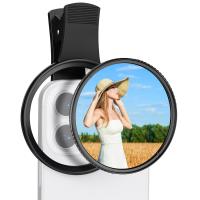
52mm Clip-on CPL Phone Camera Lens Filter Kit, Circular Polarizer Polarizing Filter Applicable to All Mobile Phone Models
24
$19.99
63'' Magnetic Iphone Tripod Phone Selfie Stick Tripod And Clip-On ND Filter(1-9 stops) For All Phone Set
207
$113.99 $59.99
67mm Clip-on Black Mist 1/4 Phone Camera Lens Filter Kit Applicable to All Mobile Phone Models
7
$29.99
Minolta A / Sony A Lenses to Pentax Q Lens Mount Adapter K&F Concept M22161 Lens Adapter
$45.99 $23.99
67mm Clip-on CPL&Black Mist 1/4 2-in-1 Phone Camera Lens Filter Kit Applicable to All Mobile Phone Models
3
$29.99
Products You May Like
55mm Black Mist 1/4 & ND8-128 Variable ND Filter with Double-sided 28-layer Anti-reflection Green Film and Lever Nano-Xcel Series
13
$151.99 $79.99
Universal on-Camera Shotgun Microphone With Shock Mount for Dslr
28
$25.99
49mm Magnetic Black Mist Filter 1/4 Special Effects Filter HD Multi-layer Coated, Waterproof/Scratch-Resistant/ Anti-Reflection Nano-Xcel Series
30
$78.99 $62.99
A200 1.1M Selfie Live Broadcast Mobile Stand with Remote Control
7
$19.99
Mavic Air 2S Airdrop System with Landing Gear, Long Range Payload Airdrop Release Drop Device Kit for DJI Air 2S / Mavic Air 2 Drone
$32.99 $29.99
OM-L Manual Focus Compatible with Olympus OM SLR Lens to L Mount Camera Body Lens Mount Adapter
80
$53.99 $29.99
Lens Mount Adapter Manual Focus Compatible with Canon EOS Lens to Sony Alpha Nex E-Mount Camera Body,Compatible for Sony NEX-3, NEX-5, NEX-5N, a6000, a6500, NEX-C3, NEX-F3, Not Auto-Focus
161
$45.99 $25.99
DJI Osmo Action 3 Filter Kit 3pcs HD (CPL+ND8+ND16) with Single-sided Anti-reflection Green Film
21
$58.99 $31.99
49mm Magnetic Filter Kit CPL + ND2-32 + Black Mist 1/4 Filter Set + Magnetic Adapter Ring & Lens Cap,28-Layer Coated HD Optical Glass for Camera Lens - Nano-X Series
75
$127.99 $95.99
49mm Black Mist 1/4 + ND8-128 Variable ND Filter with Double-sided 28-layer Anti-reflection Green Film and Lever Nano-Xcel Series
13
$103.99 $74.99
Related articles
How To Get Face Filters On Iphone Camera?
How To Use Filter On Iphone 12 Camera?
How To Filter Iphone Camera?
How To Mirror A Video On Iphone Camera?
How To Get Condensation Out Of Iphone Camera Lens ?
How To Get Retro Camera Filter?
How To Get The Camera Filter?
How To Get The Vintage Camera Filter?
How To Get Flash On Front Camera?
How Many Pictures Fit On A Memory Card?
Blog You May Like
How To Find Camera Wifi Password ?
How To Focus Binoculars?
What Does A Ring Light Look Like?
Where To Find Ring Lights?
How To Ship Camera With Battery?
Neutral Density Filter How Many Stops Ocean?
How To Do Studio Lighting On Iphone X?
Video Cameras That You Can Put Microphones On?
What Was The World's Largest Telescope?
How To Zoom In Logitech Webcam ?
Related categories
On-Dash Camera iphone lens filter phone camera lens A Mount Lens Adapter C mount lens adapter Sony A Mount Lens Adapters minolta a mount lenses cell phone tripods m4/3 adapter
Popular products
travel tripod for iphone nd filter for iphone 17 pro wireless microphone transmitter receiver Polarize Filter For Mobile Phone clip on phone camera lens Iphone Lens Filter Kit leica m sony e mount adapter sony minolta adapter sony a mount to minolta adapter sony alpha a7r mirrorless digital camera
Related searches
Camera On A Rope Get Stuck Filter Off Lens Video Camera On A Stick Flash On A Digital Camera Best Video Camera On A Phone Clip On Nd Filter For Iphone Microphone On Iphone 11 A Mount Lens On E Mount Camera Solar Panel On A Car Eyepiece Lens On A Microscope
Related Scenes
Best Carry On Camera Bag Best Endoscope Camera For Iphone Best Camera To Video Sports Best Camera To Capture Wildlife Best Batteries For A Trail Camera Best Sony A Camera For Video Best Video Camera To Record Sports Best Camera Uv Filter Best Lens Filter System Best Nd Filter System
Blog Category
  • Activities
  • Guide
    • Filter Guide
    • Lens Adapter
    • Product Review
  • News & Reviews
    • Camera Reviews
    • Sample Gallery
    • News
  • Tutorials
    • Solar eclipse photography
    • Photography Basics
    • Landscape Photography
  • Inspiration
    • Travel
    • Travel Stories
Search Article
Latest from the Blog
Can Headphones Be Both Wired And Wireless?
Which Smartwatch Is Most Accurate For Calories?
What Bluetooth Headphones Work With Switch?
How To Put More Bass In Your Headphones?
What Is Microscope Simple Definition?
How To Get Metal Detector?
How To Stream Video From Webcam?
What Is The Aperture Of A Telescope?
Which Camera Is Best For Video And Photography?
How To Use Your Phone As A Microphone?
  • Easy Payment Multilple Payment Options

  • Free Shipping Global WareHouse Shipment

  • No Risk 30-Day No Reason Return

  • Limited Deals Buy More, Save More

  • Tax Free No any surcharges or tax fee

Information
  • About us
  • Contact Us
  • Site Map
  • Blog
  • Video
  • Gallery
  • VIP Membership Rewards
Service
  • Privacy Policy
  • Terms & Conditions
  • Shipping & Delivery
  • Payment Info
  • Warranty, Return & Refund
  • Intellectual Property Rights
  • Ambassador
  • Affiliates
  • Wholesale
Support
  • My account
  • Order History
  • FAQs
  • Extend Warranty
  • Logistics Tracking
Follow us
NewsLetter

Get the latest product, K&F Concept respects your privacy.
Powered By KENTFAITH © 2026