kfconcept

KENTFAITH
K&F Concept    Blog >

Enjoy Your Selected Digital Life

Recently Viewed
  • Recently Viewed
  • Recently Viewed list is empty.

Compare (0) 0
  • Compare
  • You have not chosen any products to compare.

  • Compare
Currency: USD
  • Currency
Shop by Scene Shop by Rank

Log Into Your Account

Account

Order History

Wish List

Login

Forgotten Password?

Or connect with

Register Account

Already have an Account?Log In

  • Shopping Cart
  • Your shopping cart is empty!

  • Register/Login to purchase, earn points
  • Favorite
  • Your wish list is empty.

  • Register/Login to like, earn points
  • Activities
  • Guide
    • Filter Guide
    • Lens Adapter
    • Product Review
  • News & Reviews
    • Camera Reviews
    • Sample Gallery
    • News
  • Tutorials
    • Solar eclipse photography
    • Photography Basics
    • Landscape Photography
  • Inspiration
    • Travel
    • Travel Stories
  • Home
  • Blog
  • How To Format Sd Card On My Phone?

How To Format Sd Card On My Phone?

Kentfaith 2024-09-06 01:01:58 0 Comments

Formatting an SD card on your phone is a common task that many users need to perform for various reasons, such as clearing space, removing corrupted files, or preparing the card for use in a different device. This article will guide you through the process of formatting an SD card on your phone, addressing common issues and providing practical solutions to ensure a smooth experience.

Understanding the Need to Format an SD Card
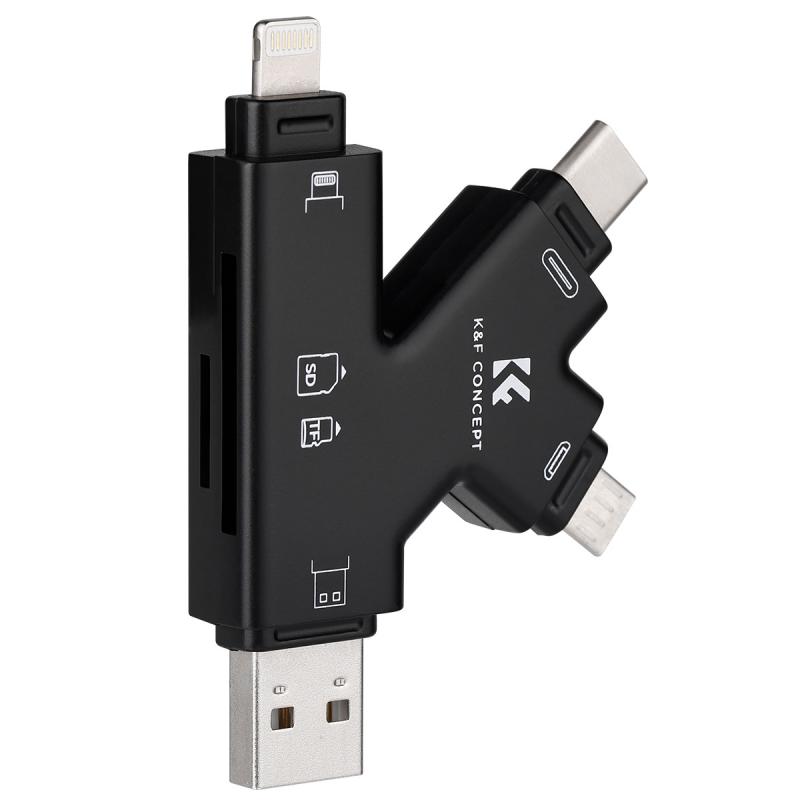
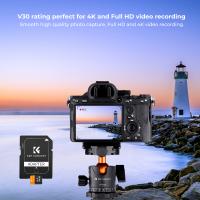
how to format sd card on my phone 1

Before diving into the steps, it's essential to understand why you might need to format an SD card. Here are some common reasons:

1. Clearing Space: Over time, SD cards can accumulate a lot of unnecessary files. Formatting the card can help free up space.

2. Removing Corrupted Files: Sometimes, files on an SD card can become corrupted, causing issues with accessing or using the card. Formatting can resolve these issues.

3. Preparing for a New Device: If you plan to use the SD card in a different device, formatting it ensures compatibility and optimal performance.

4. Improving Performance: Regularly formatting your SD card can help maintain its performance and longevity.

Steps to Format an SD Card on Your Phone
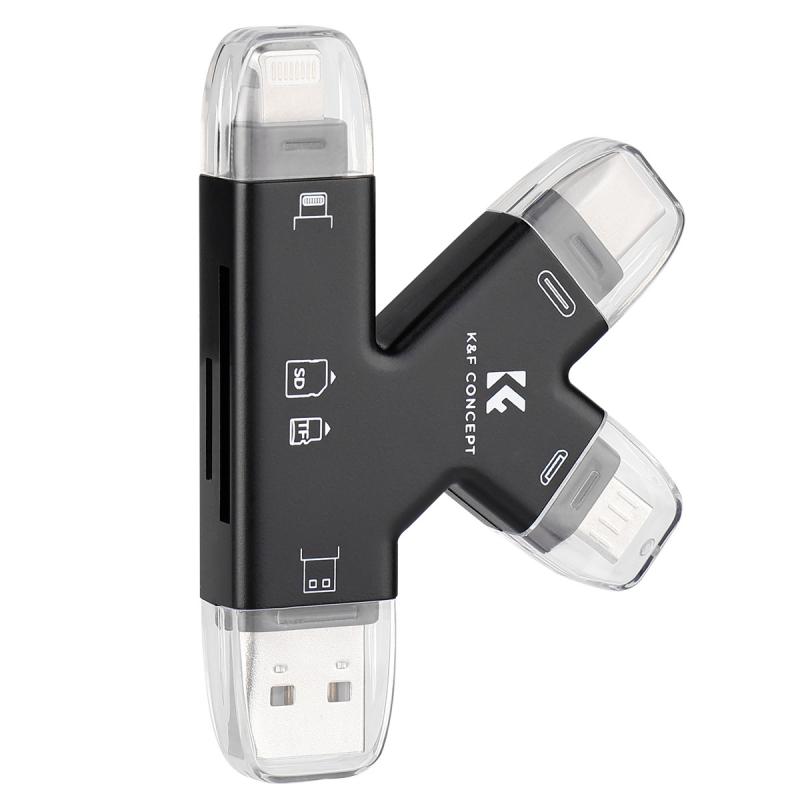
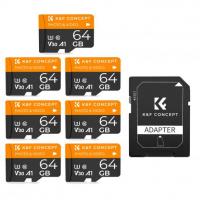
how to format sd card on my phone 2

The process of formatting an SD card can vary slightly depending on the type of phone you have. Below, we provide detailed instructions for both Android and iOS devices.

Formatting an SD Card on an Android Phone
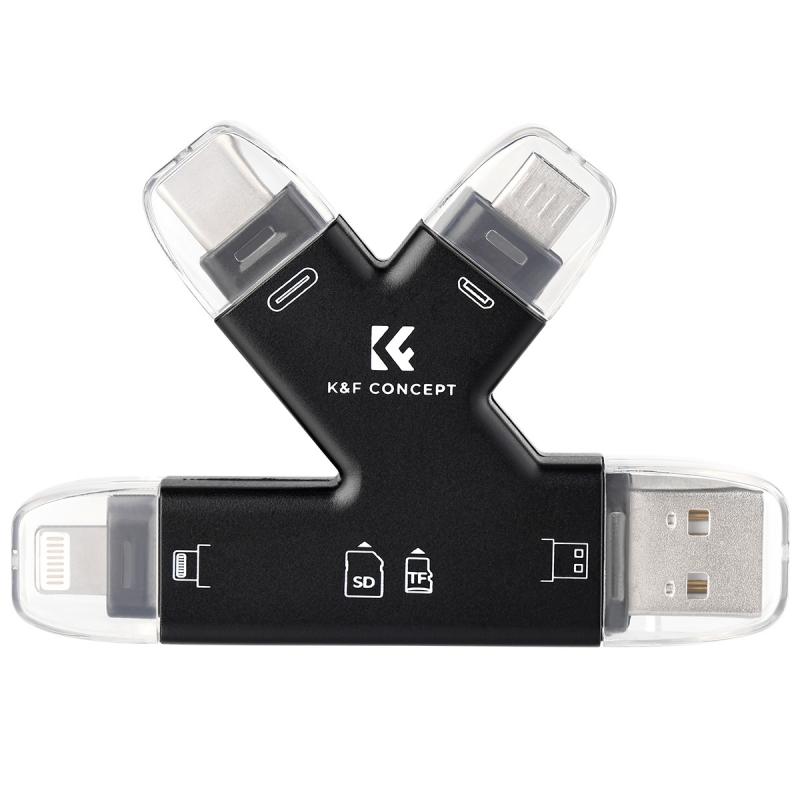
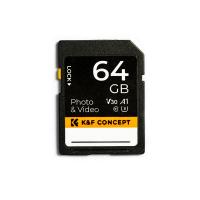
how to format sd card on my phone 3

1. Insert the SD Card: Ensure that the SD card is properly inserted into your phone. Most Android phones have a dedicated slot for SD cards, usually located next to the SIM card slot.

2. Open Settings: Navigate to the 'Settings' app on your phone. This can usually be found in the app drawer or by swiping down from the top of the screen and tapping the gear icon.

3. Access Storage Settings: Scroll down and tap on 'Storage' or 'Device care' (the exact wording may vary depending on your phone model and Android version).

4. Select the SD Card: In the storage settings, you should see an option for your SD card. Tap on it to access more options.

5. Format the SD Card: Look for an option that says 'Format' or 'Format SD card'. Tap on it and confirm your choice. Be aware that this will erase all data on the card, so make sure to back up any important files beforehand.

6. Wait for the Process to Complete: The formatting process may take a few minutes. Once it's done, your SD card will be ready for use.

Formatting an SD Card on an iPhone
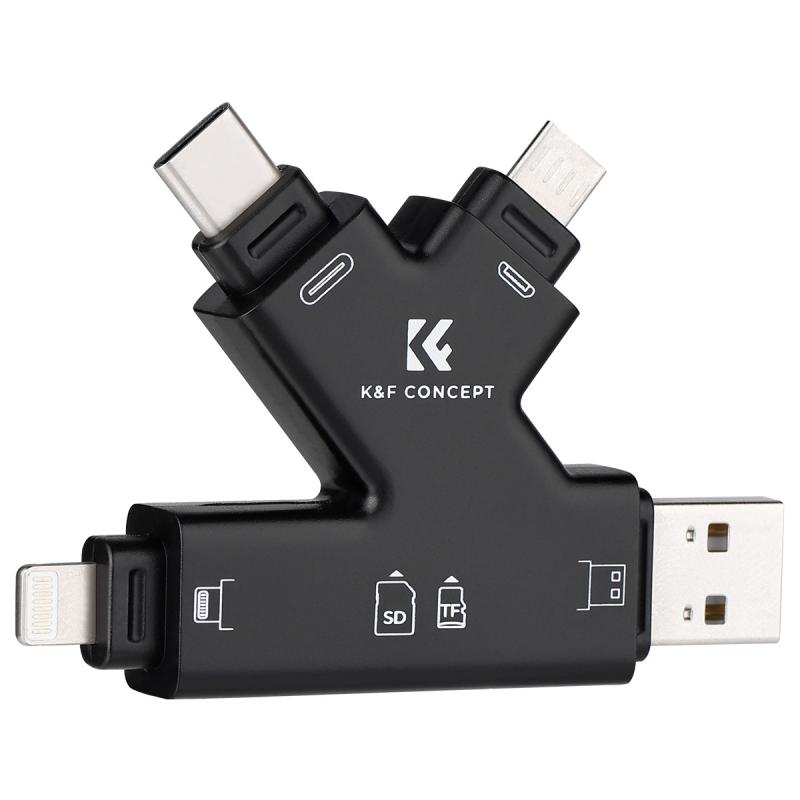
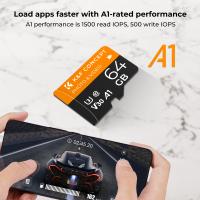
how to format sd card on my phone 4

iPhones do not support external SD cards directly. However, if you are using an SD card reader or adapter, you can format the SD card using a computer. Here’s how:

1. Connect the SD Card to Your Computer: Use an SD card reader to connect the SD card to your computer.

2. Open Disk Utility (Mac) or File Explorer (Windows):

- On a Mac, open 'Disk Utility' from the Applications > Utilities folder.

- On Windows, open 'File Explorer' and right-click on the SD card under 'This PC' or 'My Computer'.

3. Select the SD Card: In Disk Utility, select the SD card from the list on the left. In File Explorer, right-click on the SD card and select 'Format'.

4. Choose the Format Type:

- On a Mac, click on 'Erase' and choose the format type (usually 'MS-DOS (FAT)' for compatibility).

- On Windows, choose the file system (usually 'FAT32' or 'exFAT') and click 'Start'.

5. Confirm and Format: Confirm your choice and wait for the process to complete. Once done, you can safely eject the SD card and use it with your iPhone adapter.

Common Issues and Troubleshooting

While formatting an SD card is generally straightforward, you may encounter some issues. Here are common problems and their solutions:

1. SD Card Not Recognized: If your phone or computer does not recognize the SD card, try reinserting it or using a different card reader. Ensure the card is not physically damaged.

2. Formatting Errors: If you receive an error message during formatting, try using a different device to format the card. Sometimes, using a computer instead of a phone can resolve the issue.

3. Data Recovery: If you accidentally format an SD card and lose important data, data recovery software can help retrieve lost files. However, success is not guaranteed, and it's best to back up data before formatting.

4. Incompatible File System: Ensure you choose a compatible file system when formatting. For most purposes, 'FAT32' or 'exFAT' are suitable choices.

Best Practices for SD Card Maintenance

To ensure the longevity and performance of your SD card, follow these best practices:

1. Regular Backups: Regularly back up important data to avoid data loss in case of corruption or accidental formatting.

2. Avoid Frequent Formatting: While formatting can help maintain performance, doing it too often can reduce the lifespan of the SD card. Only format when necessary.

3. Use Quality SD Cards: Invest in high-quality SD cards from reputable brands to ensure reliability and durability.

4. Safely Eject: Always safely eject the SD card from your phone or computer to prevent data corruption.

Formatting an SD card on your phone is a simple yet essential task that can help maintain the performance and reliability of your storage. Whether you're using an Android phone or an iPhone with an adapter, the steps outlined in this article will guide you through the process. By understanding the reasons for formatting, following the correct steps, and adhering to best practices, you can ensure a smooth and trouble-free experience with your SD card.
Leave your comment
Cancel reply
Note: HTML is not translated!
Related products
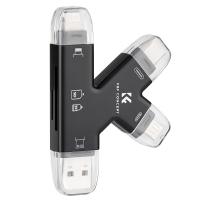
SD Card Reader for iPhone/iPad/Android/Mac/Computer/Camera, 4 in 1 Micro SD Card Reader Tracking Camera Viewer, Portable Memory Card Reader SD Card Adapter Compatible with SD and Micro SD Card/TF Card ( black)
$14.99
K&F Concept 36 Slots SD Micro SD Memory Card Case, Water-Resistant SD Card Holder, Anti-Shock Card Carrying Storage Box for 24 Micro SD SDXC SDHC TF Cards and 12 SD SDXC SDHC Cards
$18.99 $9.99
67mm Clip-on CPL Phone Camera Lens Filter Kit Applicable to All Mobile Phone Models
40
$18.99
67mm Clip-on ND2-32 Phone Camera Lens Filter Kit Applicable to All Mobile Phone Models
NEW Arrival
67mm Clip-on ND2-32 Phone Camera Lens Filter Kit Applicable to All Mobile Phone Models
13
$37.99
K&F Concept 28 Slots Micro SD Card Case,Water-Resistant Anti-Shock Anti-Dust TF Card Holder,Micro SD/Micro SDHC/Micro SDXC Card Box Organizer Storage
$18.99 $9.99
67mm Clip-on Black Mist 1/4 Phone Camera Lens Filter Kit Applicable to All Mobile Phone Models
7
$29.99
52mm Clip-on CPL Phone Camera Lens Filter Kit, Circular Polarizer Polarizing Filter Applicable to All Mobile Phone Models
24
$19.99
K&F Concept 24 Slots SD Card Holder Memory Card Case, Water-Resistant Shockproof Memory Card Storage Carrying Case for 12 SD SDXC SDHC Cards, 12 CFexpress Type A Cards
$18.99 $9.99
67mm Clip-on CPL&Black Mist 1/4 2-in-1 Phone Camera Lens Filter Kit Applicable to All Mobile Phone Models
3
$29.99
32GB Micro SD Card U3/V30/A1 with Adapter, Memory Card for Cameras, Borescopes,  Microscopes, Night Vision Goggles, Kentfaith
32GB Micro SD Card U3/V30/A1 with Adapter, Memory Card for Cameras, Borescopes, Microscopes, Night Vision Goggles, Kentfaith
$19.99 $19.99
Products You May Like
Adult and child metal detector, high precision, with 10 inch waterproof detection disk, with memory function
6
$153.74 $122.99
62mm Solar Filter ND100000,16.6-Stop Solid Neutral Density Filter for DSLR Camera Nano-Xcel Series
104
$44.99 $35.99
55mm ND8-ND2000 (3-11stop) Variable ND Filter Neutral Density Filter with Multi-Resistant Coating Nano-Dazzle
71
$74.99 $38.99
77mm Explosive-Proof MCUV Lens Protection Filter 28 Multi-Layer Coatings Ultra-Slim HD Waterproof Scratch Resistant Nano-Xcel Series
58
$58.74 $46.99
Exakta Lenses to Fuji X Lens Mount Adapter K&F Concept M29111 Lens Adapter
$60.99 $31.99
Praktica Lens to M43 MFT Lens Mount Adapter K&F Concept M30121 Lens Adapter
106
$53.99 $27.99
82mm Vintage Soft Filter 28 Multi-Coatings Cinematic Effect Camera Lens Filter - Nano-Xcel Series
$106.99 $79.99
K&F CONCEPT Magnetic Phone Tripod Stand, 23N Strong Magnetic Mini Tripod Aluminium Alloy Pocket Selfie Stick, Mag Safe Phone Holder Compatible with iPhone 17 16 15 14 13 12 Series(Gray)
83
$29.99
SJCAM SJ10X Gyro Remote Action Camera Supersmooth Novatek 96683 Chipset + 4K / 24FPS WiFi DV Sports Camera
76
$126.99
Filter Cover for K&F Concept 72mm Variable ND Filters Silicone Soft Cap
31
$13.99
Related articles
How To Format Sd Card On Mobile?
How To Format Sd Card On Tablet?
How To Format Sd Card On Gopro 10?
How To Format Sd Card In Windows?
How To Format A New Sd Card?
How To Manage Sd Card On Android Phone?
How To Format A Sd Card In Linux?
How To Remove A Sd Card From Phone?
How To Expand Phone Memory Without Sd Card?
What Size Filter For My Lens?
Blog You May Like
How Do You Clear A Sd Memory Card?
How To Record Audio Without Background Noise?
What Are The Different Types Of Lighting Photography?
How To Set Up Action Camera?
How To Put Sony Headphones In Pairing Mode?
How To Record Phone Screen With Sound?
What Is A Pl Camera Filter?
How To Mount Ring Spotlight Camera Wireless?
What Is A Good Lavalier Microphone?
How Do I Adjust Microphone Sensitivity ?
Related categories
cell phone tripods On-Dash Camera phone camera lens iphone lens filter camera card memory
Popular products
Polarize Filter For Mobile Phone clip on phone camera lens portable sd card reader digital sd memory card 32gb high speed sd memory card high speed sd memory card micro sd card and reader travel tripod for iphone lens filter storage case class 10 micro sd card
Related searches
Format Sd Card For Video Camera Micro To Sd Card Adapter Adapting Medium Format Lens On Dslr Sd Card Cameras Microscope On Phone Sd Card Security Cameras Camera Sd Card Holder Micro Sd Card Adapters Canon Sd Card Adapter Sd Card For Cameras
Popular searches
Canon P With M Mount Samsung Camera Lens Adapter Dji Osmo Action 4 Nd Filters True Wireless Stereo Bluetooth Earphones Kids Night Vision Goggles Best Lens Protection Filter Reverse Lens Adapter Canon Mamiya Ze-2 Lens Mount Ricoh Gr Iii Battery Nikon 18 140 Lens Filter
Blog Category
  • Activities
  • Guide
    • Filter Guide
    • Lens Adapter
    • Product Review
  • News & Reviews
    • Camera Reviews
    • Sample Gallery
    • News
  • Tutorials
    • Solar eclipse photography
    • Photography Basics
    • Landscape Photography
  • Inspiration
    • Travel
    • Travel Stories
Search Article
Latest from the Blog
Camera Use Which Lens?
Kentfaith x ANACONDA: Capturing the Wild, Frame by Frame
Kentfaith x Citadel Season 2
What Tripod To Buy?
Black Friday 2025 Special at Kentfaith
How To Find Camera Roll On Iphone 5s?
What To Look For In A Dash Cam?
How To Place Cameras Around Your House?
How To Make A Camera Flash After Effects?
Where Can I Find Hidden Cameras?
  • Easy Payment Multilple Payment Options

  • Free Shipping Global WareHouse Shipment

  • No Risk 30-Day No Reason Return

  • Limited Deals Buy More, Save More

  • Tax Free No any surcharges or tax fee

Information
  • About us
  • Contact Us
  • Site Map
  • Blog
  • Video
  • Gallery
  • VIP Membership Rewards
Service
  • Privacy Policy
  • Terms & Conditions
  • Shipping & Delivery
  • Payment Info
  • Warranty, Return & Refund
  • Intellectual Property Rights
  • Ambassador
  • Affiliates
  • Wholesale
Support
  • My account
  • Order History
  • FAQs
  • Extend Warranty
  • Logistics Tracking
Follow us
NewsLetter

Get the latest product, K&F Concept respects your privacy.

Powered By KENTFAITH © 2026