Can T Get Microphone To Work?
If your microphone isn't working on your PC, the issue could stem from loose connections, incorrect permissions, outdated drivers, software conflicts, or a hardware fault with the microphone port or sound chip. If the microphone works on another computer but not on yours, the problem is likely with the PC itself — either the sound chip, a connection, or a software configuration issue.
Common Symptoms of Microphone Issues
- Mic not working
- When you speak into the microphone, it is not picking up any sound. Others can't hear you at all, even though you are talking.
- Distorted sound
- Your voice sounds muffled or has a static background noise.
- Low volume
- Your voice sounds very quiet to others, even if you are speaking loudly. The mic is not loud enough even at full settings.
- Lag or delay
- Audio from the microphone lags, creating an uncomfortable delay in communication.
- Intermittent sound
- Your voice cuts in and out, meaning sometimes people can hear you and sometimes they can't.
- Echo
- You hear your own voice repeating back to you after you speak.
- Feedback
- There's a loud, high-pitched noise when you speak.
Check Physical Connections and Mute Settings
Before changing settings, do some basic checks to fix simple problems.
- Make sure the microphone or headset is connected correctly to your computer.
- Make sure the microphone is positioned correctly.
- If your headset has a mute button, make sure it isn't active.
- Check if your microphone is muted from within the system or on the mic itself.
- Adjust the volume to an audible level to make sure it's not too low. To prevent your voice from sounding distorted, turn up the volume in small increments and check how it sounds.
Give Apps Permission to Use the Microphone
If your microphone isn't detected after updating Windows, you may need to give your apps permission to use it.
- Select Start > Settings > Privacy & Security > Microphone and make sure Microphone access is turned on.
- Make sure "Let apps access your microphone" is turned on, then choose which apps have access. Desktop apps won't appear in this list.
- To give access to desktop apps, make sure that "Let desktop apps access your microphone" is turned on. You can't turn off microphone access for individual apps.
If the microphone doesn't work in a specific app, go to Settings > Privacy & Security > Microphone, then make sure that the app is enabled. If the app has permission to access your microphone, or if it isn't listed, contact the app developer.
Set the Correct Default Recording Device
If you have more than one microphone — like a laptop microphone, headset mic, or wireless microphone — you need to choose the right one as your default input device. Make sure that your microphone or headset is the system default recording device.
- Select Start > Settings > System > Sound.
- In Input, go to "Choose a device for speaking or recording" and select the device to use.
- To test your microphone, select the arrow to the right of the device. On the properties page, select "Start test" under Microphone Test and speak into the microphone. Select "Stop test" and choose "Play" under Recorded Sample to hear what it sounds like.
Update or Reinstall Audio Drivers
Outdated or corrupt audio drivers are a common cause of microphone issues. Windows may state "drivers are up to date" even when they are not — in this case, look up the audio chip on the motherboard, go to the manufacturer's driver database, and download the drivers directly, then run the installer manually.
- Open Device Manager and uninstall the sound card. Download the current drivers to your desktop first, then reboot and install the current drivers after restart.
- If you have microphone issues after installing Windows updates, try rolling back your audio driver: open Device Manager, right-click the microphone, go to Properties, and click "Roll Back Driver" in the Driver tab.
- For Dell computers, the SupportAssist tool automatically scans your computer, looks for driver and BIOS updates, and installs them.
Run the Audio Troubleshooter
Windows includes a built-in troubleshooter that may be able to fix microphone issues automatically.
- Select Settings > System > Sound. Scroll down to Advanced and choose "Output devices" or "Input devices" under "Troubleshoot common sound problems."
- On Windows 10: Select Settings > Update & Security > Troubleshoot > Additional troubleshooters, then select the Recording Audio troubleshooter.
Workarounds When the Port or Motherboard Is the Problem
If the problem occurs on both front and rear audio panels, and you have tried a different microphone, reinstalled drivers, and done a fresh Windows install with no improvement, it is likely a problem with the motherboard's audio chip or a grounding/interference issue with the components. In this case, the following workarounds can resolve the issue without replacing the motherboard:
- USB audio adapter: You can get sound cards that plug into the USB port — a small stick with aux ports for headphone and mic. This is a reliable option that works independently of the motherboard's built-in audio chip.
- USB headset: Some headsets use the USB port instead of the aux port, which bypasses the motherboard audio entirely and works completely fine.
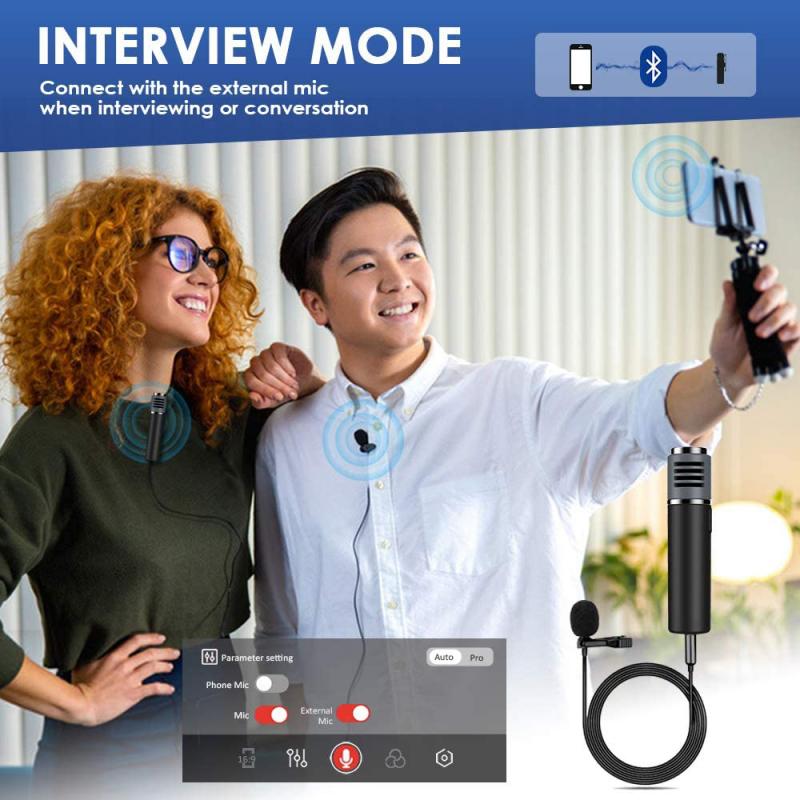
- Bluetooth microphone or headset: Pairing a Bluetooth device works for both mic and audio, though older Bluetooth connections may have audio delay.
- USB microphone: USB microphones are generally more reliable and bypass the analog input chain on the motherboard altogether.
If the same static or failure occurs with a USB sound adapter as well, the issue may be a grounding or interference problem with the PC components, as grounding problems can affect both audio inputs and outputs.
iPhone Microphone Not Working
If the sound is unclear during phone calls, FaceTime calls, in video recordings, or in apps on an iPhone, the following steps can help.
- Remove any screen protectors, films, or cases from your iPhone and clear any debris from the openings.
- To test the bottom microphone: open the Voice Memos app, tap the record button, speak at the bottom of your phone, then stop the recording. When you play back the memo, you should hear your voice clearly.
- To test the front microphone: open the Camera app and record a video while speaking at the top of your iPhone. Tap the camera chooser to switch to the other camera, then record another video while speaking at the top of your iPhone. When you play back the videos, you should hear your voice clearly.
- If the microphone doesn't work in a specific app, go to Settings > Privacy & Security > Microphone and make sure that the app is enabled.
- If you still sound unclear during calls, recordings, or apps after these steps, you might need service.