kfconcept

KENTFAITH
K&F Concept    Blog >

Enjoy Your Selected Digital Life

Recently Viewed
  • Recently Viewed
  • Recently Viewed list is empty.

Compare (0) 0
  • Compare
  • You have not chosen any products to compare.

  • Compare
Currency: USD
  • Currency
Shop by Scene Shop by Rank

Log Into Your Account

Account

Order History

Wish List

Login

Forgotten Password?

or connect with

Register Account

Already have an Account?Log In

  • Shopping Cart
  • Your shopping cart is empty!

  • Register/Login to purchase, earn points
  • Favorite
  • Your wish list is empty.

  • Register/Login to like, earn points
  • Activities
  • Guide
    • Filter Guide
    • Lens Adapter
    • Product Review
  • News & Reviews
    • Camera Reviews
    • Sample Gallery
    • News
  • Tutorials
    • Solar eclipse photography
    • Photography Basics
    • Landscape Photography
  • Inspiration
    • Travel
    • Travel Stories
  • Home
  • Blog
  • How To Develop Pictures From A Digital Camera?

How To Develop Pictures From A Digital Camera?

Kentfaith 2026-06-21 14:09:05 0 Comments

If you have photos sitting on a digital camera and want physical pictures, the process is a little different from the old film days. You don’t “develop” digital photos in chemicals. You transfer the image files from the camera, choose the ones worth printing, make any basic adjustments, then print them at home, in a store, or through an online photo service.

The good news: you don’t need to be technical. The main thing is knowing where the photos are stored and what kind of print you want.

First, get the photos off the camera

how to develop pictures from a digital camera 1

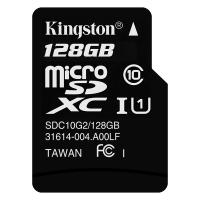
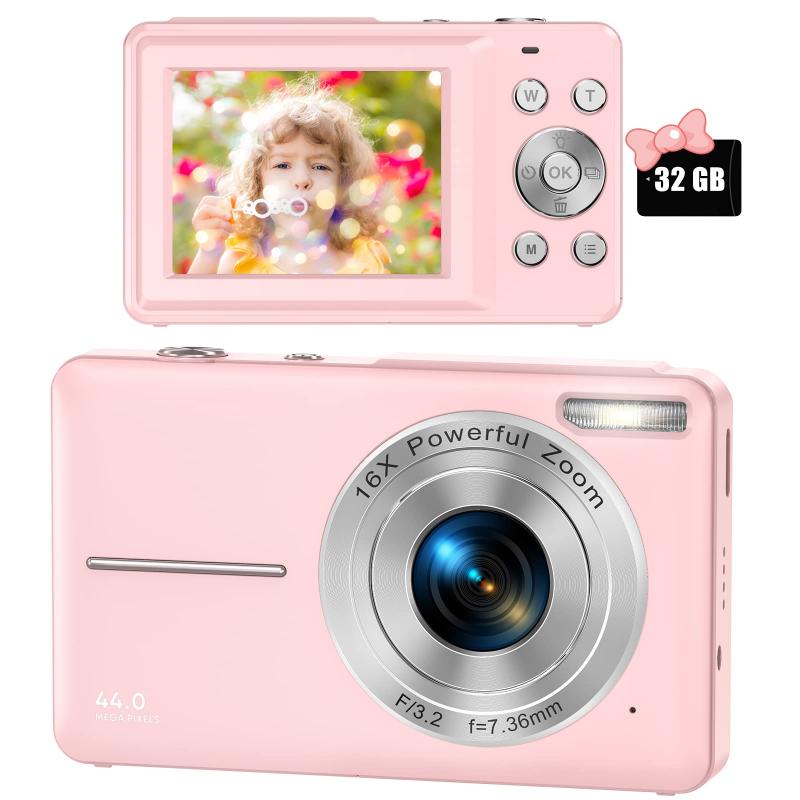
Most digital cameras save photos to a memory card, usually an SD card. Some compact cameras have internal storage too, but SD cards are far more common.

There are three normal ways to move the pictures:

Use the memory card
how to develop pictures from a digital camera 2

This is usually the easiest method.

Turn the camera off, remove the SD card, and insert it into your computer’s card reader. Many laptops have one built in. If yours doesn’t, a small USB SD card reader is cheap and works well.

Once inserted, the card should appear like a removable drive. Open it and look for a folder called something like DCIM. Inside, you’ll usually find folders with your photos.

Copy the photos to a folder on your computer before editing or deleting anything. I like making a folder with the date and event name, such as:

2026-05-22 Beach Trip

That habit saves a lot of frustration later, especially once you have thousands of images.

Use a USB cable
how to develop pictures from a digital camera 3

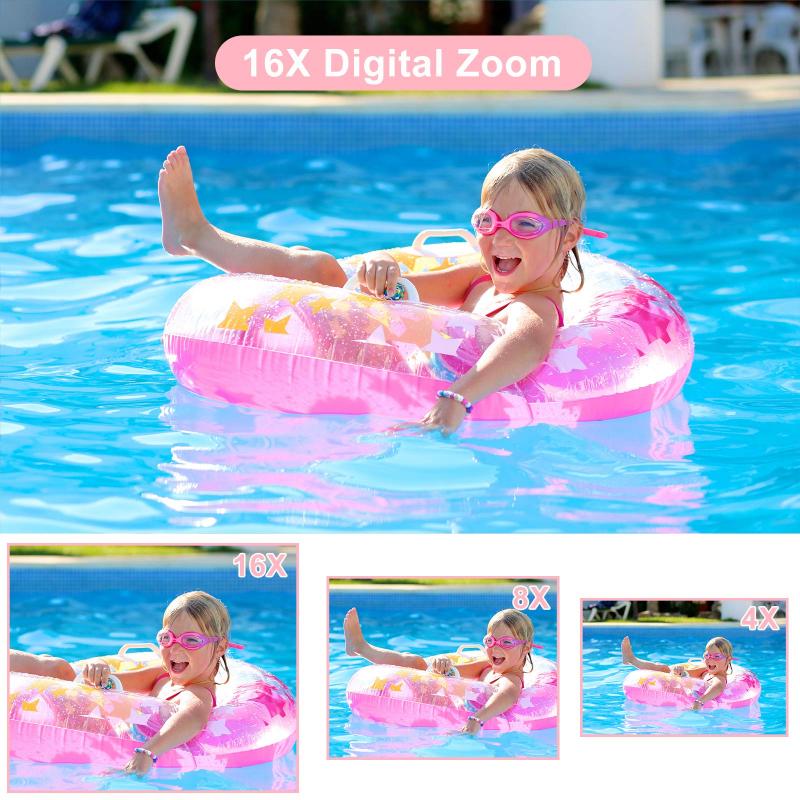
Most cameras can connect directly to a computer with a USB cable. Plug the camera in, turn it on, and your computer may ask if you want to import photos.

This works fine, but it can be slower than using the SD card. Some cameras also need to be in a playback or transfer mode before the computer sees them. If nothing happens, check the camera screen for a USB option.

Use Wi-Fi or Bluetooth
how to develop pictures from a digital camera 4

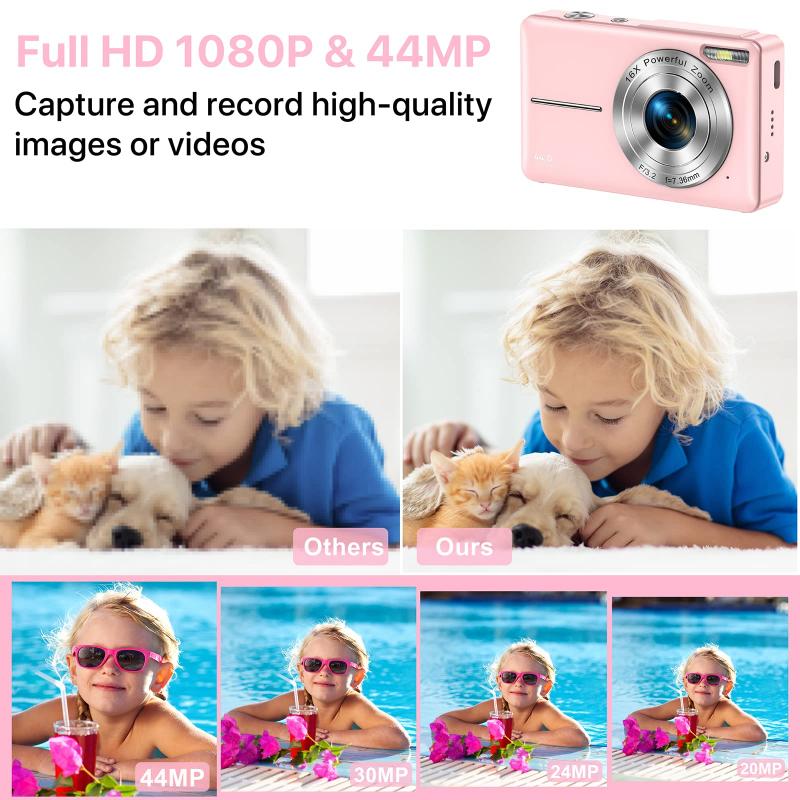
Newer cameras sometimes let you send photos to a phone through the manufacturer’s app. Canon, Nikon, Sony, Fujifilm, Panasonic, and others all have their own apps.

This is convenient for quick sharing, but I wouldn’t rely on it for a large batch of full-resolution photos. Camera apps can be slow, and some transfer smaller versions unless you change the settings. For printing anything larger than a small snapshot, make sure you’re transferring the original-quality file.

Don’t print everything

This sounds obvious, but it’s the biggest difference between film and digital. With film, you often developed the whole roll because you didn’t know what you had. With digital, you can be picky.

Open the photos on a computer or tablet and delete the obvious rejects: blurry shots, accidental photos of the floor, closed eyes, duplicates, and badly exposed images.

Then choose the best version of each scene. If you took six photos of the same group, print one or two. Printed photos feel more valuable when you don’t bury the good ones under a pile of near-identical shots.

Before deleting anything permanently, make sure you have a backup. I usually copy the full folder to the computer first, then make selections from there. Memory cards are not good long-term storage. They’re small, easy to lose, and eventually get reused.

Make basic edits before printing

You don’t need professional software to improve digital camera photos. Most pictures benefit from small adjustments.

Useful edits include:

  • Cropping out distractions
  • Straightening a tilted horizon
  • Brightening a slightly dark photo
  • Adjusting contrast if the image looks flat
  • Reducing red-eye in flash photos
  • Changing color temperature if indoor lighting looks too yellow

Be careful with heavy filters. A photo that looks dramatic on a phone screen can print too dark, too orange, or too crunchy. Prints are less forgiving than screens, especially with shadows.

If you’re using a computer, the built-in Photos app on Windows or Photos on Mac is enough for basic editing. On a phone, Apple Photos, Google Photos, or Snapseed can handle simple corrections well.

One practical tip: don’t crop too tightly unless you know your final print size. A photo that looks perfect on screen may lose heads or feet when printed as a 4x6 or 5x7 because the aspect ratio changes.

Check the image size before ordering prints

For good-quality prints, the photo needs enough resolution. Most digital cameras have plenty, but problems happen when people use compressed copies from messaging apps or social media.

If you send yourself a photo through a chat app, it may shrink the file. That smaller copy might look fine on a phone but print poorly.

For normal prints:

  • 4x6 prints are forgiving
  • 5x7 prints still work with most camera files
  • 8x10 prints need a decent full-resolution image
  • Large wall prints should come from the original file whenever possible

Use the original image from the camera, not a screenshot and not a photo downloaded from a social media post.

If a photo lab warns you that the image quality is low, don’t ignore it. The print may come out soft or pixelated. Sometimes it’s still acceptable for a small print, but not for a frame or gift.

Decide where to print the photos

You have three main options: print at home, print at a local store, or order online.

Printing at home

Home printing is good if you want control and only need a few prints. You’ll need a decent photo printer, proper photo paper, and the correct ink.

The mistake many people make is using plain office paper. Even a good photo looks dull and washed out on regular paper. Use glossy, semi-gloss, or matte photo paper made for inkjet printing.

Home printing can look excellent, but ink costs add up. Printers also clog if they sit unused for long periods. If you only print photos once or twice a year, a lab is usually easier and cheaper.

Printing at a local store

Many drugstores, supermarkets, camera shops, and office supply stores have photo kiosks. You bring the images on an SD card, USB drive, or phone, choose the sizes, and print them there or pick them up later.

This is one of the simplest options for beginners. You can see the print sizes, ask for help if needed, and often get photos the same day.

Before going, copy the selected photos onto a USB drive or leave them on the SD card only if you’re comfortable handling it. I prefer using a USB drive so the camera card stays safe at home.

Ordering prints online

Online photo services are convenient for larger batches, photo books, canvases, and gifts. You upload the images, choose sizes, and the prints arrive by mail or can sometimes be picked up locally.

This works well if you’re organizing vacation photos, family pictures, school events, or holiday cards. Uploading can take a while if you have many full-resolution images, so don’t start late at night expecting it to finish instantly.

Pay attention to cropping previews before placing the order. Labs often show a crop box for each print size. If someone’s head is close to the edge, adjust it manually.

Understand print sizes and cropping

Digital camera photos usually have a different shape depending on the camera settings. Common photo print sizes don’t always match that shape perfectly.

A 4x6 print usually fits most camera photos nicely. An 8x10, though, is a different shape, so part of the image may be cropped. This is why a group photo that looks fine on your computer might cut off people at the sides when printed as an 8x10.

For important photos, leave some space around the subject when taking the picture. If you already took the photo, check the crop preview carefully before printing.

If you want the entire image without cropping, some labs offer “fit to print” or borders. That may leave white edges, but it preserves the whole photo.

What if the photos are still on the camera?

If you never transferred them and only see them on the camera screen, don’t worry. As long as the memory card hasn’t been formatted or damaged, the photos are probably still there.

Charge the camera battery before transferring. A camera dying halfway through an import can cause problems, especially if files are being moved instead of copied. Always copy first. After confirming the photos are safely on the computer and backed up, then you can clear the card if needed.

If your computer says the card needs to be formatted, do not format it if you need the photos. Formatting can make recovery harder. Try another card reader or computer first. If the photos are valuable, use photo recovery software or take the card to a camera shop.

Keep a backup before you print

Printing is not the same as preserving. A box of prints is nice, but digital files are still your originals.

At minimum, keep one copy on your computer and another copy somewhere else, such as an external hard drive or cloud storage. I’ve seen too many people lose years of family photos because everything lived on one laptop or one memory card.

A simple system works:

  • Copy photos from the camera to the computer
  • Back up the folder to an external drive or cloud service
  • Select and edit the best images
  • Print from the edited copies
  • Keep the originals untouched if possible

You don’t need a complicated archive. You just need not to rely on one device.

If you want the easiest route

For most people, the simplest way is:

Remove the SD card from the camera, copy the photos to a computer, choose your favorites, make small edits, put the selected files on a USB drive, and take them to a local photo kiosk.

If you’re comfortable online, upload the selected files to a reputable photo printing service instead.

The main thing is to use the original photo files, not compressed copies, and check the crop before ordering. Do that, and digital camera pictures can print beautifully — often better than old film snapshots, especially if the camera was set properly and the files are handled with a little care.
Leave your comment
Cancel reply
Note: HTML is not translated!
Related products
Digital Photo Frame, 10.1 inch Touchscreen, WiFi Transfer from Any Corner, 32GB Storage, Multi-user Connect & Share, Auto Rotation, Kentfaith
17
$187.49 $149.99
K&F Concept 12mm Micro Four-Thirds 4/3 (MFT) Sensor Cleaning Swab*10, M43 Sensor Cleaning Swab for All Models of M4/3 Camera Sensors, Including M4/3 Cameras from Olympus and Panasonic
$28.99 $14.99
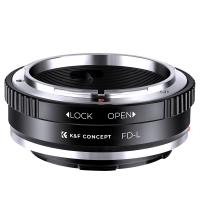
Canon FD & FL 35mm Lens to  Leica SL T Sigma FP Panasonic L-mount digital camera Mount Adapter
Canon FD & FL 35mm Lens to Leica SL T Sigma FP Panasonic L-mount digital camera Mount Adapter
82
$53.99 $29.99
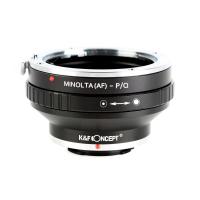
Minolta A / Sony A Lenses to Pentax Q Lens Mount Adapter K&F Concept M22161 Lens Adapter
$45.99 $23.99
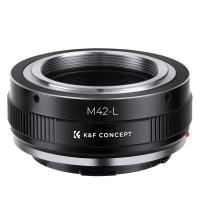
M42-L Manual Focus M42 Lens to Leica SL T Sigma FP Panasonic L-mount digital camera Mount Adapter
82
$53.99 $29.99
Sony Alpha Minolta AF A-Type Lens to NEX E-Mount Mirrorless Camera with Matting Varnish Design
146
$64.99 $35.99
Minolta A / Sony A Lenses to Pentax Q Lens Mount Adapter with Tripod Mount K&F Concept M22162 Lens Adapter
$55.99 $28.99
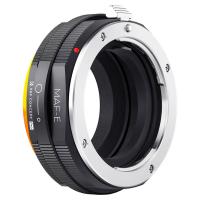
Lens Mount Adapter Compatible with Sony Alpha Minolta AF A-Type Lens to NEX E-Mount Mirrorless Camera Body
155
$53.99 $27.99
Lens Mount Adapter for Pentax K/M/A/FA/DA Mount Lens to Sony NEX E-Mount Camera Body
146
$60.99 $34.99
4K Digital Camera for Photography & Video [Autofocus and Stabilisation] 48MP 16X Digital Zoom 3” 180° Flip Screen Vlog Camera with 32G SD Card, Flash
661
$191.99 $118.99
Products You May Like
6mm Inspection Camera, with 180° 2-way Articulating, HDMI Output, 7-inch Screen, 8000mAh Battery, 1080P Videos & Photos, Kentfaith
$562.49 $449.99
Wireless Bluetooth 5.1 Headset with Microphone Gaming Earbuds Low Latency
2
$29.99
K&F Concept 5L Camera Sling Bag, Lightweight Shoulder Camera Case for Photographers, Fits 9.7" iPad, Waterproof Crossbody Bag with Removable Dividers for Mirrorless Cameras, Canon, Nikon, Sony - Minimalist Style, Black
$61.99 $42.99
DSLR/SLR Photography Waterproof Camera Bag with 15.6 inch Laptop Compartment Tripod Holder Raincover Camera Backpack - Backpack 25L Star Wander02 (Grey)
63
$199.99 $139.99
82mm MCUV+CPL+ND1000+Adapter Ring Magnetic 4 in 1 Lens Filter Kit Waterproof Scratch-Resistant Anti-Reflection with Filter Pouch
48
$168.99 $134.99
Time Lapse Frequency Trail Camera
10
$162.99 $106.99
67mm  Black Pro-Mist Filter 1 Special Effects Filter Cinematic Look Black Diffusion Effect Filter for Camera Lens Nano-Xcel Series
67mm Black Pro-Mist Filter 1 Special Effects Filter Cinematic Look Black Diffusion Effect Filter for Camera Lens Nano-Xcel Series
134
$62.99 $49.99
Brass Pirate Spotscope, 25x30 Waterproof, Zoomable, Foldable Vintage Spotscope for Navigation, Sailing, Distant Viewing, Gaming, Travel, Hiking
14
$91.19 $27.99
PL-L Mount Lens Adapter, Compatible with PL Lens Converter to L Mount Cameras
$99.99
82mm ND & CPL 2 in 1 Lens Filter, ND2-ND32 (1-5 Stop) Variable Neutral Density and Polarizer for Camera Lens Nano-Dazzle Series
65
$93.99 $79.99
Related articles
How To Upload Youtube Videos From Digital Camera?
How To Take Pictures Through A Telescope?
How To Use A Digital Camera?
What's A Digital Camera?
How To Buy A Used Digital Camera?
How To Find A Good Digital Camera?
How To Record From A Wifi Camera?
How Does A Digital Camera Work?
How Many Pictures Fit On A Memory Card?
Apeman Action Camera 4k How Many Fps?
Blog You May Like
How To Set Earphone In Pc?
What Is The Smallest Wireless Spy Camera?
How Do I Find Hidden Cameras?
How To Make A Camera Flash After Effects?
Why Isn't My Camera Flash Working?
How Optical Rangefinders Work?
Sony Camera How To Download Time Lapse?
How To Pair Tws Bluetooth Earbuds?
What Is An Adapter Ring For Cameras?
How To Get The Camera Filter?
Related categories
digital camera for beginner digital camera cases digital camera strap A Mount Lens Adapter C mount lens adapter Sony A Mount Lens Adapters minolta a mount lenses digital microscope m4/3 adapter
Popular products
night vision binoculars with rechargeable battery digital camera 40 hd video camera tripod led video light for camera fpv drone and goggles leica m sony e mount adapter sony minolta adapter sony a mount to minolta adapter sony alpha a7r mirrorless digital camera hiding a trail camera
Related searches
Flash On A Digital Camera Good Camera For Both Pictures And Video Change Lens Mount From Minolta To Nikon Digital Cameras With A Viewfinder Wireless Headphones From Tv Camera Bags That Open From The Back Digital Camera Easy To Use Digital Slr Camera Digital Camera With Bluetooth To Phone Sony Camera To A Minolta Lens Adapter
Related Scenes
Best Digital Camera For Pictures Best Digital Camera For Pictures And Video Best Camera To Video Sports Best Camera To Capture Wildlife Best Batteries For A Trail Camera Best Sony A Camera For Video Best Camera For Pictures Best Video Camera To Record Sports Best Camera For Action Pictures Best Camera For Outdoor Pictures
Blog Category
  • Activities
  • Guide
    • Filter Guide
    • Lens Adapter
    • Product Review
  • News & Reviews
    • Camera Reviews
    • Sample Gallery
    • News
  • Tutorials
    • Solar eclipse photography
    • Photography Basics
    • Landscape Photography
  • Inspiration
    • Travel
    • Travel Stories
Search Article
Latest from the Blog
Can Headphones Be Both Wired And Wireless?
What Is The Best Smartwatch For A Woman?
How To Receive Notifications On Smartwatch?
How To Allow Camera And Microphone?
What Camera Has The Best Video Quality?
Can You Drive With Headphones?
When Will A Speed Camera Flash?
Which Smartwatch Has Best Sleep Tracking?
Smartwatch That Can Monitor Blood Pressure?
Prime Day 2026 - K&F Concept 15th Anniversary Celebration
  • Easy Payment Multilple Payment Options

  • Free Shipping Global WareHouse Shipment

  • No Risk 30-Day No Reason Return

  • Limited Deals Buy More, Save More

  • Tax Free No any surcharges or tax fee

Information
  • About us
  • Contact Us
  • Site Map
  • Blog
  • Video
  • Gallery
  • VIP Membership Rewards
Service
  • Privacy Policy
  • Terms & Conditions
  • Shipping & Delivery
  • Payment Info
  • Warranty, Return & Refund
  • Intellectual Property Rights
  • Ambassador
  • Affiliates
  • Wholesale
Support
  • My account
  • Order History
  • FAQs
  • Extend Warranty
  • Logistics Tracking
Follow us
NewsLetter

Get the latest product, K&F Concept respects your privacy.
Powered By KENTFAITH © 2026