kfconcept

KENTFAITH
K&F Concept    Blog >

Enjoy Your Selected Digital Life

Recently Viewed
  • Recently Viewed
  • 40.5mm CPL Filter 28 Layer Super Slim Circular Polarizing Filter Multi-coated Polarized MRC Filter Nano-Xcel Series
    40.5mm CPL Filter 28 Layer Super Slim Circular Polarizing Filter Multi-coated Polarized MRC Filter Nano-Xcel Series
    $33.99 $29.99
    67mm Single-sided Linear Pentaprism Filter Optical Glass Prism Special Effect Camera Lens Filter Nano-Basic Series
    67mm Single-sided Linear Pentaprism Filter Optical Glass Prism Special Effect Camera Lens Filter Nano-Basic Series
    $50.99 $37.99
    Smart Bird Feeder with 1080P Camera, 11000+ Birds Species Identification, Non-Stop Solar Power, Real Time Alert, 145 ° Super Wide Angle, All-in-one Bird Feeder
    Smart Bird Feeder with 1080P Camera, 11000+ Birds Species Identification, Non-Stop Solar Power, Real Time Alert, 145 ° Super Wide Angle, All-in-one Bird Feeder
    $299.99 $178.99
    DJI OM 5 Smartphone Gimbal Stabilizer, 3-axis Mobile Phone Gimbal, Built-in Extension Rod, Portable Folding, Android and iPhone Gimbal with ShotGuides, Vlogging Stabilizer, YouTube TikTok Video, Gray
    DJI OM 5 Smartphone Gimbal Stabilizer, 3-axis Mobile Phone Gimbal, Built-in Extension Rod, Portable Folding, Android and iPhone Gimbal with ShotGuides, Vlogging Stabilizer, YouTube TikTok Video, Gray
    $184.99 $174.99
    Hohem iSteady V2 White Smartphone Gimbal Stabilizer with AI Tracking Sensor, 3 Axis Lightweight Foldable Phone Stabilizer with Initial Time Lapse for iPhone 12 Pro Max/11 Samsung Phone Video vlog Shooting
    Hohem iSteady V2 White Smartphone Gimbal Stabilizer with AI Tracking Sensor, 3 Axis Lightweight Foldable Phone Stabilizer with Initial Time Lapse for iPhone 12 Pro Max/11 Samsung Phone Video vlog Shooting
    $106.99 $100.99
    WIFI Outdoor Security Camera Outdoor Camera 2K Ultra HD Picture Audible Alarm IP66 Waterproof Two-way Voice Night Vision Range 8m/26ft UK Version
    WIFI Outdoor Security Camera Outdoor Camera 2K Ultra HD Picture Audible Alarm IP66 Waterproof Two-way Voice Night Vision Range 8m/26ft UK Version
    $89.99 $59.99
Compare (0) 0
  • Compare
  • You have not chosen any products to compare.

  • Compare
Currency: USD
  • Currency
Shop by Scene Shop by Rank

Log Into Your Account

Account

Order History

Wish List

Login

Forgotten Password?

Or connect with

Register Account

Already have an Account?Log In

  • Shopping Cart
  • Your shopping cart is empty!

  • Register/Login to purchase, earn points
  • Favorite
  • Your wish list is empty.

  • Register/Login to like, earn points
  • Activities
  • Guide
    • Filter Guide
    • Lens Adapter
    • Product Review
  • News & Reviews
    • Camera Reviews
    • Sample Gallery
    • News
  • Tutorials
    • Solar eclipse photography
    • Photography Basics
    • Landscape Photography
  • Inspiration
    • Travel
    • Travel Stories
  • Home
  • Blog
  • Can You Connect Bluetooth Earphones To Laptop?

Can You Connect Bluetooth Earphones To Laptop?

Kentfaith 2025-09-09 09:30:41 0 Comments

Connecting Bluetooth earphones to a laptop is a fairly common requirement in today’s tech-dominated world and can significantly enhance your productivity and convenience. Whether it's for listening to music, joining virtual meetings, or watching movies, wireless earphones offer seamless connectivity. However, despite the simplicity of using Bluetooth devices in theory, many users experience confusion or issues during the pairing and connection process. In this article, I'll walk through detailed step-by-step instructions to connect your Bluetooth earphones to your laptop, troubleshoot common problems, and provide solutions for issues that may appear along the way.

Understanding the Basics: Are Your Devices Compatible?
can you connect bluetooth earphones to laptop 1

Before diving into the process, it is essential to confirm that your devices are compatible. Bluetooth-enabled laptops and earphones are ubiquitous in the modern market, but verifying is always a good first step.

1. Does Your Laptop Support Bluetooth?

Most laptops today come with built-in Bluetooth support. However, older models may not include this functionality. To check, navigate to your laptop's settings or Device Manager (on Windows) and look for "Bluetooth." If not available, you might need to use an external Bluetooth adapter.

2. Is Your Bluetooth Earphone Compatible?

Ensure your earphones support the standard Bluetooth protocols used by your laptop. The majority of Bluetooth devices are backward-compatible, so even older Bluetooth versions generally work with modern devices.

If both devices are compatible, proceed to the connection process.

Step-by-Step Guide to Connecting Bluetooth Earphones to a Laptop
can you connect bluetooth earphones to laptop 2

1. Enable Bluetooth on Your Laptop

can you connect bluetooth earphones to laptop 3

For a successful pairing, ensure that Bluetooth is turned on.

Windows:

- Go to the "Settings" menu by pressing Windows + I.

- Open "Devices," and under the "Bluetooth & other devices" tab, toggle the Bluetooth switch to “On.”

- If you cannot find the toggle, ensure the "Bluetooth Support Service" is enabled in the Services app.

Mac:

- Look for the Bluetooth symbol in the menu bar. Click it and choose "Turn Bluetooth On."

- Alternatively, go to "System Preferences" and select "Bluetooth." Ensure the Bluetooth functionality is enabled.

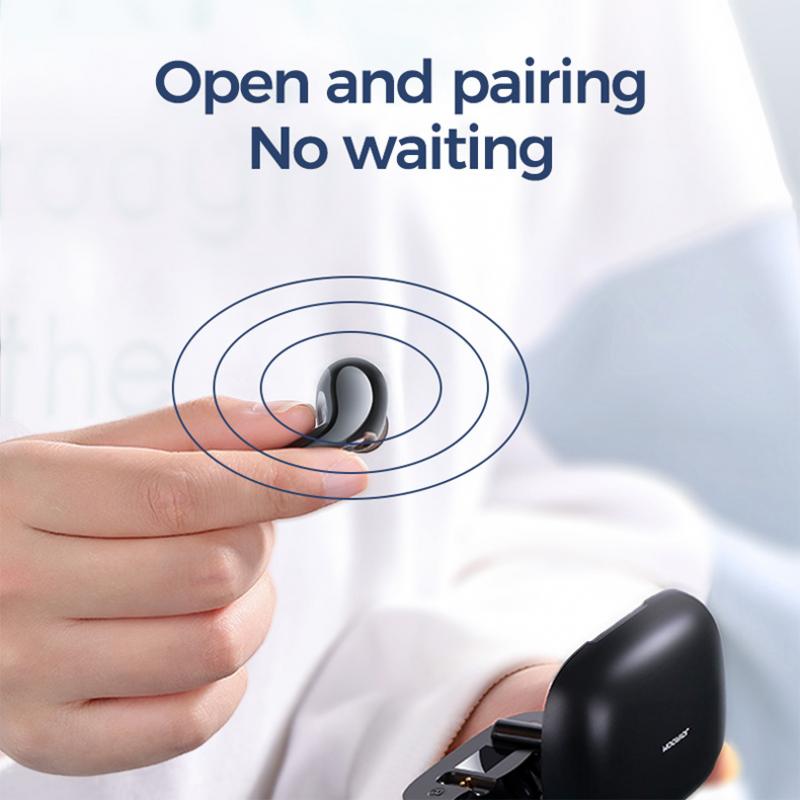
2. Put Your Earphones in Pairing Mode
can you connect bluetooth earphones to laptop 4

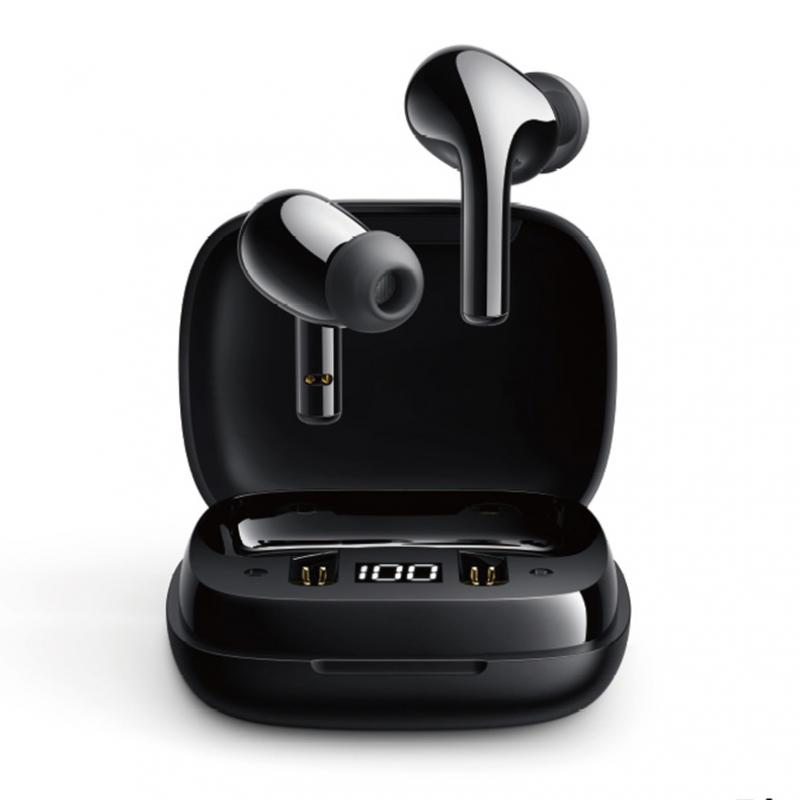
Bluetooth earphones need to be placed in pairing mode before a laptop can detect them. This typically involves holding a specific button or combination of buttons until the status light flashes (usually blue or red).

Consult the instruction manual that came with your earphones if you're unsure how to activate pairing mode. Common steps include:

- Holding the power button for a few seconds.

- Pressing a dedicated Bluetooth pairing button.

3. Find and Pair the Device

Once your Bluetooth earphones are in pairing mode, proceed to pair them with your laptop.

On Windows:

- Go to "Bluetooth & other devices" in the settings and click "Add Bluetooth or other device."

- In the popup, choose "Bluetooth."

- Your laptop will now scan for devices. Select your earphones from the list when they appear.

On Mac:

- In the Bluetooth settings, wait for your earphones to appear on the list under "Devices."

- Click "Connect" next to the name of your earphones.

4. Set the Earphones as Default Audio Output

Even after connecting your Bluetooth earphones, your laptop may not automatically redirect audio to them.

On Windows:

- Right-click on the volume icon in the taskbar and select "Sounds."

- Under the "Playback" tab, find your earphones, right-click them, and select "Set as Default Device."

On Mac:

- Go to "System Preferences" and select "Sound."

- From the "Output" tab, choose your earphones as the preferred audio output device.

Troubleshooting Common Issues

Despite following these steps, users can sometimes face challenges. Here are common problems and their solutions:

1. Laptop Cannot Detect Bluetooth Earphones

- Ensure Bluetooth is enabled on both your laptop and earphones.

- Verify that your earphones are in pairing mode.

- Restart both devices to refresh their connection options.

- Check for system or driver updates on your laptop. For Windows, you can access "Device Manager" and update the Bluetooth driver.

2. Frequent Disconnects

- Ensure the battery level of your earphones is sufficient. Low battery often causes frequent disconnections.

- Minimize interference by keeping the devices within a 10-meter (33-foot) range and away from competing wireless signals, like Wi-Fi routers or other Bluetooth devices.

- Unpair and re-pair the devices.

3. Audio Quality Issues

- Check your laptop’s audio settings to ensure the correct profile is being used. Many Bluetooth earphones support both high-quality stereo audio and a hands-free calling mode, which could sound muffled.

- Update your Bluetooth driver software or firmware on both the laptop and earphones.

4. Earphones Connect but No Sound

- Ensure the earphones are set as the default playback device in the laptop’s audio settings.

- Verify that the earphones’ volume is not muted.

- Restart the playback application, as some apps may not recognize newly connected output devices.

5. Pairing Process Feels Slow or Complex

You might want to clear previous connectivity records from your devices. On your laptop, remove unused or older devices from the Bluetooth device list. Reset your earphones as per the manufacturer's instructions for a "fresh slate."

Additional Tips for Optimal Connectivity

1. Ensure Regular Updates

Bluetooth drivers and firmware updates often include improved bug fixes and compatibility. Monitor updates for both your laptop and Bluetooth earphones.

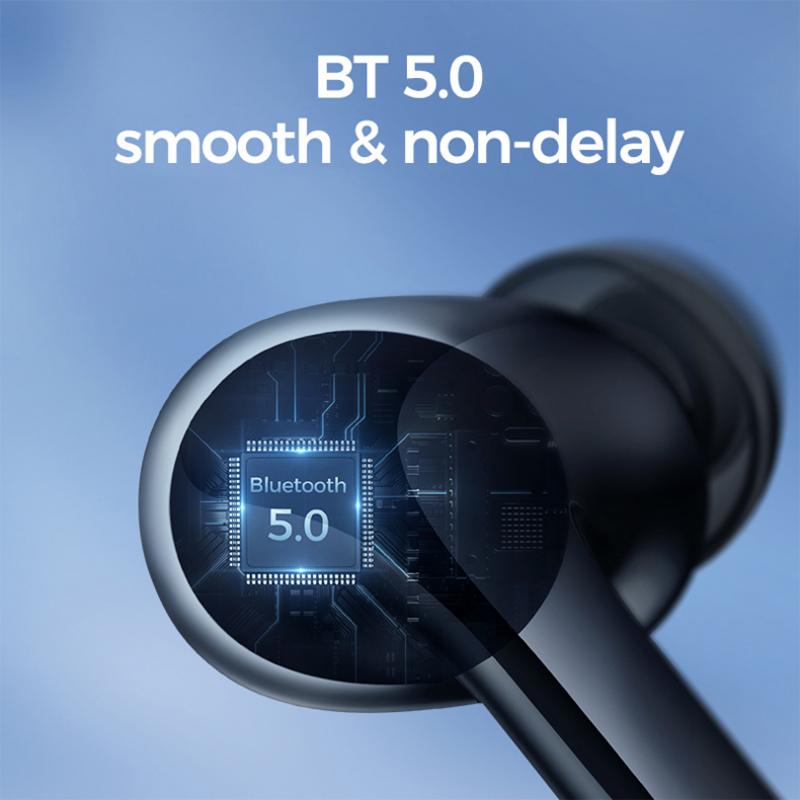
2. Invest in a Bluetooth 5.0 Device

For smoother connectivity, faster data rates, and reduced latency, ensure both your laptop and earphones support the current Bluetooth 5.0 standard or higher.

3. Optimize Battery Life

To avoid interruptions during extended use, ensure your earphones and laptop are fully charged before beginning your connection. Some laptops also reduce Bluetooth connectivity strength when running on low battery.

4. Multiple Device Connections

Many Bluetooth earphones support simultaneous pairing with multiple devices (like phones and laptops). However, this can sometimes cause conflicts. Temporarily disconnect from other devices to ensure a stable connection with your laptop.

When to Seek Professional Help

If you’ve exhausted all troubleshooting avenues and your devices still won’t connect, consider reaching out to customer support for your laptop or earphones. The issue could stem from a hardware defect, in which case the manufacturer’s service team may offer repair or replacement options.

Conclusion

Connecting Bluetooth earphones to your laptop is not only about convenience but an essential setup in a wireless world. While the process is generally straightforward, occasional hiccups in compatibility or software configurations can occur. By following the steps outlined above and keeping your devices updated, you can ensure a seamless connection experience.

As technology continues to evolve, Bluetooth connectivity will likely become faster and simpler. Until then, mastering the basics of troubleshooting and configuration will go a long way in enhancing your productivity and enjoyment. Now that you know how to successfully connect Bluetooth earphones to your laptop, take some time to experience the joys of truly wireless audio wherever your work or relaxation leads you. Happy listening!
Leave your comment
Cancel reply
Note: HTML is not translated!
Related products
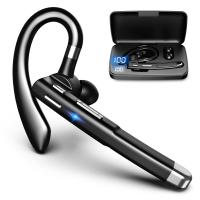
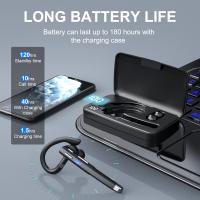
Mobile Phone Bluetooth Earphones Bluetooth V5.1 Earphone Hands-free Single Ear Earphone with CVC8.0 Noise-cancelling Microphone for Office/driving Compatible with Android/iPhone/laptop
1
$14.99
A Camping Lantern That Dances with You, Rechargeable, Telescoping & Compact with Bluetooth Speaker, Emergency Power Bank 14000mAh Battery Kentfaith
116
$199.99 $94.99
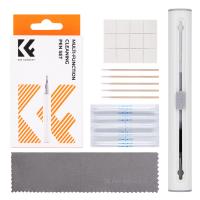
K&F Concept Airpod Cleaner Cleaning Tool Kit, Multi-Function Clean Pen with Soft Brush Flocking Sponge for Cleaning Bluetooth Earphones
$7.99
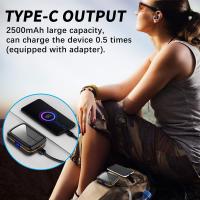
Cell Phone Bluetooth Headphones Bluetooth V5.1 Headphones with Charging Case Hands-Free Single Ear Headphones with CVC8.0 Noise Cancelling Microphone for Office/Driving Compatible with Android/iPhone/Laptop
HOT Seller
Cell Phone Bluetooth Headphones Bluetooth V5.1 Headphones with Charging Case Hands-Free Single Ear Headphones with CVC8.0 Noise Cancelling Microphone for Office/Driving Compatible with Android/iPhone/Laptop
57
$26.99
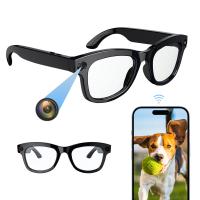
Camera Sunglasses, HD 1080P, EIS Stabilization, WiFi Connect, Translation, 4H Playtime, Kentfaith
16
$119.99 $95.99
Smart Camera Glasses, HD 1080P, EIS Stabilization, WiFi Connect, Translation, 4H Playtime, Kentfaith
16
$119.99 $95.99
Handheld Microcsope, 500X Zoom, 1080P Videos,  PC Connect, with Large 5X Magnifier, Autofocus, Kentfaith
Handheld Microcsope, 500X Zoom, 1080P Videos, PC Connect, with Large 5X Magnifier, Autofocus, Kentfaith
15
$87.49 $69.99
4K Video Camera, 64MP Photos, WiFi Connect, 28X Zoom, Wireless Mic, Full Color NV, Kentfaith
18
$212.49 $169.99
Gift Certificate: $200 Value - Can Use with Any Discounts
$200.00 $190.00
Gift Certificate: $300 Value  - Can Use with Any Discounts
Gift Certificate: $300 Value - Can Use with Any Discounts
$300.00 $285.00
Products You May Like
Olympus OM Lenses to Fuji GFX Lens Mount Adapter K&F Concept M16211 Lens Adapter
10
$81.99 $42.99
37mm Circular Polarizing Filter Ultra-Thin Trapezoidal Frame  Blue-Coated Film with a Piece of Vacuum Cleaning Cloth CPL Filter Nano-Klear Series
37mm Circular Polarizing Filter Ultra-Thin Trapezoidal Frame Blue-Coated Film with a Piece of Vacuum Cleaning Cloth CPL Filter Nano-Klear Series
62
$19.99 $15.99
58mm Black Mist 1/4 + CPL Filter Set, Dreamy Cinematic Effect Mist CPL Polarising Filter 18 Multi-Layer Coatings Nano-Klear Series
NEW Arrival
58mm Black Mist 1/4 + CPL Filter Set, Dreamy Cinematic Effect Mist CPL Polarising Filter 18 Multi-Layer Coatings Nano-Klear Series
37
$41.99 $32.99
49mm Magnetic Variable ND2-ND32 (1-5 Stop) Lens Filters NO X Spot, Nano-Xcel Series (Compatible with 52mm magnetic cap)
52
$72.99 $57.99
Small DSLR Camera Backpack for Travel Outdoor Photography 13*9.8*5.5 inches
59
$34.99
K&F CONCEPT Screen Protector for DJI OSMO Action 6 Camera + Lens cap Cover 0.3mm 9H Hardness Tempered Glass Protector, Anti-Scrach Anti-Bubble(2-pack)
NEW Arrival
K&F CONCEPT Screen Protector for DJI OSMO Action 6 Camera + Lens cap Cover 0.3mm 9H Hardness Tempered Glass Protector, Anti-Scrach Anti-Bubble(2-pack)
$12.99
67mm  Black Mist Filter 1/8 Special Effects Filter Ultra-Clear Multi-layer Coated With Waterproof Scratch-Resistant and Anti-Reflection Nano-Xcel Series
67mm Black Mist Filter 1/8 Special Effects Filter Ultra-Clear Multi-layer Coated With Waterproof Scratch-Resistant and Anti-Reflection Nano-Xcel Series
136
$74.99 $59.99
58mm HD Soft GND8 Lens Filter 3 Stop (0.9) Soft Graduated Neutral Density Filter K&F Concept Nano-Xcel Series
41
$59.99 $52.99
K&F Concept Push-in Fit PL ND Filter Compatible with DJI Osmo Action 5 Pro, 6 Pack PL ND8 ND16 ND32 ND64 ND256 Polarizer Neutral Density Filter for Osmo Action 4/Osmo Action 3, Multi Coated
50
$49.99
40.5mm UV Lens Filter HD MCUV Ultraviolet 28 Multi-Coated Filters (Nano-Xcel series Toughened Glass)
78
$37.99 $29.99
Related articles
Can You Connect Bluetooth Headphones To The Switch?
Can You Connect Bluetooth Earbuds To A Tv?
Can We Repair Bluetooth Earphones?
Which Bluetooth Earphones?
Can Bluetooth Headphones Connect To Xbox?
How To Connect 2 Bluetooth Headphones To Laptop Windows 10 ?
How To Connect Bluetooth Tripod?
How Much Is Bluetooth Earphones?
How To Turn On Bluetooth Wireless Earphones?
What Do I Need For Off Camera Flash?
Blog You May Like
Can I Download Apps On Sd Card?
What Is Drone Technology?
Cpl Camera Filter What Does It Do?
What Is The Best Surveillance Cameras Wireless?
How To Improve Sound Voice Recordings?
How Do I Convert Voice Recording To Mp3?
Laser Rangefinder How Does It Work?
How To Make Camera Surveillance Mount Function?
How Good Is My Sound Card For Recording?
Related categories
C mount lens adapter m4/3 adapter 58mm lens filter 49mm graduated neutral density filter​ square camera filter system neutral density filters camera UV lens filter
Popular products
Bluetooth mesh intercom bluetooth phone earphones bluetooth earphone single ear best camping rechargeable lantern earphones for motorcycle helmet small in ear bluetooth earbuds bluetooth 5.0 wireless earbuds in ear tws earbuds bluetooth earbuds wireless headphones in the ear earbuds
Related searches
Black Earphones Bluetooth White Bluetooth Earphones Rechargeable Bluetooth Earphones Waterproof Bluetooth Earphones Earphones With Microphone For Laptop Best Bluetooth Wireless Earphones True Wireless Stereo Bluetooth Earphones Bluetooth Earphones With Charging Case Bluetooth Earphones For Motorcycle Helmet Sports Bluetooth Earphones With Mic
Popular searches
Micro Four Thirds To Sony E Mount Neewer 70 Inch Tripod Gopro Hero 4 Session Lens Filter Nikon Lens Mount Replacement C Mount Mft Adapter Bluetooth Microphone To Speaker 95mm Lens Filters Endoscope Camera For Ios Leica M To Sl Adapter Social Media Ring Light With Phone Holder
Blog Category
  • Activities
  • Guide
    • Filter Guide
    • Lens Adapter
    • Product Review
  • News & Reviews
    • Camera Reviews
    • Sample Gallery
    • News
  • Tutorials
    • Solar eclipse photography
    • Photography Basics
    • Landscape Photography
  • Inspiration
    • Travel
    • Travel Stories
Search Article
Latest from the Blog
Best Metal Detector for Kids in 2025
What To Look For In A Dash Cam?
Black Friday 2025 Special at Kentfaith
How To Remove Memory Card From Nikon Camera?
How To Find A Good Digital Camera?
What Power Binoculars For Long Distance Viewing?
Can You Save Facebook Videos To Camera Roll?
How Do Night Vision Goggles Work?
Dash Cam That Can Connect To Phone?
What Does Tripod?
  • Easy Payment Multilple Payment Options

  • Free Shipping Global WareHouse Shipment

  • No Risk 30-Day No Reason Return

  • Limited Deals Buy More, Save More

  • Tax Free No any surcharges or tax fee

Information
  • About us
  • Contact Us
  • Site Map
  • Blog
  • Video
  • Gallery
  • VIP Membership Rewards
Service
  • Privacy Policy
  • Terms & Conditions
  • Shipping & Delivery
  • Payment Info
  • Warranty, Return & Refund
  • Intellectual Property Rights
  • Ambassador
  • Affiliates
  • Wholesale
Support
  • My account
  • Order History
  • FAQs
  • Extend Warranty
  • Logistics Tracking
Follow us
NewsLetter

Get the latest product, K&F Concept respects your privacy.

Powered By KENTFAITH © 2026