kfconcept

KENTFAITH
K&F Concept    Blog >

Enjoy Your Selected Digital Life

Recently Viewed
  • Recently Viewed
  • Recently Viewed list is empty.

Compare (0) 0
  • Compare
  • You have not chosen any products to compare.

  • Compare
Currency: USD
  • Currency
Shop by Scene Shop by Rank

Log Into Your Account

Account

Order History

Wish List

Login

Forgotten Password?

Or connect with

Register Account

Already have an Account?Log In

  • Shopping Cart
  • Your shopping cart is empty!

  • Register/Login to purchase, earn points
  • Favorite
  • Your wish list is empty.

  • Register/Login to like, earn points
  • Activities
  • Guide
    • Filter Guide
    • Lens Adapter
    • Product Review
  • News & Reviews
    • Camera Reviews
    • Sample Gallery
    • News
  • Tutorials
    • Solar eclipse photography
    • Photography Basics
    • Landscape Photography
  • Inspiration
    • Travel
    • Travel Stories
  • Home
  • Blog
  • How To Record Using Backup Camera On Car?

How To Record Using Backup Camera On Car?

Kentfaith 2025-09-05 09:30:23 0 Comments

Recording using the backup camera of your car can be a convenient solution for capturing rear-view video footage while driving or parking. However, for most standard factory-installed backup cameras, recording is not an inherent feature; they are primarily designed to assist with reversing by displaying real-time images on the infotainment screen. If you’re looking to capture footage from the backup camera, there are practical solutions that involve integrating additional hardware and modifications. In this article, we’ll explore how to record video footage using your car’s backup camera, the equipment and setup required, and considerations to keep in mind for legal compliance and optimal operation.

Understanding Backup Cameras in Vehicles
how to record using backup camera on car 1

Backup cameras, also referred to as rear-view cameras, are built into many vehicles to help drivers reverse safely. They provide a live feed of the area behind the vehicle, which is displayed on the infotainment system screen. In most cases, these cameras are connected directly to the car’s electronic system, and the feed is not designed to be saved or recorded. To add recording capabilities, additional components such as video capturing devices or dash cams must be implemented.

Can You Record Directly With a Standard Backup Camera?
how to record using backup camera on car 2

Factory-installed backup cameras in vehicles do not usually include built-in recording features. These devices are part of a closed-circuit setup that streams real-time video to the screen without storage mechanisms. Therefore, if you want to record footage from the backup camera, it’s essential to integrate external recording devices.

Equipment You'll Need to Record Using a Backup Camera
how to record using backup camera on car 3

To record footage from a backup camera system, you’ll need the following equipment:

1. Video Capture Device: This device connects to the wiring of your backup camera and records the feed. It can either save the footage to an SD card or transfer it to a connected smartphone or computer for storage.

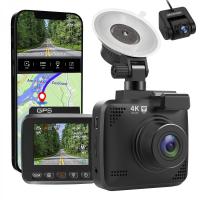
2. Dash Cam with Rear-Connection Capabilities: Some modern dash cams come with rear camera inputs. These dash cams can be connected to your backup camera to record video footage.

3. Adapter for Camera Output: Depending on the camera system installed in your vehicle, an adapter or converter may be required. Most backup cameras output video signals in composite formats like RCA or proprietary connections, requiring specific adapters.

4. Power Supply Management: Recording devices may need a separate power source, which can typically be achieved through a 12V car outlet or battery system.

Step-by-Step Guide to Set Up a Recording System for Your Backup Camera
how to record using backup camera on car 4

Step 1: Identify the Backup Camera Wiring

Locate the wiring for your car’s backup camera. The wires that transmit the video feed are often accessible near the rear of the car, usually connected to the infotainment screen module. You’ll need to identify the type of output the backup camera uses (typically it’s an RCA connection, but some systems use HDMI or proprietary connectors).

Step 2: Install a Video Capture Device

A video capture device is integral for recording the video signal. This device essentially intercepts the video feed from your backup camera, saving it to storage like an SD card. Depending on the compatibility and type of connection, you may need to use an adapter to connect the video feed cable to the input port of the capture device. For ease of use, some capture devices come with integrated cables designed for automotive systems. Once installed, test the capture device to ensure that the feed from the backup camera is readable and the recording mechanism works as desired.

Step 3: Use a Dash Cam for Dual Rear Recording Capability

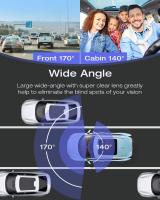
If your primary goal is to record both front and rear views, investing in a dual-channel dash cam may be a more practical solution. Some dash cams are equipped with ports or kits that allow connection to your factory backup camera for streaming and recording the footage. This setup simplifies the process and avoids modifying the car’s wiring overly.

Step 4: Consider Software Integration

If you plan to manage or review your recorded footage digitally, some video capture devices come with software that allows you to connect the camera system to a smartphone or laptop for storage and playback. Ensure that the software you use supports your device’s format and offers easy access to your footage.

Step 5: Secure the Power Supply

Ensure that the recording device and any adapters are properly powered. Most recording setups require a consistent power source, which is typically obtained from the car’s 12V outlet or another auxiliary power connection. Verify that the wiring is stable, insulated, and doesn’t interfere with existing electrical systems.

Step 6: Test the Setup

Once the entire setup is installed, test the connection by reversing your car and inspecting the recorded footage. Check the playback quality and confirm that the recording device captures the video feed continuously during the desired intervals.

Legal Considerations for Recording with a Backup Camera

Before proceeding, understand the laws and regulations regarding video recording in your location. In some regions, recording while driving may have legal or privacy implications, especially in public or private spaces. Ensure you consult local traffic and privacy regulations before installing and using a backup camera recording system.

Benefits and Practical Applications of Recording Footage

Recording footage using your backup camera can serve multiple purposes:

Enhanced Safety: In case of an accident or collision, recorded footage can provide valuable evidence for insurance claims and disputes.

Monitoring: If you’re concerned about theft or tampering with your vehicle, video footage can act as a security measure.

Educational Use: For learning to drive or improving your parking technique, reviewing footage from the backup camera can provide insights into your performance.

Alternatives for Backup Camera Recording

If you find the process of rewiring your backup camera cumbersome, consider alternatives designed specifically for recording rear footage:

Stand-Alone Rear Dash Cams: Purchase a dash cam with a dedicated rear camera module for seamless recording without modifying the factory backup camera.

License Plate Cameras: These aftermarket cameras attach to the license plate frame and allow you to record rear-view footage without compromising the original camera setup.

Car Security Systems: Some advanced security systems for cars include cameras that can monitor the surrounding area, including the rear, and automatically record activity.

Challenges and How to Overcome Them

Recording footage from your car’s backup camera might involve challenges, such as compatibility issues or limited space for installing additional components. Below are some common challenges along with solutions:

1. Compatibility Issues: Ensure that the recording device supports the video output format of your backup camera.

2. Space Constraints: Use compact recording devices and dash cams specifically designed for vehicles.

3. Electrical Interference: Improper wiring can cause signal interruptions or device malfunction. Seek professional installation if needed.

4. Video Quality: Adjust camera angles and settings for optimal visibility and resolution.

Final Thoughts

Recording footage from a car’s backup camera is achievable with the right tools and setup. Whether you want to enhance safety, monitor activity behind your car, or capture footage for educational purposes, adding a recording system can transform your existing camera into a dual-purpose device. Although it requires some technical modifications, the advantages far outweigh the effort.

For those less inclined to work on technical setups, modern dual-channel dash cams offer an excellent alternative, combining front and rear-view recording in a compact and efficient package. Whichever route you choose, ensure compliance with local regulations and prioritize quality and reliability in your equipment. With a proper recording system in place, you can use your car’s backup camera for more than just reversing—it can become a valuable asset for safety and security.
Leave your comment
Cancel reply
Note: HTML is not translated!
Related products
8" Wireless CarPlay Screen Android Auto Car Stereo with 1080P Backup Camera
14
$179.99 $125.99
4.5in Camera Suction Cup Mount on Car Windshield Dash with 1/4" & 3/8" Mounting Holes & NATO Rail, Auto-Revacuum, 72H Battery Life, Kentfaith
14
$119.99 $95.99
128G Mini Digital Voice Recorder with Color Screen Bluetooth Call Record 3072kbps Kentfaith
HOT Seller
128G Mini Digital Voice Recorder with Color Screen Bluetooth Call Record 3072kbps Kentfaith
15
$119.99 $83.99
5K Video Camera with 75MP Photos, 8X Optical Zoom, WiFi Transfer, Wireless Mic, Dual Batteries, Support PIP Record, Kentfaith
16
$274.99 $239.99
67mm Clip-on CPL Phone Camera Lens Filter Kit Applicable to All Mobile Phone Models
40
$18.99
67mm Clip-on ND2-32 Phone Camera Lens Filter Kit Applicable to All Mobile Phone Models
NEW Arrival
67mm Clip-on ND2-32 Phone Camera Lens Filter Kit Applicable to All Mobile Phone Models
13
$37.99
5K Video Camera with 75MP Photos, 8X Optical Zoom, WiFi Transfer, Foldable Tripod, Wireless Mic, Dual Batteries, Support PIP Record, Kentfaith
$312.49 $249.99
67mm Clip-on Black Mist 1/4 Phone Camera Lens Filter Kit Applicable to All Mobile Phone Models
7
$29.99
Instant Cross-APP Translator Device for Business & Trade, Video Call Translation, Record, & Transcription, Kentfaith AI Translator Devices
12
$124.99 $99.99
52mm Clip-on CPL Phone Camera Lens Filter Kit, Circular Polarizer Polarizing Filter Applicable to All Mobile Phone Models
24
$19.99
Products You May Like
68" Camera Tripod, Lightweight Portable Travel Outdoor DSLR Tripods for Camera Phone Video Recording Tripod Stand, Cellphone Clip for Smartphone Live Streaming Vlog S254A3+BV01
66
$99.99 $52.99
ND16 (4 Stops) Square ND Filter, 4"x5.65" Neutral Density Filter Compatible with Tilta Compatible with SmallRig Matte Box, Slim Multi Coated HD Optical Glass
64
$62.99 $49.99
Microscope Eyepiece Camera 2.8" Screen WiFi Connection 1080P Photos Videos for Telescopes Kentfaith
12
$99.99 $79.99
remote trail camera
remote trail camera
10
$135.99 $74.99
67mm ND8 (3 Stop) Neutral Density Filter + CPL Circular Polarising Filter 2 in 1 for Camera Lens, Ultra Clear Super Slim Waterproof
25
$59.99 $35.99
K&F Concept 48MP Trail Camera Dual Lens Starlight Night Vision 4K WiFi Bluetooth Game Camera Set with 8 Batteries & 64G SD Card
$229.99 $109.99
live trail cameras
live trail cameras
10
$135.99 $74.99
Eco Solar Trail Camera
10
$135.99 $74.99
67mm Variable ND Filter ND32-ND512 (5-9 Stops) Neutral Density Lens Filter with 28 Multi-Layer Coatings Hydrophobic/Scratch Resistant Nano-Xcel
52
$108.99 $79.99
62mm Black Mist 1/4 & CPL Filter 2 in 1 Black Diffusion Circular Polarizing Effect Filter with 18 Multi-Layer Coatings Nano-Klear Series
25
$34.99 $27.99
Related articles
How To Record Video Using Laptop Camera?
How To Record Video While Car Driving?
How Do We Record In Car?
Backup Camera Lens How To Replace?
How To Hook Up A Wireless Backup Camera?
How To Buy A Car Dash Camera?
How To Backup A Micro Sd Card?
How To Find Hidden Camera Using Cell Phone?
How To Record With Sound On Laptop Camera?
What Is A Cpl Camera Filter?
Blog You May Like
How To Zoom In On A Microscope?
Which Cameras Use Nikon Mount?
Camera Bag That Can Hold Gimbal?
How To Connect Selfie Stick Shutter?
How To Pack Your Camera Bag?
Can You Combine Nd Filter And Polarizer?
How To Find Cameras With Phone?
How Much Are Nintendo Switch Sd Cards?
What Is The Smallest Wireless Spy Camera?
How Much Does A Camera Lens Cap Cost?
Related categories
On-Dash Camera C mount lens adapter m4/3 adapter Camera Parts | Studio Camera Accessories streaming video camera digital camera for beginner Solar Cellular Trail Camera Non Cellular Trail Camera camera shoulder bag
Popular products
Mini Digital Voice Recorder​ video recording camera for youtube Polarize Filter For Mobile Phone sony camera with microphone Camera For Your Car clip on phone camera lens grip car phone holder smartphone holder for car car mount holder for smartphone HD Car Recorder
Related searches
Backup Camera For Car Stereo Car Stereo And Backup Camera Car Backup Cameras Wireless Cheap Camera To Record Videos Car Stereo With Carplay And Backup Camera Best Camera To Record Time Lapse Using Adapter On Fujifilm Xt-1 Using E Mount Lens On Panasonic Solar Panel On A Car Solar Panel On Car Roof
Popular searches
Canon Powershot S3 Filter Adapter Night Wildlife Camera Iphone 13 Pro Lens Adapter Best Uv Filter For Telephoto Lens Leica Q2 Lens Mount 72mm Nd Filter Pentax 645 Gfx Adapter Canon Ef To Pentax K Mount Adapter Wireless Spy Camera Detector Smart Watch With Music Player
Blog Category
  • Activities
  • Guide
    • Filter Guide
    • Lens Adapter
    • Product Review
  • News & Reviews
    • Camera Reviews
    • Sample Gallery
    • News
  • Tutorials
    • Solar eclipse photography
    • Photography Basics
    • Landscape Photography
  • Inspiration
    • Travel
    • Travel Stories
Search Article
Latest from the Blog
What Is The Best Camera To Record Videos?
Pressure In Ear When Wearing Headphones?
How To Make A Camera Flash After Effects?
What Is Surveillance Camera Control System?
How Do Trail Cameras Work? The Ultimate Guide to Trail Cameras
Which Binoculars To Buy?
How To Adjust Binoculars With Glasses?
Is the Sony A7M5 worth buying?
How Does a WiFi Trail Camera Work?
How To Stream Live From Surveillance Camera?
  • Easy Payment Multilple Payment Options

  • Free Shipping Global WareHouse Shipment

  • No Risk 30-Day No Reason Return

  • Limited Deals Buy More, Save More

  • Tax Free No any surcharges or tax fee

Information
  • About us
  • Contact Us
  • Site Map
  • Blog
  • Video
  • Gallery
  • VIP Membership Rewards
Service
  • Privacy Policy
  • Terms & Conditions
  • Shipping & Delivery
  • Payment Info
  • Warranty, Return & Refund
  • Intellectual Property Rights
  • Ambassador
  • Affiliates
  • Wholesale
Support
  • My account
  • Order History
  • FAQs
  • Extend Warranty
  • Logistics Tracking
Follow us
NewsLetter

Get the latest product, K&F Concept respects your privacy.

Powered By KENTFAITH © 2026