kfconcept

KENTFAITH
K&F Concept    Blog >

Enjoy Your Selected Digital Life

Recently Viewed
  • Recently Viewed
  • SJCAM SJ8 Pro 4K WiFi Action Camera (Black)
    SJCAM SJ8 Pro 4K WiFi Action Camera (Black)
    $251.99
Compare (0) 0
  • Compare
  • You have not chosen any products to compare.

  • Compare
Currency: USD
  • Currency
Shop by Scene Shop by Rank

Log Into Your Account

Account

Order History

Wish List

Login

Forgotten Password?

Or connect with

Register Account

Already have an Account?Log In

  • Shopping Cart
  • Your shopping cart is empty!

  • Register/Login to purchase, earn points
  • Favorite
  • Your wish list is empty.

  • Register/Login to like, earn points
  • Activities
  • Guide
    • Filter Guide
    • Lens Adapter
    • Product Review
  • News & Reviews
    • Camera Reviews
    • Sample Gallery
    • News
  • Tutorials
    • Solar eclipse photography
    • Photography Basics
    • Landscape Photography
  • Inspiration
    • Travel
    • Travel Stories
  • Home
  • Blog
  • How To Record Audio On Xbox Clips?

How To Record Audio On Xbox Clips?

Kentfaith 2024-12-27 01:18:23 1 Comment

Recording audio on Xbox clips can elevate your gameplay content by adding commentary, capturing in-game sound effects, or even recording live interactions with friends. While Xbox provides a powerful set of tools for capturing video gameplay, recording high-quality audio requires understanding the platform's built-in features as well as external options for fine-tuning the audio experience.

In this article, we'll walk you through the process of recording audio on Xbox clips. From adjusting settings to understanding compatible tools and troubleshooting common issues, this guide will cover everything you need to know to improve your Xbox recording setup.
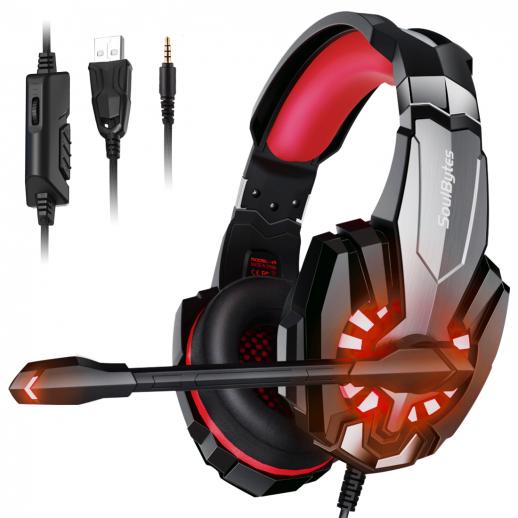

Understanding Xbox Game Clips and Recording Features

Before we dive into how to record audio on Xbox clips, let's take a step back and understand how Xbox handles game recording.

Xbox offers a built-in feature called Game DVR, which allows players to capture video and audio of their gaming sessions. The primary function of this tool is to let you record clips for sharing with friends, social media, or creating content. By default, Xbox records the in-game sound and party chat audio (if you're in a party), but additional configurations are needed for specific audio requirements.

The Xbox console provides multiple ways to capture video and audio:

1. Manual Recording: You can start and stop recordings using the Xbox controller.

2. Automatic Recording: Xbox automatically records the last 30 seconds to 5 minutes of gameplay (depending on your settings), giving you a chance to save a clip if something noteworthy happens unexpectedly.

Now that you're familiar with the basic functionality, let's explore how to ensure the best audio recording quality.

Step-by-Step Guide: How to Record Audio on Xbox Clips

how to record audio on xbox clips 3

1. Setting Up Your Xbox for Audio Recording

To start recording, the first thing you’ll want to do is make sure your Xbox is set up to capture the appropriate audio. Here’s how to configure it:

1. Go to the Settings Menu: Press the Xbox button to open the guide, and navigate to Profile & System > Settings.

2. Select Audio Settings: Under the General tab, go to Volume & Audio Output.

3. Adjust Audio Output Settings:

- Ensure your Audio Output is set correctly, whether you’re using a headset or speakers.

- Select Stereo uncompressed or Windows Sonic for Headphones (if you're using a headset), as these will provide the clearest sound for your recordings.

4. Enable Chat Mixer: Under Audio settings, ensure that the Chat Mixer is set to “Do Nothing” for the best balance between game audio and chat audio.

These settings ensure your Xbox is primed to capture both game sound and voice chat (if you're in a party or multiplayer session).

2. Recording Your Gameplay with Audio

Now that your Xbox is set up for optimal audio, it’s time to start recording. Here’s how to do it:

1. Record Manually:

- To start recording your gameplay, press the Xbox button to bring up the guide, then navigate to the Capture & Share tab.

- Select Start Recording to capture the last 30 seconds of gameplay.

- If you want to record for a longer duration, press Record from now to start recording from the moment you press the button. The maximum recording time is usually up to 10 minutes, but this can vary based on your settings.

2. Record Automatically:

- If you want Xbox to capture video automatically when something exciting happens, adjust the Recording length under Settings > Capture & Share.

- Xbox will save the last 30 seconds to 5 minutes of your gameplay depending on your preference, but remember, the audio is only captured when it’s within this window.

3. Recording Party Chat Audio

If you want to include party chat audio in your Xbox clip (such as voice chat with friends), follow these steps:

1. Join a Party: Open the Xbox Guide, navigate to the Parties & Chats tab, and join or create a party with your friends.

2. Ensure Party Audio is Included:

- Go to Settings > Audio > Party Chat Output, and set this to Headset (if you want to hear your friends' voices through your headset).

- Adjust the Chat Mixer to control the balance between game sound and party chat. If you want party chat to be included in the recording, select Do Nothing.

3. Record Your Clip: Now, when you start recording a clip, it will automatically include both the game audio and any conversations in the party chat.

4. Using a Microphone for Commentary

For those looking to add their voice commentary to their gameplay clips, using a separate microphone is essential. Here’s how to set up a microphone for better audio clarity:

1. Connect a Microphone: Plug your external microphone or a gaming headset into your Xbox controller or console.

2. Adjust Mic Settings: In the Settings menu, adjust the Microphone Monitoring level to ensure you can hear yourself through the headset without too much echo.

3. Enable Microphone Audio for Recording: Make sure your microphone is enabled for audio recording in the Audio settings under Profile & System > Settings > Devices & Connections.

Once this setup is done, your commentary will be recorded along with the game sounds and any party chat, resulting in a fully integrated clip.

5. Post-Processing and Sharing Your Clips

After you’ve recorded a clip, you can edit and share it to make your content stand out. Xbox offers basic editing tools, but you may want to explore external apps for more advanced features.

1. Basic Editing on Xbox:

- You can trim your clips directly on the Xbox console by selecting Manage > Trim from the clip’s menu.

- This allows you to cut the beginning or end of the clip to remove unwanted footage.

2. Advanced Editing on External Software:

- For more control over your clip, including effects, transitions, and audio mixing, transfer your clip to a PC or Mac.

- Use editing software like Adobe Premiere Pro or DaVinci Resolve to fine-tune the audio and video. You can add background music, adjust levels, or even sync your voice commentary with the gameplay.

Once your clip is ready, share it with your Xbox friends, upload it to Xbox Live, or use external platforms like YouTube and Twitch to showcase your content.

Troubleshooting Common Audio Recording Issues

While recording audio on Xbox clips is usually straightforward, you may run into some issues along the way. Here are some common problems and solutions:

1. No Game Audio in Clips:

- Ensure that the Stereo uncompressed or Windows Sonic for Headphones is selected in your Audio Output settings.

- Check that the Game Volume is not muted, and the Chat Mixer is set to “Do Nothing” to balance game sound with voice chat.

2. No Party Chat Audio:

- Ensure your party chat is enabled in the Audio settings.

- Double-check the Chat Mixer settings to confirm the correct balance between game and chat audio.

3. Low Microphone Volume:

- Go to Settings > Devices & Connections > Accessories to check your mic’s volume and settings.

- Make sure the microphone is correctly positioned and fully connected to the controller or console.

4. Audio Sync Issues:

- If you notice that the audio is out of sync with the video, try adjusting your game’s audio output settings.

- Additionally, you can use external editing software to manually synchronize audio with video.

Recording audio on Xbox clips is a straightforward process, but the quality of your recording depends on a few critical factors, such as proper settings, using the right equipment, and troubleshooting any audio issues. By following the steps outlined in this guide, you'll be able to create engaging clips with both game audio and commentary. Whether you're a gamer looking to share your gameplay highlights with friends or a content creator producing professional videos, mastering Xbox's recording and audio settings is key to enhancing your content creation experience.

Take advantage of the tools available on Xbox, experiment with external mics and editing software, and don’t forget to optimize your audio and video settings to get the most out of your recordings. With a little practice, you can record high-quality clips that stand out and captivate your audience. Happy gaming and content creation!
Leave your comment
Cancel reply
Note: HTML is not translated!
Related products
128G Mini Digital Voice Recorder with Color Screen Bluetooth Call Record 3072kbps Kentfaith
HOT Seller
128G Mini Digital Voice Recorder with Color Screen Bluetooth Call Record 3072kbps Kentfaith
15
$119.99 $83.99
Instant Cross-APP Translator Device for Business & Trade, Video Call Translation, Record, & Transcription, Kentfaith AI Translator Devices
12
$124.99 $99.99
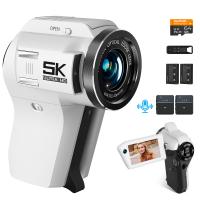
5K Video Camera with 75MP Photos, 8X Optical Zoom, WiFi Transfer, Wireless Mic, Dual Batteries, Support PIP Record, Kentfaith
16
$274.99 $239.99
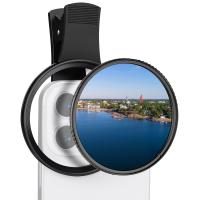
67mm Clip-on CPL Phone Camera Lens Filter Kit Applicable to All Mobile Phone Models
40
$18.99
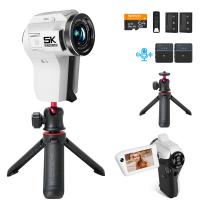
5K Video Camera with 75MP Photos, 8X Optical Zoom, WiFi Transfer, Foldable Tripod, Wireless Mic, Dual Batteries, Support PIP Record, Kentfaith
$312.49 $249.99
67mm Clip-on ND2-32 Phone Camera Lens Filter Kit Applicable to All Mobile Phone Models
NEW Arrival
67mm Clip-on ND2-32 Phone Camera Lens Filter Kit Applicable to All Mobile Phone Models
13
$37.99
AI Translator Device for Business & Trade, 142 Languages Real-Time Online & Offline, Smart Office/Cross-App/Video/Photo Translation, Record & Transcription, Kentfaith
15
$182.49 $145.99
Digital Voice Recorder with 64Gb Storage, 1536 kbps, Voice Activated & Line-in Record, 85H Battery Life, Stores 800 Hours of Recording, Kentfaith
$99.99 $79.99
67mm Clip-on Black Mist 1/4 Phone Camera Lens Filter Kit Applicable to All Mobile Phone Models
7
$29.99
K&F Concept 76.7 inch Camera Tripod with Rotatable Multi-Angle Center Column,Lightweight Travel Outdoor DSLR Tripods with 360 Degree Ball Head Load Capacity 8kg/17.6lbs, Cellphone Clips for Smartphone
72
$139.99 $79.99
Products You May Like
67mm Spiral Halo Camera Lens Filter Premium Optical Glass Halo Swirl Special Effect Filter Nano-B Series
14
$33.99 $26.99
52mm Variable Star Filter Cross Screen Starburst Filter 4-8 Points with 18 Layer Coating Ultra Slim Optical Glass Camera Lens Filter with 3 Cleaning Cloth
$19.99
Waterproof Digital Camera for Kids,  Adults 16FT/5M Underwater 48MP for Snorkeling Swimming Kentfaith
Waterproof Digital Camera for Kids, Adults 16FT/5M Underwater 48MP for Snorkeling Swimming Kentfaith
14
$93.74 $89.99
82mm Kaleidoscope Prism Filter Optical Glass Central Pentagonal Special Effect Camera Lens Filter Nano-Basic Series
NEW Arrival
82mm Kaleidoscope Prism Filter Optical Glass Central Pentagonal Special Effect Camera Lens Filter Nano-Basic Series
11
$63.99 $47.99
77mm UV Filter 0.1% Ultra-low Reflection (titanium coating ) with 28 Multi-Layer Coatings Nano-Xcel Series
78
$54.99 $43.99
60W LED Video Light 2700K-6500K Photography Lighting for Vlogging, Live Stream
$248.99 $174.99
Game Trail Camera Pr100
10
$135.99 $74.99
K&F Concept TL2823 Lightweight Aluminum Tripod 66 inch 3 Section Load Capacity 3KG
26
$18.99
K&F Concept CPL Filter Compatible with Insta360 Go Ultra Action Camera Accessories, Anti-Glare Remove Reflection HD Optical Glass with 28 Multi-Coated Filter
4
$19.99
K&F Concept MT1225 12*25 Compact Binoculars for Adults Kids,High Power Easy Focus  for Bird Watching,Outdoor Hunting,Travel,Sightseeing
K&F Concept MT1225 12*25 Compact Binoculars for Adults Kids,High Power Easy Focus for Bird Watching,Outdoor Hunting,Travel,Sightseeing
590
$39.99 $27.99
Related articles
How To Record Discord Audio On Xbox?
How Record Audio On Pc?
How To Turn On Screen Record Audio?
How To Record Voice Audio On Mac?
How To Record External Audio On Pc?
How To Record On Pc With Audio?
How To Record Audio On A Macbook?
How To Screen Record Audio On Youtube?
How To Record Audio On Zoom For Podcast?
How To Work A Telescope?
Blog You May Like
How To Record Good Audio At Home?
Which Lens Filter To Use?
How To Use Binoculars?
Kentfaith x ANACONDA: Capturing the Wild, Frame by Frame
Can Dash Cam Work When Car Is Off?
How To Use Ip Camera Without Wifi?
Can Airbnb Put Cameras In House?
Telescope How Does It Work?
How To Manage Sd Card On Android Phone?
How To Use External Microphone Android Camera App ?
Related categories
On-Dash Camera C mount lens adapter m4/3 adapter camera lens adapter photographing led lights C Mount Lens Adapters A Mount Lens Adapter
Popular products
Mini Digital Voice Recorder​ video recording camera for youtube sony camera with microphone Polarize Filter For Mobile Phone white background for photography clip on phone camera lens high quality condenser microphone ps4 headset and microphone nd filter for dji osmo action protective lens cap dslr
Related searches
Cheap Camera To Record Videos Best Camera To Record Time Lapse Microphone For Recording Audio On Computer Night Vision Binoculars That Record Audio Video Cable To Hdmi Usb Microphone To Audio Interface Microphone Audio Jack To Usb Xbox One Headset And Microphone Xbox One Headphones With Mic Surround Sound Headphones For Xbox
Popular searches
Nd Filter Sigma 14mm Lens Video Cameras With Remote Control Outdoor Motion Detection Camera Night Vision Portable Smoke And Carbon Monoxide Detector Polar Pro Filter Fd Eos Adapter Pentax K Mount To Sony E K&f Concept 67mm Inspection Camera With Light Microphone On Iphone 11
Blog Category
  • Activities
  • Guide
    • Filter Guide
    • Lens Adapter
    • Product Review
  • News & Reviews
    • Camera Reviews
    • Sample Gallery
    • News
  • Tutorials
    • Solar eclipse photography
    • Photography Basics
    • Landscape Photography
  • Inspiration
    • Travel
    • Travel Stories
Search Article
Latest from the Blog
How Do Trail Cameras Work? The Ultimate Guide to Trail Cameras
Pressure In Ear When Wearing Headphones?
Best Metal Detector for Kids in 2025
How Does a WiFi Trail Camera Work?
Which Ring Camera Is Wireless?
How To Focus An Image On A Microscope?
Which Memory Card For Dash Cam?
How To Choose A Lens For Your Camera?
What To Look For In A Dash Cam?
How Much Does It Cost For Security Cameras?
  • Easy Payment Multilple Payment Options

  • Free Shipping Global WareHouse Shipment

  • No Risk 30-Day No Reason Return

  • Limited Deals Buy More, Save More

  • Tax Free No any surcharges or tax fee

Information
  • About us
  • Contact Us
  • Site Map
  • Blog
  • Video
  • Gallery
  • VIP Membership Rewards
Service
  • Privacy Policy
  • Terms & Conditions
  • Shipping & Delivery
  • Payment Info
  • Warranty, Return & Refund
  • Intellectual Property Rights
  • Ambassador
  • Affiliates
  • Wholesale
Support
  • My account
  • Order History
  • FAQs
  • Extend Warranty
  • Logistics Tracking
Follow us
NewsLetter

Get the latest product, K&F Concept respects your privacy.

Powered By KENTFAITH © 2026