How To Play Video In Projector?
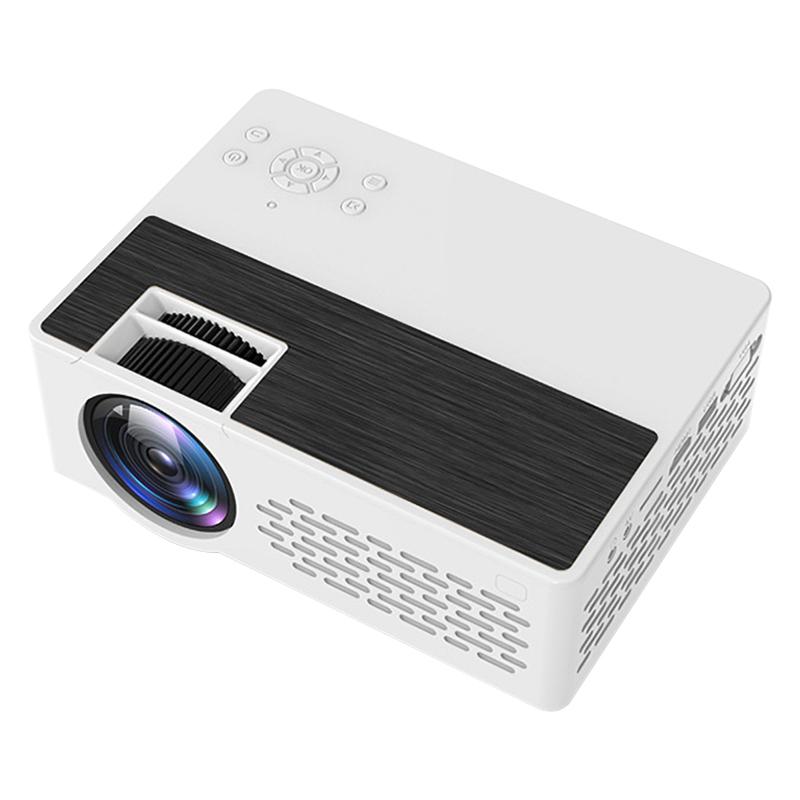
In most cases, you need extra devices if you want to play movies and videos on a projector. Some projectors have their own media player and smart functions, but most projectors don't. Below are the most important solutions for playing video on a projector.
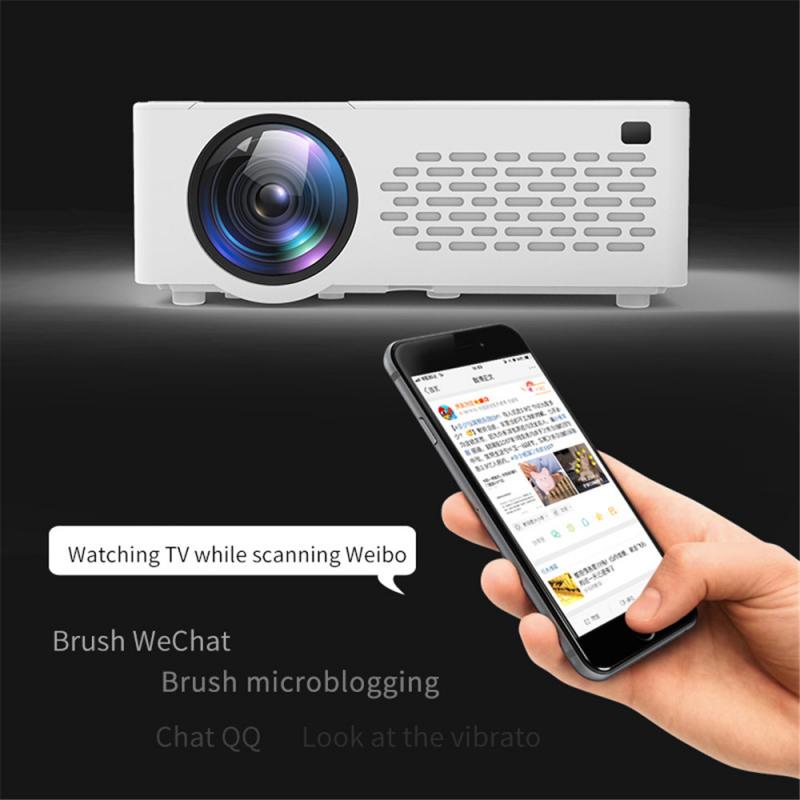
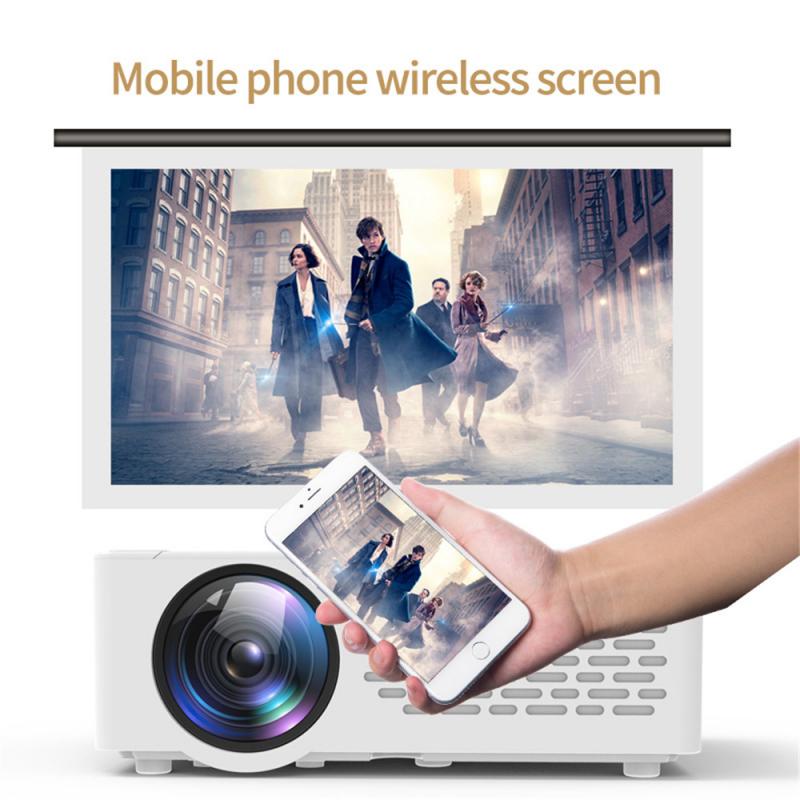
Smart Projector
Some projectors have their own smart functions, which allows you to stream movies, series, and videos without the help of extra devices. Sometimes, your projector even has direct access to apps like YouTube. All you need is an internet connection. Most smart projectors have to be connected to the internet via WiFi, and some projectors via an Ethernet cable. Smart projectors have varying smart platforms, each with their own apps and functions. So when you choose a smart projector, carefully check which functions the smart projector has.
Media Player
If you connect a media player to the projector, you can quickly and easily stream movies, series, and videos from your favorite apps. You connect media players like a Chromecast or Apple TV via an HDMI cable. That does mean that your projector needs to have an HDMI input. With these compact devices, you get direct access to apps like Netflix and YouTube. Most media players also need to be supplied with power, so some media players also have to be connected to a USB input that supplies power.
USB Flash Drive or Hard Drive
If you want to watch your own videos and photos on a projector, a USB flash drive or hard drive is the solution. You can use the remote of the projector to navigate the menu and to determine what you watch.
- If you want to play content from a USB device, it's important for the projector to have a built-in media player.
- Keep in mind that if a projector has a USB input, that doesn't necessarily mean it has a media player.
Laptop or PC
A different way to play something on your projector is to connect your laptop or PC to it. This way, you can watch your own movies or stream from your internet browser. With the mouse and keyboard, you can control all the functions.
- With most new devices, you can connect via an HDMI connector.
- If you have an older laptop or PC, connect it to the projector with a VGA cable.
Blu-ray Player
You can easily connect a Blu-ray player to your projector as well.
- Full HD Blu-ray
- To reach the best image quality with your Blu-rays, you need a projector with at least a Full HD resolution.
- Ultra HD Blu-ray
- If you have an Ultra HD Blu-ray player, you need a projector with a 4K resolution.
- Connection
- You can easily connect a Blu-ray player to a projector via an HDMI input.
Projector Connectivity Options
When selecting the connectivity option for your projector, it's crucial to consider the compatibility between your TV or video source and your projector. Check the available ports on both devices and ensure they support the same type of connection.
- HDMI: HDMI (High-Definition Multimedia Interface) is a popular and versatile connectivity option. It allows you to transmit high-quality audio and video signals to the projector. HDMI connections are widely supported by most modern projectors.
- VGA: VGA (Video Graphics Array) is an older type of connection that is still commonly found in projectors. It allows you to transmit analog video signals from your source to the projector.
- Component Video and Audio: Component video and audio connections use separate cables for transmitting video and audio signals, resulting in better quality compared to VGA. However, not all projectors support component video and audio connections, so it's important to check compatibility before using this option.
Adjusting Display Settings
Once you have connected your video source to the projector, adjusting the display settings is necessary to optimize the visual quality of the projected image.
- Power on the projector and navigate to the display settings menu.
- Adjust the resolution settings to match the desired output quality. Choose the highest resolution available for the best picture quality.
- Configure the aspect ratio settings to fit your screen or desired view. Most projectors offer options such as 16:9 for widescreen content or 4:3 for standard content.
- Fine-tune the brightness, contrast, and color settings to your preference.
- Use keystone correction to correct image distortion caused by the projector being placed at an angle or not aligned properly with the screen.
- Adjust the focus using the focus ring or button until you achieve the sharpest image possible.
- Save the changes and exit the display settings menu.
Audio Setup
When playing video on a projector, getting the audio setup right is essential for an immersive viewing experience. Most projectors have no speakers, or mediocre ones. That's why you usually need extra speakers to play sound.
- External speakers or soundbar: Check if your projector has an audio output port, and if so, connect it to the input port of your sound device. Adjust the projector's audio settings to route sound through the connected device.
- Built-in speakers: Some projectors have built-in speakers. Simply connect the necessary audio cables to the appropriate ports and adjust the volume settings on your projector and any external devices as needed.
- Bluetooth speakers: Some projectors have built-in Bluetooth. If your speakers also have Bluetooth, you can easily connect them to your projector wirelessly.
Switching Between Video Sources
One of the key benefits of using a projector is the ability to connect multiple video sources. Whether you want to watch a movie on Blu-ray, play a video game, or stream content from a laptop, a projector offers the flexibility to switch between different sources with ease.
- To switch between connected devices, access the "Input" or "Source" option using either the remote control or the projector's menu buttons.
- Select the HDMI input corresponding to your desired device.
- If your projector does not come with a remote control, navigate through the projector's menu, go to the settings option, look for input settings, and choose the input source you wish to use.
Troubleshooting Common Issues
If you encounter issues when trying to play video on your projector, the following steps can help resolve the most common problems.
- No signal or no image
- Check if the video source is properly connected to the projector. Ensure that both the projector and the video source are powered on. Verify the cable connections and replace any damaged or faulty cables. Try using a different HDMI or VGA input on the projector. Restart both the projector and the video source.
- Poor image quality
- Adjust the projector's focus and zoom settings to improve image quality. Make sure the projector is placed on a stable surface and not vibrating. Check for any obstructions that may be affecting the projection. Ensure the projector lens is clean and free from dust or smudges. Try adjusting the aspect ratio or resolution settings on your video source.
- No audio or audio issues
- Check if the audio cables are securely connected to both the projector and the audio source. Ensure that the audio source is not muted or set to a low volume. Try using a different audio cable or port. Ensure the audio settings on the video source are correctly configured.
- Dim image
- If the projected image is too dim, adjust the projector's brightness settings. Ensure that the projector is within its operating temperature range. Update the projector's firmware if available. If all else fails, contact the manufacturer's customer support for assistance.
Optimizing the Viewing Environment
Creating a good viewing environment is crucial to ensure the best possible experience when playing video on a projector. By controlling ambient light and ensuring optimal screen distance, you can enhance the picture quality and overall enjoyment.
- Close curtains or blinds to minimize natural light entering the room.
- Avoid using bright overhead lighting and opt for softer, ambient lighting instead.
- Consider using blackout curtains or shades to completely darken the room if necessary.
- Place the projector on a stable surface or mount it securely on the ceiling.
- Position the projector at the optimal distance from the projection screen to avoid distortion and ensure sharp image quality. Consult the projector's manual for the recommended distance.
- Adjust the projector's angle and keystone correction settings, if applicable, to align the image properly on the screen.
- Ensure proper ventilation around the projector to prevent overheating.