kfconcept

KENTFAITH
K&F Concept    Blog >

Enjoy Your Selected Digital Life

Recently Viewed
  • Recently Viewed
  • Recently Viewed list is empty.

Compare (0) 0
  • Compare
  • You have not chosen any products to compare.

  • Compare
Currency: USD
  • Currency
Shop by Scene Shop by Rank

Log Into Your Account

Account

Order History

Wish List

Login

Forgotten Password?

or connect with

Register Account

Already have an Account?Log In

  • Shopping Cart
  • Your shopping cart is empty!

  • Register/Login to purchase, earn points
  • Favorite
  • Your wish list is empty.

  • Register/Login to like, earn points
  • Activities
  • Guide
    • Filter Guide
    • Lens Adapter
    • Product Review
  • News & Reviews
    • Camera Reviews
    • Sample Gallery
    • News
  • Tutorials
    • Solar eclipse photography
    • Photography Basics
    • Landscape Photography
  • Inspiration
    • Travel
    • Travel Stories
  • Home
  • Blog
  • How To Find Camera On Laptop Windows 7?

How To Find Camera On Laptop Windows 7?

Kentfaith 2024-10-22 03:02:54 0 Comments

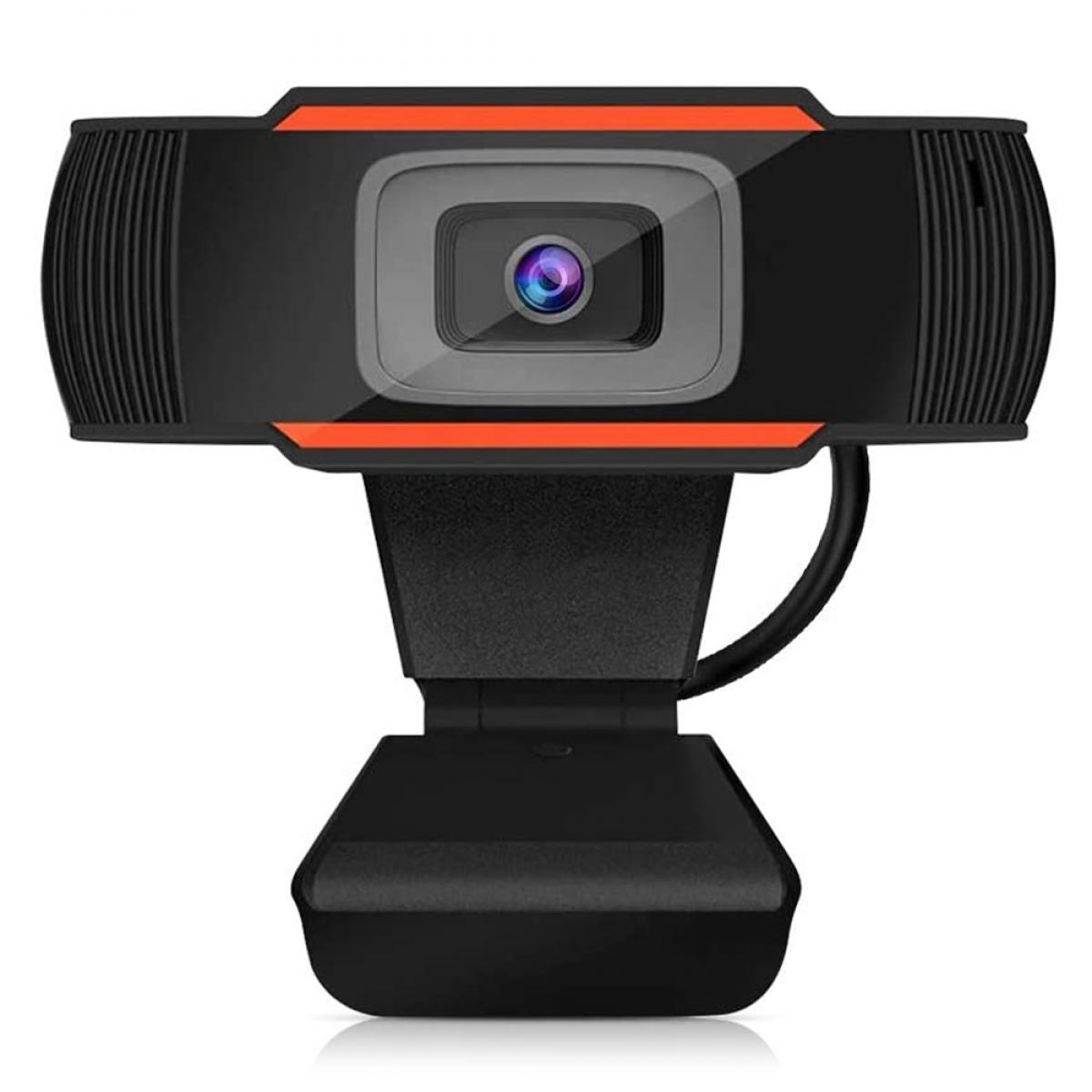
In today's digitally connected world, having a functional camera on your laptop is almost a necessity. Whether you're using it for virtual meetings, taking pictures, or video chatting with family and friends, knowing how to locate and utilize your laptop's camera is essential. If you're using a Windows 7 operating system, finding and activating the camera can seem a bit daunting, especially if you're not particularly tech-savvy. This article aims to guide you step-by-step through the process of locating and using your laptop's camera effectively on Windows 7.

Preliminary Steps: Ensuring Your Camera is Installed

Before diving into the details of how to use the camera, it's important to ensure that your laptop actually has one and that it's properly installed.

1. Physical Check: Most laptops come with an integrated webcam, usually located at the top center of the screen. If you don’t see one, you might need to purchase an external webcam.

2. Device Manager: Open the Device Manager to confirm that your camera drivers are installed. You can do this by:

- Clicking on the “Start” button.

- Typing “Device Manager” in the search box.

- Expanding the “Imaging devices” section to ensure your camera appears in the list.

If the camera doesn’t appear in the Device Manager, it could indicate that the drivers are missing or the camera is not working. In such cases, you might have to download the appropriate drivers from your laptop manufacturer’s website.

Step-by-Step Guide to Find and Use Your Camera

Once you've confirmed that your camera is installed, follow these steps to start using it.

1. Using the Built-in Camera App

Windows 7 doesn’t come with a native camera app like Windows 10, but most laptop manufacturers include their own webcam software. Here’s how to find it:

- Open the Start Menu: Click on the “Start” button.

- Search for Camera Software: Type the name of the camera software provided by your laptop manufacturer. Common names include “HP Camera,” “Dell Webcam Central,” “Acer Crystal Eye,” etc.

- Launch the Application: Click on the application to open it. This software usually allows you to take pictures, record videos, and adjust camera settings.

If you don’t have any built-in camera software, you can download free webcam applications like "WebcamViewer" or "ManyCam" which are compatible with Windows 7.

2. Using Skype or Other Video Calling Software

Another way to access your camera is through video calling software like Skype, Zoom, or Microsoft Teams. Follow these steps:

- Install Skype: If you don’t already have Skype, download it from the official Skype website. The process is similar for other video calling software.

- Sign In: Open Skype and sign in with your credentials.

- Check Camera Settings: Go to Tools > Options > Video Settings to make sure your camera is selected. You should see a live video feed from your camera if it’s properly set up.

- Start a Call: Initiate a video call to see your camera in action.

3. Using Third-Party Webcam Software

Third-party webcam software often provides more advanced features and settings compared to built-in applications. Here’s how you can use them:

- Download Software: Choose a reputable third-party webcam software like "ManyCam," "WebcamMax," or "OBS Studio."

- Install the Software: Follow the on-screen instructions to install it on your laptop.

- Launch and Configure: Open the software and go to the settings to configure your camera. These applications often come with various settings to enhance video quality, add filters, and more.

Troubleshooting Common Issues

Despite following the steps above, you might encounter some issues when trying to use your camera. Here are some common problems and their solutions:

No Camera Detected

If your camera is not detected, try the following:

- Restart Your Laptop: Sometimes a simple restart can solve the problem.

- Reinstall Drivers: Go to the Device Manager, right-click on your camera, and select “Uninstall.” Then, restart your laptop which should prompt the drivers to reinstall.

- Check Connections: If you’re using an external webcam, ensure it’s properly connected to your laptop’s USB port.

Poor Video Quality

If the video quality is poor, consider these tips:

- Lighting: Ensure you have adequate lighting. Poor lighting conditions can significantly affect video quality.

- Clean the Lens: A dirty camera lens can result in unclear images. Use a soft cloth to gently clean the lens.

- Update Drivers: Outdated drivers can affect performance. Visit the laptop manufacturer’s website to download the latest drivers for your camera.

Software Conflicts

Sometimes, multiple applications trying to use the camera simultaneously can cause conflicts:

- Close Unnecessary Applications: Make sure no other software is using the camera.

- Check Permissions: Some applications might need permission to access the camera. Check the software settings to grant necessary permissions.

Finding and using the camera on a Windows 7 laptop might seem like a complex task, but by following the steps outlined above, it becomes considerably easier. Ensure your camera is properly installed and recognized by the system, utilize built-in or third-party software to access it, and troubleshoot any issues that may arise.

Whether it's for professional meetings, personal chats, or simply taking a quick snapshot, having a functional camera on your laptop can significantly enhance your digital experience. With this guide, you should now be equipped with the knowledge to navigate through any challenges related to using your camera on a Windows 7 laptop confidently.
Leave your comment
Cancel reply
Note: HTML is not translated!
Related products
Anti-Spy Detector Scan & Disconnect for 24/7 Protection Find Bugs Hidden Cams
15
$89.99 $59.99
DM9 7" LCD Digital Microscope 10X-1200X, 1080P Coin Microscope with 12MP Camera Sensor Work with Windows/Mac OS
HOT Seller
DM9 7" LCD Digital Microscope 10X-1200X, 1080P Coin Microscope with 12MP Camera Sensor Work with Windows/Mac OS
118
$149.99 $121.99
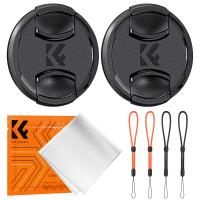
37mm Snap-On Center Pinch Lens Cap 7 in 1 with Anti-Loss Keeper Leash Compatible with Nikon, Canon, Sony, Fujifilm Camera Lenses
$7.49
40.5mm Snap-On Center Pinch Lens Cap 7 in 1 with Anti-Loss Keeper Leash Compatible with Nikon, Canon, Sony, Fujifilm Camera Lenses
$7.49
43mm Snap-On Center Pinch Lens Cap 7 in 1 with Anti-Loss Keeper Leash Compatible with Nikon, Canon, Sony, Fujifilm Camera Lenses
$7.49
46mm Snap-On Center Pinch Lens Cap 7 in 1 with Anti-Loss Keeper Leash Compatible with Nikon, Canon, Sony, Fujifilm Camera Lenses
$7.49
49mm Snap-On Center Pinch Lens Cap 7 in 1 with Anti-Loss Keeper Leash Compatible with Nikon, Canon, Sony, Fujifilm Camera Lenses
$7.49
52mm Snap-On Center Pinch Lens Cap 7 in 1 with Anti-Loss Keeper Leash Compatible with Nikon, Canon, Sony, Fujifilm Camera Lenses
$7.49
55mm Snap-On Center Pinch Lens Cap 7 in 1 with Anti-Loss Keeper Leash Compatible with Nikon, Canon, Sony, Fujifilm Camera Lenses
$7.49
58mm Snap-On Center Pinch Lens Cap 7 in 1 with Anti-Loss Keeper Leash Compatible with Nikon, Canon, Sony, Fujifilm Camera Lenses
$7.49
Products You May Like
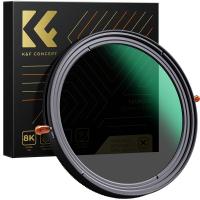
62mm ND2-32 & CPL 2 in 1 Filter, 1-5 Stop Neutral Density and Circular Polarizing Filter 2 in 1 for Camera Lens No X Spot Weather Sealed Nano-Xcel
65
$86.99 $76.99
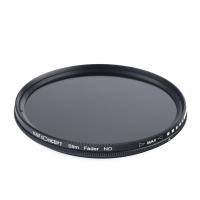
55mm Variable Fader ND2-400
$61.99 $19.99
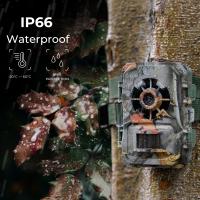
Fastest Trigger Speed Trail Camera
10
$135.99 $74.99
49mm Black Diffusion 1/2 Filter Mist Cinematic Effect Filter with 18 Multi-Layer Coatings Nano-Klear Series
NEW Arrival
49mm Black Diffusion 1/2 Filter Mist Cinematic Effect Filter with 18 Multi-Layer Coatings Nano-Klear Series
212
$32.99 $21.99
62mm  Black Mist Filter 1/4 Special Effects Filter Ultra-Clear Multi-layer Coated With Waterproof Scratch-Resistant and Anti-Reflection Nano-Xcel Series
62mm Black Mist Filter 1/4 Special Effects Filter Ultra-Clear Multi-layer Coated With Waterproof Scratch-Resistant and Anti-Reflection Nano-Xcel Series
83
$73.49 $48.99
55mm Magnetic Lens Filter Kit GND8+ND8+ND64+ND1000+Magnetic Adapter Ring 5 in 1 Quick Swap System Nano X Series
$169.99 $107.99
77MM Neutral Density Filter
4
$70.99 $34.99
K&F Concept 2 in 1 Sling Bag 12L Everyday Shoulder Bag & Multifunction Photography Crossbody Camera DSLR Backpack Portable Bag, Green
132
$59.99 $49.99
Filter Kit for Mavic Mini/Mini 2/Mini SE/Mini 2 SE/Mini 4K Drone 6 Pack UV + ND4&PL + ND8&PL + ND16&PL + ND32&PL +ND64&PL Neutral Density Polarizer 2-in-1 Function Filters Kit
15
$93.99 $46.99
77mm Magnetic CPL Filter Circular Polarizer Lens Filter Optical Glass Ultra Slim with 18 Multi-Layer Coatings Nano-Klear Series
43
$32.99 $25.99
Related articles
How To Test Webcam Windows 7?
Can T Find Camera On Windows 10?
How To Connect 2 Bluetooth Headphones To Laptop Windows 10 ?
How To Use Video Camera On Laptop?
How To Change Video Camera On Laptop?
How To Fix Microphone On Windows 11?
How To Record With Sound On Laptop Camera?
How To Turn On Microphone And Camera On Hp Laptop ?
How To Turn On Camera And Microphone On Dell Laptop ?
Which lens is used for a camera?
Blog You May Like
How To Fix The Left Earphone?
What is A Variable ND Filter? The Complete Guide to Mastering Exposure Control
Dash Cam That Can Connect To Phone?
How To Fix Sd Card Is Write Protected?
What Memory Card Works With Nintendo Switch?
Best Magnetic Adapter Rings for Camera Filters
What Is Microscope Simple Definition?
How Does The Digital Camera Work?
What Does 10x42 Mean In Binoculars?
Which Is Best Binoculars?
Related categories
On-Dash Camera C mount lens adapter m4/3 adapter Camera Parts | Studio Camera Accessories streaming video camera digital camera for beginner Solar Cellular Trail Camera Non Cellular Trail Camera camera shoulder bag
Popular products
no spy hidden camera detector best digital microscope camera LCD Digital Microscope fujifilm lens cap 49mm 67mm nikon lens cap fujifilm 72mm lens cap nikon lens cap 77mm Gold Detector Kit professional camera backpacks camera backpack with removable insert
Related searches
Metal Detector Find Bag Camera And Laptop Bag Camera Laptop Travel Backpack On Camera Flashes Metal Detectors That Find Gold And Silver 24 7 Security Camera Outdoor Solar Camera 24 7 Recording 24 7 Video Camera Surveillance Camera Backpack 16 Inch Laptop Best Camera And Laptop Backpack
Related Scenes
Best Carry On Camera Bag Best Dslr Camera Laptop Backpack Best Camera Backpack With Laptop Best Camera To Video Sports Best Camera To Capture Wildlife Best Backpack For Camera And Laptop Best Tripod To Travel With Best Video Camera To Record Sports Best Travel Backpack For Camera And Laptop Best Backpack For Mirrorless Camera And Laptop
Blog Category
  • Activities
  • Guide
    • Filter Guide
    • Lens Adapter
    • Product Review
  • News & Reviews
    • Camera Reviews
    • Sample Gallery
    • News
  • Tutorials
    • Solar eclipse photography
    • Photography Basics
    • Landscape Photography
  • Inspiration
    • Travel
    • Travel Stories
Search Article
Latest from the Blog
How To Set Up Phone Without Tripod?
How To Make Your Headphones Have More Bass?
Which Security Camera System Is The Best?
How Does A Microphone Record Sound?
How To Take Photos Without A Tripod?
How Long For Wireless Headphones To Charge?
Where To Buy Security Camera System?
Smartwatch That You Can Call From?
How To Install Camera In House?
What Do Night Vision Goggles Look Like?
  • Easy Payment Multilple Payment Options

  • Free Shipping Global WareHouse Shipment

  • No Risk 30-Day No Reason Return

  • Limited Deals Buy More, Save More

  • Tax Free No any surcharges or tax fee

Information
  • About us
  • Contact Us
  • Site Map
  • Blog
  • Video
  • Gallery
  • VIP Membership Rewards
Service
  • Privacy Policy
  • Terms & Conditions
  • Shipping & Delivery
  • Payment Info
  • Warranty, Return & Refund
  • Intellectual Property Rights
  • Ambassador
  • Affiliates
  • Wholesale
Support
  • My account
  • Order History
  • FAQs
  • Extend Warranty
  • Logistics Tracking
Follow us
NewsLetter

Get the latest product, K&F Concept respects your privacy.

Powered By KENTFAITH © 2026