How To Display Temperature On Outdoor Camera?
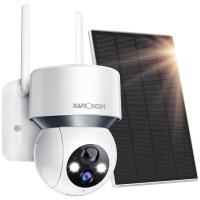
In the era of smart technology, outdoor cameras have become an essential part of home and business security systems. These cameras provide real-time monitoring and improve safety while offering an added layer of convenience. However, more users are now looking for outdoor cameras that can do more than just capture video — they want cameras that can display environmental data, such as temperature, directly on the display feed or app interface. If you’re someone wondering how to display temperature on an outdoor camera, this guide will help you navigate the options, explore technical solutions, and make an informed decision.
Understanding the Functionality of Displaying Temperature on an Outdoor Camera
First, the capability to display temperature in your outdoor camera feed largely depends on whether the camera or its associated software supports the feature. Not all outdoor cameras come with built-in sensors for detecting temperature. This functionality may require additional hardware, software integration, or access to third-party services that provide weather data.
Options for Showing Temperature on Outdoor Cameras
1. Cameras with Built-In Temperature Sensors
Some high-end outdoor cameras come with built-in environmental sensors, including those that measure temperature. These cameras are designed primarily for users who need to monitor both security and environmental conditions. If your outdoor camera has this capability, the temperature reading is typically integrated into the camera’s video feed or mobile app interface along with other data like motion detection alerts and event logs.
Key Features of Cameras with Built-In Sensors:
- Displays temperature data on the live video feed or app.
- Frequently measures real-time temperature for accurate monitoring.
- Often includes additional sensors for data like humidity or air quality.
If you already own a camera, check its user manual or specifications for information about environmental sensors. If it doesn’t support this feature, you’ll need to explore other options.
2. Integrating Smart Home Hubs with Environmental Sensors
If your outdoor camera lacks a built-in temperature sensor but is compatible with a smart home ecosystem (like Google Home, Amazon Alexa, or Apple HomeKit), you may be able to integrate an external temperature sensor into your system. The smart home hub acts as a central controller for various devices, consolidating data from both the outdoor camera and the temperature sensor.
For example:
- Connect your outdoor camera to the hub.
- Pair a compatible temperature sensor with the hub.
- Configure the hub’s app to display temperature data along with your camera’s feed or in the same reporting dashboard.
This approach allows you to view both security footage and temperature details in a single unified system. However, note that the data may not appear directly on the video feed unless the hub or camera app offers this capability.
3. Using Overlay Software for Live Feeds
For users comfortable with technology and customization, you can use software to create overlays on your live camera feed that display temperature data. This typically requires two main components:
- Live feed software (such as OpenCV or Blue Iris) to manage the camera feed.
- A weather API (like OpenWeatherMap) or a local sensor that outputs real-time temperature data.
These two components can be integrated to display live temperature data as an overlay on your camera feed. Here’s an outline of how the process might work:
1. Use the weather API to pull temperature data relevant to your location.
2. Write or modify software scripts to overlay the data dynamically onto the video feed.
3. Save or stream the modified feed to view the temperature data along with the camera footage.
This setup takes some technical expertise, but it’s highly customizable. It’s especially valuable for users who want to add additional data points, such as humidity or a timestamp, alongside the temperature.
4. Relying on Weather APIs in Security Apps
Some outdoor cameras with associated mobile apps provide an option to integrate weather APIs for local weather data, including temperature. If this is supported by your camera’s software, the app may allow you to sync weather data based on your geographic location and display it within the app’s dashboard.
In this scenario:
- Check the app settings for external data integrations.
- Enable the weather API (if available) and input your location manually or allow automatic location detection.
- View the temperature data alongside the live feed or in the report logs.
One advantage of this method is that it relies on external weather data, meaning you don’t need to invest in additional hardware. Nonetheless, this may not give hyperlocal, real-time environmental readings specific to the camera’s exact spot.
Factors to Consider When Choosing a Solution
When exploring the various methods to display temperature on outdoor cameras, it’s important to match the solution to your specific needs and setup. Here are some key considerations:
1. Purpose of Temperature Monitoring
- Are you checking temperature for environmental safety (e.g., to monitor pets, plants, or outdoor equipment)?
- Do you need precise temperature information at the camera's location?
Understanding why you need this functionality will help narrow your options.
2. Budget
- Cameras with built-in sensors or smart hub integrations can be expensive.
- Overlay software and weather API solutions are more affordable, but require DIY effort and technical know-how.
3. Technical Expertise
- If you’re comfortable customizing software, overlay solutions provide flexibility.
- For plug-and-play solutions, look for cameras with built-in sensors or smart home compatibility.
4. Environmental Conditions
- Outdoor cameras and sensors are exposed to weather elements. Ensure the hardware you choose is rated for outdoor use and can handle temperature extremes.
5. Integration with Existing Systems
- If you’re using a smart home ecosystem, prioritize cameras and sensors that integrate seamlessly with your existing devices.
Steps for Setting Up Temperature Display on Outdoor Cameras
1. Check Existing Capabilities
- Review your outdoor camera’s manual or app to determine if it supports temperature measurement or external data integration.
2. Explore Sensor Options
- If the camera lacks this functionality, identify compatible hardware or APIs for temperature monitoring.
3. Implement the Solution
- Integrate the temperature sensor via a smart hub, set up an overlay program, or enable weather API integration.
4. Test the System
- Verify that the temperature data appears correctly and updates in real-time.
5. Make Adjustments
- Fine-tune settings, such as update frequency or display positioning, to optimize the experience.
Best Practices for Displaying Temperature on Outdoor Cameras
Use Weatherproof Devices: Ensure any external sensors are designed to withstand outdoor elements like rain, wind, and extreme temperatures.
Enable Alerts: Set notification thresholds for temperature changes to protect pets, equipment, or property.
Verify Accuracy: Periodically confirm that the temperature readings are accurate and reflect real conditions.
Optimize Video Overlay: If you’re using custom software, position the overlay to avoid obstructing important parts of the video feed.
Conclusion
Displaying temperature on outdoor cameras can enhance their functionality, making them versatile tools for environmental monitoring as well as security. Whether you opt for cameras with built-in features, integrate smart home sensors, or customize a software overlay, the right solution depends on your budget, needs, and technical skill. By taking the time to research and implement the appropriate setup, you can maximize the utility of your outdoor camera system and enjoy both peace of mind and added convenience.
If you’re new to smart devices or need assistance, consult an expert to help you select suitable hardware, set up your system, and troubleshoot any issues. With the right approach, you can seamlessly monitor your outdoor space — and keep an eye on the temperature while doing so!