kfconcept

KENTFAITH
K&F Concept    Blog >

Enjoy Your Selected Digital Life

Recently Viewed
  • Recently Viewed
  • Recently Viewed list is empty.

Compare (0) 0
  • Compare
  • You have not chosen any products to compare.

  • Compare
Currency: USD
  • Currency
Shop by Scene Shop by Rank

Log Into Your Account

Account

Order History

Wish List

Login

Forgotten Password?

Or connect with

Register Account

Already have an Account?Log In

  • Shopping Cart
  • Your shopping cart is empty!

  • Register/Login to purchase, earn points
  • Favorite
  • Your wish list is empty.

  • Register/Login to like, earn points
  • Activities
  • Guide
    • Filter Guide
    • Lens Adapter
    • Product Review
  • News & Reviews
    • Camera Reviews
    • Sample Gallery
    • News
  • Tutorials
    • Solar eclipse photography
    • Photography Basics
    • Landscape Photography
  • Inspiration
    • Travel
    • Travel Stories
  • Home
  • Blog
  • Osmo Mobile 2 How To Record Sound?

Osmo Mobile 2 How To Record Sound?

Kentfaith 2024-11-13 01:56:30 0 Comments

# Mastering Sound Recording with the Osmo Mobile 2: A Comprehensive Guide

When capturing cinematic footage with the Osmo Mobile 2, many users are puzzled about how to record high-quality sound. This article will provide you with a step-by-step guide on effectively recording sound using the Osmo Mobile 2. We'll explore various techniques, the essential accessories you'll need, and address some common challenges you may face during the process.

## Understanding the Basics of Osmo Mobile 2

The Osmo Mobile 2 is a smartphone gimbal designed by DJI, specifically tailored to stabilize your footage. While it excels at smoothing out video, sound recording is a different beast altogether. The Osmo Mobile 2 itself doesn't have a built-in microphone; it relies on your smartphone's microphone to capture audio. As such, your audio quality directly depends on the capabilities of your smartphone and the environment around you.

Why Sound Quality Matters
osmo mobile 2 how to record sound 1

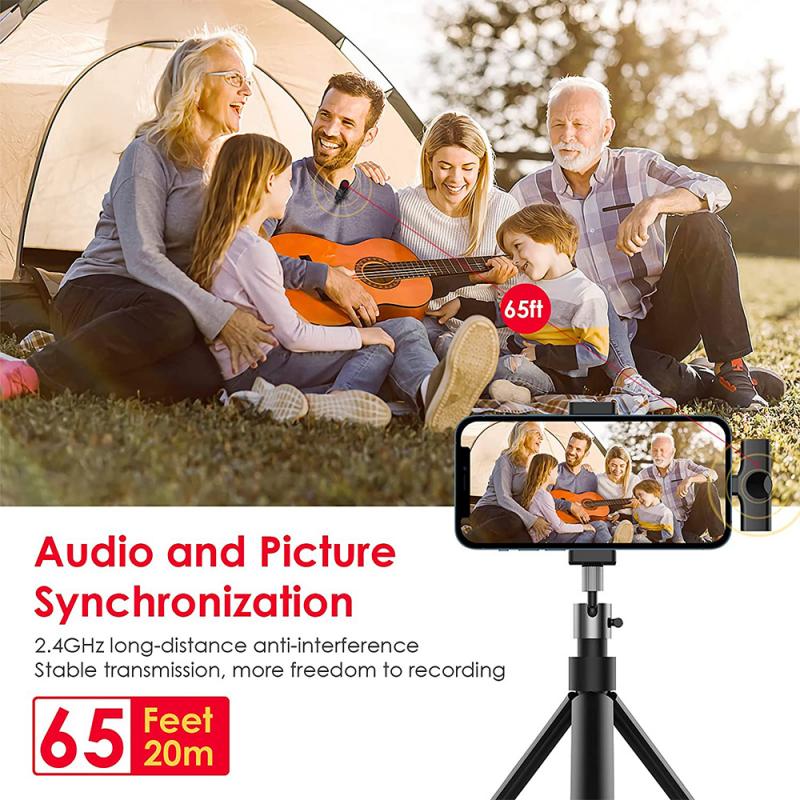
Clear and crisp sound is crucial for engaging video content. Poor sound quality can detract from the viewing experience and make even the most stunning visuals fall short. This is why understanding how to optimize your sound recording process with the Osmo Mobile 2 is imperative.

## Essential Tools and Accessories

To enhance the sound recording capabilities of your Osmo Mobile 2 setup, consider investing in the following tools and accessories:

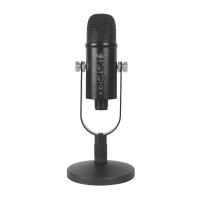
- External Microphones: These can significantly boost your audio quality. Options include lavalier mics, shotgun mics, and wireless systems.

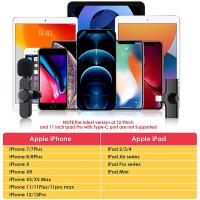
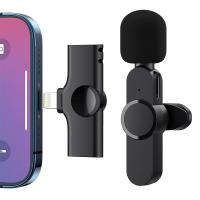
- Audio Adapters: Depending on your smartphone's connections (3.5mm jack, USB-C, or Lightning), you may need an appropriate adapter.

- Windshields or Windjammers: To reduce wind noise when recording outdoors.

- Audio Recording Apps: These apps offer more control over sound levels and quality compared to the default smartphone recorder.

## Step-by-Step Guide to Recording Sound with the Osmo Mobile 2

1. Choosing the Right External Microphone
osmo mobile 2 how to record sound 2

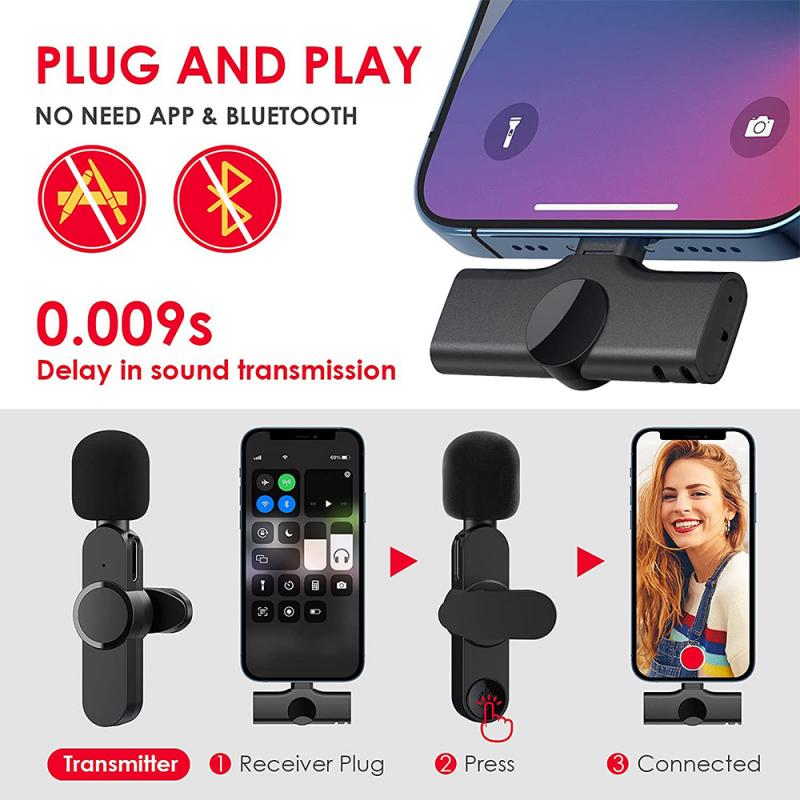
Firstly, pick an external microphone compatible with your recording needs. Here's a brief look at various types:

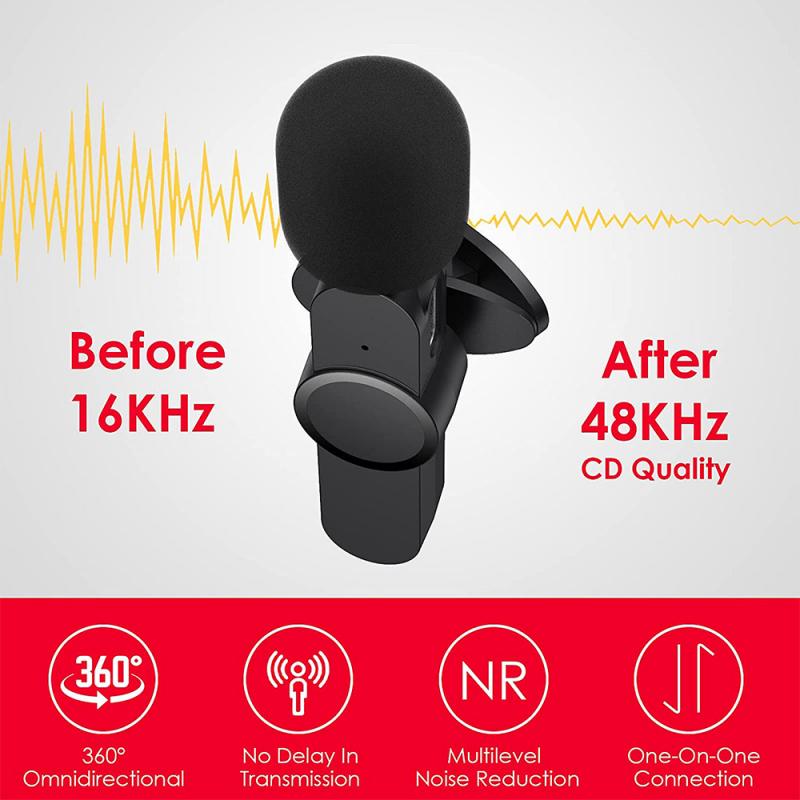
- Lavalier Microphones: Ideal for interviews and vlogs, lavalier mics are small and clip onto your clothing, providing hands-free audio capture.

- Shotgun Microphones: Perfect for directional recording, these mics capture sound from a specific area and are excellent for both indoor and outdoor settings.

- Wireless Microphones: Best for mobility, wireless systems are great for dynamic recording scenarios where you need freedom of movement.

2. Connecting the Microphone to Your Smartphone
osmo mobile 2 how to record sound 3

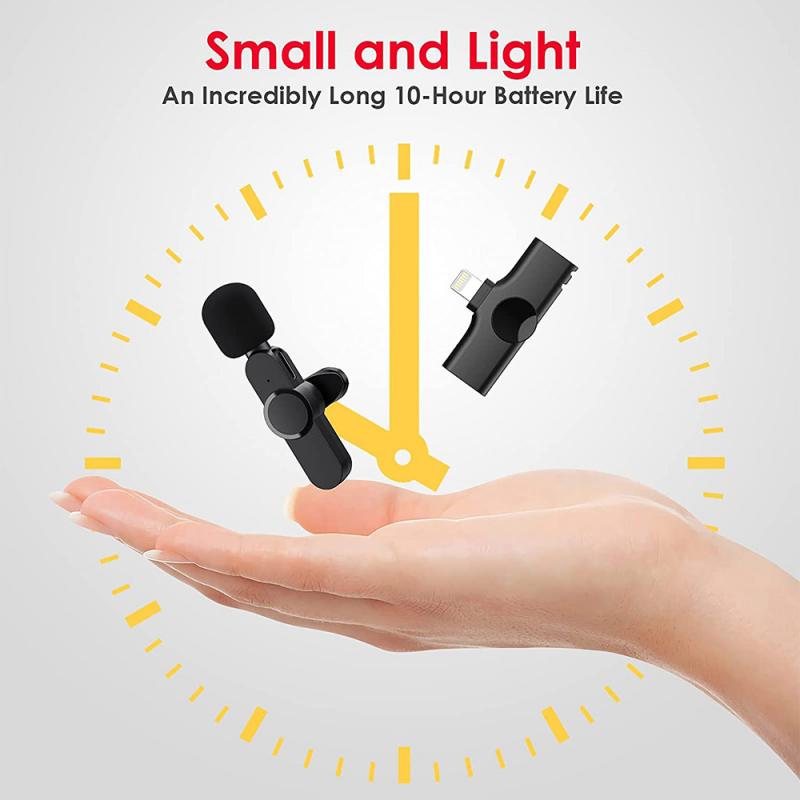
Once you've selected a suitable microphone, you’ll need to connect it to your smartphone. Modern smartphones may lack a traditional headphone jack, necessitating an audio adapter. Ensure your microphone's connector matches your smartphone's port (e.g., 3.5mm, USB-C, or Lightning).

3. Setting Up the Osmo Mobile 2
osmo mobile 2 how to record sound 4

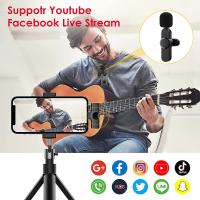
Mount your smartphone on the Osmo Mobile 2 and balance it correctly. Connect the external microphone to your smartphone, making sure that the wire does not obstruct the gimbal’s movement. This setup ensures seamless operation without compromising the stability of your footage.

4. Using Audio Recording Apps

While the default camera app is serviceable, specialized audio recording apps offer advanced features such as gain control, equalization, and real-time monitoring. Apps like Filmic Pro or Rode Rec are popular choices among professionals.

Configuring the App

Open your chosen app and navigate to the audio settings. Select the external microphone as your input source. This step is crucial for ensuring that audio is recorded via the external mic and not the internal smartphone mic.

5. Monitoring Audio Levels

Monitoring audio levels is an essential aspect of ensuring quality sound. Make use of headphones plugged into your smartphone or an audio interface to listen in real-time. Check for balance and peak levels to avoid distortion.

6. Minimizing Background Noise

Recording in a quiet environment yields the best results. However, when shooting outdoors or in noisy locations, use a windscreen or windshield on your microphone to reduce wind noise. Position yourself away from loud background sounds whenever possible.

7. Recording Tips and Best Practices

- Stay Close to the Microphone: The closer the sound source to the microphone, the clearer the audio.

- Use a Pop Filter: If using a handheld mic, a pop filter helps to minimize plosive sounds (like "p" and "t" sounds).

- Avoid Hand Noise: Any handling of the external microphone can introduce unwanted noise. Hold it steady or use a stand.

## Post-Production

Capturing high-quality sound is just half the battle. Post-production work polishes your audio and eliminates any imperfections.

Editing Software

Invest in reliable audio editing software like Adobe Audition, Audacity (free), or GarageBand. These tools allow you to tweak sound levels, remove noise, and add effects to enhance audio quality.

Syncing Audio with Video

If you record audio separately for better control, syncing it with your video footage is crucial. Most video editing software has features to match waveforms from the audio and video tracks, making this process seamless.

## Troubleshooting Common Issues

Static Noise or Interference

Static noise can ruin an otherwise perfect recording. To minimize this, ensure all connections are secure and use shielded cables if possible. Sometimes turning off other electronic devices nearby can mitigate interference.

Distorted Sound

Distortion often results from audio levels being too high. Adjust the gain settings in your recording app or lower the input volume directly from your microphone. Remember that a clean, undistorted recording is better than one that's too loud and clipped.

Sync Problems

If you encounter issues with syncing audio in post-production, double-check your recording settings, frame rates, and timecode (if applicable). Using a clapperboard or simply clapping at the start of the recording can provide a visual and auditory cue for easier synchronization later.

## Conclusion

Recording high-quality sound with the Osmo Mobile 2 might seem daunting, but with the right approach and tools, it's entirely achievable. By using external microphones, monitoring audio levels, and applying best practices during recording and post-production, you can ensure that your videos are complemented by crystal-clear sound. Following this comprehensive guide will help you elevate the quality of your content, making it more engaging and professional for your audience. Happy filming and recording!

Leave your comment
Cancel reply
Note: HTML is not translated!
Related products
Storage Sling Bag, Vlog Photography Camera HandBag, Portable Carrying Case for Switch 2/Steam Deck/DJI Osmo Pocket 3/Mobile 7P/GoPro/Insta360 Action Cameras & Digital Accessories
$39.99
67mm Clip-on CPL&Black Mist 1/4 2-in-1 Phone Camera Lens Filter Kit Applicable to All Mobile Phone Models
3
$29.99
128G Mini Digital Voice Recorder with Color Screen Bluetooth Call Record 3072kbps Kentfaith
HOT Seller
128G Mini Digital Voice Recorder with Color Screen Bluetooth Call Record 3072kbps Kentfaith
15
$119.99 $83.99
67mm Clip-on CPL Phone Camera Lens Filter Kit Applicable to All Mobile Phone Models
40
$18.99
Instant Cross-APP Translator Device for Business & Trade, Video Call Translation, Record, & Transcription, Kentfaith AI Translator Devices
12
$124.99 $99.99
67mm Clip-on ND2-32 Phone Camera Lens Filter Kit Applicable to All Mobile Phone Models
NEW Arrival
67mm Clip-on ND2-32 Phone Camera Lens Filter Kit Applicable to All Mobile Phone Models
13
$37.99
5K Video Camera with 75MP Photos, 8X Optical Zoom, WiFi Transfer, Wireless Mic, Dual Batteries, Support PIP Record, Kentfaith
16
$274.99 $239.99
Variable ND2-32 Filter Compatible with DJI Osmo Action 5 Pro/Osmo Action 4/Osmo Action 3, Snap-on Installation, no need to remove the original filter
NEW Arrival
Variable ND2-32 Filter Compatible with DJI Osmo Action 5 Pro/Osmo Action 4/Osmo Action 3, Snap-on Installation, no need to remove the original filter
40
$24.99
Variable ND32-512 Filter Compatible with DJI Osmo Action 5 Pro//Osmo Action 4/Osmo Action 3, Snap-on Installation, no need to remove the original filter
NEW Arrival
Variable ND32-512 Filter Compatible with DJI Osmo Action 5 Pro//Osmo Action 4/Osmo Action 3, Snap-on Installation, no need to remove the original filter
40
$24.99
67mm Clip-on Black Mist 1/4 Phone Camera Lens Filter Kit Applicable to All Mobile Phone Models
7
$29.99
Products You May Like
67''/1.7m Eccentric Tube Cellphone Tripod, Lightweight Super Portable Selfie Stick, DSLR Camera Tripod E224A3+BH-18 Black.  (Shipping only available to the UK, EU)
67''/1.7m Eccentric Tube Cellphone Tripod, Lightweight Super Portable Selfie Stick, DSLR Camera Tripod E224A3+BH-18 Black. (Shipping only available to the UK, EU)
36
$85.99 $49.99
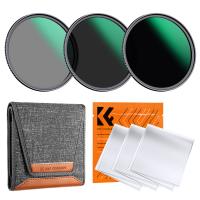
77mm ND8+ND64+ND1000 Lens Filter Kit with 3 Vacuum Cleaning Cloths and Filter Pouch, 24 Layer Multi-coated HD Optical Glass, Nano-Dazzle Series
88
$82.99 $65.99
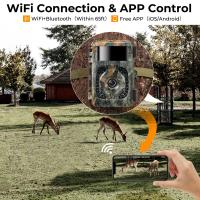
Low Glow Trail Camera
10
$162.99 $106.99
Y20 smart watch with heart rate and sleep monitoring, 1.7-inch full touch screen, smart female and male fitness watch, compatible with Android iPhone iOS blue
$31.56
52mm Fisheye Lens 0.35X HD Wide Angle with Macro Close Up
1
$25.99
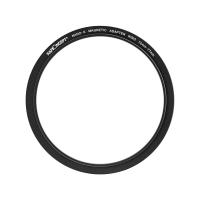
72mm-77mm Magnetic Lens Filter Adapter Ring
18
$22.99
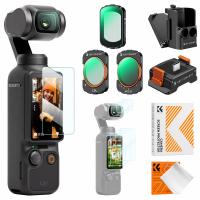
DJI Osmo Pocket 3 / DJI Osmo Pocket 4 Accessories 11-Piece Kit (CPL + Black Mist 1/4 + ND2-32 + Charging Adapter Base + Magnetic Mount + 6pcs Camera Screen Protector)
HOT Seller
DJI Osmo Pocket 3 / DJI Osmo Pocket 4 Accessories 11-Piece Kit (CPL + Black Mist 1/4 + ND2-32 + Charging Adapter Base + Magnetic Mount + 6pcs Camera Screen Protector)
$72.99
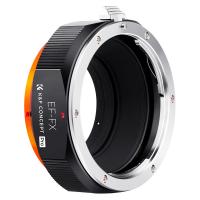
EOS EF/EFS Lens to FujiFX Mount FIT Pro1 X Camera X-Series Mirrorless Cameras with Matting Varnish Design Lens Mount Adapter K&F Concept Lens Mount Adapter
58
$51.99 $27.99
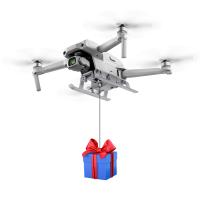
Mavic Air 2S Airdrop System with Landing Gear, Long Range Payload Airdrop Release Drop Device Kit for DJI Air 2S / Mavic Air 2 Drone
$32.99 $29.99
Backpack Strap Mount Quick Clip Bracket Compatible with Gopro Hero 11, 10, 9, 8, 7, 6, 5, 4, Session, 3+, 3, 2, 1, Hero (2018), Fusion, Max, DJI Osmo, Xiaomi Yi sports camera
$21.99 $15.99
Related articles
How To Record Audio In Discord Mobile?
How To Screen Record Including Sound?
How To Record Videos Without Sound?
How To Screen Record Internal Sound?
How Do Records Record Sound?
How To Record Sound From Desktop Capture?
How To Record Phone Screen With Sound?
How To Make Sound Recorder Record Computer?
How To Put Screen Record With Sound?
How Do I Get To My Sd Card?
Blog You May Like
Where To Put Security Cameras In Home?
Can I Have Security Cameras Outside My House?
Where Do My Sound Recorder Files Go?
How Smart Lock Works?
How Do You Set Up Wireless Security Cameras?
How To Fix Selfie Stick Button?
How To Use Selfie Monopod With Remote?
How To Zoom In Logitech Webcam ?
Trail Camera You Can View From Your Phone?
How To Put Headphones In Pc?
Related categories
Tamron Adaptall 2 Lens Adapters C mount lens adapter 2 in 1 Filter drone filters Lens Filters for DJI Osmo Pocket 4/3 m4/3 adapter black pro mist 1 2 filter
Popular products
Mini Digital Voice Recorder​ dry bag with strap video recording camera for youtube type a to c cable otg cable type c usb a to type c cable clip on phone camera lens ring light phone holder sony camera with microphone nd filter for dji osmo action
Related searches
Dji Osmo Mobile 2 Adapter For Sony Cheap Camera To Record Videos Osmo Pocket 2 Filters Dji Osmo Mobile 3 Tripod Dji Osmo Mobile Sony Adapter Best Camera To Record Time Lapse Osmo Mobile Sony Action Cam Adapter 2 In 1 Mobile Phone Projector Dji Osmo Pocket 2 Nd Filter Night Vision Binoculars That Record
Popular searches
Fujifilm 77mm Protector Filter Best Non Wireless Headphones Led Stick Light For Photography Canon Mini Hdmi Adapter Nikon Z50 Lens Adapter M42 Adapter Canon 5d Weather Sealed Sony E Adapter Sony Venice E Mount Metabones Lens Mount Adapter Canon Lens Tripod Mount Ring
Blog Category
  • Activities
  • Guide
    • Filter Guide
    • Lens Adapter
    • Product Review
  • News & Reviews
    • Camera Reviews
    • Sample Gallery
    • News
  • Tutorials
    • Solar eclipse photography
    • Photography Basics
    • Landscape Photography
  • Inspiration
    • Travel
    • Travel Stories
Search Article
Latest from the Blog
What Power Binoculars For Long Distance Viewing?
Kentfaith x ANACONDA: Capturing the Wild, Frame by Frame
How Does a WiFi Trail Camera Work?
Is the Sony A7M5 worth buying?
Which Bluetooth Earphones?
How To Place Cameras Around Your House?
Black Friday 2025 Special at Kentfaith
UV Filter: Everything You Need to Know About UV Protection Lens Filters
Which Binoculars To Buy?
What To Look For In A Dash Cam?
  • Easy Payment Multilple Payment Options

  • Free Shipping Global WareHouse Shipment

  • No Risk 30-Day No Reason Return

  • Limited Deals Buy More, Save More

  • Tax Free No any surcharges or tax fee

Information
  • About us
  • Contact Us
  • Site Map
  • Blog
  • Video
  • Gallery
  • VIP Membership Rewards
Service
  • Privacy Policy
  • Terms & Conditions
  • Shipping & Delivery
  • Payment Info
  • Warranty, Return & Refund
  • Intellectual Property Rights
  • Ambassador
  • Affiliates
  • Wholesale
Support
  • My account
  • Order History
  • FAQs
  • Extend Warranty
  • Logistics Tracking
Follow us
NewsLetter

Get the latest product, K&F Concept respects your privacy.

Powered By KENTFAITH © 2026