kfconcept

KENTFAITH
K&F Concept    Blog >

Enjoy Your Selected Digital Life

Recently Viewed
  • Recently Viewed
  • Kingwear KW88 Bluetooth Smartwatch Watchphone Wifi 3G GPS - Black
    Kingwear KW88 Bluetooth Smartwatch Watchphone Wifi 3G GPS - Black
    $85.99
Compare (0) 0
  • Compare
  • You have not chosen any products to compare.

  • Compare
Currency: USD
  • Currency
Shop by Scene Shop by Rank

Log Into Your Account

Account

Order History

Wish List

Login

Forgotten Password?

Or connect with

Register Account

Already have an Account?Log In

  • Shopping Cart
  • Your shopping cart is empty!

  • Register/Login to purchase, earn points
  • Favorite
  • Your wish list is empty.

  • Register/Login to like, earn points
  • Activities
  • Guide
    • Filter Guide
    • Lens Adapter
    • Product Review
  • News & Reviews
    • Camera Reviews
    • Sample Gallery
    • News
  • Tutorials
    • Solar eclipse photography
    • Photography Basics
    • Landscape Photography
  • Inspiration
    • Travel
    • Travel Stories
  • Home
  • Blog
  • How To Record Voice Audio On Mac?

How To Record Voice Audio On Mac?

Kentfaith 2024-08-30 01:04:31 0 Comments

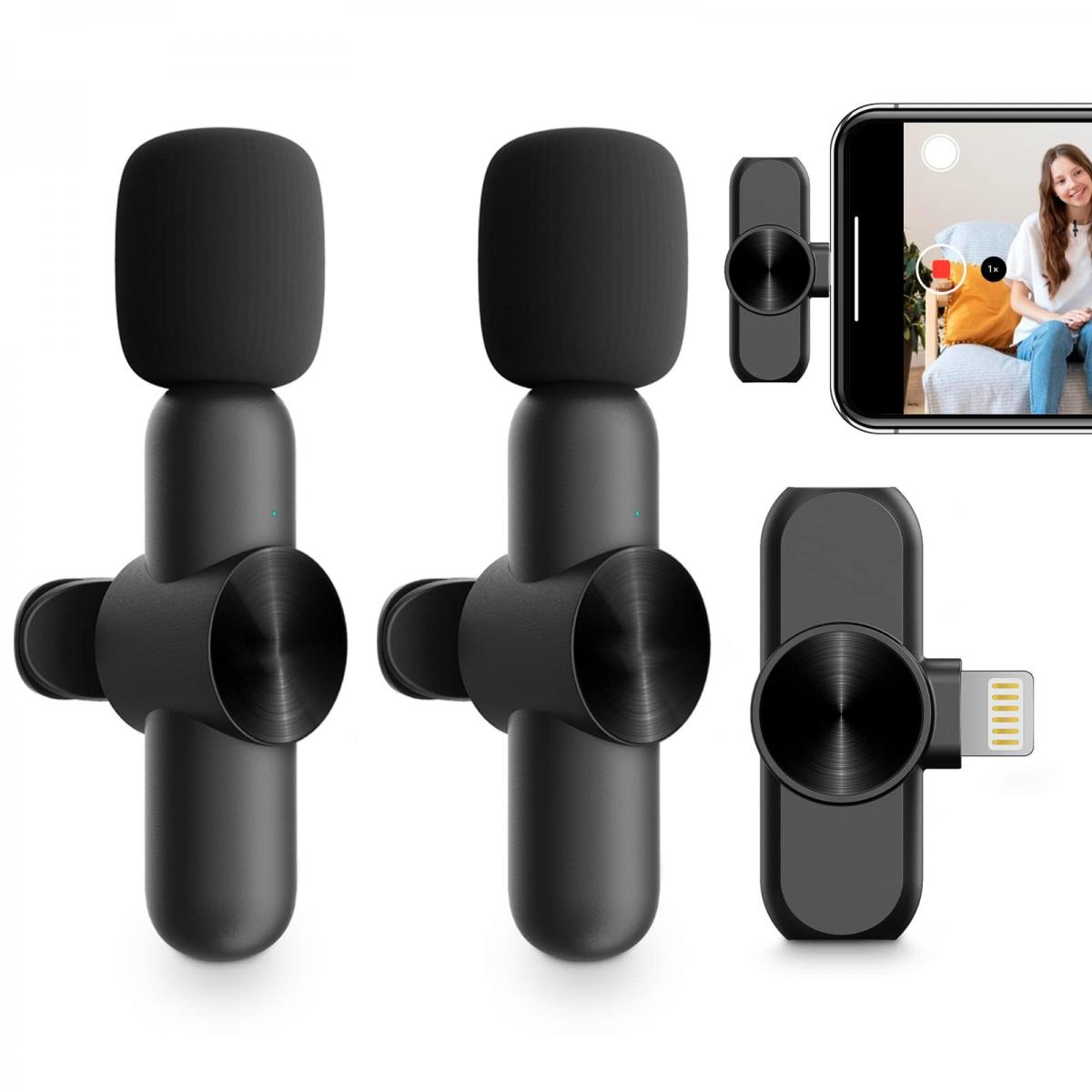
Recording voice audio on a Mac is a common task that many users need to accomplish for various reasons, such as creating podcasts, recording lectures, or capturing voice memos. Fortunately, macOS offers several built-in tools and third-party applications that make this process straightforward and efficient. In this article, we will explore different methods to record voice audio on a Mac, providing step-by-step instructions and tips to ensure high-quality recordings.

Using QuickTime Player

QuickTime Player is a versatile media player that comes pre-installed on all Macs. It is not only useful for playing videos but also for recording audio. Here’s how you can use QuickTime Player to record voice audio:

1. Open QuickTime Player: You can find QuickTime Player in the Applications folder or by using Spotlight search.

2. Start a New Audio Recording:

- Click on "File" in the menu bar.

- Select "New Audio Recording" from the dropdown menu.

3. Adjust Recording Settings:

- A new window will appear with a red record button. Next to the record button, there is a small arrow. Click on it to select your microphone (built-in or external).

- Adjust the volume slider to set the input level.

4. Begin Recording:

- Click the red record button to start recording.

- Speak clearly into the microphone.

5. Stop Recording:

- Click the stop button (a square inside a circle) to end the recording.

6. Save the Recording:

- Go to "File" and select "Save."

- Choose a location and file name for your recording, then click "Save."

Using Voice Memos

Voice Memos is another built-in application on macOS designed specifically for recording audio. It is simple to use and syncs with your iOS devices via iCloud. Here’s how to use Voice Memos:

1. Open Voice Memos: You can find Voice Memos in the Applications folder or by using Spotlight search.

2. Start a New Recording:

- Click the red record button at the bottom of the window.

3. Record Your Voice:

- Speak clearly into the microphone.

- You can pause the recording by clicking the pause button and resume by clicking the record button again.

4. Stop and Save the Recording:

- Click the done button (a square inside a circle) to stop the recording.

- The recording will be automatically saved with a default name (e.g., "New Recording"). You can rename it by clicking on the name and typing a new one.

Using GarageBand

GarageBand is a powerful audio editing software that comes pre-installed on Macs. It offers more advanced features for those who need more control over their recordings. Here’s how to use GarageBand to record voice audio:

1. Open GarageBand: You can find GarageBand in the Applications folder or by using Spotlight search.

2. Create a New Project:

- Select "Empty Project" and click "Choose."

- In the new window, select "Audio" and then "Create."

3. Set Up Your Microphone:

- Ensure your microphone is connected and selected as the input device.

- You can adjust the input settings by clicking on the track header and selecting "Smart Controls."

4. Start Recording:

- Click the red record button in the control bar at the top of the window.

- Speak clearly into the microphone.

5. Stop Recording:

- Click the stop button (a square inside a circle) to end the recording.

6. Edit and Save the Recording:

- You can edit your recording using the various tools available in GarageBand.

- To save, go to "Share" in the menu bar and select "Export Song to Disk."

Using Third-Party Applications

While the built-in tools are sufficient for most users, some may require additional features offered by third-party applications. Here are a few popular options:

1. Audacity: A free, open-source audio recording and editing software. It offers a wide range of features and is suitable for both beginners and advanced users.

2. Adobe Audition: A professional-grade audio editing software that offers advanced features for recording, mixing, and mastering audio.

3. Logic Pro X: A comprehensive digital audio workstation (DAW) for professional music production and audio recording.

Tips for High-Quality Voice Recordings

Regardless of the method you choose, here are some tips to ensure high-quality voice recordings:

1. Use a Good Microphone: While the built-in microphone on your Mac is convenient, an external microphone will provide better sound quality.

2. Find a Quiet Environment: Background noise can significantly affect the quality of your recording. Choose a quiet room and consider using soundproofing materials if necessary.

3. Adjust Input Levels: Ensure that your input levels are set correctly to avoid distortion or low volume.

4. Speak Clearly: Articulate your words clearly and maintain a consistent distance from the microphone.

5. Monitor Your Recording: Use headphones to monitor your recording in real-time and make adjustments as needed.

Recording voice audio on a Mac is a simple process, thanks to the variety of built-in tools and third-party applications available. Whether you are using QuickTime Player, Voice Memos, GarageBand, or a third-party app, the key to a successful recording lies in proper setup and attention to detail. By following the steps outlined in this article and implementing the tips for high-quality recordings, you can ensure that your voice audio projects are clear, professional, and effective.

Leave your comment
Cancel reply
Note: HTML is not translated!
Related products
128G Mini Digital Voice Recorder with Color Screen Bluetooth Call Record 3072kbps Kentfaith
HOT Seller
128G Mini Digital Voice Recorder with Color Screen Bluetooth Call Record 3072kbps Kentfaith
15
$119.99 $83.99
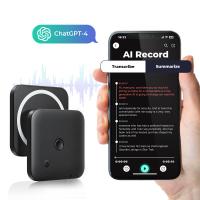
AI Voice Recorder Transcriber Summary Translation Audio Activated 128G Kentfaith
NEW Arrival
AI Voice Recorder Transcriber Summary Translation Audio Activated 128G Kentfaith
15
$99.99 $79.99
AI Voice Recorder Voice-to-Text & Transcription for Meetings, Calls, Interviews, 64G Kentfaith Mini & Magnetic
HOT Seller
AI Voice Recorder Voice-to-Text & Transcription for Meetings, Calls, Interviews, 64G Kentfaith Mini & Magnetic
26
$119.99 $69.99
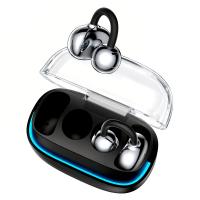
Real-time Translator Earbuds with 150 Languages, Offline Translation, Video & Voice Call Translation, 40H Battery Life, Clip-on Design, Kentfaith
16
$137.49 $109.99
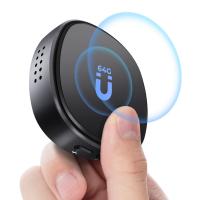
Mini Voice Recorder Magnetic & Voice-activated, 800H Recording with Noise Cancelling, Kentfaith Voice Recorder for Meetings, Lectures, Studying, Interviews 64G
TOP Best
Mini Voice Recorder Magnetic & Voice-activated, 800H Recording with Noise Cancelling, Kentfaith Voice Recorder for Meetings, Lectures, Studying, Interviews 64G
635
$68.99 $49.99
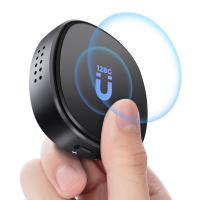
Mini Voice Recorder Magnetic & Voice-activated, 1600H Recording with Noise Cancelling, Kentfaith Voice Recorder for Meetings, Lectures, Studying, Interviews 128G
635
$82.49 $59.99
Mini Voice Recorder Voice-activated & Magnetic 64G 800 Hours Capacity Noise Cancelling
635
$57.49 $52.99
Mini Voice Recorder Voice-activated & Magnetic 128G 1600 Hours Capacity Noise Cancelling
635
$82.49 $59.99
Instant Cross-APP Translator Device for Business & Trade, Video Call Translation, Record, & Transcription, Kentfaith AI Translator Devices
12
$124.99 $99.99
Digital Voice Recorder with Ultra-long 1000H Continuous Recording, Voice-Activated & Magnetic 128G
11
$134.99 $89.99
Products You May Like
K&F Concept KU04 55mm Slim MC UV Filter
23
$23.99 $11.99
Professional-grade Eclipse Set-Include 82mm Solar Filter + KF09.098 Carbon Fiber Tripod + KF13.107 32L Pro Large Camera Backpack + KF28.0024 6700mAh V Mount Battery
100
$879.99 $462.99
Digital Camera for Microscopes 5 Megapixel Color CMOS for Windows Mac OS Android Phones Kentfaith
12
$99.99 $79.99
2K Cellular Trail Cameras Hunting Camera Non-Stop Solar & Battery Powered No Battery Life Anxiety + 64GB micro SD Card
60
$219.99 $157.99
K&F Concept MD to FX Lens Mount Adapter with Matting Varnish Design, Fits for Fuji XT2 XT20 XE3 XT1 X-T2
61
$53.99 $29.99
DJI Avata Drone Filter Set 3pcs (CPL+ND8+ND16) with Single-sided Anti-reflection Waterproof Anti-scratch Green Film Compatible with O3 Air Unit
8
$56.99 $33.99
M42 Lenses to Canon EOS M Lens Mount Adapter with Tripod Mount K&F Concept M10142 Lens Adapter
$25.99
K&F CONCEPT Double-Sided Magnetic Lens Filter Mount Adapter with 58mm CPL Filter, Compatible with iPhone 17 Pro Max and 58mm Threaded Filters, CPL Filter Compatible with iPhone Camera Lens
59
$35.99
K&F Concept 1026MT 10x26 Binoculars Multi-Coated Optics and BaK4 Prisms for Bird Watching, Hunting, Sports Events or Concerts
6
$82.99 $51.99
55mm ND Filter ND1000 (10 Stop) Lens Filter 28 Multi-Layer Coatings Waterproof Scratch Resistant Super Slim for Camera Lens (Nano-Xcel Series)
92
$37.99 $29.99
Related articles
How To Record Game Audio And Voice?
How Record Audio On Pc?
How To Turn On Screen Record Audio?
How To Record Discord Audio On Xbox?
How To Record External Audio On Pc?
How To Record On Pc With Audio?
How To Record Audio On Xbox Clips?
How To Record Audio On A Macbook?
How To Screen Record Audio On Youtube?
Who Can Install Cameras In My House?
Blog You May Like
How To Use Polarized Lens Filter?
How To Use A Nd Filter For Video?
Why Does Computer Screen Flash Like Camera?
How To Find Camera Frame Size?
What Size Memory Card For Gopro Hero 9?
How To Mount Ring Spot Light?
How To Find My Lost Dslr Camera?
How To Setup Wireless Ip Security Camera System?
How To Setup V380 Wifi Smart Net Camera ?
Can You Connect Bluetooth Earphones To Laptop?
Related categories
On-Dash Camera C mount lens adapter m4/3 adapter 1/4 black pro mist filter Circular Graduated ND Filter​ magnetic variable ND filter Sony A Mount Lens Adapters
Popular products
Mini Digital Voice Recorder​ phone voice call recording video recording camera for youtube mini sound recorder device mini magnetic voice recorder sony camera with microphone mini magnetic voice recorder digital voice recording small voice recorder device smart digital voice recorder
Related searches
Voice Activated Recorder For Mac Digital Voice Recorder Audio Audio Sound Voice Recorder Pen Mini Voice Activated Audio Recorder Voice Activated Audio Recorder Device Cheap Camera To Record Videos Best Camera To Record Time Lapse Microphone For Voice Recording On Iphone Microphone For Recording Audio On Computer Mac Compatible Microscope
Popular searches
Moment Original Lens Adapter Canon 50mm F0.95 Adapter Mamiya Rz Lens To 645 Adapter Moondog Labs 1.33 X Anamorphic Adapter Lens Wireless Hidden Security Cameras 46mm 37mm Lens Adapter Samsung Nx2000 Lens Adapter Security Camera For Home With Recording Adapt Large Format Lens To Mamiya 645 4k 2.4g Ultra Hd Camera
Blog Category
  • Activities
  • Guide
    • Filter Guide
    • Lens Adapter
    • Product Review
  • News & Reviews
    • Camera Reviews
    • Sample Gallery
    • News
  • Tutorials
    • Solar eclipse photography
    • Photography Basics
    • Landscape Photography
  • Inspiration
    • Travel
    • Travel Stories
Search Article
Latest from the Blog
Which Camera Is Best For Low Light Photography?
Best Metal Detector for Kids in 2025
How Do Night Vision Goggles Work?
How Does a WiFi Trail Camera Work?
Neutral Density Filter: The Ultimate Guide for Photographers and Videographers
Kentfaith x ANACONDA: Capturing the Wild, Frame by Frame
Dash Cam That Can Connect To Phone?
How Do Trail Cameras Work? The Ultimate Guide to Trail Cameras
Black Friday 2025 Special at Kentfaith
What is A Variable ND Filter? The Complete Guide to Mastering Exposure Control
  • Easy Payment Multilple Payment Options

  • Free Shipping Global WareHouse Shipment

  • No Risk 30-Day No Reason Return

  • Limited Deals Buy More, Save More

  • Tax Free No any surcharges or tax fee

Information
  • About us
  • Contact Us
  • Site Map
  • Blog
  • Video
  • Gallery
  • VIP Membership Rewards
Service
  • Privacy Policy
  • Terms & Conditions
  • Shipping & Delivery
  • Payment Info
  • Warranty, Return & Refund
  • Intellectual Property Rights
  • Ambassador
  • Affiliates
  • Wholesale
Support
  • My account
  • Order History
  • FAQs
  • Extend Warranty
  • Logistics Tracking
Follow us
NewsLetter

Get the latest product, K&F Concept respects your privacy.

Powered By KENTFAITH © 2026