kfconcept

KENTFAITH
K&F Concept    Blog >

Enjoy Your Selected Digital Life

Recently Viewed
  • Recently Viewed
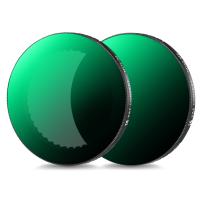
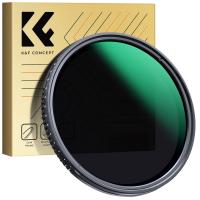
  • 67mm True Color Variable ND2-32 (1-5 Stops) ND Lens Filter, Adjustable Neutral Density Filter with 28 Multi-Layer Coatings Nano-Xcel Series
    67mm True Color Variable ND2-32 (1-5 Stops) ND Lens Filter, Adjustable Neutral Density Filter with 28 Multi-Layer Coatings Nano-Xcel Series
    $118.99 $94.99
Compare (0) 0
  • Compare
  • You have not chosen any products to compare.

  • Compare
Currency: USD
  • Currency
Shop by Scene Shop by Rank

Log Into Your Account

Account

Order History

Wish List

Login

Forgotten Password?

Or connect with

Register Account

Already have an Account?Log In

  • Shopping Cart
  • Your shopping cart is empty!

  • Register/Login to purchase, earn points
  • Favorite
  • Your wish list is empty.

  • Register/Login to like, earn points
  • Activities
  • Guide
    • Filter Guide
    • Lens Adapter
    • Product Review
  • News & Reviews
    • Camera Reviews
    • Sample Gallery
    • News
  • Tutorials
    • Solar eclipse photography
    • Photography Basics
    • Landscape Photography
  • Inspiration
    • Travel
    • Travel Stories
  • Home
  • Blog
  • How To Record Audio On My Macbook Pro?

How To Record Audio On My Macbook Pro?

Kentfaith 2024-12-20 03:44:18 0 Comments

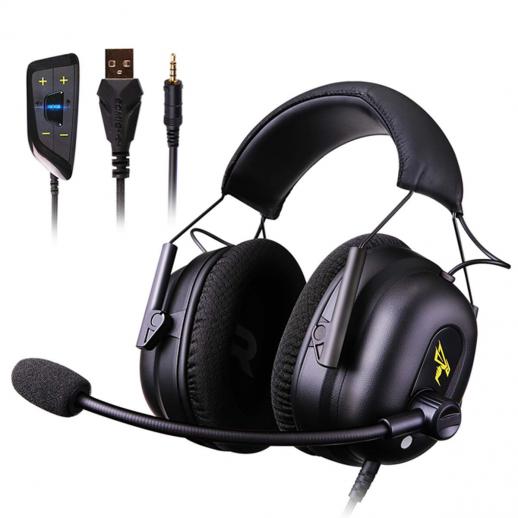
Audio recording on a MacBook Pro is a seamless and efficient process, thanks to its robust hardware and user-friendly macOS ecosystem. Whether you're a budding podcaster, a professional musician, or simply looking to record voice notes, the MacBook Pro offers tools and features to meet your needs. This guide delves into the practical steps, tools, and tips for recording audio on your MacBook Pro, ensuring high-quality results.

---

Understanding the Basics of Audio Recording

Before diving into the steps, it’s important to understand the fundamental requirements for audio recording on your MacBook Pro:

1. Microphone: Every MacBook Pro comes equipped with a built-in microphone, sufficient for basic recordings. For higher-quality audio, consider using an external microphone.

2. Recording Software: macOS provides native apps like Voice Memos and GarageBand for audio recording. Third-party apps such as Audacity and Logic Pro X are also popular for advanced needs.

3. Audio Settings: Properly configuring your MacBook Pro's audio input settings ensures optimal recording performance.

With these essentials in mind, let’s explore how to start recording audio on your MacBook Pro.

---

Step 1: Choosing the Right Tool for Recording

The first step in recording audio is selecting the tool that best matches your requirements. Here are some options:

1. Voice Memos (Native App)

Voice Memos is pre-installed on macOS and is ideal for simple recordings like voice notes, interviews, or quick memos.

Steps to Record Using Voice Memos:

1. Open the Voice Memos app from your Applications folder or Spotlight search.

2. Click the red Record button to start recording.

3. Speak clearly into the built-in microphone or an external mic.

4. Press the Pause button if you need a break, or click Done to stop and save the recording.

5. Your recording will appear in the list, where you can rename, edit, or share it.

2. GarageBand (Native App for Musicians)

GarageBand is a powerful digital audio workstation (DAW) included with macOS. It’s perfect for music production, podcasts, or multi-track audio projects.

Steps to Record Using GarageBand:

1. Open GarageBand and select a new project, such as "Empty Project."

2. Choose an Audio Track for recording and set the input to your desired microphone.

3. Click the Record button (red circle) in the control bar and start speaking or playing your instrument.

4. Use the timeline to organize, edit, and layer your recordings.

5. Export your project in your preferred format by selecting Share > Export Song to Disk.

3. Audacity (Free Third-Party App)

Audacity is a free and open-source audio editor available for macOS. It’s well-suited for professional-quality recordings and editing.

Steps to Record Using Audacity:

1. Download and install Audacity from its official website.

2. Open Audacity and configure your microphone input under Preferences > Devices.

3. Click the red Record button to start recording.

4. Stop the recording by pressing the Stop button or using the spacebar.

5. Edit your audio directly in the app and export it in formats like MP3 or WAV.

4. Logic Pro X (Advanced Tool for Professionals)

Logic Pro X is Apple’s professional-grade DAW for advanced users. It offers sophisticated tools for music production and audio editing.

Steps to Record Using Logic Pro X:

1. Install and launch Logic Pro X.

2. Create a new project and add an audio track.

3. Connect your external microphone, then configure the input in the track settings.

4. Press the Record button to begin recording, and use the timeline to manage multiple tracks.

5. Mix and master your audio before exporting the final file.

---

Step 2: Configuring Audio Settings

To achieve the best results, you must configure the audio input settings on your MacBook Pro. Here’s how:

1. Access System Preferences:

- Open System Preferences and go to Sound.

- Select the Input tab and choose your microphone (e.g., internal or external).

2. Adjust Input Levels:

- Drag the input volume slider to adjust the sensitivity of the microphone.

- Speak into the microphone to ensure the input levels are neither too low nor peaking.

3. Test Your Setup:

- Use the Test Audio Input option to verify that your microphone is functioning correctly.

---

Step 3: Tips for High-Quality Audio Recording

Even with the best tools, poor practices can compromise the quality of your recordings. Follow these tips for optimal results:

1. Choose the Right Environment:

- Record in a quiet space to minimize background noise.

- Use a room with soft furnishings to reduce echo and reverb.

2. Position Your Microphone Correctly:

- Maintain a consistent distance from the microphone, typically 6–12 inches.

- Use a pop filter to reduce plosive sounds (e.g., “P” and “B” sounds).

3. Monitor Your Audio:

- Use headphones to monitor your recording in real time and catch issues early.

4. Optimize Your MacBook’s Performance:

- Close unnecessary applications to prevent CPU overload during recording.

- Ensure sufficient storage space for saving large audio files.

---

Step 4: Editing and Enhancing Your Recording

Once you’ve recorded your audio, the next step is editing and enhancing it for clarity and quality. Here’s what you can do:

1. Noise Reduction

- Use noise reduction tools in GarageBand, Audacity, or Logic Pro X to eliminate background noise.

2. Equalization (EQ)

- Adjust EQ settings to balance frequencies and enhance the overall sound quality.

3. Trimming and Splitting

- Cut out unwanted parts or split the recording into segments for better organization.

4. Adding Effects

- Apply effects like reverb, compression, or delay for a professional touch.

5. Exporting in the Right Format

- Save your audio in a high-quality format (e.g., WAV for uncompressed audio or MP3 for compressed audio).

---

Step 5: Sharing and Storing Your Recordings

Once your recording is polished, decide how to store and share it. Here are some options:

1. Cloud Storage:

- Use iCloud, Google Drive, or Dropbox to store your recordings securely.

2. Sharing Options:

- Share directly from the recording app or upload to platforms like SoundCloud, YouTube, or podcasting services.

3. Backup Your Files:

- Regularly back up your recordings to an external drive to prevent data loss.

---

Troubleshooting Common Issues

Even with a streamlined process, you may encounter challenges. Here’s how to address common issues:

1. Microphone Not Detected:

- Ensure the microphone is properly connected and selected as the input device in System Preferences.

2. Poor Audio Quality:

- Check your recording environment and use an external microphone if needed.

3. Lag or Delays:

- Reduce CPU usage by closing background apps and adjusting buffer size in the recording software.

4. File Format Compatibility:

- Convert files using tools like Audacity if they’re incompatible with your intended platform.

---

Final Thoughts

Recording audio on a MacBook Pro is both versatile and accessible, whether you’re a beginner or a professional. By leveraging the built-in tools like Voice Memos and GarageBand or opting for third-party apps like Audacity and Logic Pro X, you can produce high-quality recordings tailored to your needs. Always prioritize good audio practices, optimize your settings, and refine your recordings during the editing process for the best results.

With the knowledge and steps outlined in this guide, you’re now equipped to turn your MacBook Pro into a powerful recording studio. Whether it’s for personal use or professional projects, let your creativity flow, and make the most of your MacBook Pro’s recording capabilities!
Leave your comment
Cancel reply
Note: HTML is not translated!
Related products
Variable ND2-32 Filter Compatible with DJI Osmo Action 5 Pro/Osmo Action 4/Osmo Action 3, Snap-on Installation, no need to remove the original filter
$24.99
Variable ND32-512 Filter Compatible with DJI Osmo Action 5 Pro//Osmo Action 4/Osmo Action 3, Snap-on Installation, no need to remove the original filter
$24.99
128G Mini Digital Voice Recorder with Color Screen Bluetooth Call Record 3072kbps Kentfaith
15
$119.99 $83.99
Variable ND2-32 & ND32-512 Filter Kit Compatible with DJI Osmo Action 5 Pro/Osmo Action 4/Osmo Action 3, Snap-on Installation, no need to remove the original filter
$44.99
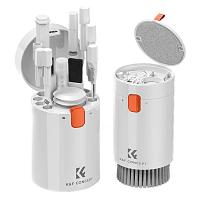
K&F Concept Laptop Mobile Screen 20-in-1 Cleaning Kit, Computer Keyboard Brush Cleaning Spray, Suitable for iPhone AirPods MacBook iPad
$26.99 $16.99
ND2-32 & PL & Black Mist 1/4 Filter Kit Compatible with DJI Osmo Action 5 Pro/Osmo Action 4/Osmo Action 3, Snap-on Installation, no need to remove the original filter
$49.99
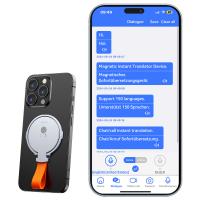
Instant Cross-APP Translator Device for Business & Trade, Video Call Translation, Record, & Transcription, Kentfaith AI Translator Devices
12
$124.99 $99.99
67mm Clip-on CPL Phone Camera Lens Filter Kit Applicable to All Mobile Phone Models
24
$18.99
67mm Clip-on ND2-32 Phone Camera Lens Filter Kit Applicable to All Mobile Phone Models
24
$37.99
5K Video Camera with 75MP Photos, 8X Optical Zoom, WiFi Transfer, Wireless Mic, Dual Batteries, Support PIP Record, Kentfaith
16
$274.99 $239.99
Products You May Like
72mm ND2-ND400 Variable Filter (1-9 Stop), 24 Layers of Nano-coating, K&F Concept Nano-Dazzle Series
26
$68.99 $46.74
3200-6500K Dual-Color Fill Light Portable LED Light 3000mah Rechargeable Camp Light
19
$27.99
67mm HD Soft GND8 Lens Filter 3 Stop (0.9) Soft Graduated Neutral Density Filter K&F Concept Nano-Xcel Series
42
$67.99 $59.99
4K Solar Eclipse Telescope Electronic Eyepiece with 1600mAh battery for 1.25in Telescope WiFi Connection
12
$128.99 $85.99
62mm Solar Filter ND100000,16.6-Stop Solid Neutral Density Filter for DSLR Camera Nano-Xcel Series
104
$44.99 $35.99
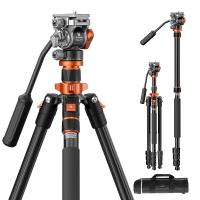
83''/2.1m Camera Video Tripod For Dslr Compact Aluminum Tripod With Fluid Head And 5kg Load For Travel And Work K234A7+FH-03
37
$218.99 $119.99
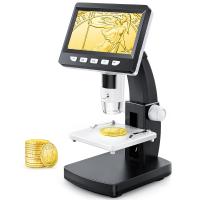
4.3” LCD Digital Microscope for Kids, 50X-1000X Magnification, USB Microscope
79
$107.99 $68.99
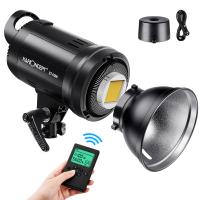
St-60w Photography Light With Remote Control Dimmable Continuous Lighting with Bowens Mount for Video Recording Wedding Outdoor Photography EU Plug
1
$116.99
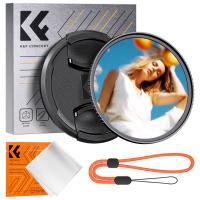
58mm Black Mist 1/8 Filter + Lens Cap, Mist Cinematic Effect Filter with 18 Multi-Layer Coatings for Video, Vlog, Portrait Photography Nano-Klear Series
$39.99 $26.99
4K Trail Camera Dual Lens Starlight Night Vision 48MP WiFi Bluetooth Game Camera Set with 8 Batteries & 64G SD Card
54
$229.99 $125.99
Related articles
How To Record Audio On A Macbook?
How To Open Sd Card On Macbook Pro?
How To Insert Memory Card In Macbook Pro?
How Record Audio On Pc?
How Long Can My Phone Record Audio?
How To Turn On Screen Record Audio?
How To Record Voice Audio On Mac?
How To Record Discord Audio On Xbox?
How To Record External Audio On Pc?
What Is Filter On Security Cameras?
Blog You May Like
Backpacks That Can Hold A Travel Tripod?
Can Glass Filter Uv Light?
How To Find Wifi Camera Port Number?
Where To Buy Binoculars?
What Are Good Binoculars?
How To Read Camera Lens?
How To Tell If Smoke Detector Has Camera?
When Was The Telescope Made?
How Does A Cellular Trail Camera Work?
How To View Photos In Akaso Action Camera?
Related categories
On-Dash Camera C mount lens adapter m4/3 adapter DJI Mini 4 Pro Filter black pro mist square filter black pro mist square filter DJI Mini 3 Pro filter black pro mist 1 filter
Popular products
Mini Digital Voice Recorder​ ipad pro camera lens kit video recording camera for youtube nd filter for dji osmo action sony camera with microphone spray to clean keyboard Polarize Filter For Mobile Phone wireless microphone transmitter receiver clip on phone camera lens polarizer filter for underwater
Related searches
Cameras That Record Audio Best Microphones To Record Vocals Record Wifi Camera Thunderbolt Apple Adapter For My Sony Sony Audio 3.5 To Av R Adapter Smart Audio Recorder Wifi Audio Camera Audio Video Camera Mini Audio Recorder Best Lens To Adapt On Olympus
Popular searches
Video Camera For Night Time Recording Miniature Video Camera 35mm Lens Adapter For Ipad Fujifilm Xt4 Lens Mount Manfrotto Fluid Head Video Tripod Mist Filter 55mm Canon Eos 700d Lens Mount 2 Light Setup For Video Canon Fd To Sony E Mount Adapter Best Portable Audio Recorder
Blog Category
  • Activities
  • Guide
    • Filter Guide
    • Lens Adapter
    • Product Review
  • News & Reviews
    • Camera Reviews
    • Sample Gallery
    • News
  • Tutorials
    • Solar eclipse photography
    • Photography Basics
    • Landscape Photography
  • Inspiration
    • Travel
    • Travel Stories
Search Article
Latest from the Blog
What To Look For In A Dash Cam?
How To Make A Camera Flash After Effects?
What Is The Best Camera To Record Videos?
Where Can I Buy Samsung Camera Battery?
What Is The Difference Between Binoculars And Telescope?
Can You Zoom In With Binoculars?
How To Find A Good Digital Camera?
How Much Storage For Security Camera?
What is A Variable ND Filter? The Complete Guide to Mastering Exposure Control
How Does a WiFi Trail Camera Work?
  • Easy Payment Multilple Payment Options

  • Free Shipping Global WareHouse Shipment

  • No Risk 30-Day No Reason Return

  • Limited Deals Buy More, Save More

  • Tax Free No any surcharges or tax fee

Information
  • About us
  • Contact Us
  • Site Map
  • Blog
  • Video
  • Gallery
  • VIP Membership Rewards
Service
  • Privacy Policy
  • Terms & Conditions
  • Shipping & Delivery
  • Payment Info
  • Warranty, Return & Refund
  • Intellectual Property Rights
  • Ambassador
  • Affiliates
  • Wholesale
Support
  • My account
  • Order History
  • FAQs
  • Extend Warranty
  • Logistics Tracking
Follow us
NewsLetter

Get the latest product, K&F Concept respects your privacy.

Powered By KENTFAITH © 2025