kfconcept

KENTFAITH
K&F Concept    Blog >

Enjoy Your Selected Digital Life

Recently Viewed
  • Recently Viewed
  • Recently Viewed list is empty.

Compare (0) 0
  • Compare
  • You have not chosen any products to compare.

  • Compare
Currency: USD
  • Currency
Shop by Scene Shop by Rank

Log Into Your Account

Account

Order History

Wish List

Login

Forgotten Password?

Or connect with

Register Account

Already have an Account?Log In

  • Shopping Cart
  • Your shopping cart is empty!

  • Register/Login to purchase, earn points
  • Favorite
  • Your wish list is empty.

  • Register/Login to like, earn points
  • Activities
  • Guide
    • Filter Guide
    • Lens Adapter
    • Product Review
  • News & Reviews
    • Camera Reviews
    • Sample Gallery
    • News
  • Tutorials
    • Solar eclipse photography
    • Photography Basics
    • Landscape Photography
  • Inspiration
    • Travel
    • Travel Stories
  • Home
  • Blog
  • How To Make Sound Recorder Record Computer?

How To Make Sound Recorder Record Computer?

Kentfaith 2024-08-26 01:05:07 0 Comments

Recording audio directly from your computer can be a valuable skill for a variety of purposes, such as creating podcasts, capturing audio from online meetings, or saving streaming music. This article will guide you through the process of setting up and using a sound recorder to capture audio from your computer. We will cover different methods and tools, ensuring you have a comprehensive understanding of the options available.

Understanding the Basics
how to make sound recorder record computer 1

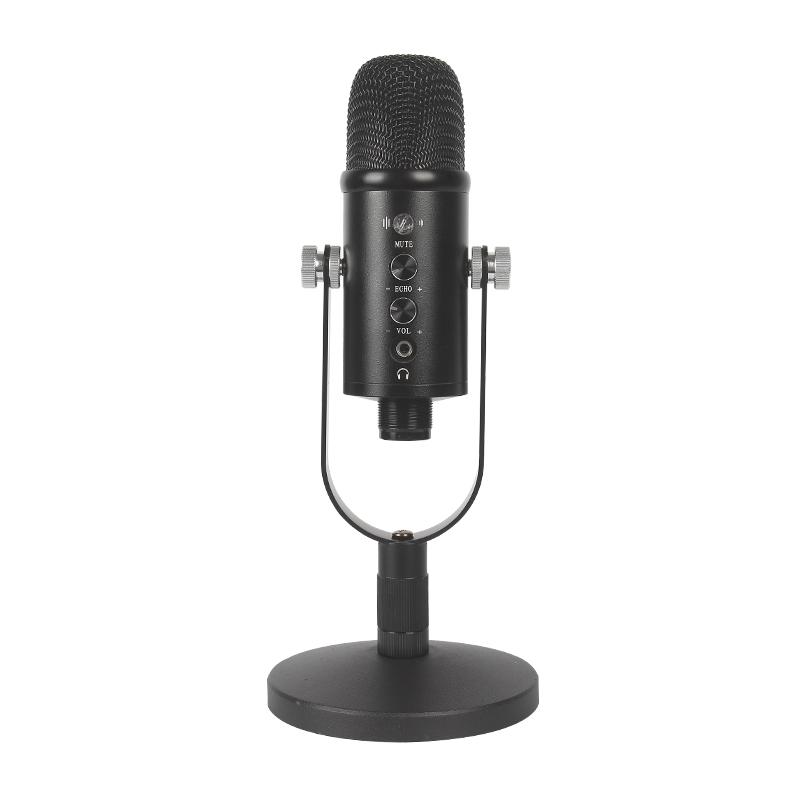
Before diving into the specific methods, it's important to understand the basic requirements for recording audio from your computer. Essentially, you need software that can capture the audio output of your system. This can be achieved through built-in operating system features, third-party applications, or specialized hardware.

Method 1: Using Built-in Operating System Features
how to make sound recorder record computer 2

Windows

Windows has a built-in feature called "Stereo Mix" that allows you to record the audio output of your computer. Here’s how to enable and use it:

1. Enable Stereo Mix:

- Right-click on the sound icon in the system tray and select "Sounds."

- Go to the "Recording" tab.

- Right-click in the blank area and select "Show Disabled Devices."

- Find "Stereo Mix," right-click on it, and select "Enable."

2. Set Up Your Recording Software:

- Open your preferred recording software (e.g., Audacity).

- In Audacity, go to "Edit" > "Preferences" > "Devices."

- Under "Recording," select "Stereo Mix" as the input device.

- Click "OK" to save the settings.

3. Start Recording:

- Click the record button in Audacity to start capturing audio from your computer.

macOS

macOS does not have a built-in feature like Stereo Mix, but you can use third-party software to achieve the same result. One popular option is Soundflower, a free, open-source extension that allows applications to pass audio to other applications.

1. Install Soundflower:

- Download and install Soundflower from a trusted source.

2. Set Up Soundflower:

- Open "Audio MIDI Setup" from the Utilities folder.

- Create a new "Aggregate Device" and include both your built-in output and Soundflower.

- Set Soundflower as the primary output device.

3. Set Up Your Recording Software:

- Open your preferred recording software (e.g., Audacity).

- In Audacity, go to "Preferences" > "Devices."

- Under "Recording," select "Soundflower" as the input device.

- Click "OK" to save the settings.

4. Start Recording:

- Click the record button in Audacity to start capturing audio from your computer.

Method 2: Using Third-Party Applications

Several third-party applications are designed specifically for recording audio from your computer. These tools often provide more features and flexibility than built-in options.

Audacity

Audacity is a free, open-source audio recording and editing software that works on Windows, macOS, and Linux. It is highly versatile and widely used for various audio recording tasks.

1. Download and Install Audacity:

- Download Audacity from the official website and install it on your computer.

2. Set Up Audacity:

- Open Audacity and go to "Edit" > "Preferences" > "Devices."

- Under "Recording," select your desired input device (e.g., Stereo Mix on Windows or Soundflower on macOS).

- Click "OK" to save the settings.

3. Start Recording:

- Click the record button to start capturing audio from your computer.

OBS Studio

OBS Studio is a free, open-source software for video recording and live streaming, but it also has robust audio recording capabilities.

1. Download and Install OBS Studio:

- Download OBS Studio from the official website and install it on your computer.

2. Set Up OBS Studio:

- Open OBS Studio and go to "Settings" > "Audio."

- Under "Desktop Audio," select your desired audio output device.

- Click "OK" to save the settings.

3. Add an Audio Source:

- In the main OBS Studio window, click the "+" button under "Sources" and select "Audio Output Capture."

- Name the source and select your desired audio output device.

4. Start Recording:

- Click the "Start Recording" button to begin capturing audio from your computer.

Method 3: Using Specialized Hardware

If you require high-quality audio recording or need to capture audio from multiple sources simultaneously, you might consider using specialized hardware such as an external audio interface or a digital audio recorder.

External Audio Interface

An external audio interface can provide superior audio quality and more input/output options compared to your computer's built-in sound card.

1. Choose an Audio Interface:

- Select an audio interface that meets your needs and budget. Popular options include Focusrite Scarlett, PreSonus AudioBox, and Behringer UMC.

2. Set Up the Audio Interface:

- Connect the audio interface to your computer via USB or Thunderbolt.

- Install any necessary drivers or software.

3. Set Up Your Recording Software:

- Open your preferred recording software (e.g., Audacity).

- In Audacity, go to "Preferences" > "Devices."

- Under "Recording," select the audio interface as the input device.

- Click "OK" to save the settings.

4. Start Recording:

- Click the record button to start capturing audio from your computer.

Digital Audio Recorder

A digital audio recorder can be used to capture high-quality audio directly from your computer's output.

1. Choose a Digital Audio Recorder:

- Select a digital audio recorder that meets your needs and budget. Popular options include Zoom H4n, Tascam DR-40, and Sony PCM-D100.

2. Connect the Recorder to Your Computer:

- Use an appropriate cable (e.g., 3.5mm to 3.5mm or RCA to 3.5mm) to connect your computer's audio output to the recorder's input.

3. Set Up the Recorder:

- Configure the recorder's input settings to match the audio output of your computer.

4. Start Recording:

- Press the record button on the digital audio recorder to start capturing audio from your computer.

Recording audio from your computer can be accomplished through various methods, each with its own advantages and limitations. Whether you choose to use built-in operating system features, third-party applications, or specialized hardware, the key is to select the method that best suits your needs and technical proficiency. By following the steps outlined in this article, you can effectively capture high-quality audio from your computer for any purpose.

Leave your comment
Cancel reply
Note: HTML is not translated!
Related products
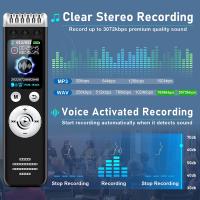
128G Mini Digital Voice Recorder with Color Screen Bluetooth Call Record 3072kbps Kentfaith
15
$119.99 $83.99
Mini Voice Recorder, Sound-activated & Magnetic, 128GB 1600H Capacity with AI Noise Cancelling Kentfaith
13
$94.99 $53.99
Mini Sound Recorder 128GB 1600H Recording Capacity with 1.4" Screen, Voice Activated Mode Kentfaith
12
$99.99 $79.99
Touch Lighting Kit for Laptop Video Conference, K&F Concept 6500K Computer LED Video Light with Suction Cup, 4 Color Filters for Remote Working,Zoom Meeting, Self Broadcasting, Vlogging and Make Up
64
$39.99 $29.99
AI Voice Recorder Voice-to-Text & Transcription for Meetings, Calls, Interviews, 64G Kentfaith Mini & Magnetic
26
$119.99 $69.99
Instant Cross-APP Translator Device for Business & Trade, Video Call Translation, Record, & Transcription, Kentfaith AI Translator Devices
12
$124.99 $99.99
Children’s Entry-Level Metal Detector, High Sensitivity, With LCD Display and Sound Indication, Suitable for Beginners
144
$64.49 $50.99
5K Video Camera with 75MP Photos, 8X Optical Zoom, WiFi Transfer, Wireless Mic, Dual Batteries, Support PIP Record, Kentfaith
16
$274.99 $239.99
5K Video Camera with 75MP Photos, 8X Optical Zoom, WiFi Transfer, Foldable Tripod, Wireless Mic, Dual Batteries, Support PIP Record, Kentfaith
$312.49 $249.99
64GB Multifunctional Recorder, Active Noise Reduction Voice Recorder, Mp3 Playback, Video Playback, Suitable for Lectures, Meetings, Interviews, Classrooms, Etc.
29
$53.99
Products You May Like
72mm Magnetic CPL Filter Circular Polarizer Lens Filter Optical Glass Ultra Slim with 18 Multi-Layer Coatings Nano-Klear Series
43
$32.99 $25.99
77mm Black Mist 1/8 Filter Waterproof Mist Cinematic Effect Camera Lens Filter with 24 Multi-Coatings for Video/Vlog/Portrait Photography (Nano-Dazzle)
25
$56.99 $44.99
K&F Concept Alpha Camera Sling Bag 10L Photography Shoulder Bag, Compatible with Canon / Nikon / Sony Cameras / DJI Mavic Drones -  Sling Bag10L Urban Wander 01 (Black )
K&F Concept Alpha Camera Sling Bag 10L Photography Shoulder Bag, Compatible with Canon / Nikon / Sony Cameras / DJI Mavic Drones - Sling Bag10L Urban Wander 01 (Black )
134
$59.99 $39.99
46mm CPL Filter True Color Circular Polarizers Filter with 28 Multi-Layer Coatings for Camera Lens Nano-Xcel Series
47
$49.99 $39.99
Nikon F Lenses to Samsung NX Lens Mount Adapter K&F Concept M11251 Lens Adapter
2
$22.99
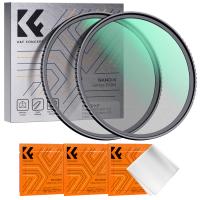
52mm Black Mist 1/4 + 1/8 Filters Kit Black Diffusion Cinematic Effect Filters Set with Multi-Layer Coated for Camera Lens Nano-Klear Series
69
$44.99 $35.99
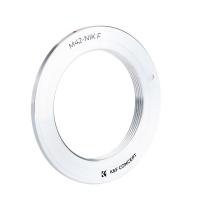
M42 Lenses to Nikon F Lens Mount Adapter K&F Concept M10171 Lens Adapter
8
$36.99 $18.99
4G Solar Security Camera System Wireless LTE cctv Solar Camera PIR Motion Detection 2-Way Audio Built-in Battery 10400mAh 2K Infrared Night Vision 20m/65.6ft AU Version
118
$259.99 $157.99
62mm Solar Filter ND1000000,20-Stop Solid Neutral Density Filter Celestial Event Photography Filter with 28 Multi-Layer Coatings Nano-Xcel Series
97
$43.99 $34.99
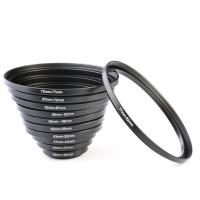
11 in 1 Step Up Ring Set
56
$37.99 $19.99
Related articles
How To Set Sound Recorder On Computer?
How To Record Sound On The Computer?
Which Program To Record My Computer Sound?
How To Make A Screen Record Have Sound?
How To Record Sounds From Your Computer?
How To Change Sound Recorder Save Settings?
Where Does Sound Recorder Store?
How To Record Phone Calls With Voice Recorder?
How To Screen Record Including Sound?
Can Canon Lens Fit On Nikon Camera?
Blog You May Like
Where To Position Lights For Photography?
Flip Video Flashing Red Light When Charging?
Where To Sell Used Drones?
Camera Bag Can Hold 70-200mm Lens?
How Are Dash Cameras Powered?
How Much Can You Save With Solar Panels?
Which Is Best Binoculars?
What Is 4g Camera?
What Is 4g Camera?
Who Made The Digital Camera?
What Is Inverted Filter On Camera?
Related categories
On-Dash Camera C mount lens adapter m4/3 adapter reverse graduated neutral density GND filter​ Canon RF Mount Adapter Leica M39 Mount Lens Adapters
Popular products
Mini Digital Voice Recorder​ digital voice recorder with usb ai voice recorder device video conference lighting kit video recording camera for youtube sony camera with microphone phone voice call recording portable mp3 voice recorder voice recorder battery life mini sound recorder device
Related searches
Computer Voice Recorder Sound Recorder Usb Video Sound Recorder Smart Sound Recorder Tiny Sound Recorder Advanced Sound Recorder Clear Sound Recorder Mini Sound Recorder Multi Sound Recorder Portable Sound Recorder
Popular searches
Canon Xl1s Ef Adapter Variable Nd Filter For Tamron 28 75 4g Battery Security Camera Oculus Rift S Prescription Lens Adapters Live Streaming Trail Cameras Pentax 110 To Eos Adapter Battery Powered Dash Camera Micro Video Camera With Sd Card Camera For Shooting Wildlife Gopro Hero 5 Lens Filter
Blog Category
  • Activities
  • Guide
    • Filter Guide
    • Lens Adapter
    • Product Review
  • News & Reviews
    • Camera Reviews
    • Sample Gallery
    • News
  • Tutorials
    • Solar eclipse photography
    • Photography Basics
    • Landscape Photography
  • Inspiration
    • Travel
    • Travel Stories
Search Article
Latest from the Blog
Where Can I Buy Samsung Camera Battery?
What Does A Uv Camera Filter Do?
How Much Storage For Security Camera?
How To Wear Monocular?
How To Remove Memory Card From Nikon Camera?
Best Metal Detector for Kids in 2025
How To Find A Good Digital Camera?
How To Make A Camera Flash After Effects?
Camera That Can Wifi Photos To Phone?
What Is The Best Wireless Outdoor Security Camera?
  • Easy Payment Multilple Payment Options

  • Free Shipping Global WareHouse Shipment

  • No Risk 30-Day No Reason Return

  • Limited Deals Buy More, Save More

  • Tax Free No any surcharges or tax fee

Information
  • About us
  • Contact Us
  • Site Map
  • Blog
  • Video
  • Gallery
  • VIP Membership Rewards
Service
  • Privacy Policy
  • Terms & Conditions
  • Shipping & Delivery
  • Payment Info
  • Warranty, Return & Refund
  • Intellectual Property Rights
  • Ambassador
  • Affiliates
  • Wholesale
Support
  • My account
  • Order History
  • FAQs
  • Extend Warranty
  • Logistics Tracking
Follow us
NewsLetter

Get the latest product, K&F Concept respects your privacy.

Powered By KENTFAITH © 2025