kfconcept

KENTFAITH
K&F Concept    Blog >

Enjoy Your Selected Digital Life

Recently Viewed
  • Recently Viewed
  • Recently Viewed list is empty.

Compare (0) 0
  • Compare
  • You have not chosen any products to compare.

  • Compare
Currency: USD
  • Currency
Shop by Scene Shop by Rank

Log Into Your Account

Account

Order History

Wish List

Login

Forgotten Password?

Or connect with

Register Account

Already have an Account?Log In

  • Shopping Cart
  • Your shopping cart is empty!

  • Register/Login to purchase, earn points
  • Favorite
  • Your wish list is empty.

  • Register/Login to like, earn points
  • Activities
  • Guide
    • Filter Guide
    • Lens Adapter
    • Product Review
  • News & Reviews
    • Camera Reviews
    • Sample Gallery
    • News
  • Tutorials
    • Solar eclipse photography
    • Photography Basics
    • Landscape Photography
  • Inspiration
    • Travel
    • Travel Stories
  • Home
  • Blog
  • How To Find Camera App On Android?

How To Find Camera App On Android?

Kentfaith 2024-07-08 02:53:26 1 Comment

In today's digital age, smartphones have become an essential part of our daily lives, and one of the most frequently used features is the camera. Whether you're capturing memories, scanning documents, or engaging in video calls, the camera app is indispensable. However, with the myriad of apps and features on modern Android devices, finding the camera app can sometimes be a bit challenging, especially for new users or those who have recently switched from another operating system. This article aims to provide a comprehensive guide on how to locate the camera app on an Android device, ensuring you can quickly and easily access this vital tool.

1. Using the Home Screen and App Drawer

The most straightforward way to find the camera app is through the home screen or the app drawer. Here’s how:

Home Screen:

- Check the Home Screen: Most Android devices come with the camera app pre-installed on the home screen. Look for an icon that resembles a camera.

- Swipe Left or Right: If you don’t see it immediately, swipe left or right to navigate through the different home screens.

App Drawer:

- Open the App Drawer: Tap on the app drawer icon, usually located at the bottom center or bottom right of the home screen. This icon often looks like a grid of dots or lines.

- Scroll Through the Apps: Scroll through the list of installed apps to find the camera app. The apps are usually listed alphabetically, so look under "C" for "Camera."

2. Using the Search Function

If you have a lot of apps installed, scrolling through the app drawer might be time-consuming. Instead, you can use the search function:

- Swipe Up or Tap the App Drawer Icon: Open the app drawer.

- Use the Search Bar: At the top of the app drawer, there is usually a search bar. Tap on it and type "Camera."

- Select the Camera App: The camera app should appear in the search results. Tap on it to open.

3. Using Voice Commands

Modern Android devices come equipped with Google Assistant, which can be a handy tool for quickly accessing apps:

- Activate Google Assistant: You can do this by saying "Hey Google" or "OK Google," or by pressing and holding the home button (depending on your device).

- Give a Command: Say "Open Camera." Google Assistant will then open the camera app for you.

4. Using Quick Settings

Some Android devices allow you to access the camera directly from the quick settings menu:

- Swipe Down: Swipe down from the top of the screen to open the notification shade.

- Swipe Down Again: Swipe down again to expand the quick settings menu.

- Look for the Camera Icon: Some devices have a camera icon in the quick settings. Tap on it to open the camera app.

5. Using the Lock Screen

Many Android devices offer quick access to the camera from the lock screen:

- Wake Up Your Device: Press the power button to wake up your device.

- Look for the Camera Icon: On the lock screen, look for a camera icon. This is often located in the bottom corner of the screen.

- Swipe or Tap: Depending on your device, you may need to swipe the camera icon or simply tap it to open the camera app.

6. Checking the App Settings

If you still can’t find the camera app, it’s possible that it has been disabled or hidden:

- Open Settings: Go to the settings menu on your device.

- Navigate to Apps: Look for a section called "Apps" or "Applications."

- Find the Camera App: Scroll through the list of installed apps to find the camera app.

- Enable the App: If the camera app is disabled, you will see an option to enable it. Tap on "Enable."

7. Using Third-Party Camera Apps

If you prefer a different camera app or if the default camera app is not functioning properly, you can download a third-party camera app from the Google Play Store:

- Open Google Play Store: Tap on the Play Store icon on your home screen or app drawer.

- Search for Camera Apps: Use the search bar to look for camera apps. Some popular options include "Google Camera," "Open Camera," and "Camera MX."

- Install the App: Select the app you want to install and tap "Install."

- Open the App: Once installed, you can open the new camera app from your home screen or app drawer.

8. Creating a Shortcut

To make accessing the camera app even more convenient, you can create a shortcut on your home screen:

- Find the Camera App: Locate the camera app in your app drawer.

- Long Press the Icon: Press and hold the camera app icon until a menu appears.

- Add to Home Screen: Drag the icon to your home screen or select the option to add it to the home screen from the menu.

Finding the camera app on an Android device is generally straightforward, but the exact method can vary depending on your device's make and model. By following the steps outlined in this guide, you should be able to quickly locate and access your camera app, ensuring you never miss a moment. Whether you prefer using the home screen, app drawer, voice commands, or quick settings, there are multiple ways to get to your camera app efficiently. Additionally, if you encounter any issues with the default camera app, there are plenty of third-party alternatives available to suit your needs. Happy snapping!

Leave your comment
Cancel reply
Note: HTML is not translated!
Related products
Anti-Spy Detector Scan & Disconnect for 24/7 Protection Find Bugs Hidden Cams
15
$89.99 $59.99
67mm Clip-on CPL Phone Camera Lens Filter Kit Applicable to All Mobile Phone Models
40
$18.99
67mm Clip-on ND2-32 Phone Camera Lens Filter Kit Applicable to All Mobile Phone Models
NEW Arrival
67mm Clip-on ND2-32 Phone Camera Lens Filter Kit Applicable to All Mobile Phone Models
13
$37.99
K&F CONCEPT Neck Phone Holder, 2-in-1 Magnetic & Clip-on Phone Neck Holder, POV Phone Holder, Hand Free Chest Stand Compatible with iPhone 17-12 Seires Android Phones
63
$29.99
67mm Clip-on Black Mist 1/4 Phone Camera Lens Filter Kit Applicable to All Mobile Phone Models
7
$29.99
Metal Detectors for Adults and Kids, Gold Detector Kit with LCD Display & IP68 Waterproof Search Coil for Find Valuables
NEW Arrival
Metal Detectors for Adults and Kids, Gold Detector Kit with LCD Display & IP68 Waterproof Search Coil for Find Valuables
285
$215.99 $151.99
52mm Clip-on CPL Phone Camera Lens Filter Kit, Circular Polarizer Polarizing Filter Applicable to All Mobile Phone Models
24
$19.99
AI Translator Recorder for Business & Trade, 150 Languages, Transcribe/Cross-App/Video Translation, Kentfaith
15
$124.99 $99.99
AI Voice Recorder, Transcribe Summarize Translation, App Control, 40H Recording Time, 64GB Memory, Kentfaith
21
$137.49 $109.99
67mm Clip-on CPL&Black Mist 1/4 2-in-1 Phone Camera Lens Filter Kit Applicable to All Mobile Phone Models
3
$29.99
Products You May Like
67mm True Color & Ultra-Low Reflection Variable ND Lens Filter, ND2-32 (1-5 Stops) HD Adjustable Neutral Density Filter with 28 Multi-Layer Coatings for Camera Lenses - Nano-X Series
NEW Arrival
67mm True Color & Ultra-Low Reflection Variable ND Lens Filter, ND2-32 (1-5 Stops) HD Adjustable Neutral Density Filter with 28 Multi-Layer Coatings for Camera Lenses - Nano-X Series
19
$121.99 $90.99
46mm Black Mist Filter 1/8 + 3pcs Cleaning Cloth with 18 Multi-Layer Coatings Nano-Klear Series
212
$24.99 $19.99
43mm Snap-On Center Pinch Lens Cap 5 in 1 with Anti-Loss Keeper Leash Compatible with Nikon, Canon, Sony, Fujifilm Camera Lenses
$15.99 $7.99
100mm Handheld Kaleidoscope Filter, Semicircular Special Effects Filter with 3pcs Vacuum Cleaning Cloths Nano-B Series
14
$49.99 $36.99
Low Glow Vs No Glow Trail Camera
10
$162.99 $106.99
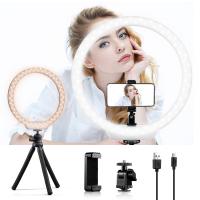
10'' Selfie Ring Light with Stand Phone Holder for Vlog Camera Video Smartphone YouTube Self-Portrait Makeup Shooting
6
$29.99
Variable ND2-32 & ND32-512 Filter Kit Compatible with DJI Osmo Action 5 Pro/Osmo Action 4/Osmo Action 3, Snap-on Installation, no need to remove the original filter
NEW Arrival
Variable ND2-32 & ND32-512 Filter Kit Compatible with DJI Osmo Action 5 Pro/Osmo Action 4/Osmo Action 3, Snap-on Installation, no need to remove the original filter
40
$44.99
Low Glow Trail Camera
10
$162.99 $106.99
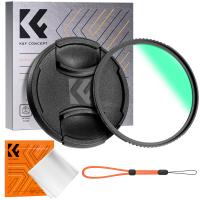
67mm MCUV Lens Protection Filter with Lens Cap Optical Glass Ultra Slim 18 Multi-Layer Coatings UV Filter for Camera Lens Nano-Klear Series
82
$17.99 $13.99
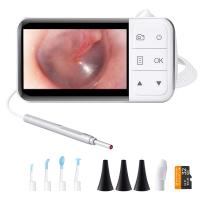
Digital Otoscope with 4.5" Screen, 3.9mm Ear Camera with 6 LED Lights, 32GB Card, Ear Wax Removal Tool, Specula and 2600 mAh Rechargeable Battery, Supports Photo Snap & Video Recording
45
$122.39 $99.99
Related articles
How To Use External Microphone Android Camera App ?
Find Out Which App Is Using Camera?
How To Use Camera Detector App?
How To Find Aperture On Camera?
How To Allow Access To Camera And Microphone On Android ?
How To Set Up V380 Wifi Camera On Android Phone ?
How To Transfer Photos On Sd Card Android?
How To Manage Sd Card On Android Phone?
How To Watch On Smart Tv From Android?
How Do I Record Whatsapp Voice Call?
Blog You May Like
Digital Camera What Is It?
What Is The Field Of View Microscope?
What Are The Different Types Of Lighting Photography?
How To Make Soft Light Photography?
Can Hidden Camera Have A Live Feed?
How To Reconnect Ring Camera To Wifi Remotely?
How To Watch On Smart Tv From Android?
What Are The Pentax Lens Mount?
How To Repair Cctv Camera No Video?
How To Use Audio Jack Selfie Stick?
Related categories
On-Dash Camera phone camera lens C mount lens adapter cell phone tripods m4/3 adapter Camera Parts | Studio Camera Accessories streaming video camera digital camera for beginner Solar Cellular Trail Camera
Popular products
light trail camera app no spy hidden camera detector trail camera with phone app outdoor expert trail camera app best trail camera with phone app wireless audio recording Gold Detector Kit Polarize Filter For Mobile Phone clip on phone camera lens high quality condenser microphone
Related searches
Outdoor Home Camera With App Metal Detector Find Bag Dash Cam With App Android Camera Lens Adapter Usb Endoscope Camera Android Best Baby Monitor With App On Camera Flashes Metal Detectors That Find Gold And Silver Wifi Camera For Android Mobile Endoscope Camera For Android Phone
Popular searches
Sony A7iii Pl Mount Wireless Collar Microphone Receiver With Transmitter Filter For Nikon 18 140mm Lens Nikon Dx Lens Mount Iphone 14 Pro Lens Mount Zoom Camera Filter Detector For Hidden Cameras Stereo With Bluetooth For Car Pentax 645 Gfx Adapter Aps C Mount Lens
Blog Category
  • Activities
  • Guide
    • Filter Guide
    • Lens Adapter
    • Product Review
  • News & Reviews
    • Camera Reviews
    • Sample Gallery
    • News
  • Tutorials
    • Solar eclipse photography
    • Photography Basics
    • Landscape Photography
  • Inspiration
    • Travel
    • Travel Stories
Search Article
Latest from the Blog
How Do Metal Detectors Work? A Complete Guide for Beginners and Pros
How To Remove Memory Card From Nikon Camera?
How To Stream Live From Surveillance Camera?
What Does Tripod?
What Does A Uv Camera Filter Do?
How To Find A Good Digital Camera?
Best Metal Detector for Kids in 2025
Which Ring Camera Is Wireless?
How To Place Cameras Around Your House?
How To Fix The Straps On A Camera?
  • Easy Payment Multilple Payment Options

  • Free Shipping Global WareHouse Shipment

  • No Risk 30-Day No Reason Return

  • Limited Deals Buy More, Save More

  • Tax Free No any surcharges or tax fee

Information
  • About us
  • Contact Us
  • Site Map
  • Blog
  • Video
  • Gallery
  • VIP Membership Rewards
Service
  • Privacy Policy
  • Terms & Conditions
  • Shipping & Delivery
  • Payment Info
  • Warranty, Return & Refund
  • Intellectual Property Rights
  • Ambassador
  • Affiliates
  • Wholesale
Support
  • My account
  • Order History
  • FAQs
  • Extend Warranty
  • Logistics Tracking
Follow us
NewsLetter

Get the latest product, K&F Concept respects your privacy.

Powered By KENTFAITH © 2026