kfconcept

KENTFAITH
K&F Concept    Blog >

Enjoy Your Selected Digital Life

Recently Viewed
  • Recently Viewed
  • Recently Viewed list is empty.

Compare (0) 0
  • Compare
  • You have not chosen any products to compare.

  • Compare
Currency: USD
  • Currency
Shop by Scene Shop by Rank

Log Into Your Account

Account

Order History

Wish List

Login

Forgotten Password?

Or connect with

Register Account

Already have an Account?Log In

  • Shopping Cart
  • Your shopping cart is empty!

  • Register/Login to purchase, earn points
  • Favorite
  • Your wish list is empty.

  • Register/Login to like, earn points
  • Activities
  • Guide
    • Filter Guide
    • Lens Adapter
    • Product Review
  • News & Reviews
    • Camera Reviews
    • Sample Gallery
    • News
  • Tutorials
    • Solar eclipse photography
    • Photography Basics
    • Landscape Photography
  • Inspiration
    • Travel
    • Travel Stories
  • Home
  • Blog
  • How Do You Record Facetime With Audio?

How Do You Record Facetime With Audio?

Kentfaith 2024-12-23 04:01:11 0 Comments

Recording FaceTime calls, including both video and audio, can be quite useful for many reasons, such as for meetings, interviews, or simply keeping memories. However, it's important to note that recording FaceTime calls without the other party's consent may be illegal in certain regions, so always make sure you're respecting privacy laws and notifying participants.

Here’s a detailed guide on how to record FaceTime with audio, along with some tips and tools to help you achieve the best quality.

1. Record FaceTime on an iPhone or iPad (Screen Recording Method)

One of the simplest ways to record FaceTime with audio on iPhones or iPads is by using the built-in screen recording feature. Here’s how to do it:

Step-by-Step Process:
how do you record facetime with audio 1

1. Enable Screen Recording:

- Open the Settings app.

- Scroll down and tap on Control Center.

- Under the "Included Controls" section, tap the green plus button next to Screen Recording to add it to your Control Center.

2. Start Screen Recording:

- Open the Control Center by swiping down from the top-right corner on an iPhone with Face ID or swiping up from the bottom on an iPhone with a Home button.

- Press the screen recording icon (a circle within a circle).

- You'll see a 3-second countdown before recording starts. To ensure you’re recording audio, make sure the microphone icon at the bottom is red. If it's not, tap it to enable sound recording.

3. Make the FaceTime Call:

- Open the FaceTime app and place or receive a call.

- The screen recording will capture both video and audio from the call.

4. Stop the Recording:

- Once your call is finished, open the Control Center again and tap the screen recording icon to stop.

- Your recording will automatically save to the Photos app, where you can access it.

Important Considerations:
how do you record facetime with audio 2

- Audio Quality: The iPhone’s screen recording captures internal audio, but sometimes, external noise or background sounds may interfere. To minimize this, ensure that you're in a quiet environment.

- Mute Notifications: Consider turning on Do Not Disturb mode to prevent notifications from popping up during your recording.

2. Using Third-Party Apps for Recording

If you’re looking for more advanced features or higher-quality recordings, third-party apps might be an ideal solution. Several apps are specifically designed to help you capture FaceTime calls, including audio.

Popular Apps for Recording FaceTime:
how do you record facetime with audio 3

1. TapeACall (iOS App)

- TapeACall is one of the most popular apps for recording calls, including FaceTime audio calls. Although it mainly works for regular calls, it can be used with FaceTime Audio (not FaceTime Video) calls by merging calls with the app's recording service.

- Pros: Simple to use, provides both audio and video recording, and includes cloud storage options.

- Cons: It’s a paid app, and there’s a limitation on free usage.

2. Call Recorder for FaceTime (iOS)

- This app is designed specifically for FaceTime and other video calls. It allows you to record both audio and video with ease, and it’s a popular choice among users who need reliable call recording.

- Pros: Easy interface, free basic version available.

- Cons: The quality of the video might be reduced during longer calls, and certain features are locked behind a paywall.

How to Use Third-Party Apps:
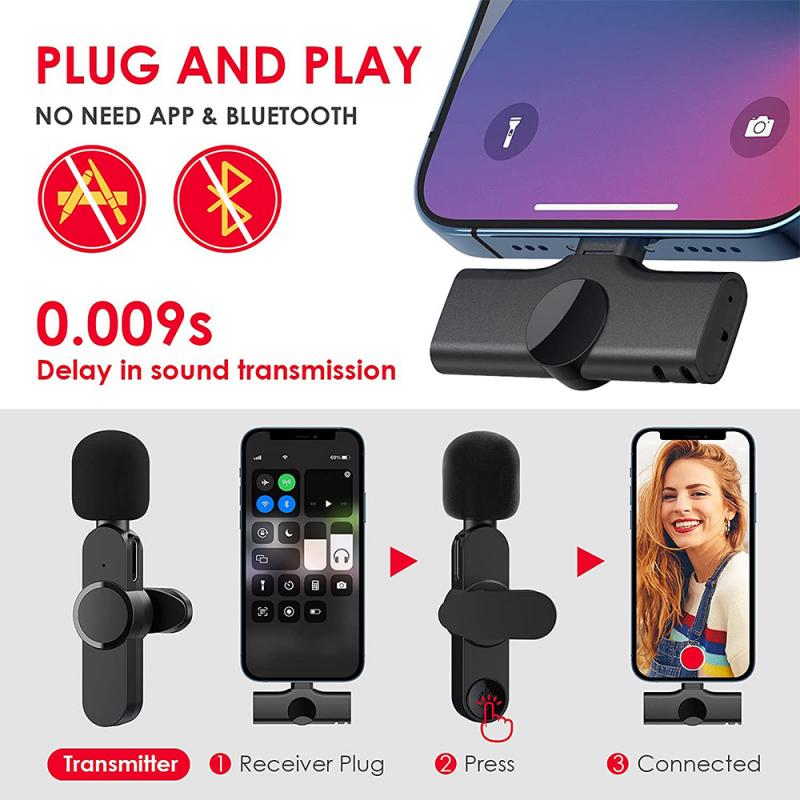
how do you record facetime with audio 4

- Download the app from the App Store.

- Follow the app's instructions to record the call. Many of these apps require you to either start the recording before or during the call. Some may also prompt you to join a specific call number or merge your FaceTime call with the app’s recording system.

3. Using a Mac for FaceTime Recording

If you’re using a Mac, the process for recording FaceTime is slightly different. macOS offers more flexibility, and you can take advantage of tools like QuickTime Player, which allows you to record both screen and audio with high-quality results.

Step-by-Step Process:

1. Open QuickTime Player:

- Go to Applications and open QuickTime Player.

- From the top menu, click File and then select New Screen Recording.

2. Enable Audio Recording:

- Before starting, click the small arrow next to the record button in QuickTime to select the microphone input. Make sure to choose Internal Microphone if you want to capture audio from the FaceTime call.

3. Start the Recording:

- Click the Record button in QuickTime. You can choose to record the full screen or select a portion of the screen that includes your FaceTime window.

- Once the recording starts, initiate or answer your FaceTime call.

4. Stop the Recording:

- When you’re done, click the Stop button in QuickTime.

- Save the recording to your preferred location.

Advantages of Using a Mac:

- Better Quality: Mac’s internal microphone or any external microphones you connect will capture high-quality sound.

- Editing Capabilities: QuickTime lets you edit your recordings post-call, including trimming and cutting unwanted parts.

4. Using an External Audio Recorder

In some cases, if you want to ensure the highest possible audio quality, you can use an external microphone or audio recording device. This is especially useful if you want to record not just the FaceTime call but also any surrounding sounds or if you need to use a more professional setup.

Step-by-Step Process:

1. Connect the External Microphone:

- Connect a high-quality microphone (e.g., USB microphone, lapel mic, or condenser mic) to your Mac or iPhone.

2. Start the FaceTime Call:

- Start your FaceTime call on your device as usual.

3. Start the External Recording Device:

- Begin recording with your external device. You can use a separate audio recording app like Audacity on your Mac or Ferrite on your iPhone for more advanced control over the audio quality.

4. Sync Audio and Video:

- After the call, you may need to sync the external audio with the video in a video editor, such as iMovie or Final Cut Pro.

Pros and Cons:

- Pros: Superior audio quality, more control over the recording.

- Cons: Additional equipment is required, and syncing audio/video can be time-consuming.

5. Legal Considerations:

Before proceeding with recording a FaceTime call, it’s crucial to consider the legal implications. In many regions, recording conversations without the consent of all participants is prohibited.

- One-Party Consent States: In some places, only one person needs to consent to the recording. This means you can legally record the call as long as you’re one of the participants.

- All-Party Consent States: In other places, all participants need to be informed and consent to the recording. Always ask for permission before recording.

Failure to follow these laws can result in legal consequences, so make sure to familiarize yourself with your local regulations.

Conclusion:

Recording FaceTime calls with audio is relatively straightforward, whether you’re using a built-in iPhone feature like screen recording, third-party apps, or professional software on a Mac. While the methods vary in complexity and quality, each option provides a viable solution depending on your needs. Always keep in mind the legal and ethical implications of recording calls, and ensure that everyone involved is aware and has consented to the recording.

With these tools and tips at your disposal, you can capture FaceTime calls with ease, making it simple to preserve important conversations or create high-quality recordings for professional use.
Leave your comment
Cancel reply
Note: HTML is not translated!
Related products
A Camping Lantern That Dances with You, Rechargeable, Telescoping & Compact with Bluetooth Speaker, Emergency Power Bank 14000mAh Battery Kentfaith
116
$199.99 $94.99
128G Mini Digital Voice Recorder with Color Screen Bluetooth Call Record 3072kbps Kentfaith
HOT Seller
128G Mini Digital Voice Recorder with Color Screen Bluetooth Call Record 3072kbps Kentfaith
15
$119.99 $83.99
5K Video Camera with 75MP Photos, 8X Optical Zoom, WiFi Transfer, Wireless Mic, Dual Batteries, Support PIP Record, Kentfaith
16
$274.99 $239.99
5K Video Camera with 75MP Photos, 8X Optical Zoom, WiFi Transfer, Foldable Tripod, Wireless Mic, Dual Batteries, Support PIP Record, Kentfaith
$312.49 $249.99
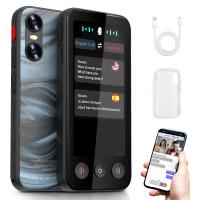
Instant Cross-APP Translator Device for Business & Trade, Video Call Translation, Record, & Transcription, Kentfaith AI Translator Devices
12
$124.99 $99.99
Digital Voice Recorder with 64Gb Storage, 1536 kbps, Voice Activated & Line-in Record, 85H Battery Life, Stores 800 Hours of Recording, Kentfaith
$99.99 $79.99
AI Translator Device for Business & Trade, 142 Languages Real-Time Online & Offline, Smart Office/Cross-App/Video/Photo Translation, Record & Transcription, Kentfaith
15
$182.49 $145.99
Dual-Rider Intercom Motorcycle Helmet Bluetooth Headset with Audio Multitasking Music Sharing
12
$134.99 $94.99
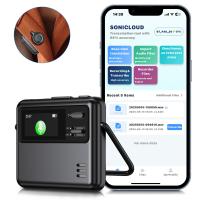
AI Voice Recorder Transcriber Summary Translation Audio Activated 128G Kentfaith
NEW Arrival
AI Voice Recorder Transcriber Summary Translation Audio Activated 128G Kentfaith
15
$99.99 $79.99
32 Riders Intercom Motorcycle Helmet Bluetooth Headset Mesh 3.0 Audio Multitasking
12
$209.99 $146.99
Products You May Like
58mm Filter Kit MCUV + CPL Circular Polarizer Filter & MCUV Protection Filter HD Ultra-thin with 18 Multi Layer Coatings Nano-Klear Series
45
$33.99 $26.99
52mm Magnetic CPL Filter + Magnetic Basic Ring Kit Waterproof Scratch Resistant with 28 Multi-Coatings for Camera Lens (Nano-Xcel Series)
35
$53.99 $42.99
YG280 LED 1080p  Portable Home Theater Mini Pocket Projector - White (UK Plug)
YG280 LED 1080p Portable Home Theater Mini Pocket Projector - White (UK Plug)
35
$99.99
Metal detector, IP68 waterproof, 10 inch detection disk, with higher precision and Stong mode
21
$167.49 $133.99
Pentax PK Mount Lens to Nikon Z6 Z7 Camera K&F Concept Lens Mount Adapter
28
$87.99 $49.99
Sony FDA-EP17 Camera Viewfinder Eyecup*2+Hot Shoe Level*2+Vacuum Cleaning Cloth*1 for Sony A6600, A6500, A6400
$17.99 $8.99
Bluedio H2 Active Noise Cancelling Headphones Bluetooth Headphones with Mic Slide Control Deep Hi-Fi Bass Wireless Headphones Over-Ear, 40H Playtime, Travel/Work, Black
54
$46.99
T2-NIK Z Manual Focus Compatible with T-Mount (T/T-2) Screw Mount SLR Lens to Nikon Z Mount Camera Body K&F Concept Lens Mount Adapter
25
$66.99 $36.99
Pir Interval Trail Camera
10
$162.99 $106.99
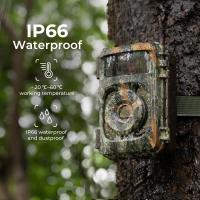
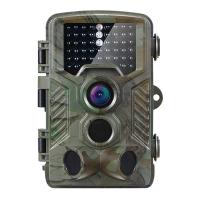
H881 0.2 seconds Trigger 1080p HD Outdoor IP66 Waterproof Hunting Infrared Night Vision Camera for Home Security Farm Monitoring
4
$89.99
Related articles
How Do You Get Sound With Screen Record?
How To Record On Pc With Audio?
How To Record Screen With System Audio?
Can Alexa Record Audio For You?
How To Record Line Video Call With Audio?
How To Record Your Ipad Screen With Audio?
Can You Record Voice With Airpods?
Can I Record My Phone Screen With Audio?
Can You Record With A Selfie Stick?
How Big A Memory Card For Camera?
Blog You May Like
What Is Inverted Filter On Camera?
How To Allow Access To Camera And Microphone On Android ?
What Filter Should I Buy For My Lens?
Can Camera Flash Cause Eye Damage?
Which Night Vision Monocular Is Best?
How To Improve Audio Recording Quality On Laptop?
Note 4 No Sound When Recording?
How To Light For Video Calls?
What Is The Best Camera For Baby Photography?
How To Make A Photo Studio Light Box?
Related categories
Baby Movement Monitor led ring light with stand golf rangefinder trail camera with screen camera battery mini camera tripod Magnetic CPL Filter
Popular products
Mini Digital Voice Recorder​ best camping rechargeable lantern video recording camera for youtube sony camera with microphone external webcam for laptop 360 auto tracking phone holder waterproof motorcycle bluetooth headset wireless security camera system for home surveillance camera system for home wifi security system with camera
Related searches
Camera Tripod That Follows You Cheap Camera To Record Videos Night Vision Binoculars That Record Surveillance Cameras With Audio Security Cameras With Audio Audio System With Microphone Outdoor Camera With Audio Best Camera To Record Time Lapse Cctv Camera With Audio Recording Ip Surveillance Camera With Audio
Popular searches
Nikon F To Micro 4/3 Adapter Two Way Baby Monitor Nikon 1 C Mount Adapter Canon B4 Mount Adapter Fujifilm Np W126s Battery Sony Cyber Shot Camera Battery Charger Lumix G2 Lens Adapter Small Binoculars For Hunting K Mount Lens To Nx Adapter Pk Nex Adapter
Blog Category
  • Activities
  • Guide
    • Filter Guide
    • Lens Adapter
    • Product Review
  • News & Reviews
    • Camera Reviews
    • Sample Gallery
    • News
  • Tutorials
    • Solar eclipse photography
    • Photography Basics
    • Landscape Photography
  • Inspiration
    • Travel
    • Travel Stories
Search Article
Latest from the Blog
What Does Tripod?
Kentfaith x Citadel Season 2
Is the Sony A7M5 worth buying?
Pressure In Ear When Wearing Headphones?
Black Friday 2025 Special at Kentfaith
How To Save A Video From Security Camera?
How To Take Great Photos With Digital Camera?
How To Adjust Binoculars With Glasses?
Where To Get Wireless Earbuds?
UV Filter: Everything You Need to Know About UV Protection Lens Filters
  • Easy Payment Multilple Payment Options

  • Free Shipping Global WareHouse Shipment

  • No Risk 30-Day No Reason Return

  • Limited Deals Buy More, Save More

  • Tax Free No any surcharges or tax fee

Information
  • About us
  • Contact Us
  • Site Map
  • Blog
  • Video
  • Gallery
  • VIP Membership Rewards
Service
  • Privacy Policy
  • Terms & Conditions
  • Shipping & Delivery
  • Payment Info
  • Warranty, Return & Refund
  • Intellectual Property Rights
  • Ambassador
  • Affiliates
  • Wholesale
Support
  • My account
  • Order History
  • FAQs
  • Extend Warranty
  • Logistics Tracking
Follow us
NewsLetter

Get the latest product, K&F Concept respects your privacy.
Powered By KENTFAITH © 2026