kfconcept

KENTFAITH
K&F Concept    Blog >

Enjoy Your Selected Digital Life

Recently Viewed
  • Recently Viewed
  • Recently Viewed list is empty.

Compare (0) 0
  • Compare
  • You have not chosen any products to compare.

  • Compare
Currency: USD
  • Currency
Shop by Scene Shop by Rank

Log Into Your Account

Account

Order History

Wish List

Login

Forgotten Password?

Or connect with

Register Account

Already have an Account?Log In

  • Shopping Cart
  • Your shopping cart is empty!

  • Register/Login to purchase, earn points
  • Favorite
  • Your wish list is empty.

  • Register/Login to like, earn points
  • Activities
  • Guide
    • Filter Guide
    • Lens Adapter
    • Product Review
  • News & Reviews
    • Camera Reviews
    • Sample Gallery
    • News
  • Tutorials
    • Solar eclipse photography
    • Photography Basics
    • Landscape Photography
  • Inspiration
    • Travel
    • Travel Stories
  • Home
  • Blog
  • How To Get Sound On Screen Recorded Videos?

How To Get Sound On Screen Recorded Videos?

Kentfaith 2024-08-16 01:59:54 0 Comments

Screen recording has become an essential tool for many professionals, educators, and content creators. Whether you're creating tutorials, recording gameplay, or capturing a video call, having sound in your screen recordings is crucial for delivering a complete and engaging experience. However, many users encounter issues with capturing audio during screen recordings. This article will guide you through the steps to ensure you get sound on your screen-recorded videos, addressing common problems and providing practical solutions.

Understanding the Basics

Before diving into the solutions, it's important to understand the basics of screen recording and audio capture. Screen recording software captures the visual output of your screen and, ideally, the audio output as well. The audio can come from different sources, such as system sounds, microphone input, or both. The key to successful screen recording with sound lies in correctly configuring these audio sources.

Common Issues and Solutions

1. No Audio Source Selected

One of the most common reasons for no sound in screen recordings is the failure to select an audio source. Most screen recording software allows you to choose the audio input source. Ensure that you have selected the correct source, whether it's the system audio, microphone, or both.

Solution:

- Open your screen recording software.

- Navigate to the audio settings.

- Select the appropriate audio source (system audio, microphone, or both).

2. Incorrect Audio Settings

Incorrect audio settings can also lead to no sound in your recordings. This includes settings within the screen recording software and your system's audio settings.

Solution:

- Check the audio settings in your screen recording software. Ensure that the audio input levels are set correctly and not muted.

- Verify your system's audio settings. Ensure that the correct playback and recording devices are selected and that they are not muted.

3. Outdated Software or Drivers

Using outdated screen recording software or audio drivers can cause compatibility issues, leading to no sound in your recordings.

Solution:

- Update your screen recording software to the latest version.

- Update your audio drivers. You can do this through your system's device manager or by visiting the manufacturer's website.

4. Permissions Issues

On some operating systems, screen recording software requires permission to access the microphone and system audio. If these permissions are not granted, the software will not be able to capture sound.

Solution:

- On Windows, go to Settings > Privacy > Microphone and ensure that your screen recording software has permission to access the microphone.

- On macOS, go to System Preferences > Security & Privacy > Privacy > Microphone and ensure that your screen recording software is checked.

Step-by-Step Guide for Popular Screen Recording Software

1. OBS Studio

OBS Studio is a popular, free, and open-source screen recording software. Here's how to ensure you get sound in your recordings:

- Step 1: Open OBS Studio.

- Step 2: In the "Sources" box, click the "+" button and select "Audio Input Capture" to add your microphone.

- Step 3: Click the "+" button again and select "Audio Output Capture" to add system audio.

- Step 4: Ensure that both audio sources are not muted and that the volume levels are set correctly.

- Step 5: Start recording.

2. Camtasia

Camtasia is a professional screen recording and video editing software. Follow these steps to capture audio:

- Step 1: Open Camtasia and start a new project.

- Step 2: Click on the "Record" button to open the recording toolbar.

- Step 3: Ensure that the "Audio" option is toggled on.

- Step 4: Select the audio source (microphone, system audio, or both).

- Step 5: Start recording.

3. QuickTime Player (macOS)

QuickTime Player is a built-in screen recording tool for macOS users. Here's how to capture audio:

- Step 1: Open QuickTime Player.

- Step 2: Go to File > New Screen Recording.

- Step 3: Click the drop-down arrow next to the record button.

- Step 4: Select the audio source (internal microphone or an external microphone).

- Step 5: Start recording.

Advanced Tips for Better Audio Quality

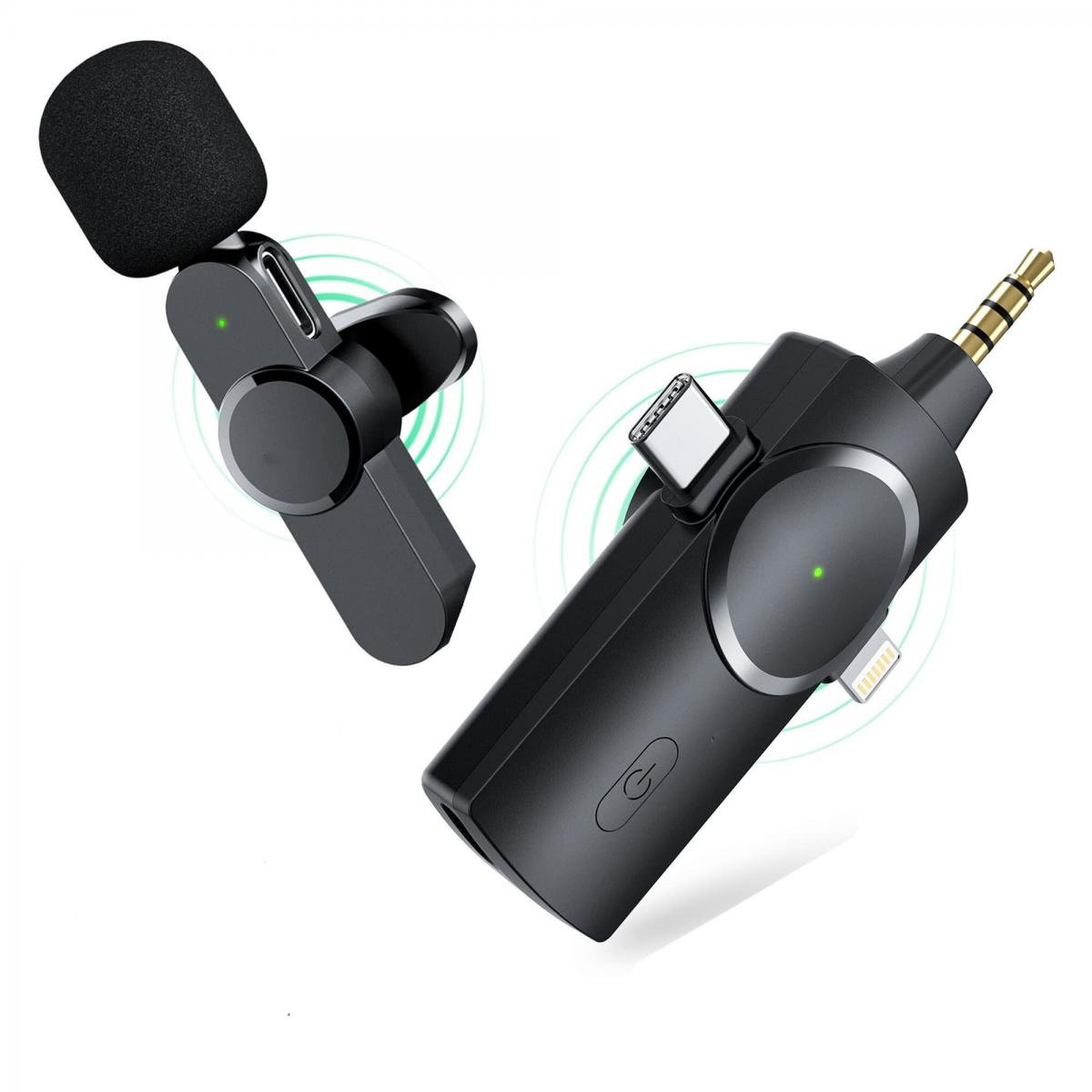
1. Use an External Microphone

Built-in microphones on laptops and desktops often produce lower-quality audio. Using an external microphone can significantly improve the sound quality of your recordings.

2. Reduce Background Noise

Background noise can be distracting and reduce the clarity of your audio. Use noise reduction features available in your screen recording software or edit the audio in post-production to minimize background noise.

3. Monitor Audio Levels

Monitoring audio levels during recording can help you ensure that the sound is neither too low nor too high. Most screen recording software provides audio level meters to help you with this.

4. Use a Pop Filter

If you're using a microphone, a pop filter can help reduce plosive sounds (like "p" and "b" sounds) that can cause distortion in your recordings.

Troubleshooting Common Problems

1. Audio Out of Sync

If the audio is out of sync with the video, it can be due to a lag in processing. This can often be fixed in post-production by adjusting the audio track.

2. Distorted Audio

Distorted audio can be caused by high input levels or poor-quality microphones. Lower the input levels and consider using a higher-quality microphone.

3. No Audio in Playback

If there's no audio during playback, ensure that the playback device is set correctly and that the volume is not muted. Also, check the audio track in your video editing software to ensure it is not muted.

Capturing sound in your screen-recorded videos is essential for creating engaging and informative content. By understanding the basics of audio capture, configuring your settings correctly, and using the right tools, you can ensure that your screen recordings have high-quality sound. Whether you're using OBS Studio, Camtasia, QuickTime Player, or any other screen recording software, the steps outlined in this article will help you troubleshoot and resolve common audio issues. With these tips, you'll be well on your way to creating professional-quality screen recordings with clear and crisp audio.
Leave your comment
Cancel reply
Note: HTML is not translated!
Related products
Mini Sound Recorder 128GB 1600H Recording Capacity with 1.4" Screen, Voice Activated Mode Kentfaith
12
$99.99 $79.99
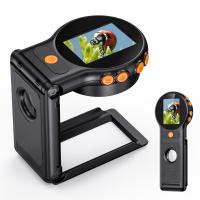
Handheld Microscope, 500X Magnification, 1080P Videos, 2-inch Screen, Autofocus, Rechargeable, Kentfaith
12
$87.49 $69.99
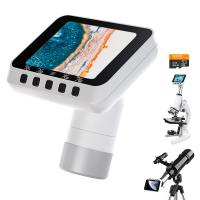
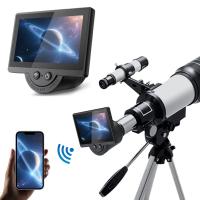
Microscope Eyepiece Camera 2.8" Screen WiFi Connection 1080P Photos Videos for Telescopes Kentfaith
12
$99.99 $79.99
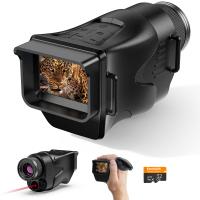
Night Vision Monocular 4K Photos 1080P Videos, 2" Screen, 3000mAh Rechargeable Battery Kentfaith
15
$112.49 $89.99
Digital Handheld Microscope with 4.5 in IPS Screen, Detachable Base, 1000X Magnification, Captures 12MP Photos, 1080P Videos, Kentfaith
$112.49 $89.99
Handheld Microscope with 2.4" Screen, 500X Magnification, Capture 1080P Photos & Videos, for 3-12 Years Old Boys Girls, Kentfaith
$87.49 $69.99
Compound Microscope with 7-inch Screen, 40X-1000X, Capture 2.7K Videos 24MP Photos, Support PC Connection, Remote Control, Kentfaith
14
$499.99 $399.99
6mm Inspection Camera, with 180° 2-way Articulating, HDMI Output, 7-inch Screen, 8000mAh Battery, 1080P Videos & Photos, Kentfaith
$562.49 $449.99
3mm Inspection Camera, with 180° 2-way Articulating, HDMI Output, 7-inch Screen, 8000mAh Battery, 1080P Videos & Photos, Kentfaith
$1,312.49 $1,049.99
33ft/10m Waterproof  Camera 4K 48MP HD Photos & Videos with Dual-Screen for Snorkeling, Surfing, Swimming, Kentfaith Waterproof Camera for Kids, Adults, Orange
33ft/10m Waterproof Camera 4K 48MP HD Photos & Videos with Dual-Screen for Snorkeling, Surfing, Swimming, Kentfaith Waterproof Camera for Kids, Adults, Orange
207
$137.99 $114.99
Products You May Like
67mm CPL+MCUV+Lens Cap Circular Polarizing Filter MCUV Protection Lens Filters Kit with 28 Multi-Layer Coatings for Camera Lens Nano-Xcel Series
33
$113.99 $59.99
Minolta A / Sony A Lenses to Leica M Lens Mount Adapter K&F Concept M47151 Lens Adapter
31
$75.99 $39.99
70 inch Solar Tripod Carbon Fiber Travel Tripod Max Height 33lbs Load For Eclipse
$304.99 $185.99
37mm Center Pinch Lens Cap Ordinary Lens Cap with String (No String)*1+Vacuum Cleaning Cloth*2+Digital Camera Anti-lost String*1, 4 in 1 Set
29
$17.99 $8.99
Pir Sensitivity Trail Camera
10
$162.99 $106.99
67mm Filter Set (Graduated & Full Color Orange, Blue, Red, Green, Yellow, Purple, Pink, Grey, Brown)
5
$65.99 $32.99
LP-E6NH Battery 2250mAh with USB Type C Charging Port Replacement LP-E6 E6N E6NH Battery Compatible with Canon EOS 90D/80D/70D/5D Mark II III IV/5DS SR/6D/6D Mark II
146
$25.99
best trail camera with phone app
10
$135.99 $74.99
60W Photography Light with Remote Control Dimmable Continuous Lighting with Bowens Mount for Video Recording, Wedding, Outdoor Photography (UK Plug)
21
$116.99
K&F CONCEPT Black Diffusion 1/4 Filter Compatible with DJI Osmo Nano Standard Combo, Cinematic Effect Filter with 28 Multi-Layer Coatings for Video/Vlog/Portrait Photography
NEW Arrival
K&F CONCEPT Black Diffusion 1/4 Filter Compatible with DJI Osmo Nano Standard Combo, Cinematic Effect Filter with 28 Multi-Layer Coatings for Video/Vlog/Portrait Photography
$19.99
Related articles
How To Get Sound On Screen Recordings?
How Do I Get Sound On Screen Recording?
How To Get Sound In Screen Recording?
How Do You Get Sound In Screen Recording?
How Do You Get Sound With Screen Record?
How To Record Videos Without Sound?
How To Get Your Voice On Screen Recording?
How To Make Recorded Audio Sound Better?
How To Record Video On Screen With Sound?
UV Filter: Everything You Need to Know About UV Protection Lens Filters
Blog You May Like
Video Cameras That You Can Put Microphones On?
Android Video Player That Can Record From Camera?
How To Work A Telescope?
How To Measure Blood Pressure Smart Watch?
What Size Memory Card For Nikon D7000?
Bad Quality Sound When I Record?
How To Set Smart Watch With Phone?
How To Record Audio Without Background Noise?
Endoscope How It Works?
Who Found Telescope?
Related categories
On-Dash Camera trail camera with screen C mount lens adapter m4/3 adapter Canon EF-EOS R Mount Adapter canon ef lens mount Wifi Trail Cameras
Popular products
digital electronic video microscope camera 500x digital voice recorder with usb handheld digital microscope with screen standard light microscope magnification educational microscope for kids microscope for home use hd video camera with hdmi output waterproof camera with zoom lens camera with detachable lens camera with video output
Related searches
Good Camera To Make Videos Get Stuck Filter Off Lens Digital Camera With Screen On Front Camera For Videos Camera For Taking Videos Cameras For Hunting Videos White Light For Videos Light For Making Videos Camera For Making Videos Camera For Recording Videos
Popular searches
Best Trail Camera For Video Leica R Fuji X Adapter Microscope With Screen Security Camera With Alarm Sound Gel Filter Holder At Rear Of Lens Wireless Headphone Earbuds Sony E Mount On Gh5 Tamron 17-28mm F2.8 Sony E-mount 72mm Filter 77 Mm Filter
Blog Category
  • Activities
  • Guide
    • Filter Guide
    • Lens Adapter
    • Product Review
  • News & Reviews
    • Camera Reviews
    • Sample Gallery
    • News
  • Tutorials
    • Solar eclipse photography
    • Photography Basics
    • Landscape Photography
  • Inspiration
    • Travel
    • Travel Stories
Search Article
Latest from the Blog
What Is The Difference Between Binoculars And Telescope?
Where Can I Buy Samsung Camera Battery?
Which Bluetooth Earphones?
UV Filter: Everything You Need to Know About UV Protection Lens Filters
How Does a WiFi Trail Camera Work?
Which Camera Is Best For Low Light Photography?
How To Stream Live From Surveillance Camera?
What Power Binoculars For Long Distance Viewing?
How To Wear Monocular?
Camera That Can Wifi Photos To Phone?
  • Easy Payment Multilple Payment Options

  • Free Shipping Global WareHouse Shipment

  • No Risk 30-Day No Reason Return

  • Limited Deals Buy More, Save More

  • Tax Free No any surcharges or tax fee

Information
  • About us
  • Contact Us
  • Site Map
  • Blog
  • Video
  • Gallery
  • VIP Membership Rewards
Service
  • Privacy Policy
  • Terms & Conditions
  • Shipping & Delivery
  • Payment Info
  • Warranty, Return & Refund
  • Intellectual Property Rights
  • Ambassador
  • Affiliates
  • Wholesale
Support
  • My account
  • Order History
  • FAQs
  • Extend Warranty
  • Logistics Tracking
Follow us
NewsLetter

Get the latest product, K&F Concept respects your privacy.
Powered By KENTFAITH © 2025