How To Reduce Microphone Background Noise?
When setting up microphones, your top priority is to remove microphone background noise to ensure you get the best sound quality. This is as vital to live performances as it is to recording in the studio. Different spaces, performers, and mics can influence quality. To help you remove undesirable noise from live and studio recordings, the following methods cover both hardware setup and software solutions.
Understanding the Source of Background Noise
Noise can be defined as "unwanted sound". The duration and level of the noise determine the characteristics of noise. You should also be aware of the noise floor, which is the background noise level in a signal or the noise level your sound system creates.
The mic with higher quality will be more sensitive, and it will pick up more noise — unwanted ambient sound like typing and mouse clicks. Unless you're recording in a vacuum, it's impossible to get rid of all ambient sound from recordings. However, there are several things you can do to decrease it as much as possible.
What you are experiencing is not always a headset hardware defect but an audio processing issue on the PC or phone that is driving the headset. Modern headsets, even inexpensive ones, rarely amplify background noise to a problematic level unless the system is bypassing noise suppression or incorrectly selecting the microphone input.
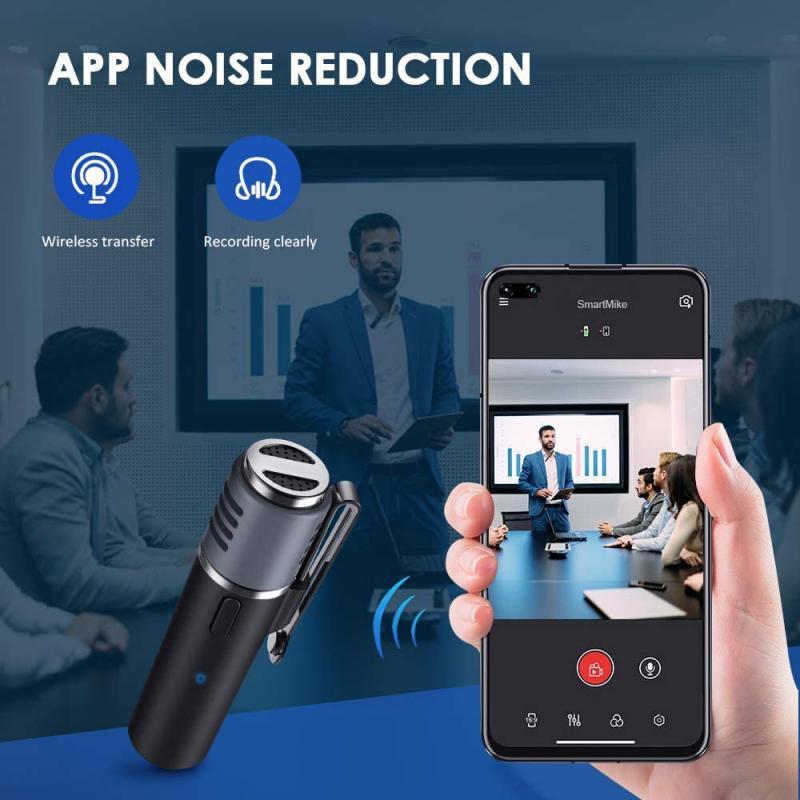
Use the Right Mic Sensitivity and Gain Settings
When you're choosing microphones, be mindful of their sensitivity. While sensitivity varies from mic to mic, it has no relation to microphone quality. When recording the same sound, different mics can produce different output levels. To determine the best mic for your specific needs, look at their distortion, sensitivity, clipping point, and noise level.
- A high-sensitivity mic could need less preamp gain, and it might offer less headroom before clipping than a low-sensitivity mic.
- Condenser microphones are typically high-sensitivity while dynamic microphones tend to be low-sensitivity.
- Simple dynamic microphones like the Shure SM57 or SM58 are the easiest to use for recording the least amount of unwanted sound. They are robust, require no powering, and last almost forever.
- Condenser mics are much more sensitive, they require powering and pick up much more unwanted sound.
You can adjust the mic signal level to your required input level with the right preamp gain. Bear in mind that you'll incorporate some noise into the signal with each gain level. Use balanced audio connections and adjust your sound source's input level correctly to keep noise out of your mic.
If you place the sound source closer to the mic, you can reduce the gain and in so doing reduce whatever remaining noise it's picking up. If the mic is further away from the required sound source, more room sound will be recorded when the mic gain is raised.

Microphone Type and Polar Pattern
There are basically three patterns for simple microphones:
- Omnidirectional — records sound all around, no matter where you point it, like lavalier mics.
- Cardioid — most sensitive to the single direction it is pointing, like handheld mics.
- Bi-directional — like two cardioids back to back, but in one single unit, like a suspended studio mic used for two people facing each other over a small table.
There is also a multi-pattern mic, which has all three selections above, but includes hi and lo filters, and an adjustment to lower its overall sensitivity by 10 or 20 dB. To get rid of background noise, especially indoors, use the least sensitive mic and point it away from the noise source you are trying to avoid.
Directional microphones are designed to focus on the sound coming from directly in front of your mouth while reducing sound from other directions. This helps block out surrounding noise and improves clarity without relying on digital processing. Directional mic design is especially useful in busy environments or open offices where people may be talking nearby.
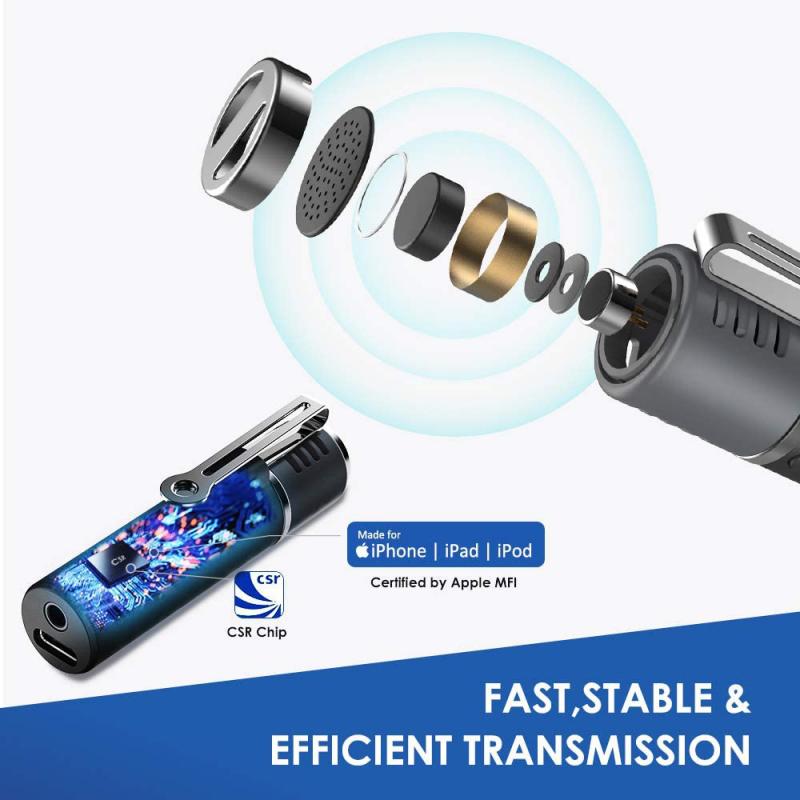
Physical Setup: Windscreens, Pop Filters, and Shock Mounts
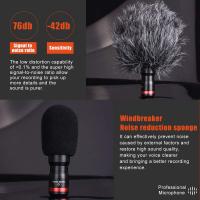
- Microphone Windscreen
- To keep wind out of outdoor recordings, you can use a foam or fur windscreen; for best results, combining these two variants is recommended. When you put a windscreen over the head of your mic, you'll eliminate interference from the wind, as well as disruptive mouth sounds like popping and heavy breathing. Windscreens can reduce wind noise by up to 12 dB. These shields create a lower overall input volume and reduce the level of some higher frequencies, but the trade-off is a clearer recording with less ambient interference from the air.
- Pop Filter
- Designed for indoor use, a pop filter keeps sibilance and plosive sounds off your studio recordings. Setup is easy — mount this disc-shaped filter on the mic stand, positioning it between the vocalist and the microphone. Pop filters have flexible booms so you can place them exactly where you need them. In addition to preventing your mic from recording vocal explosions and hisses, pop filters ensure your mic stays dry, protecting your gear. Alternatively, you could get a mic with a built-in pop filter.
- Shock Mount
- Modern mics are extremely sensitive. You must protect yours from vibration and shocks to achieve the highest quality recordings. Easy to fit to your mic stands, shock mounts minimize noises caused by handling microphones.
- Mic Stand
- If you're using an external microphone for recording audio and video calls, use a mic stand or something that works as a mic stand to avoid the buzzing sound from movement and bumps.
Record in a Quiet Environment and Optimize Your Space
Choose your recording room wisely, ensure there are no loud noise sources, and close windows and doors. Some people record in closets or treat their rooms by placing carpets and covering flat surfaces. Optimizing your room's acoustics and sound reflections will improve and reduce background noise in your recordings.
- Try to take calls in a quieter room. Close windows and doors to block outside sounds.
- Stay away from noisy appliances like fans, air purifiers, or coffee machines.
- If your space has hard floors or bare walls, add rugs, curtains, or even furniture to help absorb sound and reduce echo.
- Make sure you are in a quiet room — any noise created by keyboard, mouse, or fan may be picked up.
- Make sure the mic is as close as possible to your mouth. The higher the gain into the mic, the lower you can set the preamps, and this will result in more voice and less noise.
- Use the correct mic position — make sure your mic is two finger widths from your mouth but slightly off to the side. This helps your voice sound clear while making it harder for background noise to get picked up.
Apply Filters and Equalization
You won't change or add new frequencies to your audio input signal when you apply filters. You can use filters to emphasize signals in specific frequency spectrums and cancel signals in other frequency ranges.
- Apply a high-pass / low-cut filter to get rid of low-frequency rumble and DC offset. To get rid of DC offset, adjust your frequency control to 10 Hz.
- You can easily remove AC hum by setting a harmonic notch filter cut to 50 or 60 Hz.
- Low-cut (high-pass) is the most popular filter type. You can use it to reduce low-frequency rumbling. Start at 20 Hz and increase it until you hit the sweet spot without affecting the input sound — for instance, you can go up to 100 Hz for male vocals and 120 Hz for female vocals.
- A high-pass filter allows only the high frequencies in an audio signal to pass and removes low-frequencies in ambient sounds. If the unwanted noise is a high-pitched sound like a hiss, you can apply a low-pass filter to remove the high frequencies.
You can modify the frequency of specific signals with a hardware or software filter known as an equalizer, or EQ. Equalization is the optimization of sound frequencies — you can use this process to adjust the volume of selected frequencies. Equalizers are easy to use, especially those that have a built-in analyzer, which shows you which frequencies are causing problems. For instance, if a voice recording contains hiss or white noise and the analyzer indicates 7 kHz is the dominant frequency, use your EQ to select and decrease that frequency. The first thing to attempt with an EQ is to reduce the frequency level rather than raise it.
Use a Noise Gate
A noise gate only allows an audio signal of a level above a threshold noise level to pass through. When you set it correctly, your noise gate reduces power supply humming and steady amp static without affecting your sound source. With your noise gate and minimal adjustments, you can remove microphone background noise in live as well as studio settings.
A noise suppressor works while you are talking. A noise gate works during silence. Noise suppressor will help but it can add some audio artifacts. You could add a noise reduction filter by clicking the cog settings in your mic in OBS — note there is both a noise suppressor and noise reduction option available.
Noise Reduction Software and AI Tools
If you record in a place with a lot of background noise, you will need more than what built-in tools can offer. Noise reduction software enhances audio quality from audio recordings or in real-time during video calls. Some noise reduction software works only within your audio editor, and others allow you to apply noise reduction to your microphone device directly.
- Windows 10 built-in noise reduction — Windows 10 has a built-in background noise reduction feature. Go to Hardware and Sound > Sound > Recording tab, select your microphone, click Properties, and under the Enhancements tab enable Acoustic Echo Cancellation and Noise Suppression. In the Levels tab, you can adjust the microphone boost to reduce background noise.
- Microsoft Teams — Teams offers noise suppression settings under Settings > Devices > Noise Suppression. Options include Auto (default), Low (suppresses persistent background noise like a computer fan), and High (suppresses all background sound that isn't speech).
- OBS built-in noise filter — OBS includes a noise suppression filter you can enable on the mic. It is alright, though it slightly worsens the quality of your voice with a slight robotic effect, and certain sounds like plosives and 'm' and 'n' are sometimes filtered out.
- NVIDIA RTX Voice / NVIDIA Broadcast — If you have an RTX card, use NVIDIA Broadcast for AI noise removal on your microphone. It makes even the worst mics under the worst conditions usable. It is higher quality than OBS built-in noise filter, though it commands higher memory usage.
- Audacity — Partly because it's free, Audacity is an especially popular software solution. Simply open the plugin, select a region that only contains the noise, and click on "Get Noise Profile". Then select the audio you want to remove noise from and click "OK" — you'll hear your audio track improving immediately.
- Other notable audio restoration software — iZotope RX7, Sound Forge, Waves, and Adobe are additional providers. Use noise reduction software with caution, as you could end up losing audio data while removing background noise.
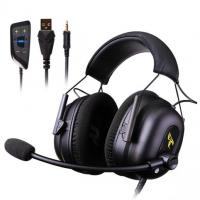
Environmental noise cancellation (ENC) headsets use dual microphones to separate your voice from the noise around you. The system filters out anything that doesn't match the sound profile of your voice. AI-powered noise cancellation systems are trained to recognize patterns in human speech and can adapt in real time to remove a wide range of background noises, even trickier ones like crying babies, sudden appliance beeps, or people talking nearby.
Adaptive noise reduction uses a reference audio input signal that only contains noise. You transmit the signal through an adaptive filter, which enables you to reduce it from the main input signal. You can apply adaptive noise cancellation to swiftly get rid of noises from traffic, weather, and background conversations. Pretty much every modern noise reduction software solution offers this capability, and you'll find it handy when you want to remove microphone background noise in real time.