kfconcept

KENTFAITH
K&F Concept    Blog >

Enjoy Your Selected Digital Life

Recently Viewed
  • Recently Viewed
  • Recently Viewed list is empty.

Compare (0) 0
  • Compare
  • You have not chosen any products to compare.

  • Compare
Currency: USD
  • Currency
Shop by Scene Shop by Rank

Log Into Your Account

Account

Order History

Wish List

Login

Forgotten Password?

or connect with

Register Account

Already have an Account?Log In

  • Shopping Cart
  • Your shopping cart is empty!

  • Register/Login to purchase, earn points
  • Favorite
  • Your wish list is empty.

  • Register/Login to like, earn points
  • Activities
  • Guide
    • Filter Guide
    • Lens Adapter
    • Product Review
  • News & Reviews
    • Camera Reviews
    • Sample Gallery
    • News
  • Tutorials
    • Solar eclipse photography
    • Photography Basics
    • Landscape Photography
  • Inspiration
    • Travel
    • Travel Stories
  • Home
  • Blog
  • How To Record Sound From Desktop Capture?

How To Record Sound From Desktop Capture?

Kentfaith 2024-08-16 01:47:48 0 Comments

Recording sound from desktop capture is a common requirement for many users, whether they are creating tutorials, recording gameplay, or capturing online meetings. The process can seem daunting at first, but with the right tools and knowledge, it becomes straightforward. This article will guide you through the various methods and tools available to record sound from your desktop, ensuring you get high-quality audio for your projects.

Understanding the Basics
how to record sound from desktop capture 1

Before diving into the methods, it's essential to understand the basics of desktop audio recording. Desktop audio refers to any sound that your computer produces, including system sounds, application sounds, and media playback. To capture this audio, you need software that can record the output from your sound card.

Built-in Tools
how to record sound from desktop capture 2

Windows 10 Game Bar

how to record sound from desktop capture 3

Windows 10 comes with a built-in tool called the Game Bar, which is primarily designed for gamers but can be used by anyone to record screen and audio.

1. Activate Game Bar: Press `Win + G` to open the Game Bar.

2. Start Recording: Click on the "Record" button or press `Win + Alt + R` to start recording.

3. Stop Recording: Click the "Stop" button or press `Win + Alt + R` again to stop recording.

The Game Bar records both video and audio, capturing all sounds from your desktop. However, it may not offer advanced features like separate audio tracks or high-quality audio settings.

macOS Screen Recording
how to record sound from desktop capture 4

macOS also provides a built-in screen recording tool with audio capture capabilities.

1. Open Screenshot Toolbar: Press `Cmd + Shift + 5` to open the Screenshot toolbar.

2. Select Recording Area: Choose whether to record the entire screen or a selected portion.

3. Enable Microphone: Click on "Options" and select your microphone if you want to include external audio.

4. Start Recording: Click the "Record" button to start.

5. Stop Recording: Click the stop button in the menu bar or press `Cmd + Ctrl + Esc`.

This method captures both system audio and microphone input, but like the Windows Game Bar, it may lack advanced features.

Third-Party Software

For more control and advanced features, third-party software is often the best choice. Here are some popular options:

OBS Studio

OBS Studio is a free, open-source software that offers extensive features for screen and audio recording.

1. Download and Install OBS Studio: Visit the OBS Studio website and download the appropriate version for your operating system.

2. Set Up Audio Sources: Open OBS Studio and go to `Settings > Audio`. Ensure that your desktop audio device is selected.

3. Add Sources: In the main interface, click the "+" button under "Sources" and add "Display Capture" for video and "Audio Output Capture" for desktop audio.

4. Start Recording: Click "Start Recording" in the main interface.

OBS Studio allows you to record multiple audio tracks, adjust audio levels, and apply filters, making it a powerful tool for professional-quality recordings.

Audacity

Audacity is a free, open-source audio recording and editing software. While it doesn't capture video, it's excellent for high-quality audio recording.

1. Download and Install Audacity: Visit the Audacity website and download the appropriate version for your operating system.

2. Set Up Audio Host: Open Audacity and select `Windows WASAPI` as the audio host (for Windows users).

3. Select Recording Device: Choose your computer's speakers or headphones as the recording device.

4. Start Recording: Click the "Record" button to start capturing audio.

Audacity provides advanced editing features, allowing you to fine-tune your recordings post-capture.

Virtual Audio Cable

For users who need to route audio between applications, Virtual Audio Cable (VAC) is a useful tool. VAC creates virtual audio devices that can be used to route audio from one application to another.

1. Download and Install VAC: Visit the Virtual Audio Cable website and download the software.

2. Set Up Virtual Cable: Open the VAC Control Panel and create a new virtual cable.

3. Configure Audio Settings: In your audio settings, set the virtual cable as the default playback device.

4. Record with Software: Use your preferred recording software (e.g., OBS Studio) and select the virtual cable as the audio input source.

VAC is particularly useful for complex audio setups, such as streaming or recording multiple audio sources simultaneously.

Tips for High-Quality Audio Recording

1. Use a Good Microphone: If you're recording voiceover or commentary, invest in a good-quality microphone. USB microphones are convenient and offer excellent sound quality.

2. Minimize Background Noise: Record in a quiet environment to reduce background noise. Use noise-canceling software or filters if necessary.

3. Adjust Audio Levels: Ensure that your audio levels are balanced. Avoid clipping by keeping the audio levels within a safe range.

4. Monitor Audio: Use headphones to monitor your audio in real-time. This helps you catch any issues early and make adjustments as needed.

5. Edit Post-Recording: Use audio editing software like Audacity to clean up your recordings. Remove any unwanted noise, adjust levels, and apply effects to enhance the audio quality.

Recording sound from desktop capture is a valuable skill for various applications, from creating tutorials to recording gameplay. Whether you use built-in tools like the Windows Game Bar and macOS Screen Recording or opt for third-party software like OBS Studio and Audacity, the key is to choose the method that best suits your needs. By following the tips for high-quality audio recording, you can ensure that your recordings are clear, professional, and effective. With practice and the right tools, you'll be able to capture desktop audio with ease and confidence.

Leave your comment
Cancel reply
Note: HTML is not translated!
Related products
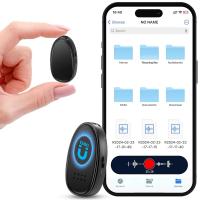
Mini Voice Recorder, Sound-activated & Magnetic, 128GB 1600H Capacity with AI Noise Cancelling Kentfaith
13
$94.99 $69.99
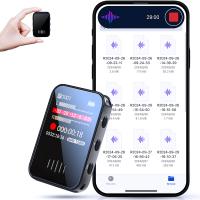
Mini Sound Recorder 128GB 1600H Recording Capacity with 1.4" Screen, Voice Activated Mode Kentfaith
NEW Arrival
Mini Sound Recorder 128GB 1600H Recording Capacity with 1.4" Screen, Voice Activated Mode Kentfaith
12
$99.99 $79.99
Digital Photo Frame, 10.1 inch Touchscreen, WiFi Transfer from Any Corner, 32GB Storage, Multi-user Connect & Share, Auto Rotation, Kentfaith
17
$187.49 $149.99
128G Mini Digital Voice Recorder with Color Screen Bluetooth Call Record 3072kbps Kentfaith
HOT Seller
128G Mini Digital Voice Recorder with Color Screen Bluetooth Call Record 3072kbps Kentfaith
15
$119.99 $83.99
Children’s Entry-Level Metal Detector, High Sensitivity, With LCD Display and Sound Indication, Suitable for Beginners
TOP Best
Children’s Entry-Level Metal Detector, High Sensitivity, With LCD Display and Sound Indication, Suitable for Beginners
144
$64.49 $50.99
Telescope Electronic Eyepiece with 4.3in Screen, WiFi Live Stream, Capture 1080P Photos & Videos, Rechargeable, Kentfaith
13
$144.99 $115.99
Instant Cross-APP Translator Device for Business & Trade, Video Call Translation, Record, & Transcription, Kentfaith AI Translator Devices
12
$124.99 $99.99
WiFi Electronic Eyepiece for Microscopes, 50 Meters WiFi Range, 2MP Microscope Imager, Capture 4K Photos Videos, Kentfaith
$112.49 $89.99
5K Video Camera with 75MP Photos, 8X Optical Zoom, WiFi Transfer, Wireless Mic, Dual Batteries, Support PIP Record, Kentfaith
16
$274.99 $239.99
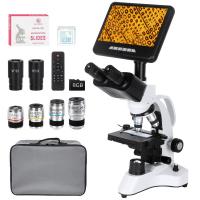
Compound Microscope with 7-inch Screen, 40X-1000X, Capture 2.7K Videos 24MP Photos, Support PC Connection, Remote Control, Kentfaith
14
$499.99 $399.99
Products You May Like
Discount Game Trail Cameras
10
$135.99 $74.99
62mm HD Soft GND8 Lens Filter 3 Stop (0.9) Soft Graduated Neutral Density Filter K&F Concept Nano-Xcel Series
42
$67.99 $59.99
Microfiber Cleaning Cloth Dust-Free White for Glass, Lenses, Phones, Screens 15*15cm Pack of 20
279
$43.99 $26.99
5" LCD Digital Microscope for Coin Magnifying  with LED Light, 1080P Supporting Photo/Video Shooting, Work with Windows / Mac
5" LCD Digital Microscope for Coin Magnifying with LED Light, 1080P Supporting Photo/Video Shooting, Work with Windows / Mac
30
$89.99 $71.99
49-77mm Step Up Ring Aviation-grade Aluminum Filter Adapter Ring 2-pack with a Cleaning Cloth
99
$6.99
4K 30MP Tracking Camera WiFi Gaming Camera 0.2 Seconds Trigger Clear Night Vision with 64G SD Card and Tree Spike
1
$126.99
K&F Concept 2 Pack NP-F550 Battery and Charger Set Compatible with Sony NP-F550, F570, F750, F770, F930, F950, F960, F970 Batteries, LED Lights, Monitors, and Camera Sliders
19
$29.99
72mm ND8+ND64+ND1000 Lens Filter Kit with 3 Vacuum Cleaning Cloths and Filter Pouch, 24 Layer Multi-coated HD Optical Glass, Nano-Dazzle Series
87
$74.99 $59.99
Minolta MD MC Lenses to Canon EF Lens Mount Adapter with Optic Glass K&F Concept M12131 Lens Adapter
3
$70.99 $39.99
K&F Concept 60M/196FT Waterproof Case for GoPro Hero 13 Black, Protective Underwater Diving Housing for Go Pro 12/11/10/9 Black Accessories,Waterproof Action Camera Shell
104
$9.99
Related articles
How To Record Sound From Laptop Speakers?
How To Record The Sound From My Keyboard?
How To Capture Video On Pc From Camcorder?
How To Record Videos Without Sound?
How To Screen Record Internal Sound?
How To Record Audio From A Video?
How To Record Sounds From Your Computer?
How To Record From A Wifi Camera?
How To Remove Sound From A Recorded Video?
Where Do I Find Camera In System Preferences?
Blog You May Like
How Do Selfie Sticks Work With Cameras?
How Camera Detector Works?
Where To Place Security Cameras Around Your Home?
Where Can I Buy Hidden Surveillance Camera?
What is A Variable ND Filter? The Complete Guide to Mastering Exposure Control
How To Focus A Telescope?
How To Pick Smart Key Locks?
Which Lens Mount Do 35mm Take?
What Are Lavalier Microphones Used For?
Does My Camera Have An Ir Filter?
Related categories
C mount lens adapter 58mm lens filter camera lens cap protective lens filter Pentax 67 Mount Lens Adapters Astronomy & Optics canon cameras lens DJI Mini 4 Pro Filter
Popular products
endless capture trail camera capture perfect trail camera Mini Digital Voice Recorder​ video recording camera for youtube sony camera with microphone fpv drone and goggles led video light for camera monocular and binocular microscope standard light microscope magnification educational microscope for kids
Related searches
Cheap Camera To Record Videos Best Camera To Record Time Lapse Camera Video Capture Card Desktop Light Stand Desktop Phone Tripod Usb Desktop Microphone Change Lens Mount From Minolta To Nikon Wireless Headphones From Tv Security Camera Video Capture Card Night Vision Binoculars That Record
Related Scenes
Best Camera To Capture Wildlife Best Video Camera To Record Sports Best Camera To Video Sports Best Digital Camera With Rechargeable Battery The Best Camera Backpack Best Quality Outdoor Camera Best Binoculars For Fishing Best Tripod For Video Shooting Best 10X42 Binoculars For Hunting Best Trail Camera For Night Photos
Blog Category
  • Activities
  • Guide
    • Filter Guide
    • Lens Adapter
    • Product Review
  • News & Reviews
    • Camera Reviews
    • Sample Gallery
    • News
  • Tutorials
    • Solar eclipse photography
    • Photography Basics
    • Landscape Photography
  • Inspiration
    • Travel
    • Travel Stories
Search Article
Latest from the Blog
How To Choose A Lens For Your Camera?
How Fast Is A Camera Flash?
Where To Buy A Microphone?
What Is The Best Camera For Action Sports?
What Is The Best Smartwatch For A Woman?
How To See Cells In A Microscope?
What Projector For Outdoor Movies?
Which Ring Camera Is Wireless?
Where To Buy Solar Filter For Camera?
How To Choose A Home Security Camera System?
  • Easy Payment Multilple Payment Options

  • Free Shipping Global WareHouse Shipment

  • No Risk 30-Day No Reason Return

  • Limited Deals Buy More, Save More

  • Tax Free No any surcharges or tax fee

Information
  • About us
  • Contact Us
  • Site Map
  • Blog
  • Video
  • Gallery
  • VIP Membership Rewards
Service
  • Privacy Policy
  • Terms & Conditions
  • Shipping & Delivery
  • Payment Info
  • Warranty, Return & Refund
  • Intellectual Property Rights
  • Ambassador
  • Affiliates
  • Wholesale
Support
  • My account
  • Order History
  • FAQs
  • Extend Warranty
  • Logistics Tracking
Follow us
NewsLetter

Get the latest product, K&F Concept respects your privacy.
Powered By KENTFAITH © 2026